

This article will discuss Web Authentication in general, and Specifically Setup Windows Authentication.
A: Introduction
A-1: What is Authentication
- Authentication is knowing the identity of the user. For example, Alice logs in with her username and password and the server uses the password to authenticate Alice.
- Authorization is deciding whether a user is allowed to perform an action. For example,
Alice has permission to get a resource but not create a resource.
When the host authenticates the user, it creates a principal, which is an IPrincipal object that represents the security context under which code is running. For example, Web API authentication and authorization the process could be like this:

A-2: Authentication Types
- Windows Authentication
- Forms Authentication
- Passport Authentication
- None
In details,
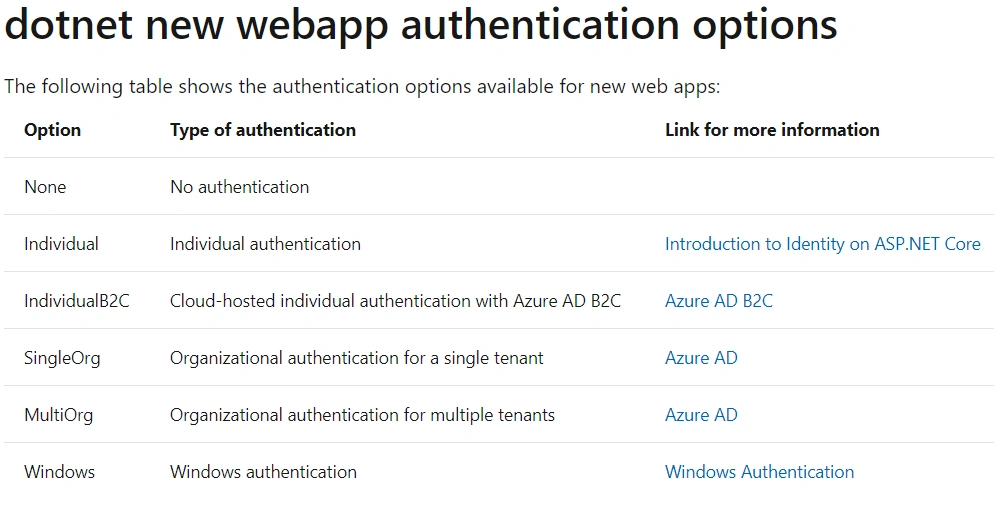
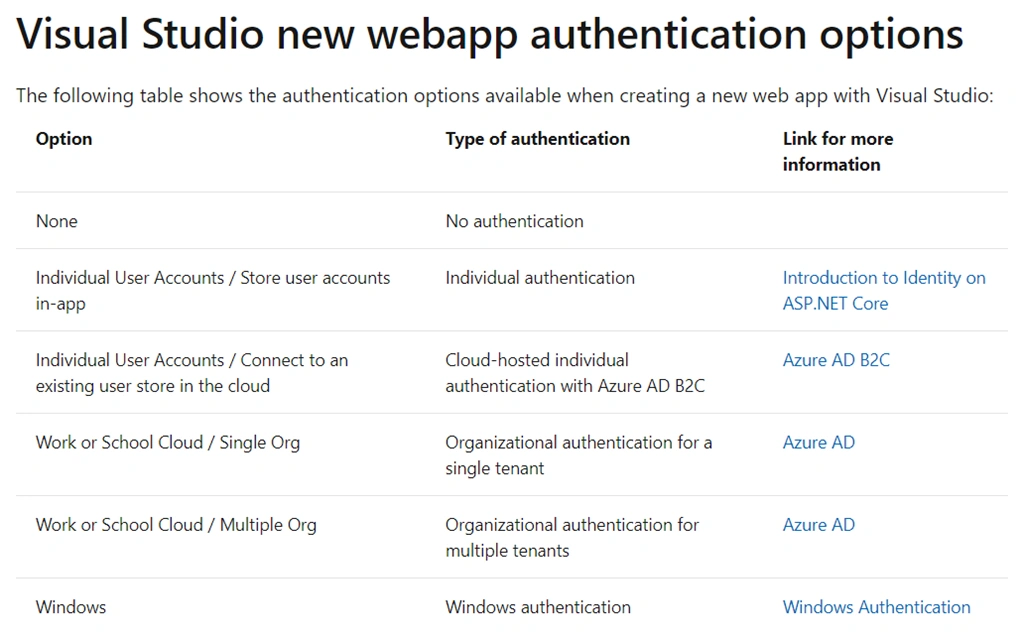
- Windows Authentication, IIS performs the authentication, and the authenticated token is forwarded to the ASP.NET worker process.
- Forms Authentication: authenticates the user by inspecting the forms authentication ticket, which is typically included in the user's cookies collection. If no form of authentication ticket is present, the user is anonymous..
- Passport Authentication: Centralized authentication service provided by Microsoft that offers single logon and core profile services for member sites.
- None: No Authentication provided. This is the default Authentication mode.
All types are fit into the four types of Windows/Forms/Passport/None authentications, we may discuss some of them later. For In this article, we will discuss the basic concept of Windows Authentication,
configuration setup, and test, as a starting point.
B: Windows Authentication
In Windows authentication, IIS performs the authentication, and the
authenticated token is forwarded to the ASP.NET worker process. The
advantage of using Windows authentication is that it requires minimal
coding. One may want to use Windows authentication to impersonate the
Windows user account that IIS authenticates beforehand off the request
to ASP.NET.
Windows authentication needs two steps configurations, one is in Web App, another is in IIS.
B-1: Authentication Configuration in Web App
1, File Configuration
For .NET Framework, configuration is in the web.config file,
- <authentication mode= ' [ Windows | Forms | Passport | None ] '> </authentication>
- The following is ASP.NET app Windows Authentication configuration in web.config file:
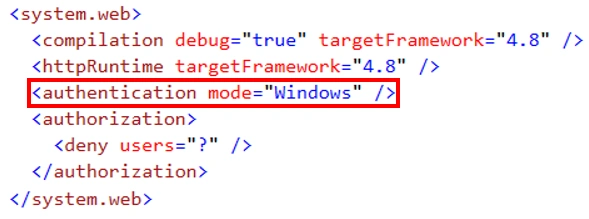
For .NET Core, configuration is in the launchSettings.json file under Profiles folder:
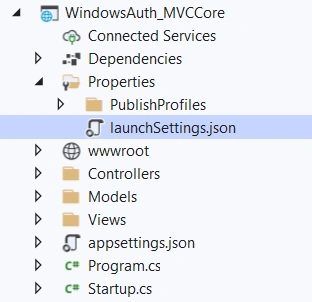
Such as,
- "iisSettings": {
- "windowsAuthentication": true,
- "anonymousAuthentication": false,
- "iisExpress": {
- "applicationUrl": "http://localhost:9877",
- "sslPort": 44313
- }
- },
For both .NET Framework and .NET Core, we can easily configure the Windows Authentication when we start an app:
For .NET Framework:
- Start Visual Studio and select Create a new project.
- In the Create a new project dialog, select ASP.NET Web Application (.NET Framework) > Next.
- In the Configure your new project dialog, enter Project name > Create.
- In the Create a new ASP.NET Web Application dialog,
- on the right-side panel Click Change under Authentication,
- on the left panel Choose: Windows Authentication
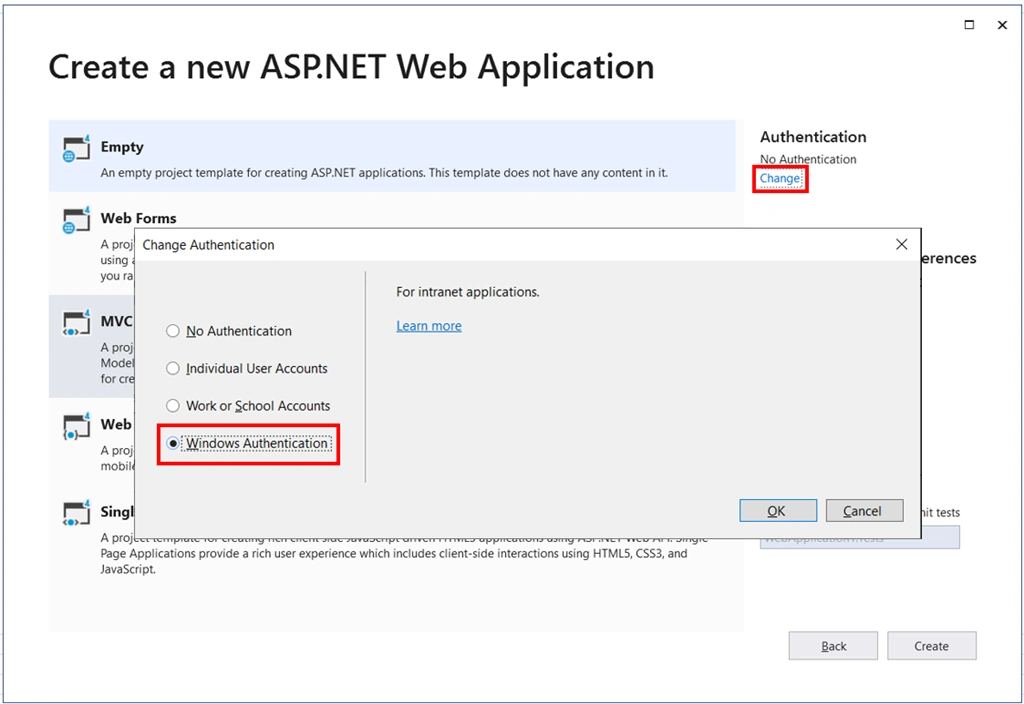
- <authentication mode= 'Windows'> </authentication>
For .NET Core,
- Start Visual Studio and select Create a new project.
- In the Create a new project dialog, select ASP.NET Core Web App (or Web API) > Next
- In the Configure your new project dialog, enter
Project name > Next - In the Additional Information dialog, select Authentication Type as Windows
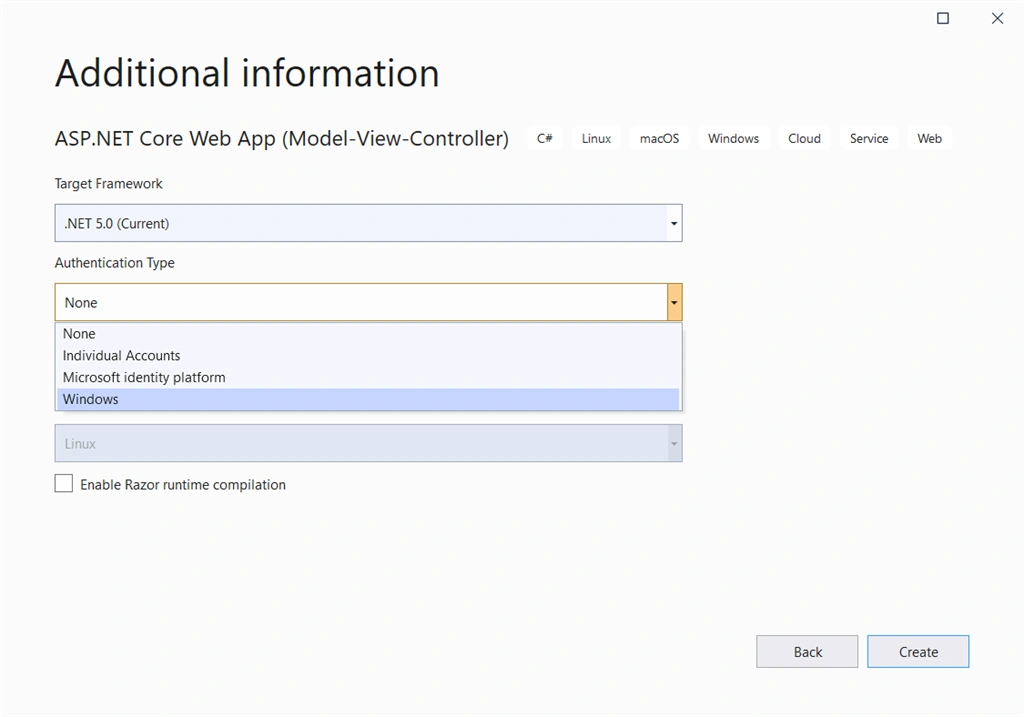
this will set launchSettings.json file as,
- "windowsAuthentication": true,
- "anonymousAuthentication": false,
For .NET Core, Existing project,
- Right-click the project in Solution Explorer and select Properties.
- Select the Debug tab.
- Clear the check box for Enable Anonymous Authentication.
- Select the check box for Enable Windows Authentication.
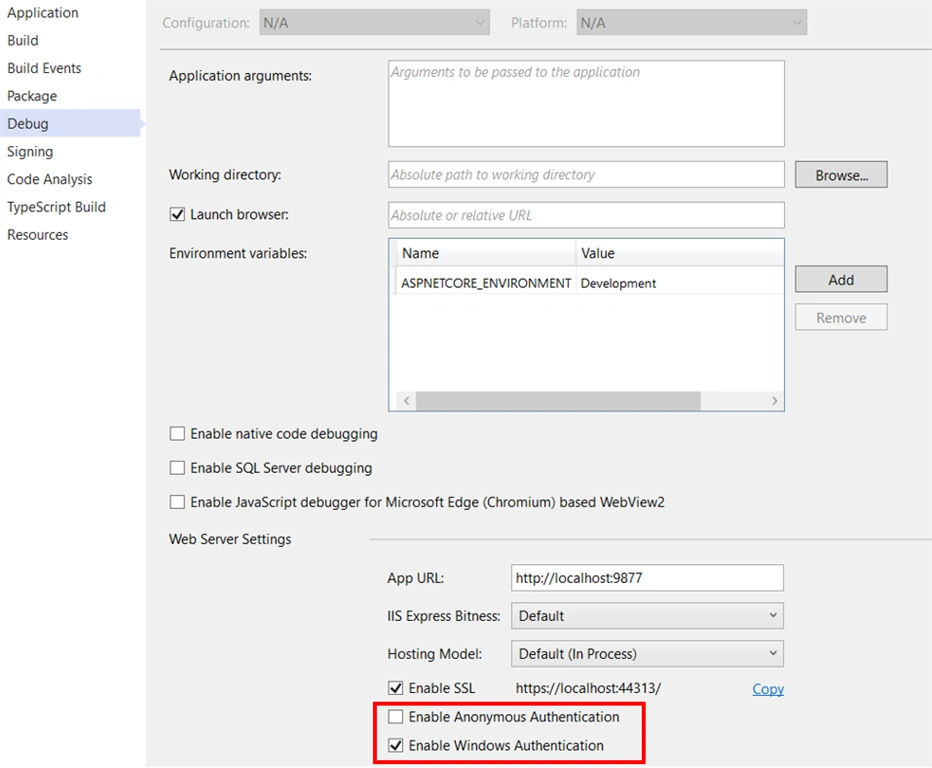
We can access the Mode property programmatically to configure the type of Authentication, such as,
- // Get the current Mode property.
- AuthenticationMode currentMode = authenticationSection.Mode;
- // Set the Mode property to Windows.
- authenticationSection.Mode = AuthenticationMode.Windows;
After publishing and deploying the project, perform server-side configuration with the IIS Manager:
- In IIS Manager, select the IIS site under the Sites node of the Connections sidebar.
- Highlight the Web Site for your app, in our case: ContosoUniversity
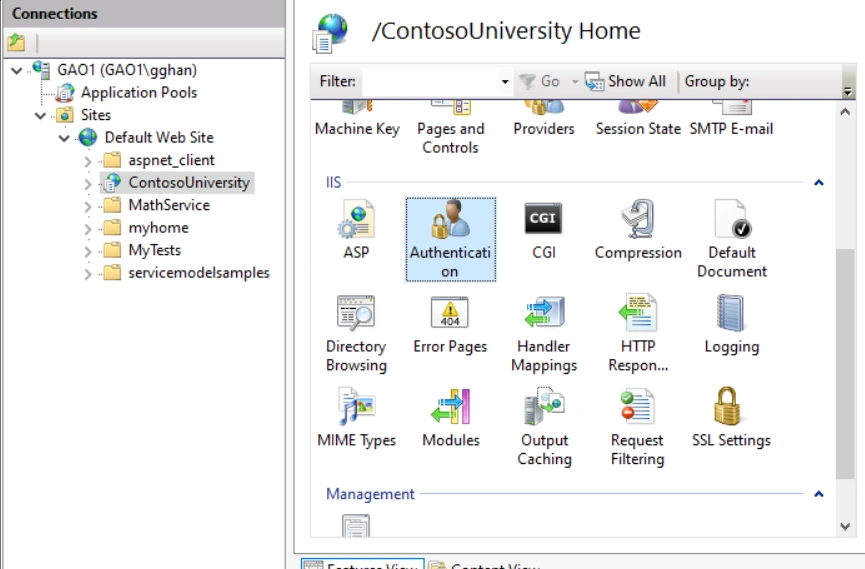
- Double-click Authentication in the IIS area on the middle panel, the Authentication window will show the authentication type IIS supports
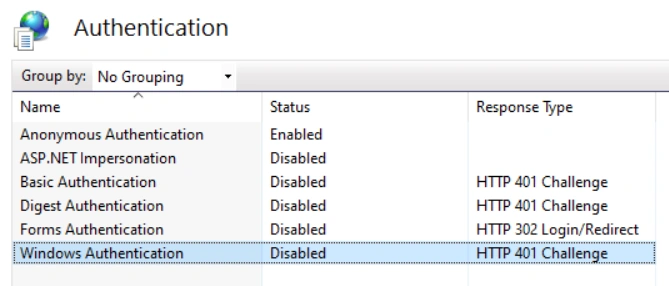
- Select Anonymous Authentication. Select Disable in the Actions sidebar, or right Click => Disable
- Select Windows Authentication. Select Enable in the Actions sidebar, or right Click => Enable
IIS provides three types of authentication mechanisms,
- Basic Authentication
The Windows user name and password has to be provided to connect and this information is sent over the network in plain text, and, hence, this is an insecure method of authentication. - Digest Authentication
It is the same as basic authentication except that the password is hashed before it is sent across the network. - Integrated Windows Authentication
In this kind of authentication technique, passwords are not sent across the network. The application here uses either the Kerberos or challenge/response protocols to authenticate users.
Case 1
Web app set as Windows Authentication, IIS set Windows Authentication enabled, we got Windows Login page for protection:
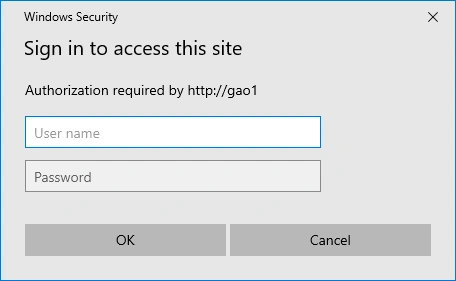
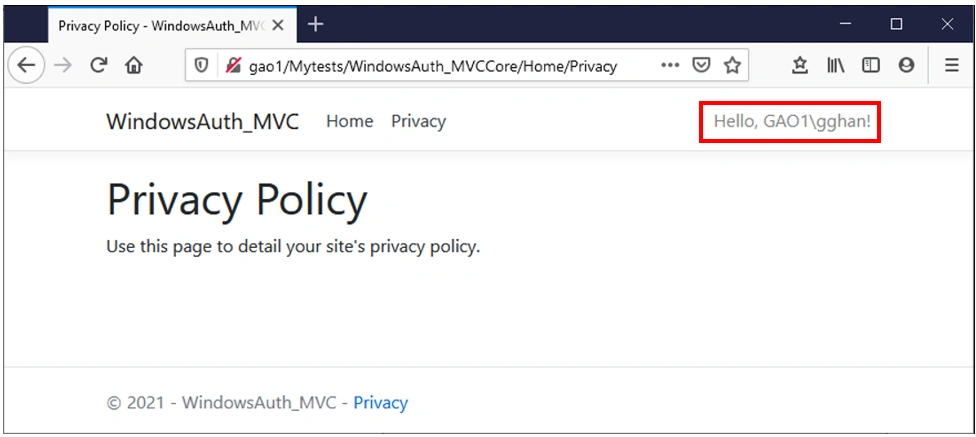

If we give the correction login id/password, we can login and access the web app,
While if we give wrong credentials, the access is denied with a 401 unauthorized error,
Case 2
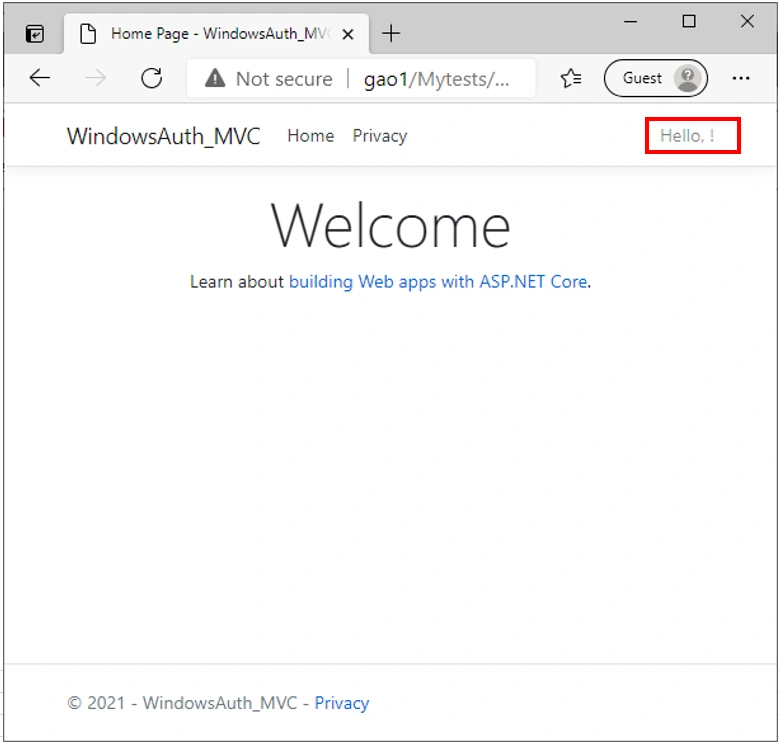
If web app set as Windows Authentication, IIS set Windows Authentication is disabled,
- for ASP.NET (.NET Framework): we got 401 unauthorized error, access is denied.
- for ASP.NET Core: we have passed as an anonymous user:
Case 3
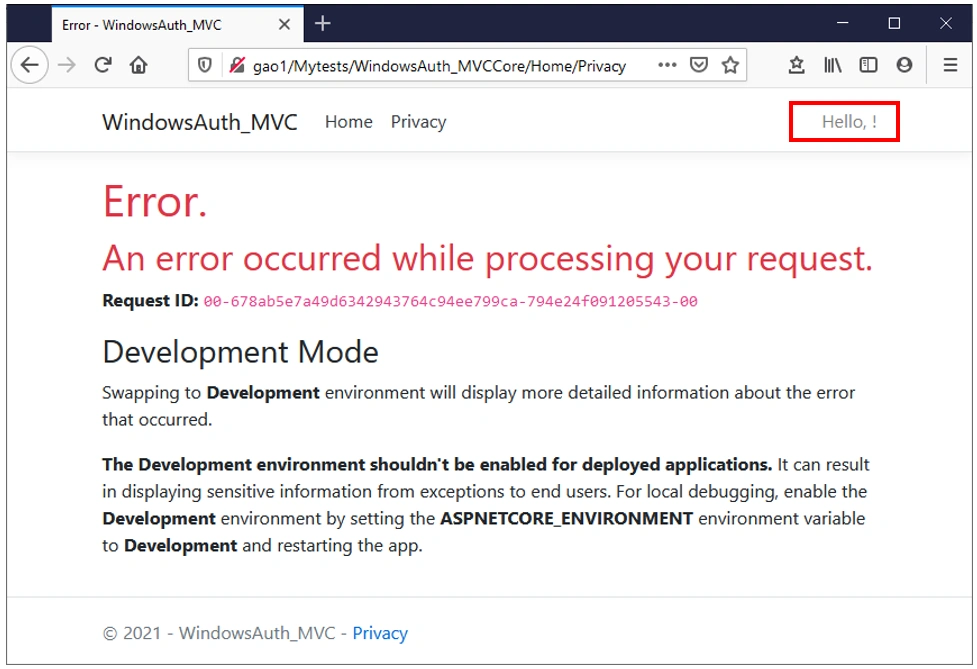
Further test, we set authorize attribute in the code for Privacy() action,
- namespace WindowsAuth_MVC.Controllers
- {
- public class HomeController : Controller
- {
- private readonly ILogger<HomeController> _logger;
- public HomeController(ILogger<HomeController> logger)
- {
- _logger = logger;
- }
- public IActionResult Index()
- {
- return View();
- }
- [Authorize]
- public IActionResult Privacy()
- {
- return View();
- }
- [ResponseCache(Duration = 0, Location = ResponseCacheLocation.None, NoStore = true)]
- public IActionResult Error()
- {
- return View(new ErrorViewModel { RequestId = Activity.Current?.Id ?? HttpContext.TraceIdentifier });
- }
- }
- }
When we Click Privacy, we got the error message, however, this message page is not from IIS Server, but from the ASP.NET application
It seems ASP.NET Core has more features in Windows Authentication.
Summary
We briefly discussed Authentication in general and Windows Authentication in specific. We will discuss some other types of Authentication later on, and even for different tools, such as Angular.
- Configure Windows Authentication in ASP.NET Core --- MS
- Microsoft .NET Core Authentication Types --- MS
- ASP.NET security overview --- MS
- Authentication and Authorization in ASP.NET Web API --- MS
- Windows Authentication --- codeproject, not just windows authentication, including everything.
GirishPosted Jul 23, 2021, 7:09 AM
I have a few other modes of authentication which I drive from my appsettings.json. Is it possible to move the "windowsAuthentication" flag from launchSettings.json to appsettings.json? It will help me handle all the authentication related settings from one single place. In short, is it possible that I can configure the windows authentication mechanism from code and drive that setting from the appsettings?