

Introduction
Users have their own username and password to log in to their Salesforce account. But unfortunately, if the username and password are known or stolen by another person, it’s going to be a risk to the related user. Salesforce can give an extra layer of security to every user with Two-Factor Authentication, via the “Salesforce Authenticator” application.
You must activate “Two-factor Authentication” and connect it to the “Salesforce Authenticator” application when the user can use their login with valid credentials. The Salesforce authenticator app can generate a “Time-based One Time password” TOTP for every 30 seconds, then prompts a notification to approve or deny the login.
By reading this article, you will learn about how to secure our Salesforce login using Two-Factor authentication and the Salesforce authenticator application.
Refer my previous articles, that help to learn the basics in Salesforce
-
Creating Custom Fields in Salesforce Lightning Platform
-
Creating Salesforce Developer Edition Account And Connect With Trailhead Org
Prerequisites
-
Salesforce Trailhead playground or Developer Edition account
-
Salesforce Authenticator Application (Supports both Android & IOS)
Step 1
Launch Trailhead Playground or Developer Edition
Step 2
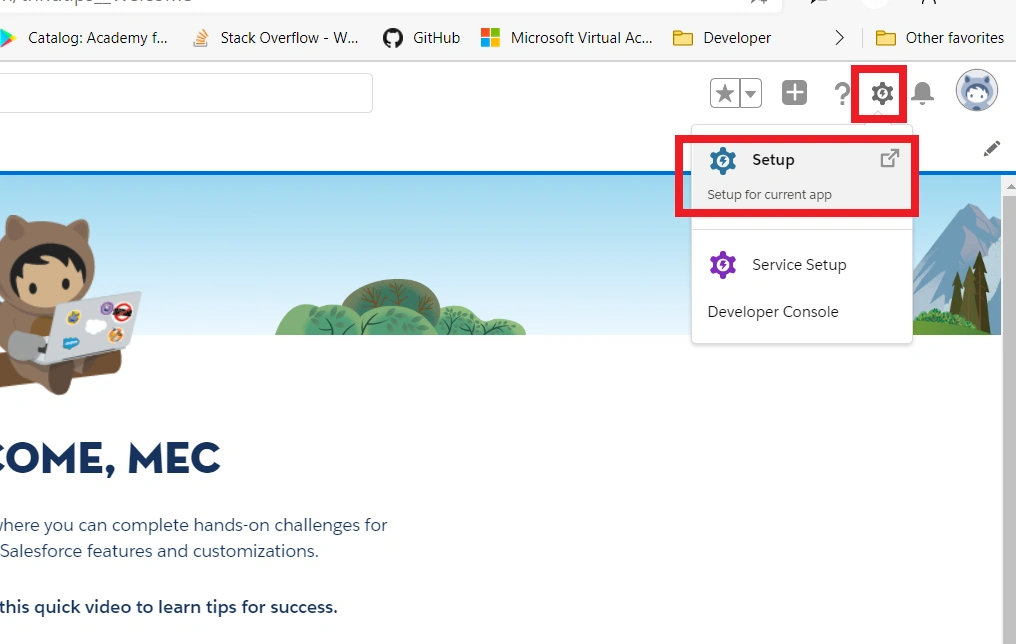
Click the gear icon and then click “Setup”
Step 3
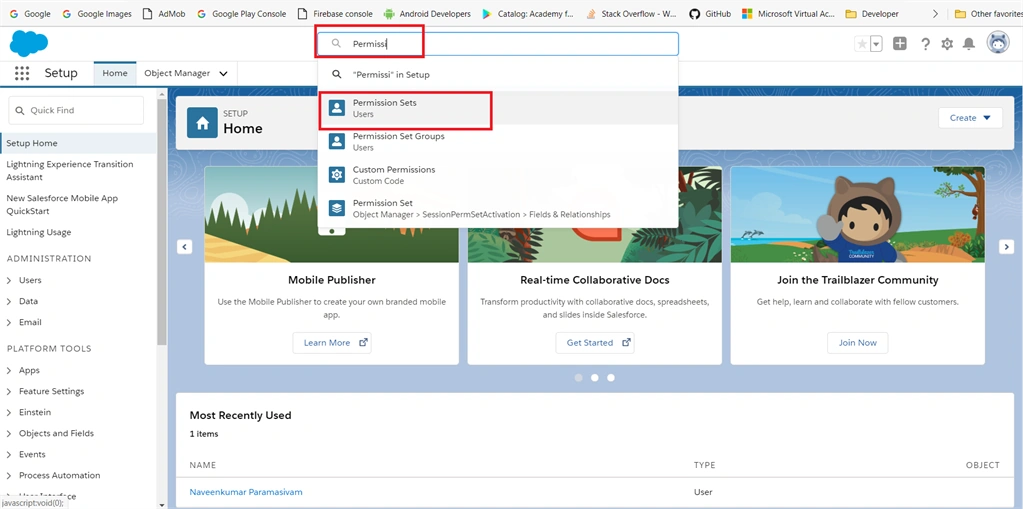
In the setup page, search “Permission” in the quick find the search box and then click “Permission Sets” from the suggestion.
Step 4
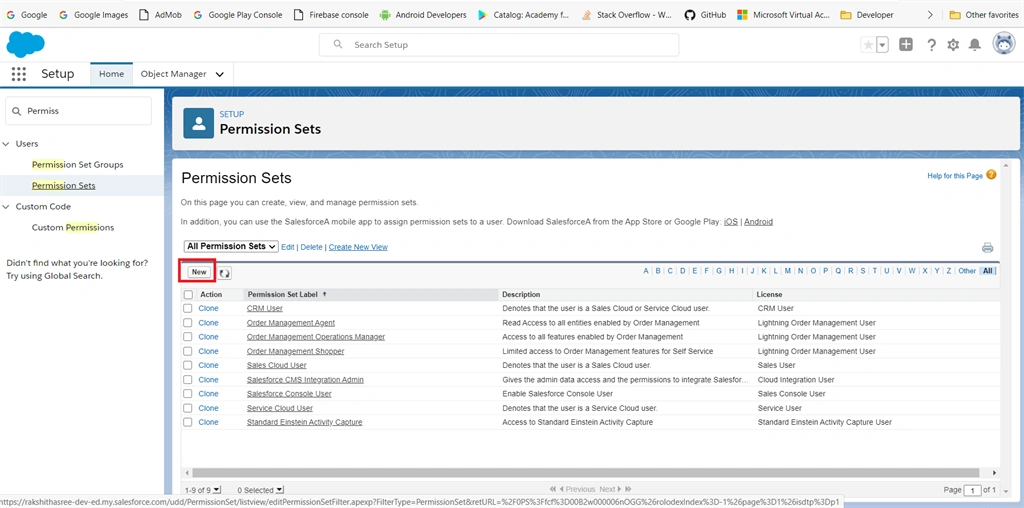
Click the “New” button, to create a new permission set for the user.
Refer to my previous article to create a new user in Salesforce.
Step 5
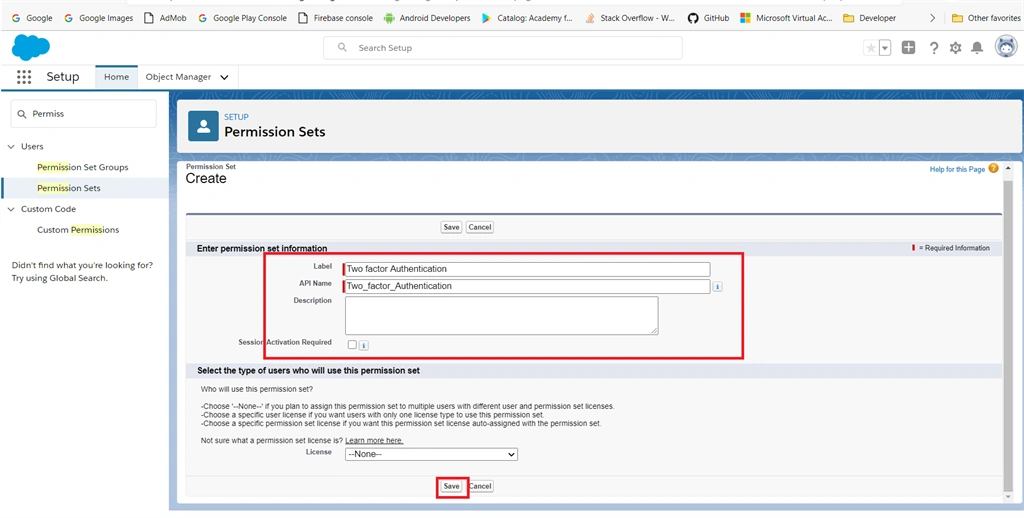
Next, Enter the Label name, API name will automatically generate, then click the “Save” button.
Step 6
After saving, scroll down and click the “System Permissions” under the system section in the created permission set.
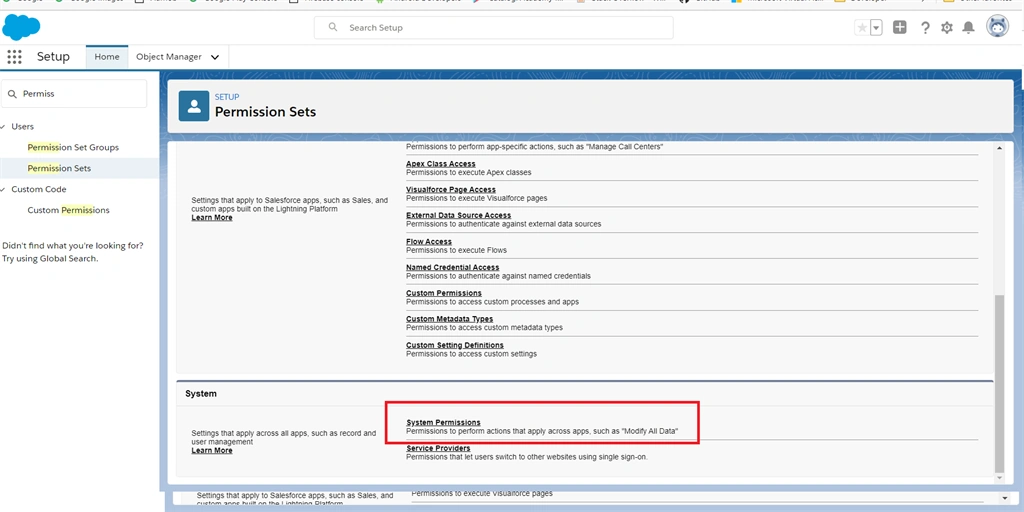
Step 7
In system permissions, click the “Edit” button.
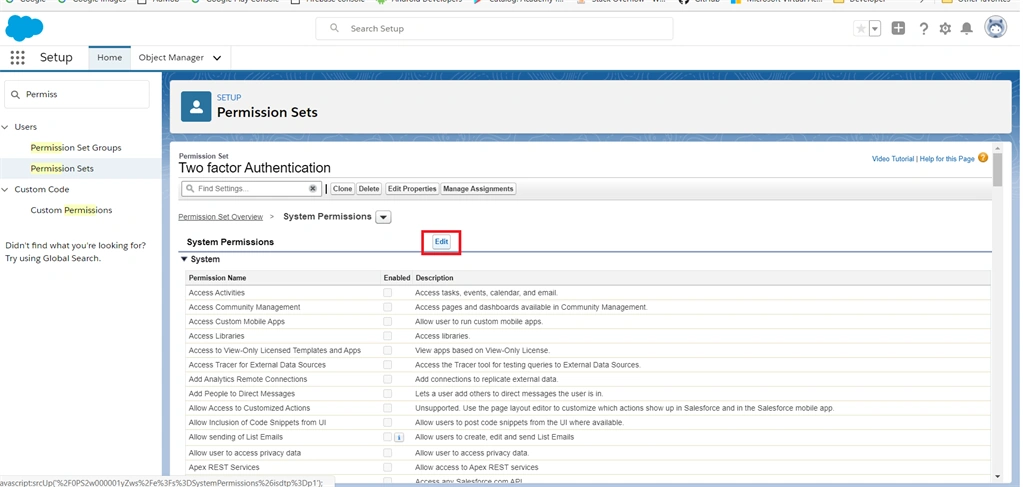
Step 8
Scroll down or search “Two-Factor authentication for user interface logins” and enable the check box.
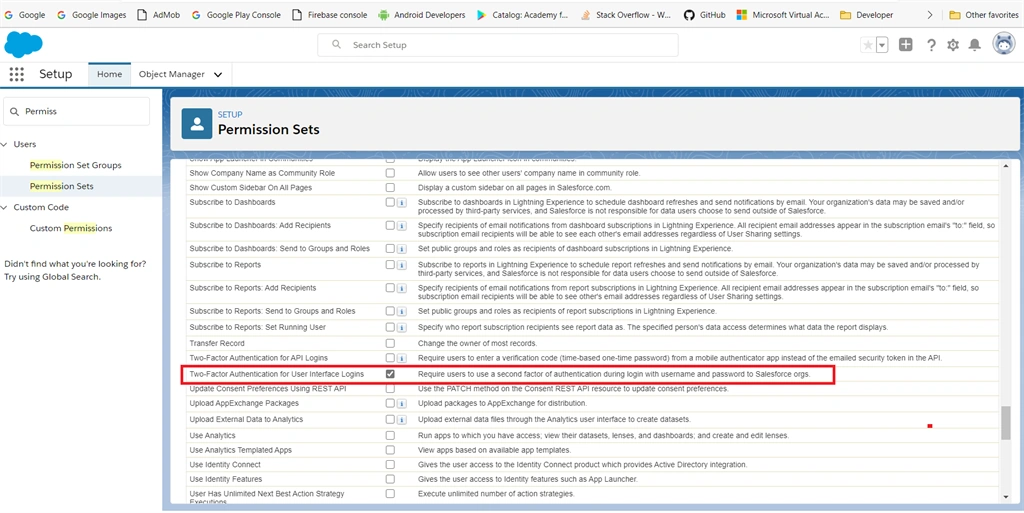
Step 9
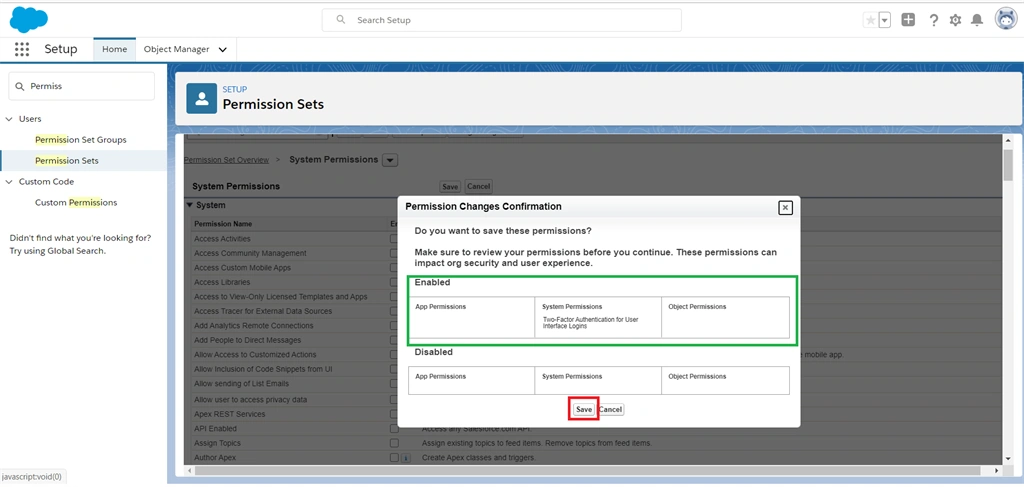
After enabling that checkbox, scroll up to the top of the page and click the “Save” button.
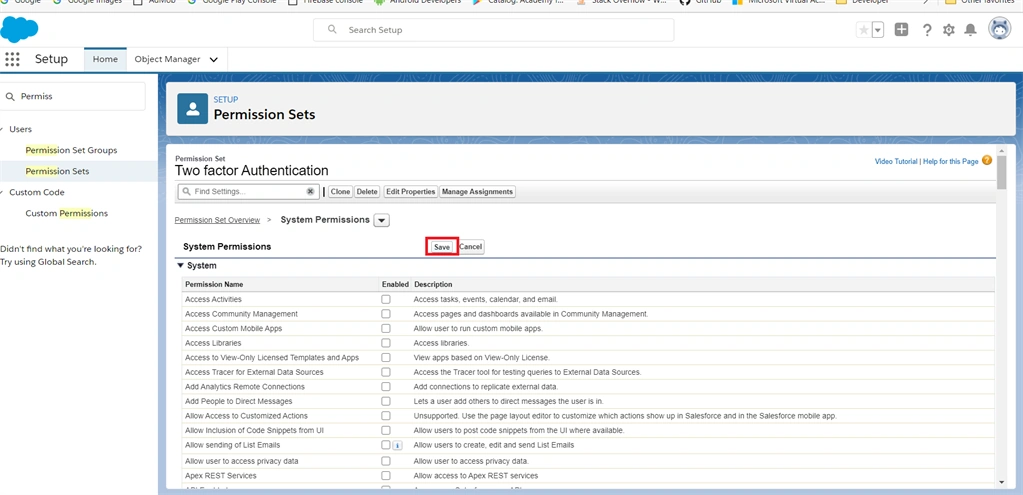
Step 10
After clicking the save button, the permission changes confirmation alert box displays our changes. Click the “Save” button.
Step 11
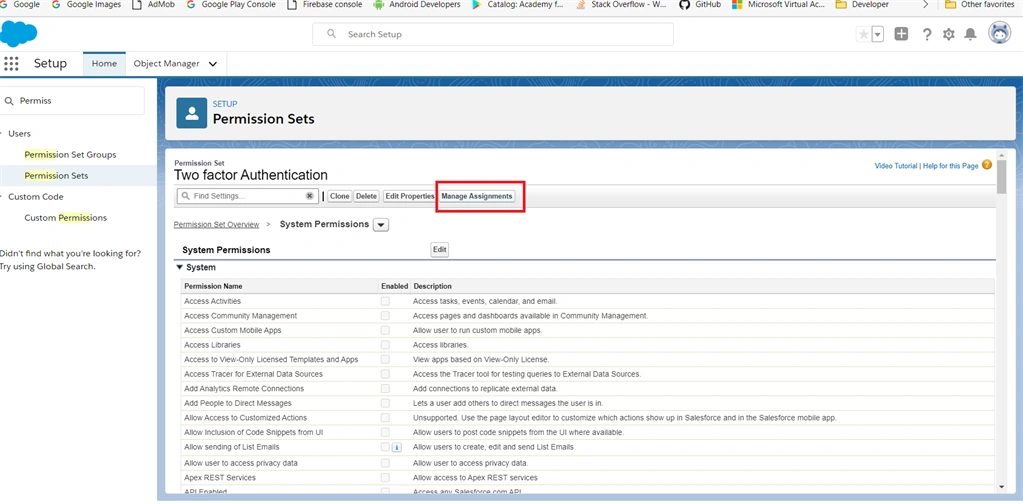
Click the “Manage Assignments” button.
Step 12
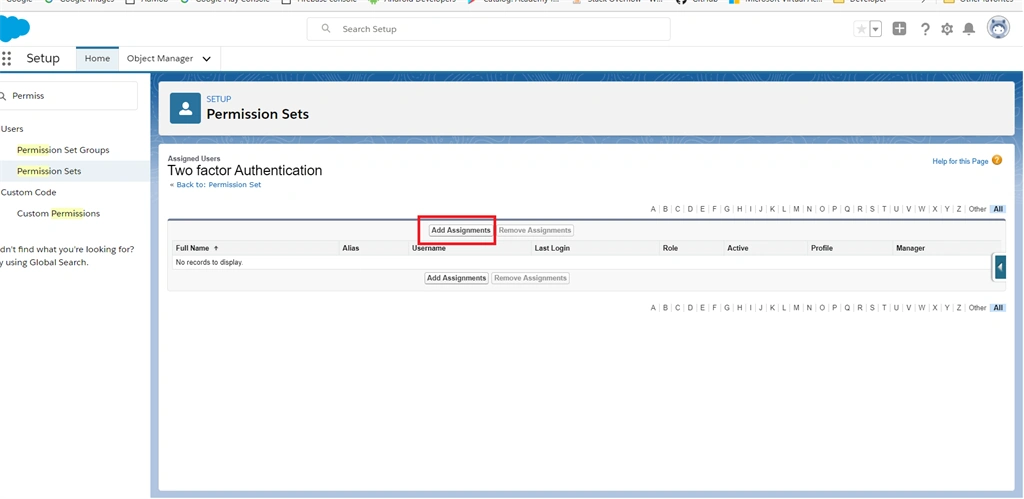
Next, click the “Add Assignments” button.
Step 13
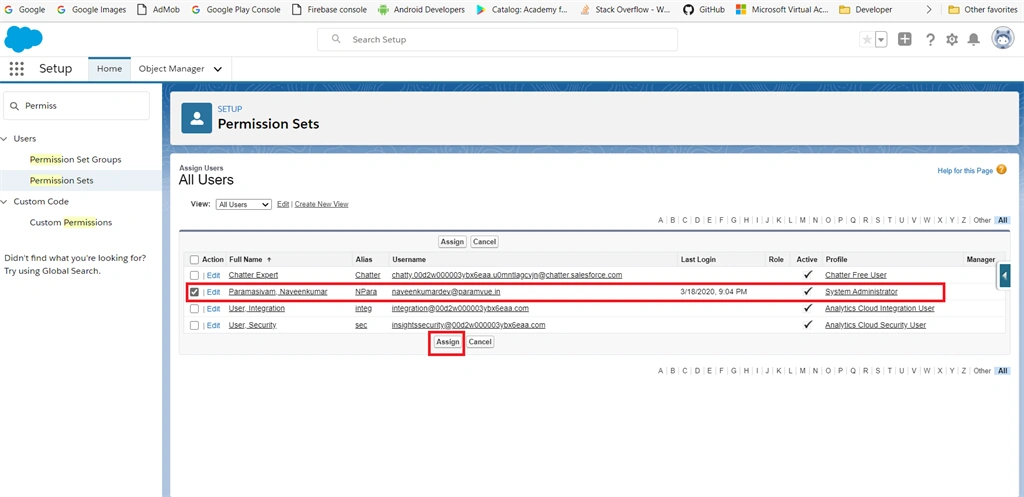
Select our user account, you want to enable Two-factor authentication, then click the “Assign” button.
Step 14
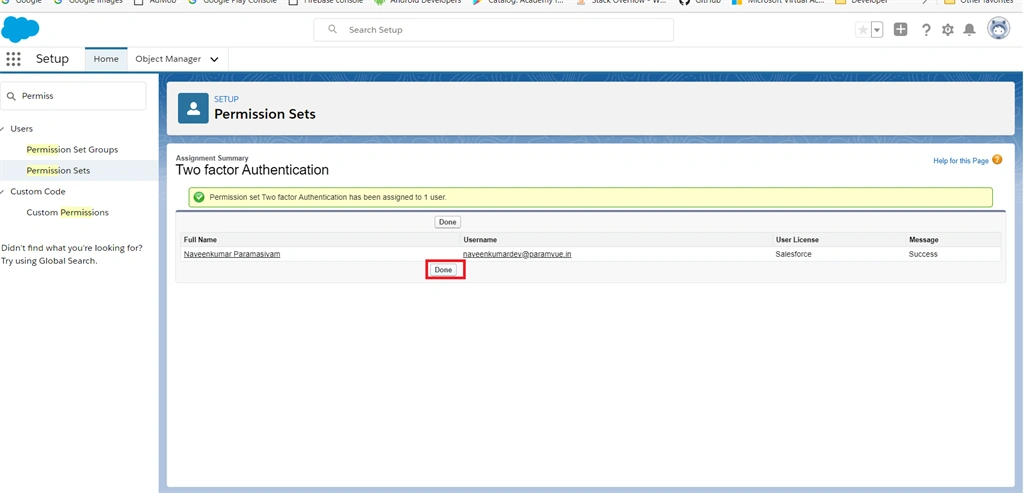
We are successfully assigning the created permission set. Click the “Done” button.
Step 15
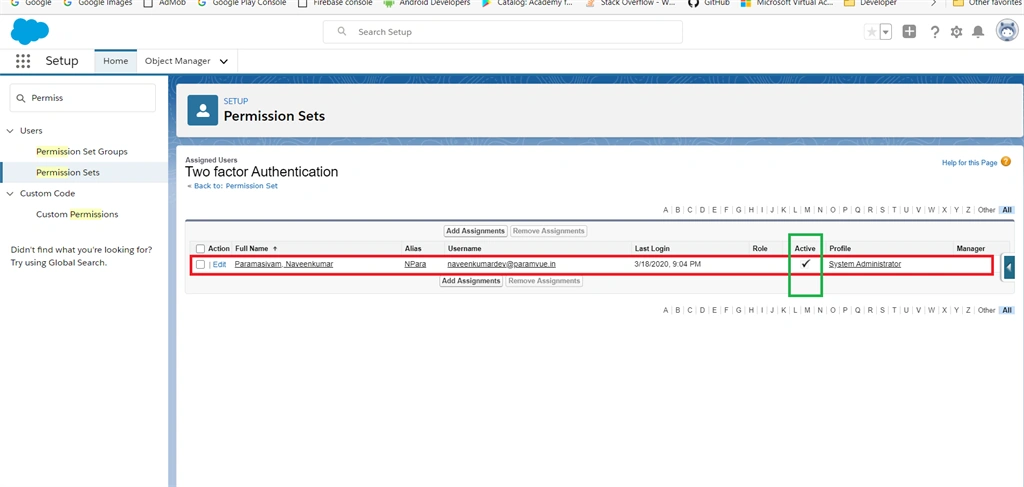
Our Two-Factor authentication is activated to the selected salesforce users.
Step 16
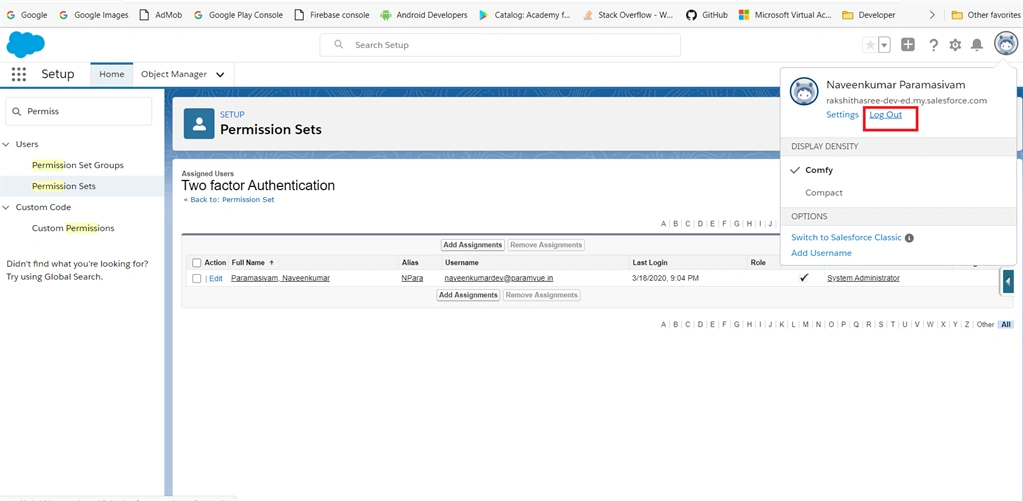
Logout of our current Trailhead playground or Developer edition.
Step 17
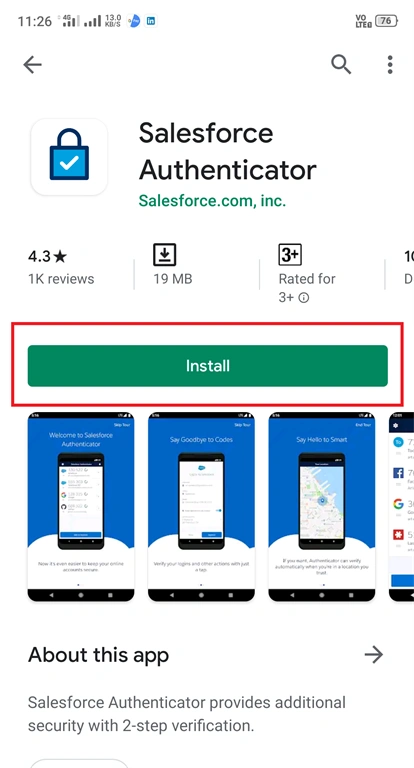
Get your Android or iOS mobile and download and install the “Salesforce Authenticator” application from the App market on your mobile.
- Android Link
- iOS link
Step 18
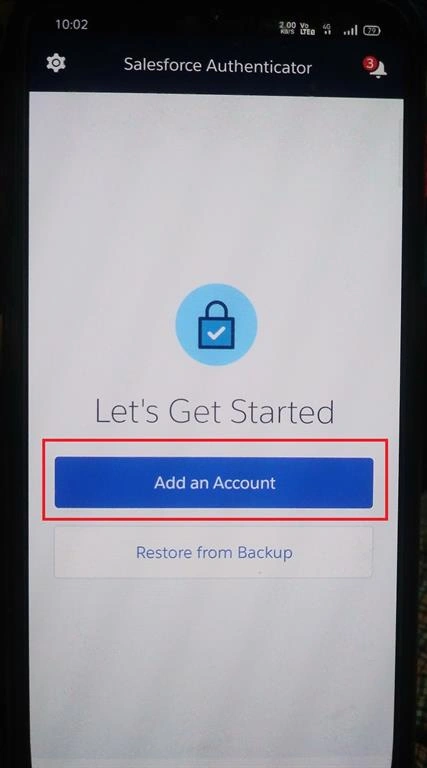
After downloading, open the “Salesforce Authenticator” application. And click “Add an Account”.
Step 19
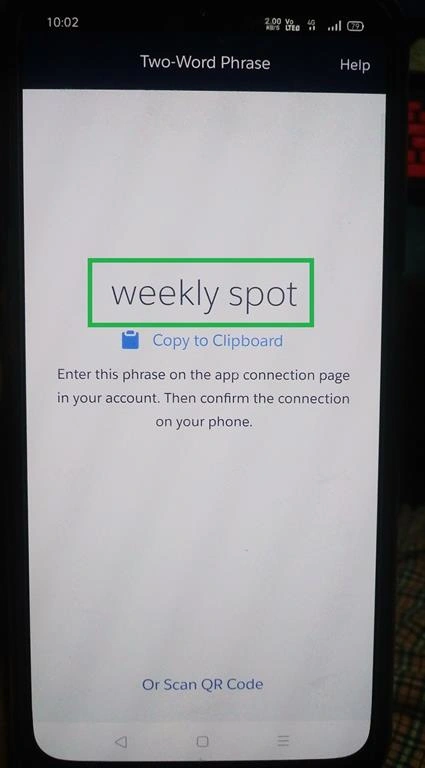
In your mobile, the application displays a “Two-word phrase”. Hold that word on your mobile.
Step 20
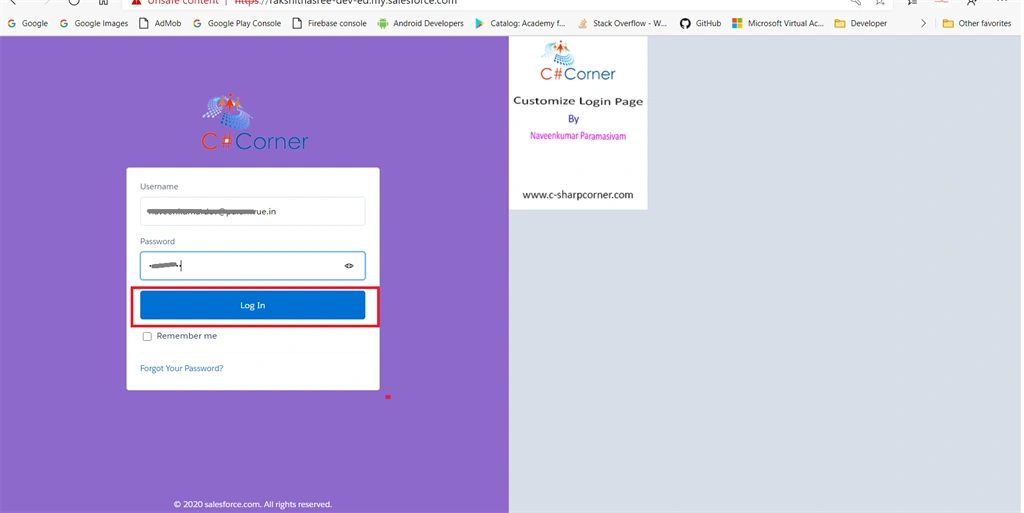
Next, we are already logging out of that account. Again, the login that created the permission set salesforce account using our login credentials.
Step 21
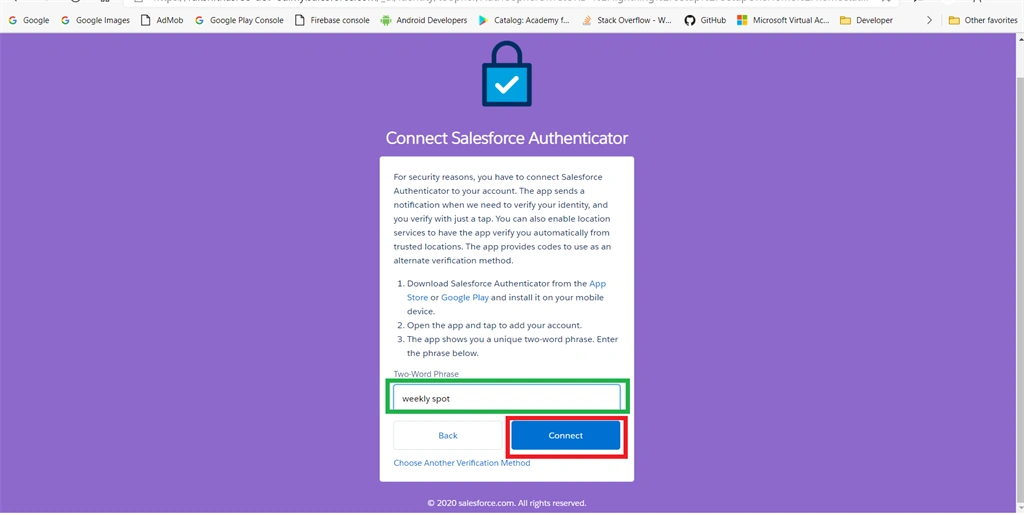
This time the “Connect Salesforce Authenticator” page will be opened. Enter the “Two-word phrase” from the salesforce authenticator application and then click the connect button.
Step 22
Check your salesforce authenticator application, its prompt to request to connect with the authenticator.
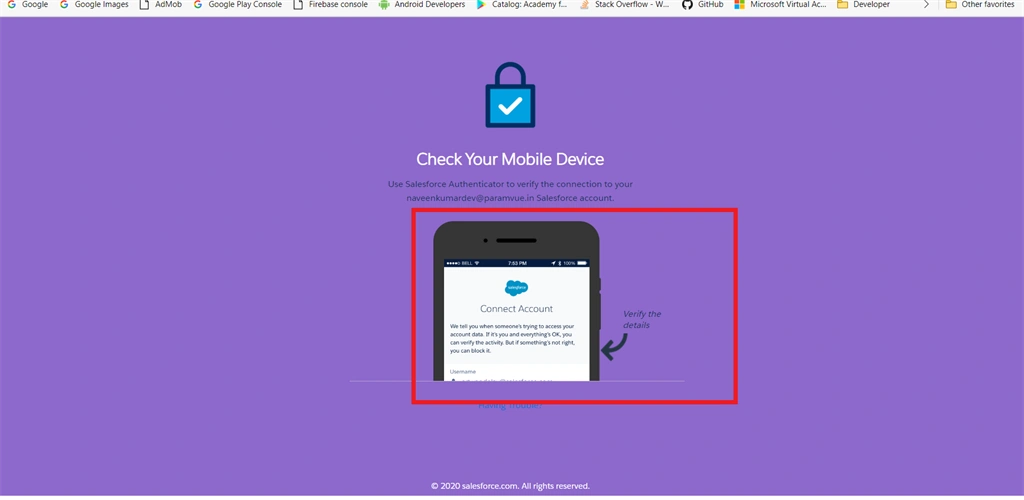
Step 23
The mobile phone displays your username and service name. check that details after clicking the “Connect” button on your mobile phone.
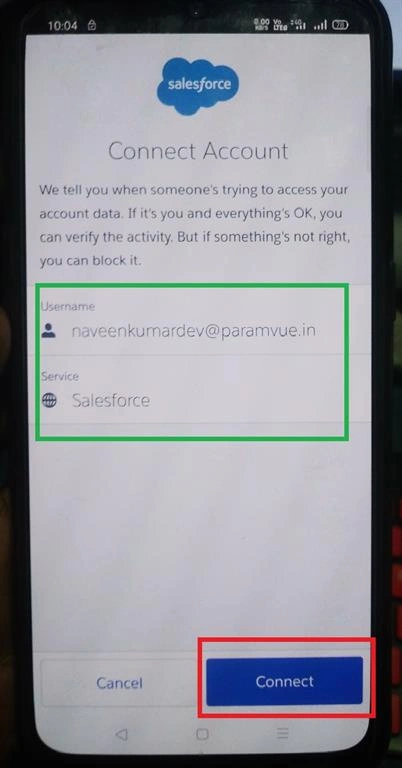
Step 24
If successfully connected, you'll be automatically redirected to our account main page. Now we are again logging out of this session to test our Two-Factor authentication.
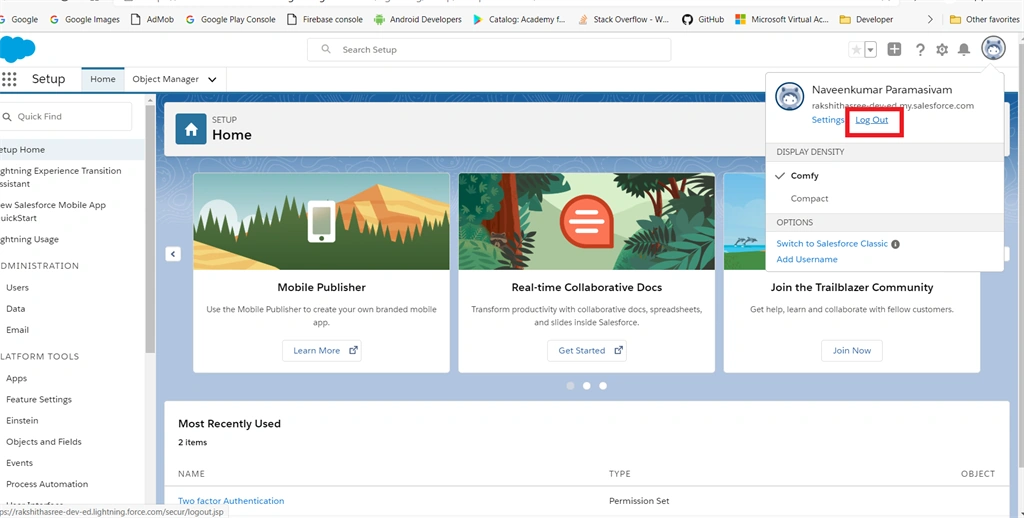
Test Two-Factor Authentication
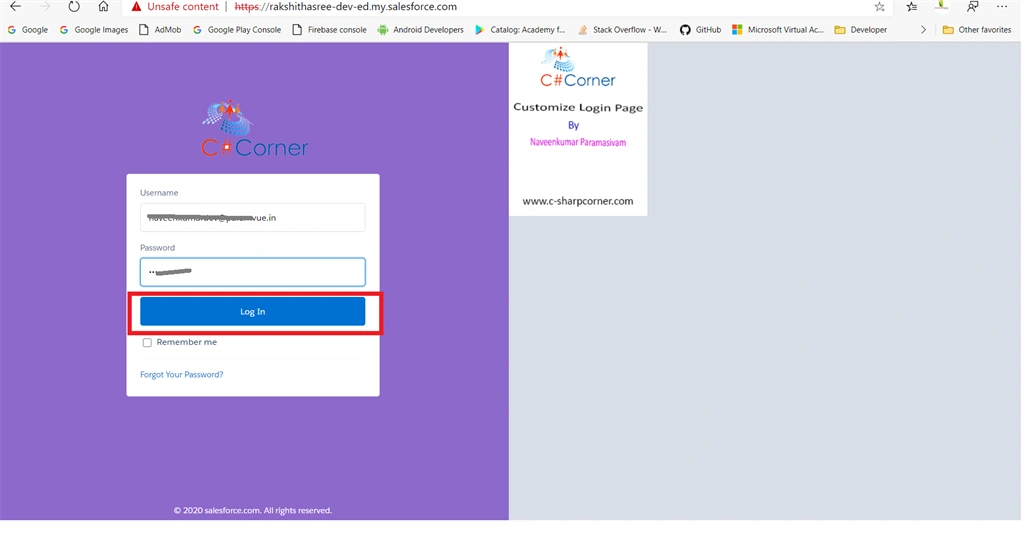
Step 25
Again, enter your login credentials and then click the login button.
Step 26
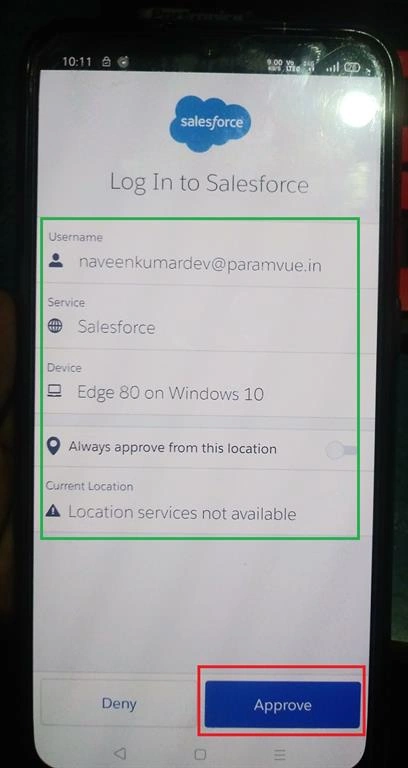
Check your Salesforce authenticator application, it prompts and asks your permission to approve this login or not. Click the “Approve” button to approve this login session.
Summary
Your login is approved, it's automatically redirected to our Salesforce account main page.
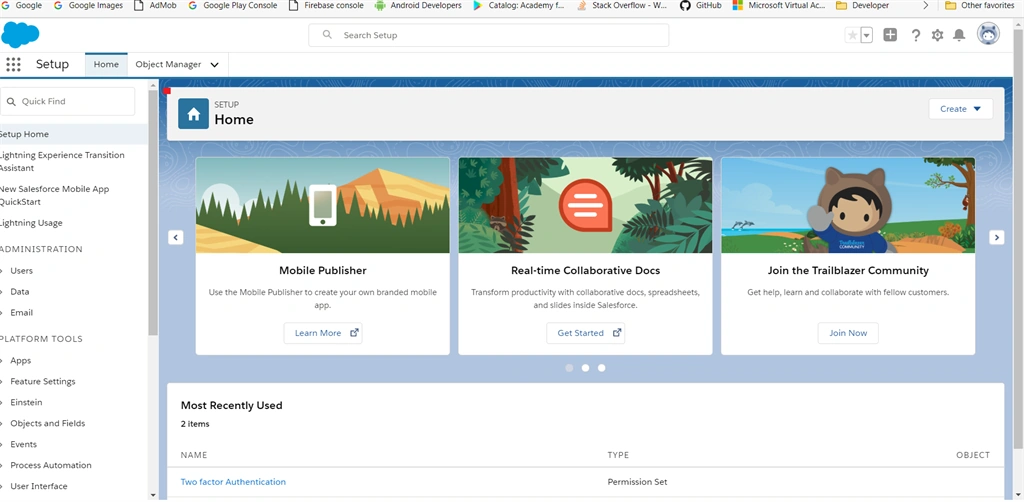
Finally, we successfully secured our Salesforce login using Two-Factor authentication and the Salesforce authenticator application.
Join the conversation! Your thoughts help the community grow.