Introduction
This article enables you to build a setup for your Windows Forms applications and for your web sites.
Step 1
First of all, create a web site or Windows Forms application.
Step 2
Next add a setup project by clicking on File -> Add -> New Project.
Step 3
Select here Setup and Deployment in the left side bar in project types.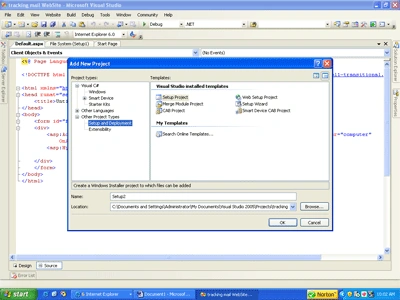
Figure 1
Here you will see three options as in the following:
1. Application Folder
2. User Desktop
3. User Program Menu
Step 4
From the preceding three options it is our choice to copy our files during the installation process. Let us select User Desktop. Then right-click on it and select Add -> Project output.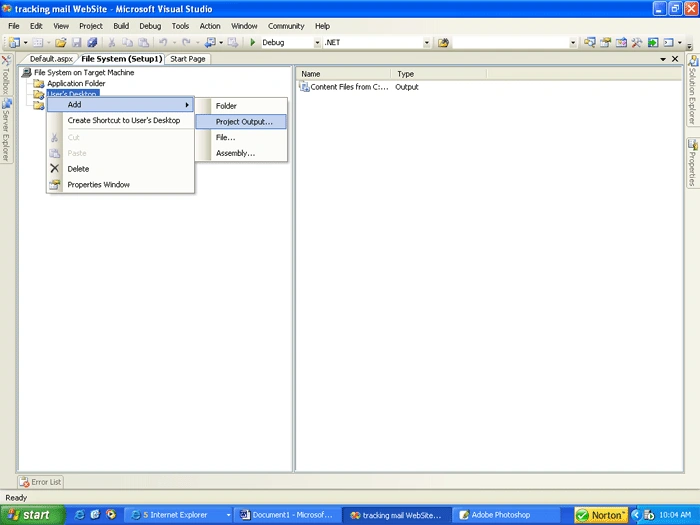
Figure 2
Step 5
After clicking on Project Output, a new window will open. Here select the options you want to include in your setup and then click on OK.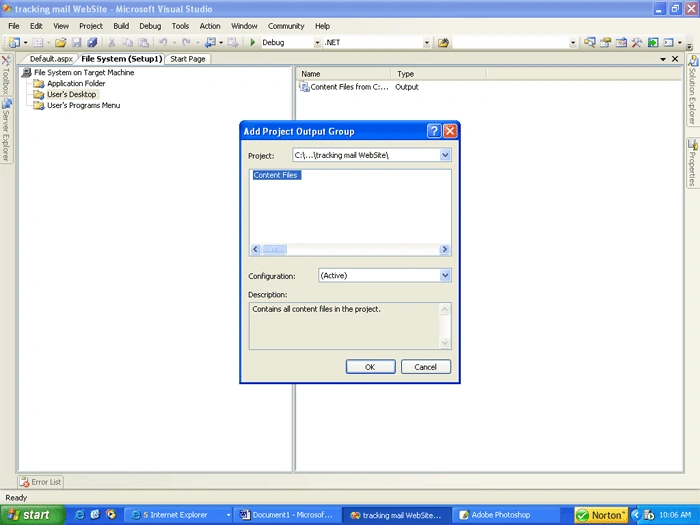
Figure 3
Step 6
After clicking on OK, rebuild the setup from the Build option in the Menu bar; see: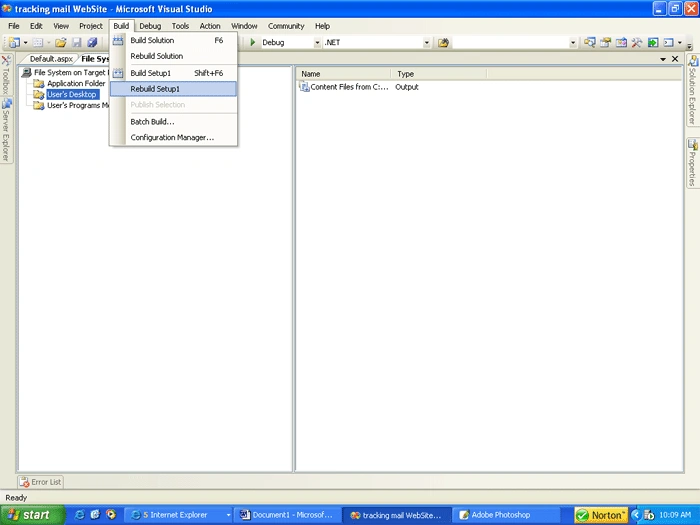
Figure 4
Step 7
After this, right-click on the setup project in Solution Explorer and click on the Install menu item.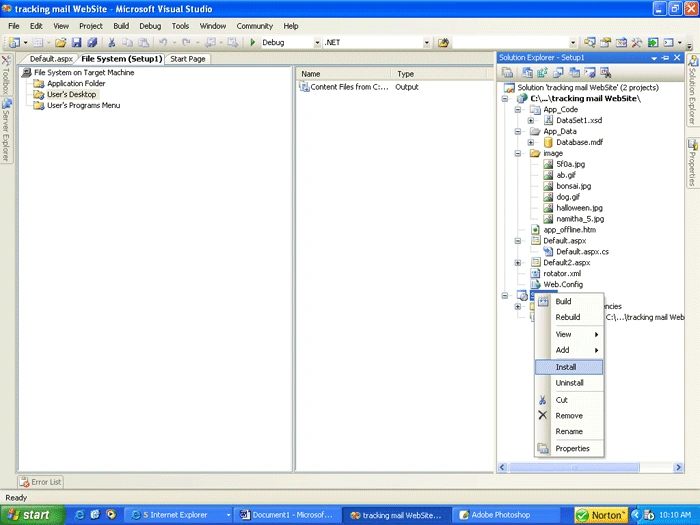
Figure 5
Finally the setup process will start.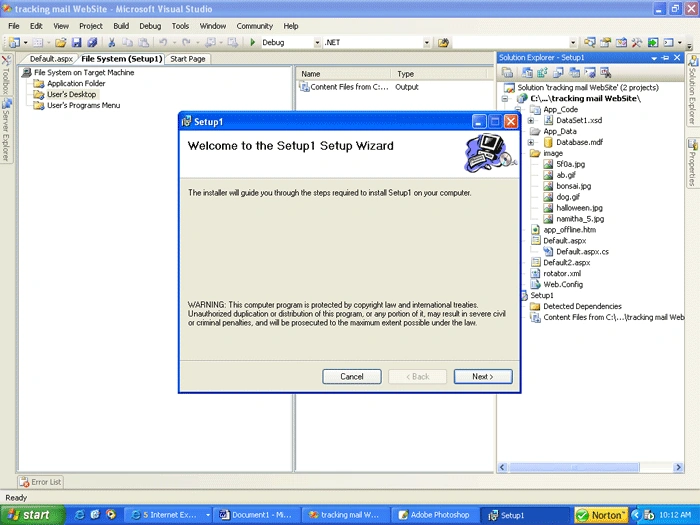
Figure 6
Step 8
After copmpleting the installation go to the Desktop; there you will find all the files which you have included in your setup.

Setup For Window Forms Application and Websites.
Join the conversation! Your thoughts help the community grow.
Sign in to leave a comment
It is the same account you read, post and publish with — and you will come straight back to this page.
BHAVESH DAVEeditedPosted Oct 5, 2010, 4:00 PMEdited Oct 5, 2010, 5:43 PM
I am working in WINDOWS 7 ULTIMATE I have created setup and install but I am facing problem but when same program installed in WINDOWS XP it is working perfectly. I have check in windows 7 the .mdf file after copying to destination folder it's security permission get changed to read only. if you have any reply please forward me at my email address: [email protected]