

Introduction
Dev test lab is a Microsoft Azure Service designed to quickly create environments that contain virtual machines. These labs provide dev-test environments on Azure. They enable the quick deployment of Windows or Linux virtual machines in large batches, as well as allow us to install software and manage virtual machines configuration in a controlled way.
Dev test labs are primarily used for:
- Development – Allows developers to quickly deploy a development environment and install software for their development needs.
- Training – For training or classroom sessions, we can quickly deploy a number of virtual machines with software installed & publish it to users.
- Testing - Testers can manage environments for different testing needs. One common scenario is load testing.
DevTest Labs Capabilities
- Quickly create and manage cloud environments
- Allow developer/tester self-service deployment
- Create VMs from marketplace images or custom images
- Apply formulas to quickly create multiple preconfigured VMs
- Add artifacts (software) to the VMs
- Apply Policies like auto shutdown/start VMs on a particular time
- Create templates for redeployment
- Save costs & resources
Step 1 - Create a Dev-Test Lab
Log in to Azure Portal and choose Create a new resource, search for Dev-Test Labs
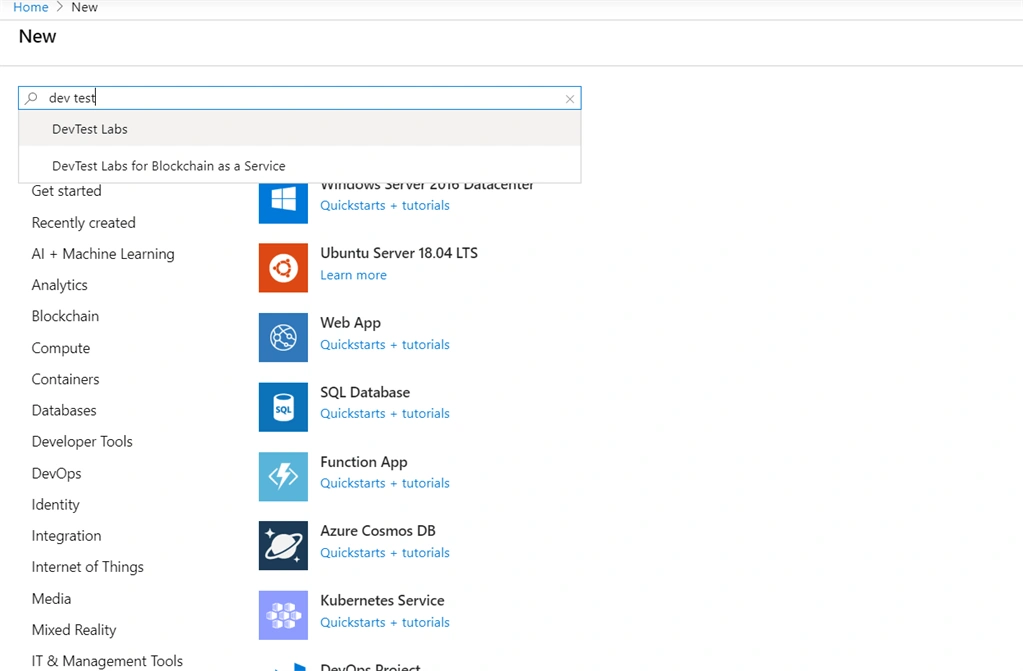
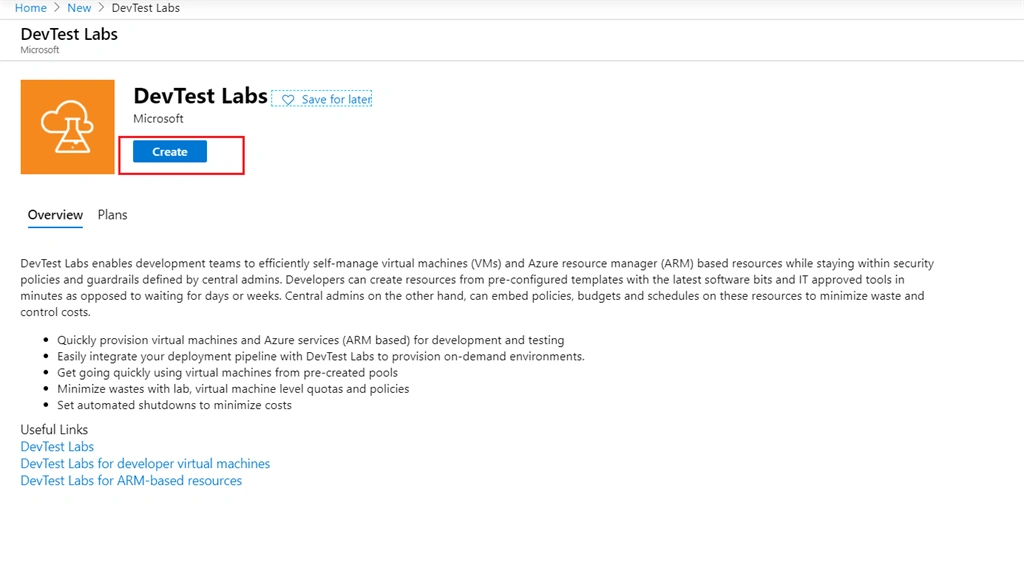
Select DevTest Labs & choose Create.
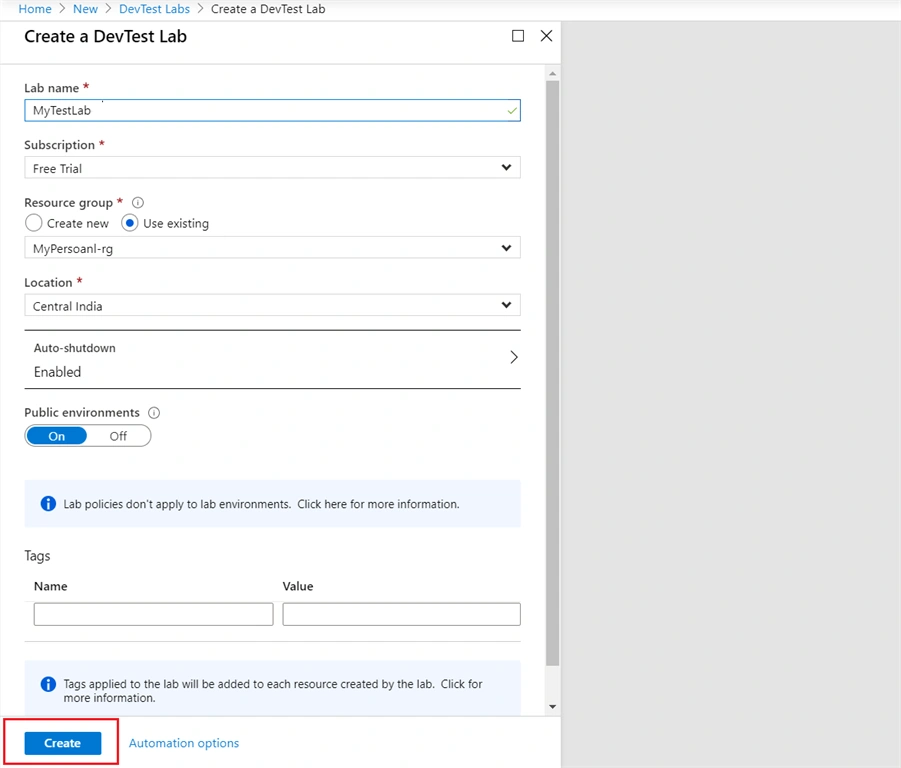
Choose a name, resource group, location, etc. We can also set an auto-shutdown or auto-start for this lab.
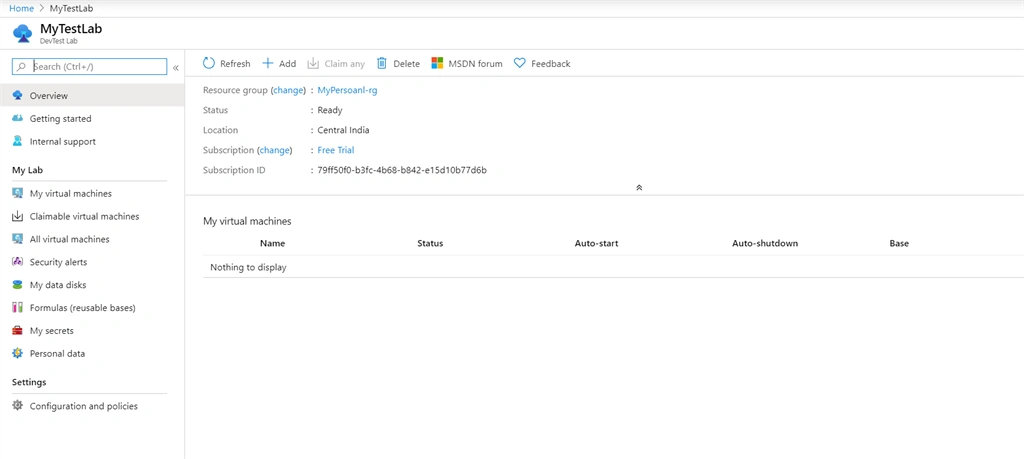
It may take a few minutes to set up the lab. When finished you can open it.
Step -1 Create a Secret
When the lab is up and ready, we need to setup secrets that will be used when we create VM. Open “My Secrets”
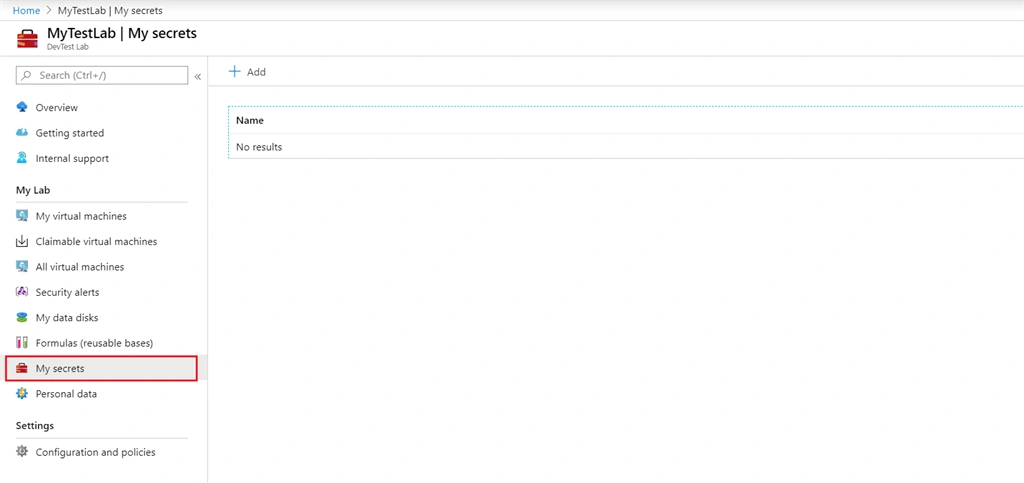
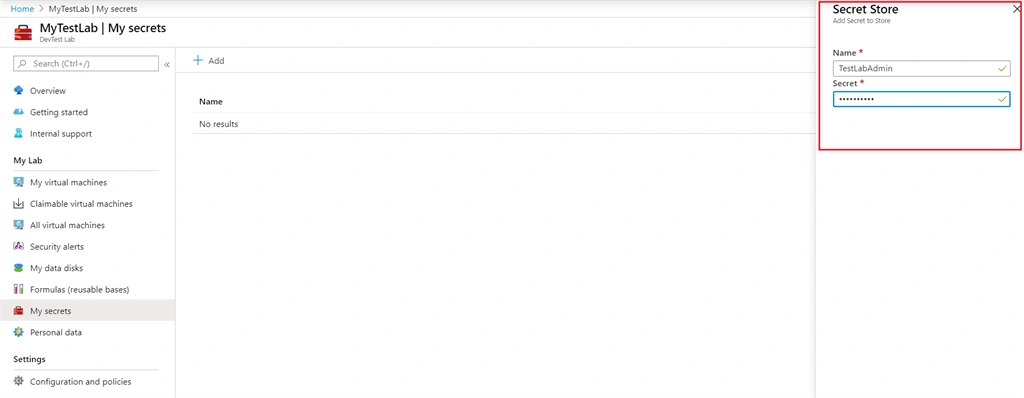
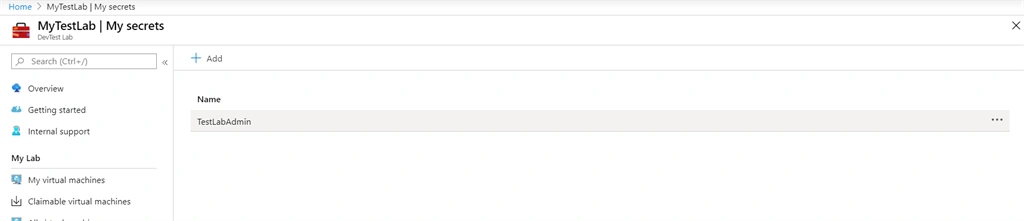
Let’s add a new secret with a name and your secret key.
Step 2 - Create a Virtual Machine
Now we are ready to set up a new VM in our lab. Open “All Virtual Machines”.
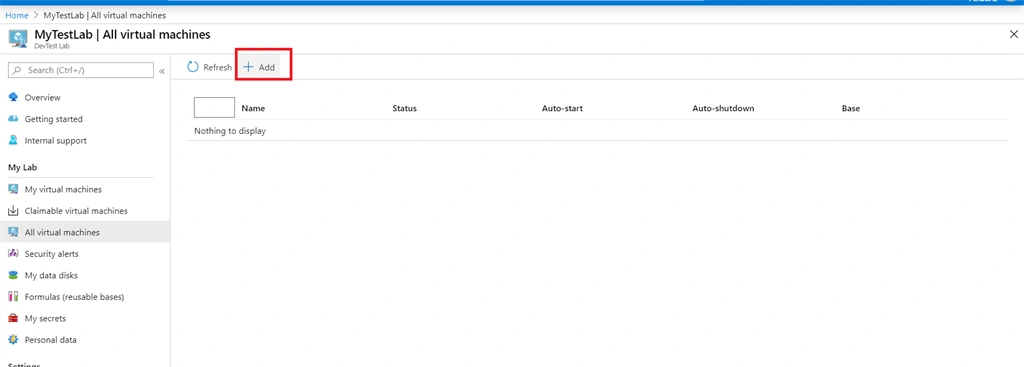
Currently, there is no virtual machine available, as this is a new lab setup & we haven`t set up any VM yet. Let's add a new VM.
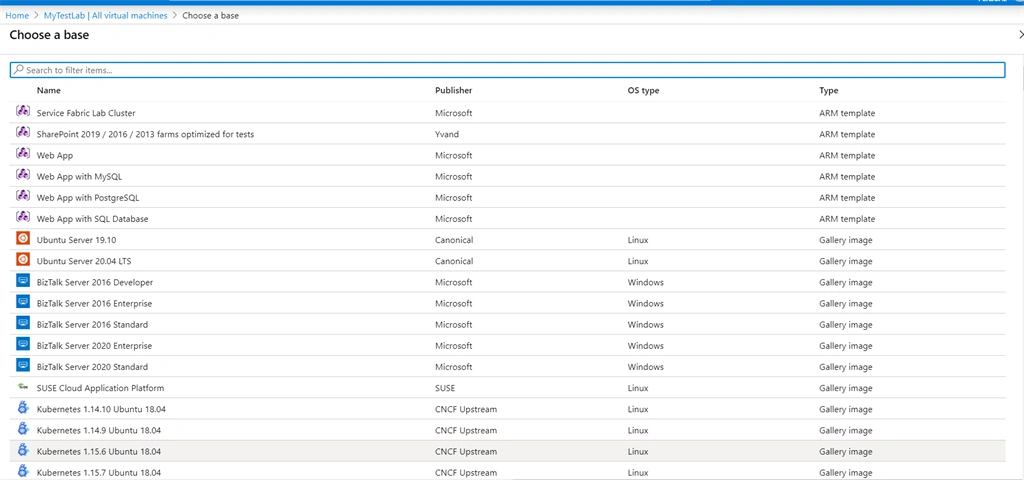
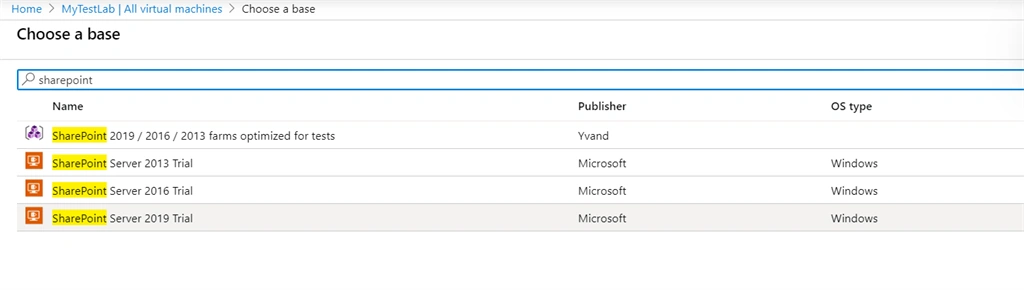
Here you can choose from a number of images available. I chose the SharePoint 2019 Trial VM image
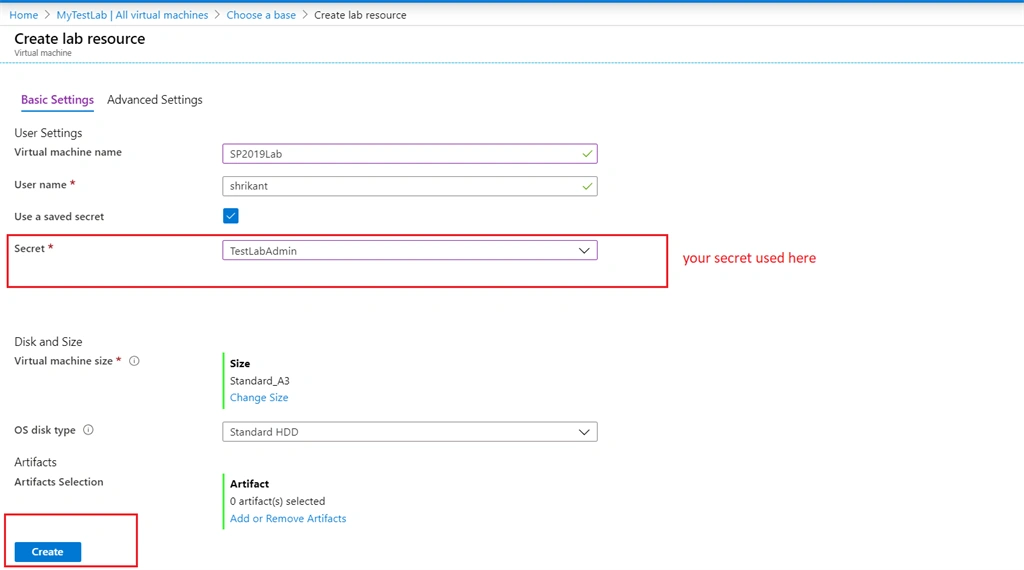
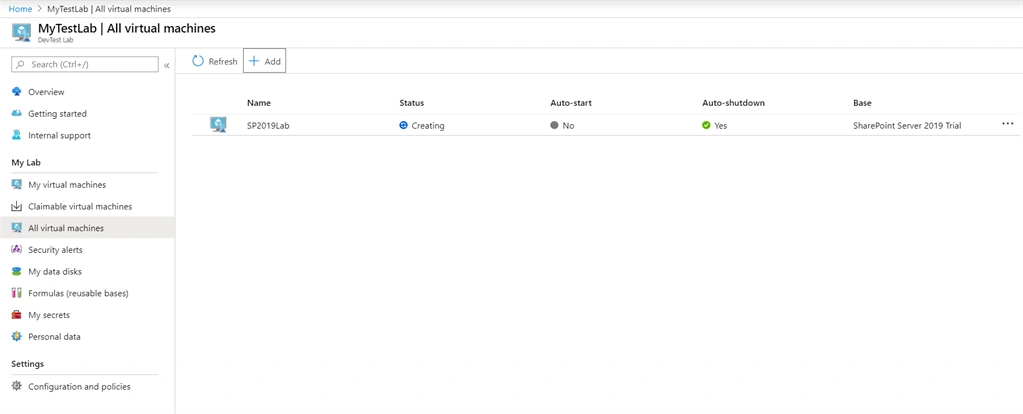
It will take some time to set up your VM. Once ready, it's available for remote connection.
Dhawal MehtaPosted Sep 18, 2020, 12:12 PM
The VM doesn't have SQL after following this steps for SharePoint 2019, is there any next step for that?