

Introduction
This article shows how to set visibility on buttons in Android.
Procedure
- Start the Eclipse IDE.
- Create a new project.
- Create a MainActivity.java file.
- Create an XML file with three buttons.
- In the onClick function set the visibility of buttons using the setVisibility function.
For example
- public void onClick(View v) {
- b1.setVisibility(v.INVISIBLE);
- b2.setVisibility(v.VISIBLE);
- }
The following is the code.
MainActivity.java
- package com.example.visibilityyyyyyyyyyyyyyyyyyyyyyyyyyyyyyyyy;
- import android.app.Activity;
- import android.os.Bundle;
- import android.view.Menu;
- import android.view.View;
- import android.view.View.OnClickListener;
- import android.widget.Button;
- import android.widget.Toast;
- public class MainActivity extends Activity {
- Button b1,b2,b3;
- @Override
- protected void onCreate(Bundle savedInstanceState) {
- super.onCreate(savedInstanceState);
- setContentView(R.layout.activity_main);
- b1=(Button)findViewById(R.id.button1);
- b2=(Button)findViewById(R.id.button2);
- b3=(Button)findViewById(R.id.button3);
- b1.setOnClickListener(new OnClickListener() {
- public void onClick(View v) {
- // TODO Auto-generated method stub
- b1.setVisibility(v.INVISIBLE);
- b2.setVisibility(v.VISIBLE);
- Toast.makeText(getApplicationContext(), "Button2 is visible",Toast.LENGTH_LONG).show();
- }
- });
- b2.setOnClickListener(new OnClickListener() {
- public void onClick(View v) {
- // TODO Auto-generated method stub
- b2.setVisibility(v.INVISIBLE);
- b3.setVisibility(v.VISIBLE);
- Toast.makeText(getApplicationContext(), "Button3 is visible ", Toast.LENGTH_LONG).show();
- }
- });
- b3.setOnClickListener(new OnClickListener() {
- public void onClick(View v) {
- b3.setVisibility(v.INVISIBLE);
- b1.setVisibility(v.VISIBLE);
- Toast.makeText(getApplicationContext(), "Button1 is visible", Toast.LENGTH_LONG).show();
- // TODO Auto-generated method stub
- }
- });
- }
- @Override
- public boolean onCreateOptionsMenu(Menu menu) {
- // Inflate the menu; this adds items to the action bar if it is present.
- getMenuInflater().inflate(R.menu.main, menu);
- return true;
- }
- }
activity_main.xml
- <RelativeLayout
- xmlns:android="http://schemas.android.com/apk/res/android"
- xmlns:tools="http://schemas.android.com/tools"
- android:layout_width="match_parent"
- android:layout_height="match_parent"
- android:paddingBottom="@dimen/activity_vertical_margin"
- android:paddingLeft="@dimen/activity_horizontal_margin"
- android:paddingRight="@dimen/activity_horizontal_margin"
- android:paddingTop="@dimen/activity_vertical_margin"
- tools:context=".MainActivity" >
- <TextView
- android:id="@+id/textView1"
- android:layout_width="wrap_content"
- android:layout_height="wrap_content"
- android:text="Abhijeet's game of visibility" />
- <Button
- android:id="@+id/button1"
- android:layout_width="wrap_content"
- android:layout_height="wrap_content"
- android:layout_alignTop="@+id/textView1"
- android:layout_marginLeft="14dp"
- android:visibility="visible"
- android:layout_toRightOf="@+id/textView1"
- android:text="Button1" />
- <Button
- android:id="@+id/button2"
- android:layout_width="wrap_content"
- android:layout_height="wrap_content"
- android:layout_alignRight="@+id/button1"
- android:layout_below="@+id/button1"
- android:visibility="gone"
- android:layout_marginRight="40dp"
- android:text="Button2" />
- <Button
- android:id="@+id/button3"
- android:layout_width="wrap_content"
- android:layout_height="wrap_content"
- android:layout_alignRight="@+id/button2"
- android:layout_below="@+id/button2"
- android:visibility="gone"
- android:layout_marginRight="15dp"
- android:layout_marginTop="26dp"
- android:text="Button3" />
- </RelativeLayout>
Output
When clicking on Button1:
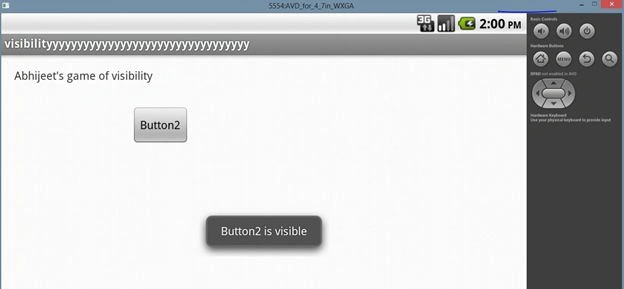 When clicking on Button2:
 When clicking on Button3:

Saber ShaikhPosted Oct 10, 2014, 3:49 AM
thank you