

What is Google Cloud Messaging for Android?
- Google Cloud Messaging for Android (GCM) is a special type of service because it allows you to send data from your server to your clients in android powered devices.
- GCM is a totally free platform that allow you to send big message no matter message is long; there is no restriction
Example
- Send the latest news
- Score Updates
- Weather Update is the best example of GCM
Characteristics of GCM
- When your system is connected to the internet, you can see messages alerts on the top. This is the function of GCM, you don’t need a refresh button to see alert messages.
- It does not provide any built-in user interface, it only passes the raw data that means a developer has full control to handle the data.
Key Concepts
- The component is basically the primary role which plays an important part in GCM.
- Credentials, ID and tokens are used by GCM. GCM ensure that all parties are authenticated, and send message to the correct place.
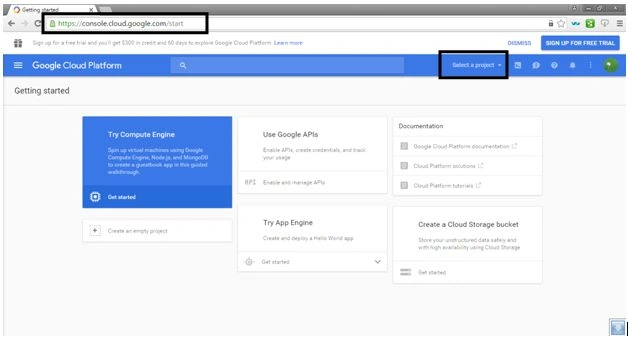
Step 1- Move to the web browser and type the following address, then click on select a project dropdown button,
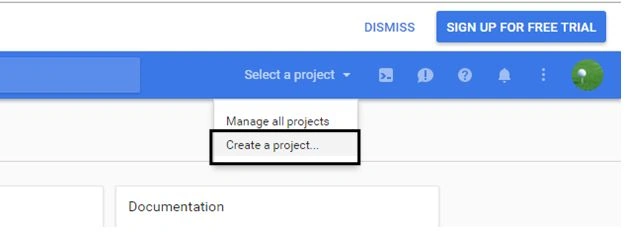
 Step 2- Click on Create a project button and at this time suppose we have no project, so just one.
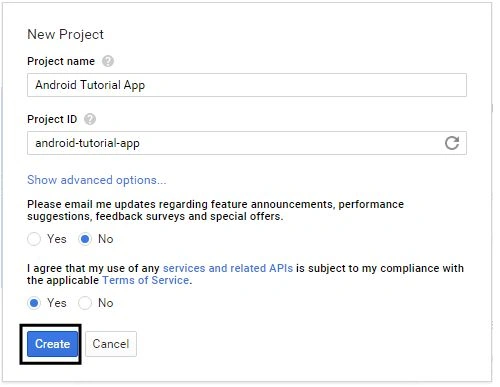
 Step 3- A window appears, give the project a name and apply the term and conditions. Note that it is not mandatory that your app name and project name is similar.
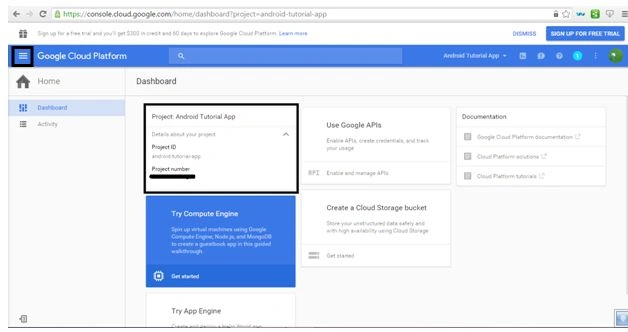
 Step 4- After creating a project a dashboard appears and in the front box, you see the project Id and project number. Copy these two things since we have to use it later. Click on the left sidebar top box which I have highlighted.
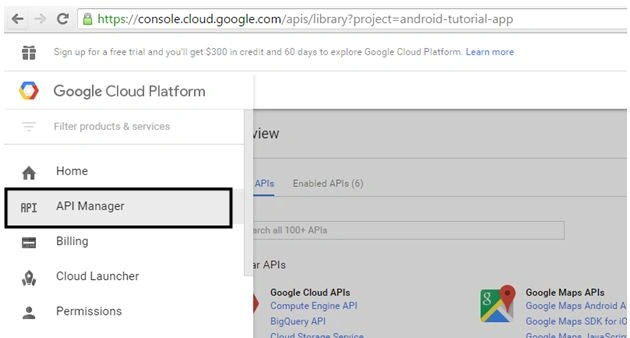
 Step 5- Now click on API Manager,
 Step 6- Now click on Google Cloud Messaging and after that you can see the enable button. Press it!
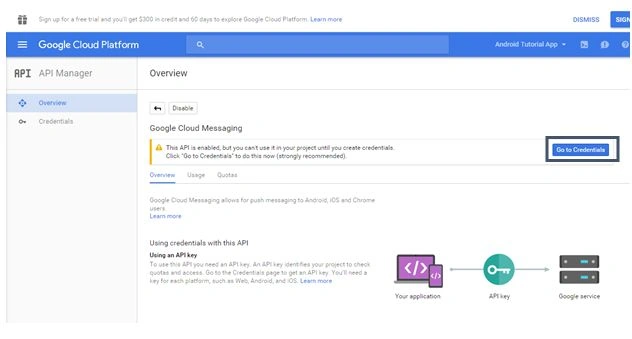 Step 7- After enabling you can see the Alert message. Now click on Go to Credential.
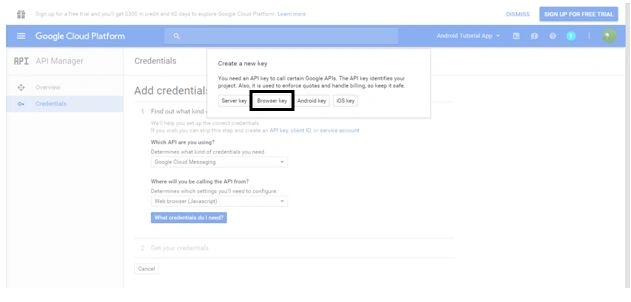 Step 8- Now click on Browser key because we receive the data from the browser. So, I will press the browser key and if you send data from the server select Server key.
Step 9- Give the name and the second field can’t give anything. Click on Create button,
Step 8- Now click on Browser key because we receive the data from the browser. So, I will press the browser key and if you send data from the server select Server key.
Step 9- Give the name and the second field can’t give anything. Click on Create button,
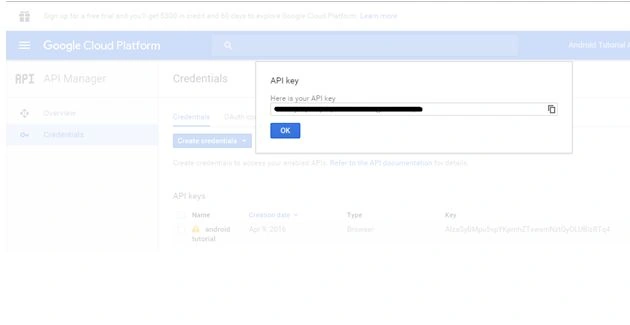
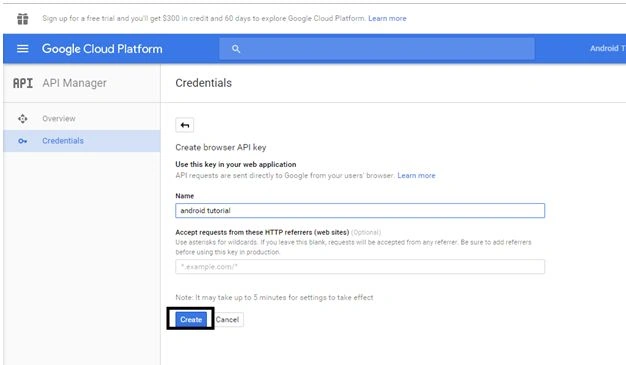 Step 10- Now copy this API key since we have to use this later. Now our GCM work is complete and now we move to the Android Studio for further configuration.
Read more articles on Google Cloud Messaging
Shobana JPosted Jul 7, 2016, 7:29 AM
Nice explanation
Vignesh ManiPosted Apr 14, 2016, 8:24 AM
Nice
Debasis SahaPosted Apr 12, 2016, 1:20 PM
Good One..
Kuppurasu NagarajPosted Apr 12, 2016, 12:24 PM
Nice Sharing..
Rahul Kumar SaxenaPosted Apr 12, 2016, 5:52 AM
Good One