

Introduction
Continuing our discussion on image extraction using Azure OCR and cross-checking it with the Excel database, we will now utilize Azure Communication Service to send SMS messages. By retrieving the phone number from the Excel sheet, we can initiate SMS notifications if the extracted registration number matches the records in the Excel database. This integration with Azure Communication Service enables us to establish seamless communication with individuals based on the data obtained from the cross-checking process.
To maintain a seamless narrative in this use case, it is advisable to review the previous article if you haven’t already, as the content in this article builds upon the concepts and discussions presented earlier. This will facilitate a comprehensive understanding of the entire use case and ensure a coherent progression of ideas. I have also uploaded the source code of this complete use case (combined code of the previous article and this article ) for your reference.
Step 1. Install Azure Communication SMS Package.
pip install azure-communication-sms
Step 2. Import the necessary libraries for accessing Azure Communication Services.
from azure.communication.sms import SmsClient
from azure.core.credentials import AzureKeyCredential
Step 3. Get the corresponding phone number from the Excel file.
phone_number = matching_rows.iloc[0]['Phone Number']
    print("Phone Number:", phone_number)
Step 4. Authenticate to the Azure Communication service using the endpoint URL and subscription key.
key = 'YOUR-KEY'
endpoint = 'YOUR-END-POINT'
Replace 'your-key' and 'your-end-point' with your actual endpoint URL and subscription key obtained from Azure Communication Service.
Step 5. Initialize the SMS client.
credential = AzureKeyCredential(key)
sms_client = SmsClient(endpoint, credential)
- The
AzureKeyCredentialobject is created using the providedkeyvalue. This credential is used for authenticating the SMS client with Azure Communication Services. - The
SmsClientis initialized with theendpointandcredentialparameters. - This step sets up the SMS client, allowing you to send SMS messages using the Azure Communication Services API.
Step 6. Compose and send the message.
message = "Hello! This is a test message."
sms_response = sms_client.send(
from_="YOUR_PHONE_NUMBER",
to=[phone_number],
message=message
- The variable
messageis assigned a string value representing the content of the message you want to send. In this case, it is set as "Hello! This is a test message." - The
sendmethod of thesms_clientis called to send the message. - The
sendmethod takes the following parameters: from_: Specifies the sender's phone number. Replace "YOUR_PHONE_NUMBER" with the actual phone number from which you want to send the message and you can get that using Azure Communication Service.to: Specifies the recipient's phone number. It is provided as a list, and in this case, it contains thephone_numbervariable that was extracted from the Excel file.message: Specifies the content of the message, which is stored in themessagevariable.- The
sms_responsevariable stores the response received from the API after sending the message. - This step composes the message and sends it using the Azure Communication Services API.
To get a number to send from Azure Communication Services,
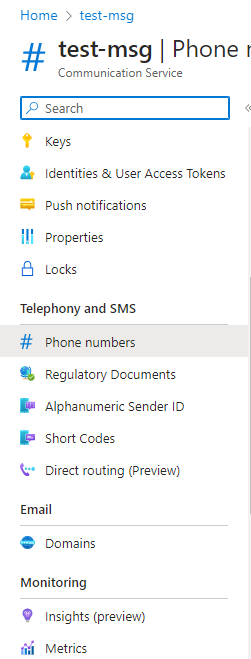
Click on the Phone Number option on the left pane of the Azure Communication Services.
Note: For this you need to have pay-as-you-go subscription.
Step 7. Check if the message was sent successfully.
if sms_response.successful:
        print("Message sent successfully!")
    else:
        print("Message sending failed.")
- The code uses an
ifstatement to check thesuccessfulproperty of thesms_responseobject. - If the
successfulproperty isTrue, it means the message was sent successfully. - In that case, it prints the message “Message sent successfully!”.
- If the
successfulproperty isFalse, it means the message sending failed. - In that case, it prints the message “Message sending failed.”.
- This step provides feedback on the status of the message sending process, indicating whether it was successful or not.
By following these steps, you can retrieve the phone number from the Excel sheet, we can initiate SMS notifications.
Anandu G NathPosted Jan 6, 2024, 9:50 AM
Nice one, If you can share .Net it will be appreciated.
Mohamed Azarudeen ZPosted Jun 26, 2023, 6:27 AM
Easy to understand very well done arjun