
Introduction
- String number = mobileno.getText().toString();
- String message = message.getText().toString();
- Intent i = new Intent(getApplicationContext(), MainActivity.class);
- PendingIntent pIntent = PendingIntent.getActivity(getApplicationContext(), 0, i, 0);
- SmsManager sms = SmsManager.getDefault();
- sms.sendTextMessage(no, null, msg, pIntent, null);
What is an Intent?
An Intent is message ed among the components, such as Activities, BroadcastRecceiver, Services, ContentProviders and so on to perform an action in Android. Using it you can start an activity, receive a broadcast message, start a service and so on.
Intents are of two types
- Implicit Intent
- Explicit intent
- <uses-permission android:name="android.permission.SEND_SMS"></uses-permission>
- <uses-permission android:name="android.permission.RECEIVE_SMS"></uses-permission>
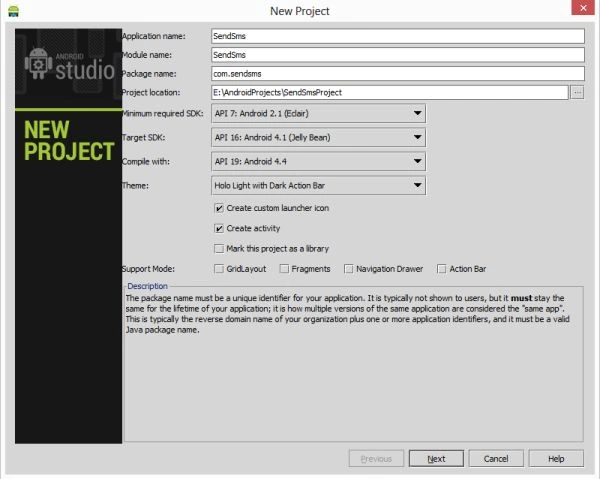
Step 1
Create a project as in the following:
Go to "File" -> "New project".
 Step 2
Create an XML file with the following:
Step 2
Create an XML file with the following:
- <RelativeLayout xmlns:android="http://schemas.android.com/apk/res/android"
- xmlns:tools="http://schemas.android.com/tools"
- android:layout_width="match_parent"
- android:layout_height="match_parent"
- android:paddingLeft="@dimen/activity_horizontal_margin"
- android:paddingRight="@dimen/activity_horizontal_margin"
- android:paddingTop="@dimen/activity_vertical_margin"
- android:paddingBottom="@dimen/activity_vertical_margin"
- tools:context=".MainActivity"
- android:background="#abcdef">
- <TextView
- android:id="@+id/textView1"
- android:textStyle="bold"
- android:layout_width="wrap_content"
- android:layout_height="wrap_content"
- android:text="Mobile No:" />
- <EditText
- android:id="@+id/editText1"
- android:layout_width="wrap_content"
- android:layout_height="wrap_content"
- android:layout_alignParentRight="true"
- android:layout_alignParentTop="true"
- android:layout_marginRight="20dp"
- android:ems="10" />
- <TextView
- android:textStyle="bold"
- android:id="@+id/textView2"
- android:layout_width="wrap_content"
- android:layout_height="wrap_content"
- android:layout_marginTop="60dp"
- android:text="Message:" />
- <EditText
- android:id="@+id/editText2"
- android:layout_width="wrap_content"
- android:layout_height="wrap_content"
- android:layout_alignLeft="@+id/editText1"
- android:layout_below="@+id/editText1"
- android:layout_marginTop="26dp"
- android:ems="10"
- android:inputType="textMultiLine" />
- <Button
- android:layout_width="wrap_content"
- android:layout_height="wrap_content"
- android:text="Send Sms"
- android:id="@+id/btn_send"
- android:layout_centerInParent="true"></Button>
- </RelativeLayout>
Step 3
Create a Java class file with the following.
In the Java class, you will use code from both editText to set the button on its ClickListener. Now create the intent. this intent as an argument to create the PendingIntent. Call the getDefault() method to create the instance of the SMS Manager class. After this call the sendTextMessage() to the message to the other device. Inside the onClick() method you will write the code to send an SMS message. In the Android Manifest.xml file, you will write the send SMS permission.
- package com.sendsmsapplication;
- import android.os.Bundle;
- import android.app.Activity;
- import android.app.PendingIntent;
- import android.content.Intent;
- import android.telephony.SmsManager;
- import android.view.Menu;
- import android.view.View;
- import android.view.View.OnClickListener;
- import android.widget.Button;
- import android.widget.EditText;
- import android.widget.Toast;
- public class MainActivity extends Activity {
- EditText edittText1,edittText2;
- Button btn_Send;
- @Override
- protected void onCreate(Bundle savedInstanceState) {
- super.onCreate(savedInstanceState);
- setContentView(R.layout.activity_main);
- edittText1=(EditText)findViewById(R.id.editText1);
- edittText2=(EditText)findViewById(R.id.editText2);
- btn_Send=(Button)findViewById(R.id.btn_Send);
- //Performing action on button click
- btn_Send.setOnClickListener(new OnClickListener() {
- @Override
- public void onClick(View arg0) {
- String number=edittText1.getText().toString();
- String message=edittText2.getText().toString();
- Intent i=new Intent(getApplicationContext(),MainActivity.class);
- PendingIntent pIntent=PendingIntent.getActivity(getApplicationContext(), 0, i,0);
- SmsManager sms=SmsManager.getDefault();
- sms.sendTextMessage(number, null, message, pIntent,null);
- Toast.makeText(getApplicationContext(), "Message Sent !",
- Toast.LENGTH_LONG).show();
- }
- });
- }
- @Override
- public boolean onCreateOptionsMenu(Menu menu) {
- // Inflate the menu; this adds items to the action bar if it is present.
- //getMenuInflater().inflate(R.menu.activity_main, menu);
- return true;
- }
- }
Step 4
Android manifest. xml file
In the Android Manifest.xml file, you will write the send SMS permission.
- <?xml version="1.0" encoding="utf-8"?>
- <manifest xmlns:android="http://schemas.android.com/apk/res/android"
- package="com.sendsmsapplication"
- android:versionCode="1"
- android:versionName="1.0" >
- <uses-sdk
- android:minSdkVersion="7"
- android:targetSdkVersion="16" />
- <application
- android:allowBackup="true"
- android:icon="@drawable/ic_launcher"
- android:label="@string/app_name"
- android:theme="@style/AppTheme" >
- <activity
- android:name="com.sendsmsapplication.MainActivity"
- android:label="@string/app_name" >
- <intent-filter>
- <action android:name="android.intent.action.MAIN" />
- <category android:name="android.intent.category.LAUNCHER" />
- </intent-filter>
- </activity>
- </application>
- <uses-permission
- android:name="android.permission.SEND_SMS"></uses-permission>
- <uses-permission android:name="android.permission.RECEIVE_SMS">
- </uses-permission>
- </manifest>
Step 5
Run this application on a real device.
Join the conversation! Your thoughts help the community grow.