

In this article, you will learn about how to send push notifications to android devices using FCM from .Net Core Web API. You will also learn how to create a Firebase project and get Server Key and Sender ID step by step. Our main focus is how to handle send notification functionality on the API side.
What is FCM?
Firebase Cloud Messaging (FCM) is a free cloud service from Google that allows users to send notifications and messages to users.
It is a cross-platform messaging solution. You can send notifications and messages across a variety of platforms, including Android, iOS and web applications.
Create Firebase Project
Go to Firebase Console.
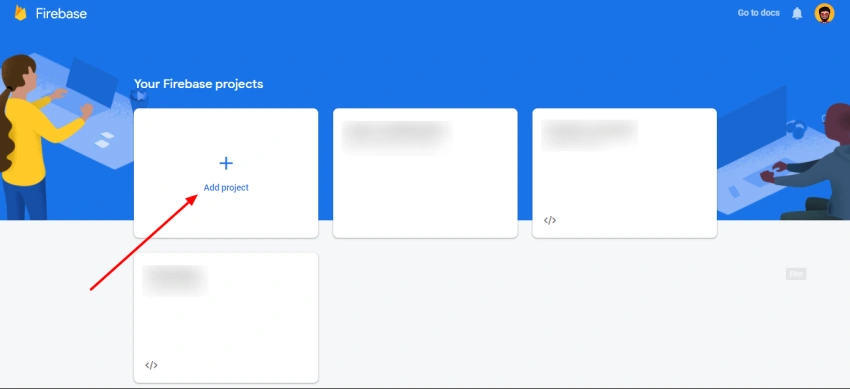
Follow the steps to set up the project.
After adding the project to the Firebase, add App to the same project.
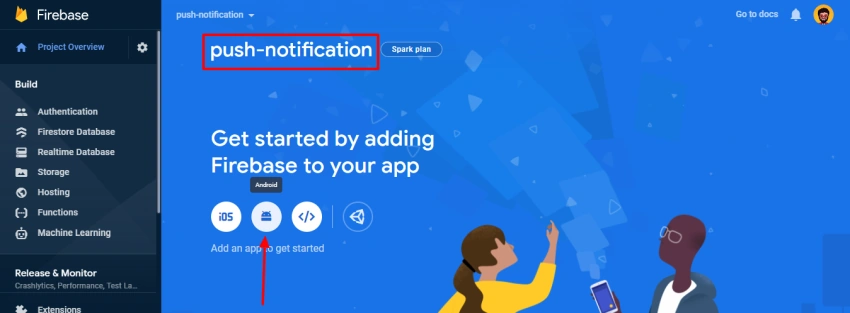
Enter package name, app name, and SHA-1 key of your Android Studio project.
Follow all the steps to complete the add Firebase to your Android app. If you face any problem, you can refer to Add Firebase to your Android Project.
Get FCM Sender ID & Server Key
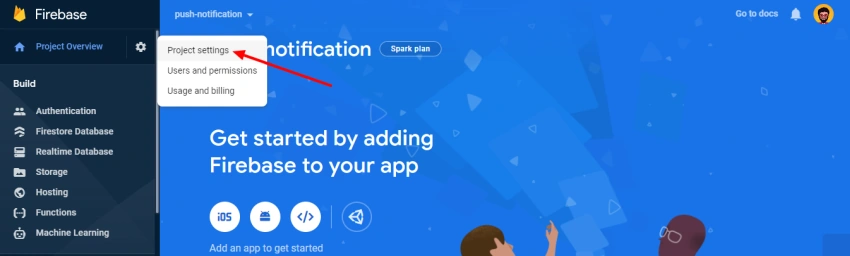
Click on the “Gear” icon and access “Project settings”.
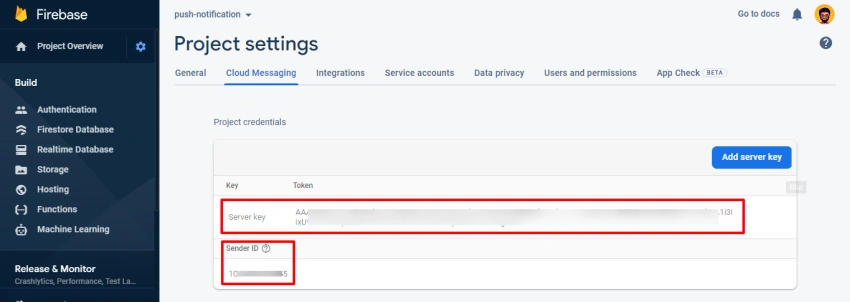
Go to the “Cloud Messaging” section and you will have access to the Sender ID and Server Key. We will use it later in the API.
For setting up a Firebase Cloud Messaging client app on Android and getting FCM registration token or device token please refer to this Set up an Android client.
How to send FCM push notification from an ASP.NET Core Web API project.
What CorePush Package?
It’s very Lightweight .NET Core Push Notifications for Android and iOS. I used it in my project to send Firebase Android and Apple iOS push notifications. In this article just I focus on sending push notifications on Android devices Useful links,
Step 1 – Create Project
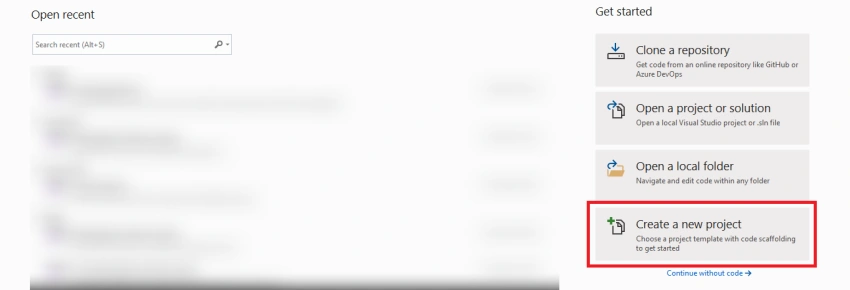
Open Visual Studio click on “Create a new project”.
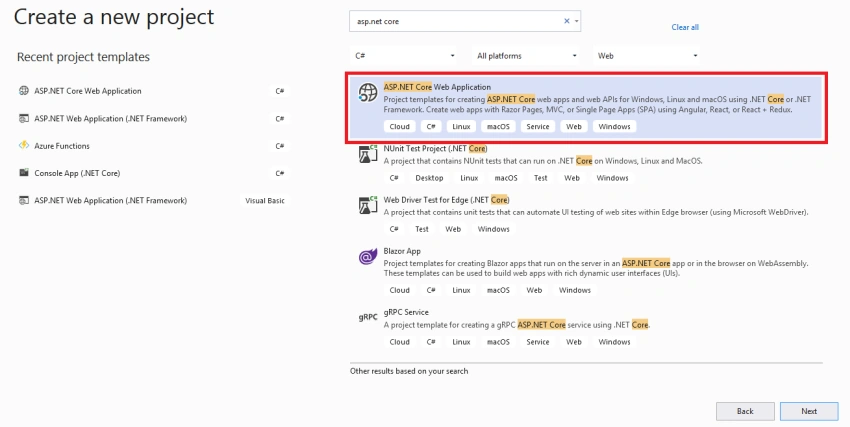
Select ASP.NET Core Web Application option.
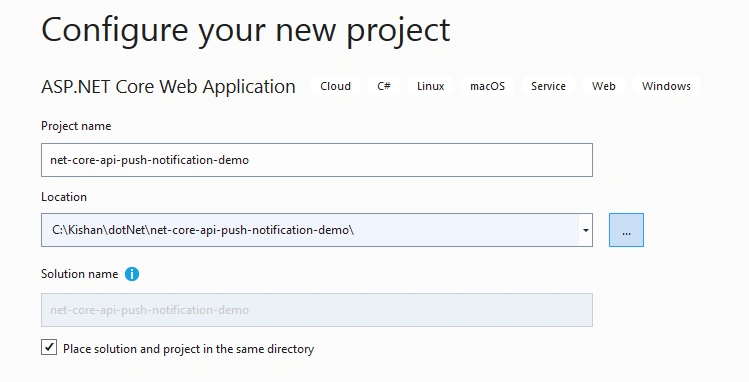
Add Project name and Solution name.
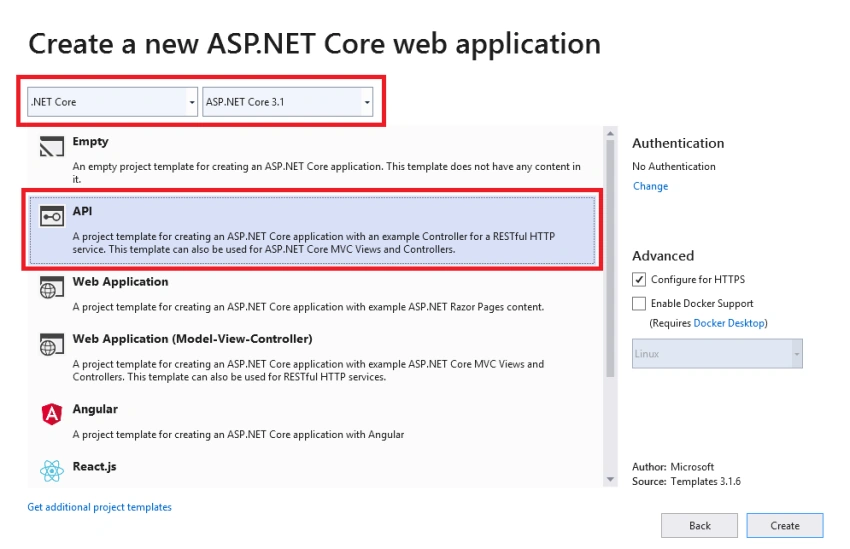
Select the “API” option with “.NET Core” and “ASP.NET Core 3.1” to create ASP.NET API.
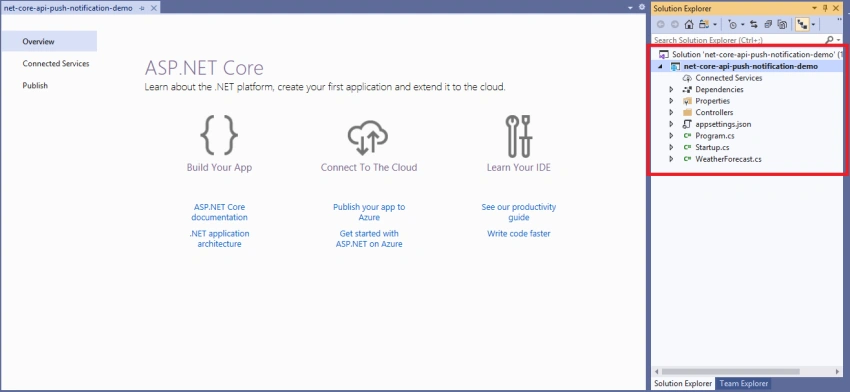
You can see the default folder structure.
Step 2 – Install NuGet Packages
Open Package Manager Console
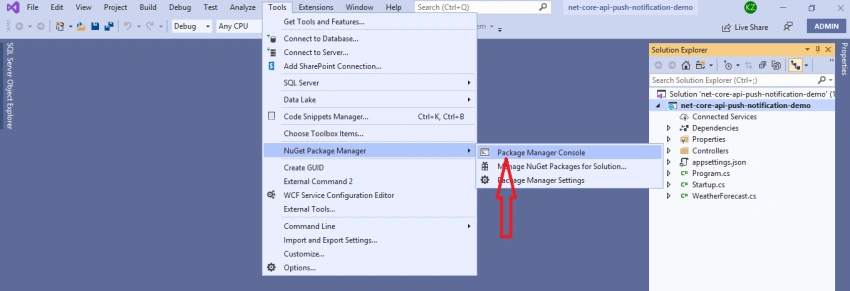
And run the below commands one by one:
- Install-Package CorePush
- Install-Package Newtonsoft.Json
- Install-Package Swashbuckle.AspNetCore

Step 3 – Create Models for the controller
Now, create a directory with name Models and add the following files
- ResponseModel.cs
- NotificationModel.cs
- FcmNotificationSetting.cs
ResponseModel.cs will contain definitions for response models.
NotificationModel.cs will contain definitions for notification and google notification model
FcmNotificationSetting.cs will contain definitions for FCM notification settings.
Code for ResponseModel.cs file,
using Newtonsoft.Json;

namespace net_core_api_push_notification_demo.Models
{
    public class ResponseModel
    {
        [JsonProperty("isSuccess")]
        public bool IsSuccess { get; set; }
        [JsonProperty("message")]
        public string Message { get; set; }
    }
}
Code for NotificationModel.cs file,
using Newtonsoft.Json;

namespace net_core_api_push_notification_demo.Models
{
    public class NotificationModel
    {
        [JsonProperty("deviceId")]
        public string DeviceId { get; set; }
        [JsonProperty("isAndroiodDevice")]
        public bool IsAndroiodDevice { get; set; }
        [JsonProperty("title")]
        public string Title { get; set; }
        [JsonProperty("body")]
        public string Body { get; set; }
    }

    public class GoogleNotification
    {
        public class DataPayload
        {
            [JsonProperty("title")]
            public string Title { get; set; }
            [JsonProperty("body")]
            public string Body { get; set; }
        }
        [JsonProperty("priority")]
        public string Priority { get; set; } = "high";
        [JsonProperty("data")]
        public DataPayload Data { get; set; }
        [JsonProperty("notification")]
        public DataPayload Notification { get; set; }
    }
}
Code for FcmNotificationSetting.cs file,
namespace net_core_api_push_notification_demo.Models
{
    public class FcmNotificationSetting
    {
        public string SenderId { get; set; }
        public string ServerKey { get; set; }
    }
}
Step 4 – Update appsettings.Development.json file
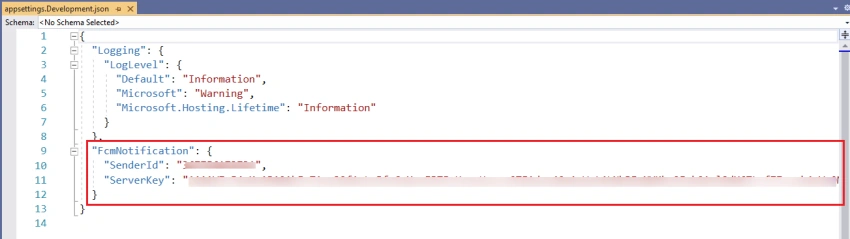
Code for appsettings.Development.json file,
{
  "Logging": {
    "LogLevel": {
      "Default": "Information",
      "Microsoft": "Warning",
      "Microsoft.Hosting.Lifetime": "Information"
    }
  },
  "FcmNotification": {
    "SenderId": "*SENDER_ID*",
    "ServerKey": "*SERVER_KEY*"
  }
}
Replace *SENDER_ID* with your sender Id.
Replace *SERVER_KEY* with your server key.
Which we have found from the Cloud Messaging section of Firebase project settings.
Step 5 – Create Service
Now, create a directory with the name Services and add the following file.
Code for NotificationService.cs file,
using CorePush.Google;
using Microsoft.Extensions.Options;
using net_core_api_push_notification_demo.Models;
using System;
using System.Net.Http;
using System.Net.Http.Headers;
using System.Threading.Tasks;
using static net_core_api_push_notification_demo.Models.GoogleNotification;

namespace net_core_api_push_notification_demo.Services
{
    public interface INotificationService
    {
        Task<ResponseModel> SendNotification(NotificationModel notificationModel);
    }

    public class NotificationService : INotificationService
    {
        private readonly FcmNotificationSetting _fcmNotificationSetting;
        public NotificationService(IOptions<FcmNotificationSetting> settings)
        {
            _fcmNotificationSetting = settings.Value;
        }

        public async Task<ResponseModel> SendNotification(NotificationModel notificationModel)
        {
            ResponseModel response = new ResponseModel();
            try
            {
                if (notificationModel.IsAndroiodDevice)
                {
                    /* FCM Sender (Android Device) */
                    FcmSettings settings = new FcmSettings()
                    {
                        SenderId = _fcmNotificationSetting.SenderId,
                        ServerKey = _fcmNotificationSetting.ServerKey
                    };
                    HttpClient httpClient = new HttpClient();

                    string authorizationKey = string.Format("keyy={0}", settings.ServerKey);
                    string deviceToken = notificationModel.DeviceId;

                    httpClient.DefaultRequestHeaders.TryAddWithoutValidation("Authorization", authorizationKey);
                    httpClient.DefaultRequestHeaders.Accept
                            .Add(new MediaTypeWithQualityHeaderValue("application/json"));

                    DataPayload dataPayload = new DataPayload();
                    dataPayload.Title = notificationModel.Title;
                    dataPayload.Body = notificationModel.Body;

                    GoogleNotification notification = new GoogleNotification();
                    notification.Data = dataPayload;
                    notification.Notification = dataPayload;

                    var fcm = new FcmSender(settings, httpClient);
                    var fcmSendResponse = await fcm.SendAsync(deviceToken, notification);

                    if (fcmSendResponse.IsSuccess()) {
                        response.IsSuccess = true;
                        response.Message = "Notification sent successfully";
                        return response;
                    } else {
                        response.IsSuccess = false;
                        response.Message = fcmSendResponse.Results[0].Error;
                        return response;
                    }
                }
                else {
                    /* Code here for APN Sender (iOS Device) */
                    //var apn = new ApnSender(apnSettings, httpClient);
                    //await apn.SendAsync(notification, deviceToken);
                }
                return response;
            }
            catch (Exception ex) {
                response.IsSuccess = false;
                response.Message = "Something went wrong";
                return response;
            }
        }
    }
}
Step 6 – Update Startup.cs file
Code for Startup.cs file,
using CorePush.Apple;
using CorePush.Google;
using Microsoft.AspNetCore.Builder;
using Microsoft.AspNetCore.Hosting;
using Microsoft.Extensions.Configuration;
using Microsoft.Extensions.DependencyInjection;
using Microsoft.Extensions.Hosting;
using Microsoft.OpenApi.Models;
using net_core_api_push_notification_demo.Models;
using net_core_api_push_notification_demo.Services;

namespace net_core_api_push_notification_demo
{
    public class Startup
    {
        public Startup(IConfiguration configuration)
        {
            Configuration = configuration;
        }

        public IConfiguration Configuration { get; }

        // This method gets called by the runtime. Use this method to add services to the container.
        public void ConfigureServices(IServiceCollection services)
        {
            services.AddControllers();
            services.AddTransient<INotificationService, NotificationService>();
            services.AddHttpClient<FcmSender>();
            services.AddHttpClient<ApnSender>();

            // Configure strongly typed settings objects
            var appSettingsSection = Configuration.GetSection("FcmNotification");
            services.Configure<FcmNotificationSetting>(appSettingsSection);

            // Register the swagger generator
            services.AddSwaggerGen(c => {
                c.SwaggerDoc(name: "V1", new OpenApiInfo { Title = "My API", Version = "V1" });
            });
        }

        // This method gets called by the runtime. Use this method to configure the HTTP request pipeline.
        public void Configure(IApplicationBuilder app, IWebHostEnvironment env)
        {
            if (env.IsDevelopment()) {
                app.UseDeveloperExceptionPage();
            }

            // Enable middleware to serve generated Swagger as a JSON endpoint
            app.UseSwagger();
            // Enable the SwaggerUI
            app.UseSwaggerUI(c => {
                c.SwaggerEndpoint(url: "/swagger/V1/swagger.json", name: "My API V1");
            });

            app.UseHttpsRedirection();
            app.UseRouting();
            app.UseAuthorization();
            app.UseEndpoints(endpoints => {
                endpoints.MapControllers();
            });
        }
    }
}
Step 7 – Add Controller
Now, add the NotificationController.cs file in the Controllers folder
Code for NotificationController.cs file,
using System.Threading.Tasks;
using Microsoft.AspNetCore.Mvc;
using net_core_api_push_notification_demo.Models;
using net_core_api_push_notification_demo.Services;

namespace net_core_api_push_notification_demo.Controllers
{
    [Route("api/notification")]
    [ApiController]
    public class NotificationController : ControllerBase
    {
        private readonly INotificationService _notificationService;
        public NotificationController(INotificationService notificationService)
        {
            _notificationService = notificationService;
        }

        [Route("send")]
        [HttpPost]
        public async Task<IActionResult> SendNotification(NotificationModel notificationModel)
        {
            var result = await _notificationService.SendNotification(notificationModel);
            return Ok(result);
        }
    }
}
Step 8 – Running Web API
Now, press F5 to start debugging the Web API project, if everything is OK, we’ll get the following output in the browser.
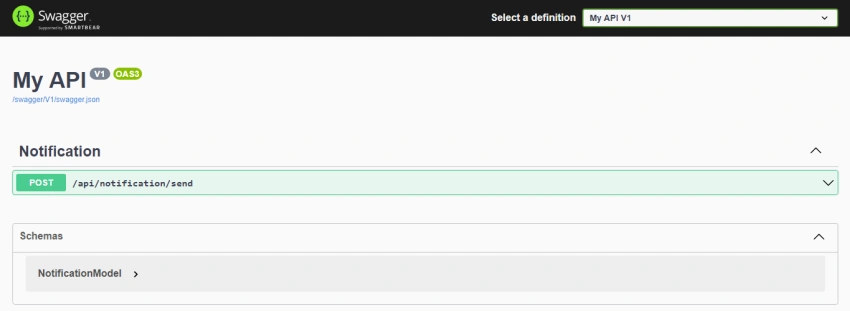
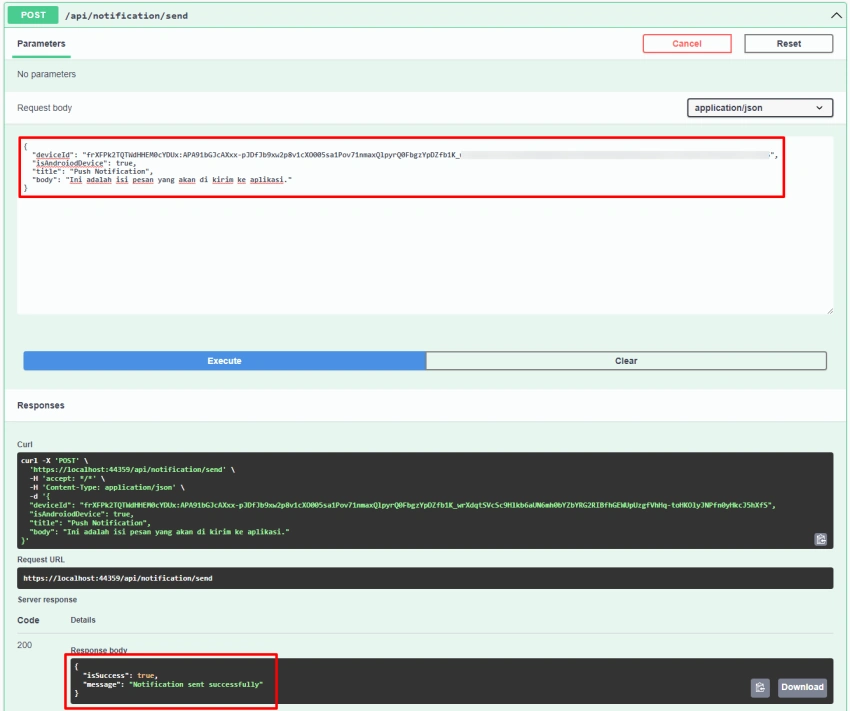
Now, we will call the send notification API and check whether the notification is sent or not. As per the below screenshot, enter all properties details and hit the Execute button. If everything is fine, then the value of isSuccess property is true and the value of the message property is “Notification sent successfully”.
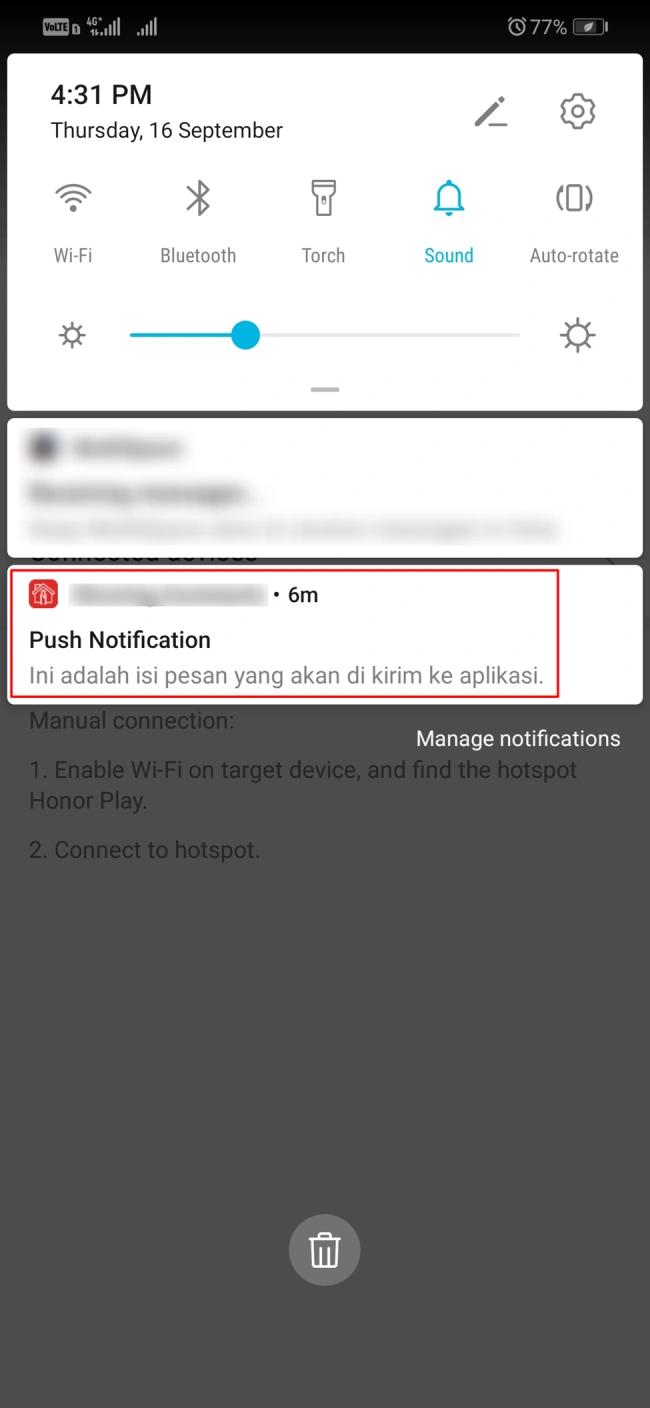
Wow, here is the notification!
Summary
In this article, I discussed how to send push notifications on Android devices using FCM and CorePush package from ASP.NET Core Web API step by step. Also, I discussed how to create a Firebase project and get Server Key and Sender ID.
Reference
https://github.com/andrei-m-code/net-core-push-notifications
mohamed ghazyPosted May 9, 2024, 1:41 PM
How can i get DeviceId
Mustapha MohammedPosted Apr 30, 2024, 1:15 PM
How do we get DeviceId please?
Sogoba MohamedPosted Apr 29, 2024, 4:58 PM
Hello, you can update the code to the higher version v1 firbase
anand bishtPosted Apr 5, 2024, 12:11 PM
What will be the device Id in swagger when you execute the API ..
Moin AlQinnaPosted Oct 18, 2023, 2:29 PM
Kindly we need an article to explain how to push notifications on IOS devices
Moin AlQinnaPosted Oct 18, 2023, 2:29 PM
Thank you, but push to ios devices not working after removing the comment code in the else statement.
Moe AhmadPosted Sep 14, 2023, 7:43 AM
Please if you can tell me how to do it for the IOS i will really appreciate it ?
kathiraan kamarajPosted Jun 13, 2023, 7:20 AM
Where i can get device id?
Norfarhana Syamiza AmirShamPosted Feb 28, 2023, 7:21 AM
Hello Kishan,i have one question, what is the device id? and how i can got the device id? currently i keep getting error of "InvalidRegistration" and "NotRegistered". Thanks in advance
Abhijeet JagtapPosted Feb 14, 2023, 12:28 AM
While hitting the api what is that device id and from where we can get this?
vicky suraniPosted Jan 2, 2023, 7:53 AM
When i used this follow code I got an error like this 'Firebase notification error: to'
J SPosted Nov 1, 2022, 8:50 AM
May I use these "push notifications" to increment the "notification bell" in my app? or I should use SinglaR for that part?
S KPosted Sep 6, 2022, 10:00 AM
Please provide 'Code here for APN Sender (iOS Device)' portion code, for android its working fine for me. Thanks in advance
nathan bPosted Aug 5, 2022, 4:43 PM
Invalid registration...no surprise since the instructions are not clear
zehra karahanPosted Jul 28, 2022, 7:58 PM
Please deviceid or"isSuccess": false, "message": "InvalidRegistration" can you help with this error
Ankit MoriPosted Jul 18, 2022, 11:52 AM
How can we send notification over browser ?
pierre EdimoPosted Apr 9, 2022, 1:10 PM
Now the Application is sent but my Application doesn't show the notification on my phone. I followed all the steps and the application is registered in Firebase already
Raj MauryaPosted Mar 28, 2022, 10:54 AM
An example how to call these api from android using retrofit
Fatih GündoğduPosted Jan 7, 2022, 12:10 AM
GUYS DONT USE THIS METHOD EVER. This is working on localhost fine but if you are going to publish, this is NOT WORKING.
Hoài ThanhPosted Dec 29, 2021, 5:09 AM
How to send notification to app ios. please! thanks
Dsdafdsaf FDafsfPosted Dec 22, 2021, 12:27 PM
Does it support subscribing to topic / group?
farhan zahidPosted Oct 13, 2021, 8:04 AM
Kindly tell me clear app kia khana chahta hoooo
farhan zahidPosted Oct 13, 2021, 8:03 AM
"isSuccess": false, "message": "InvalidRegistration"
Adeola IdowuPosted Sep 26, 2021, 8:53 AM
I tried this but my api endpoint returns invalid registration. something is missing
Ramin GuliyevPosted Sep 21, 2021, 1:20 PM
How can I get devideId ?