

Introduction
Hello guys, in this article, I will tell you how you can send an email from your ASP.NET web form to any other user using Gmail. I will also tell you how you can use the Gmail API to send mail. I hope you like this article.
Step 1
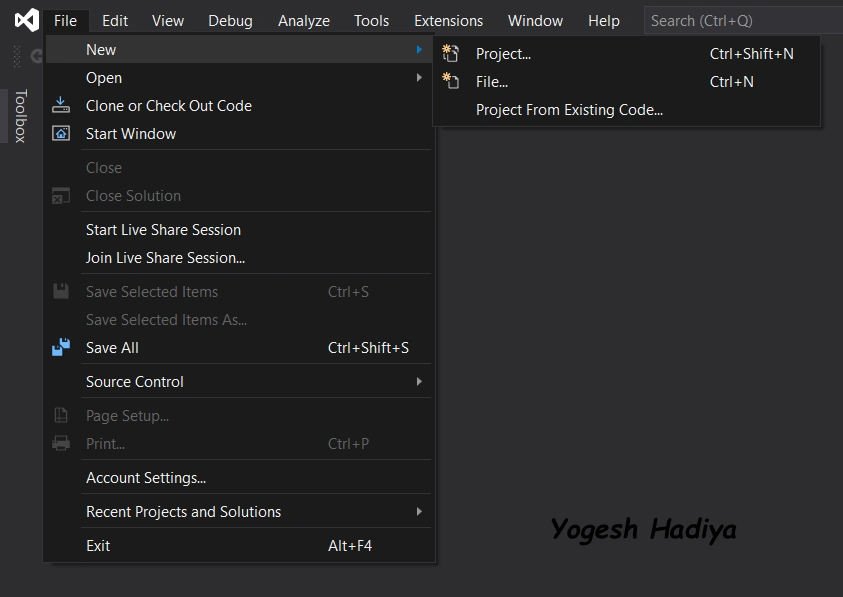
First of all, open your visual studio and create a new project by clicking on File > New > Project
Step 2
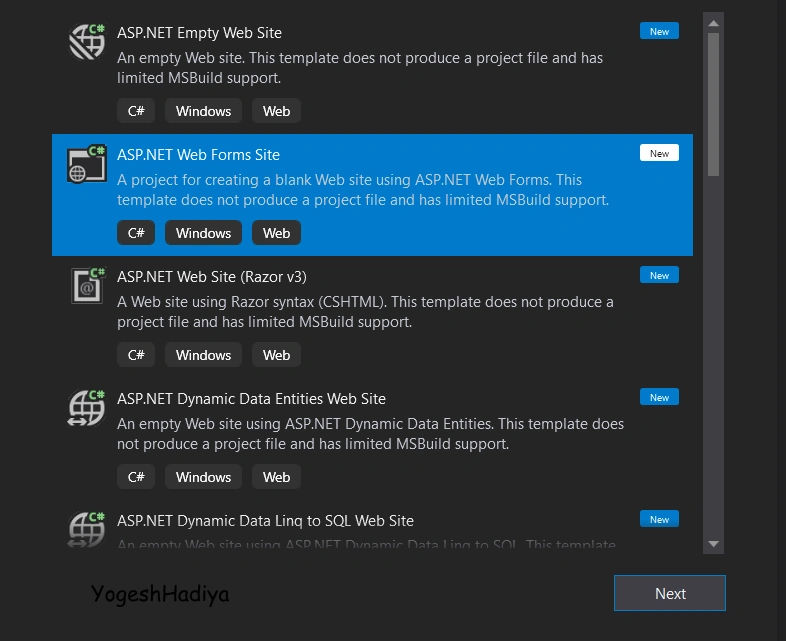
Now select ASP.NET webform application from the various options
Step 3
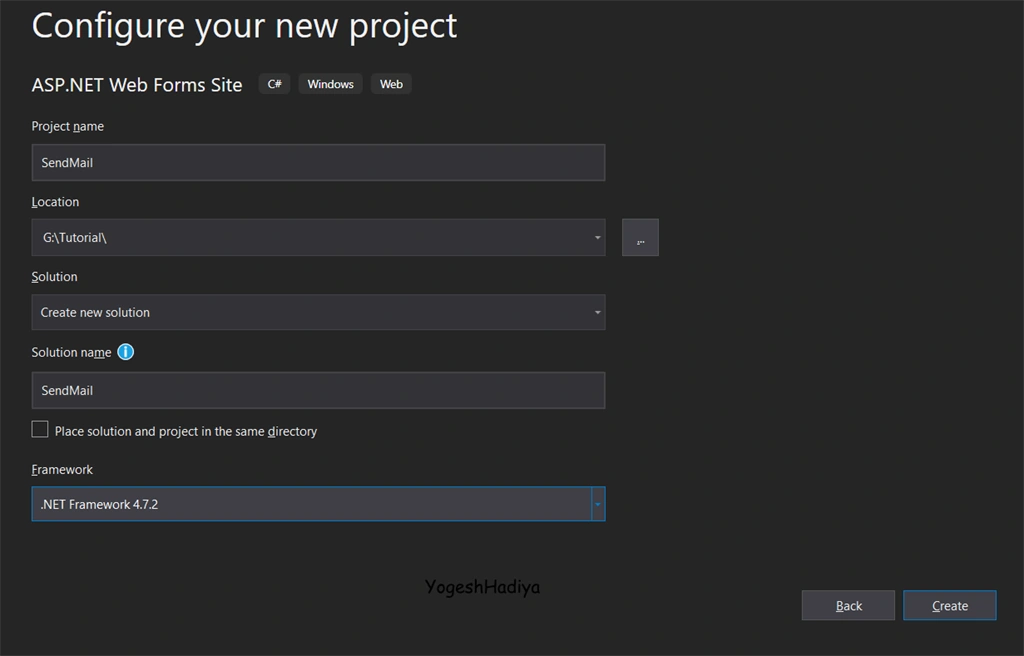
Now you will get a screen where you need to enter your project name, project location, solution name, and framework for your project. Select the framework as per your need.
Step 4
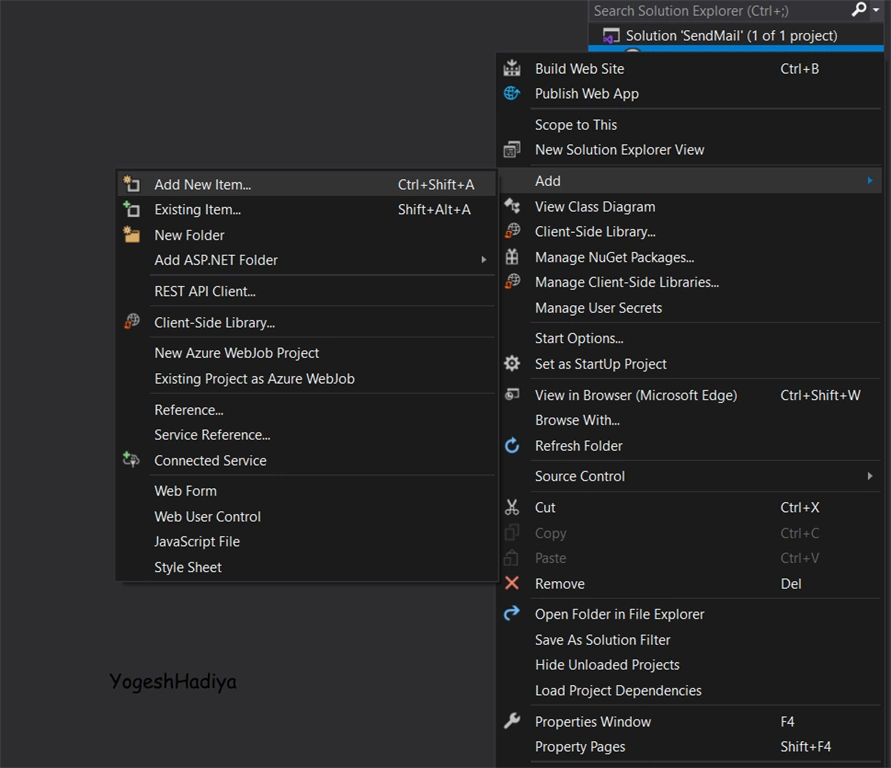
Now add a new web form in your project by right-clicking on your project name in Solution Explorer > Add > Add New Item
Step 5
Select web form from a various list of items, give your form name and click on the add button
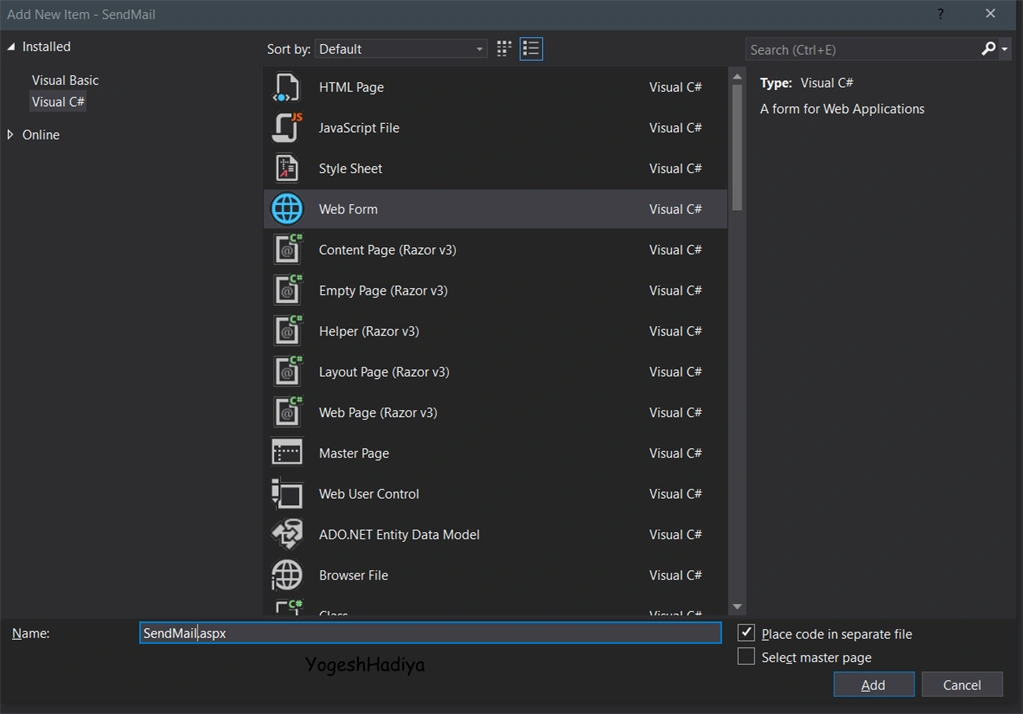
Step 6
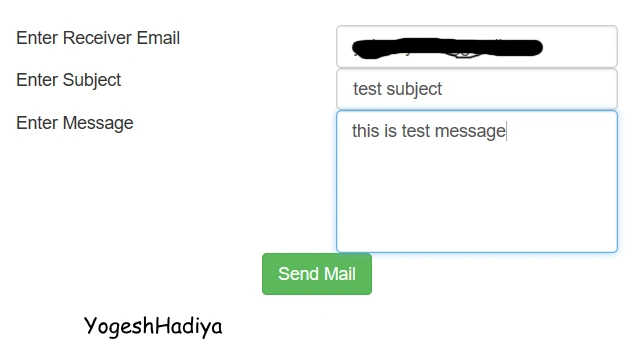
Create a form as per your requirement. As you can see here, I created a basic form which contains only three text fields which receive an email address, mail subject, and mail message.
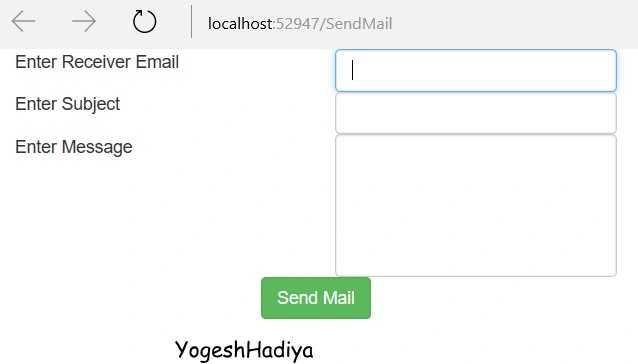
Step 7
Add a namespace using System.Net.Mail
Step 8
Now add an event on a button click and add the following code as shown in the below image:
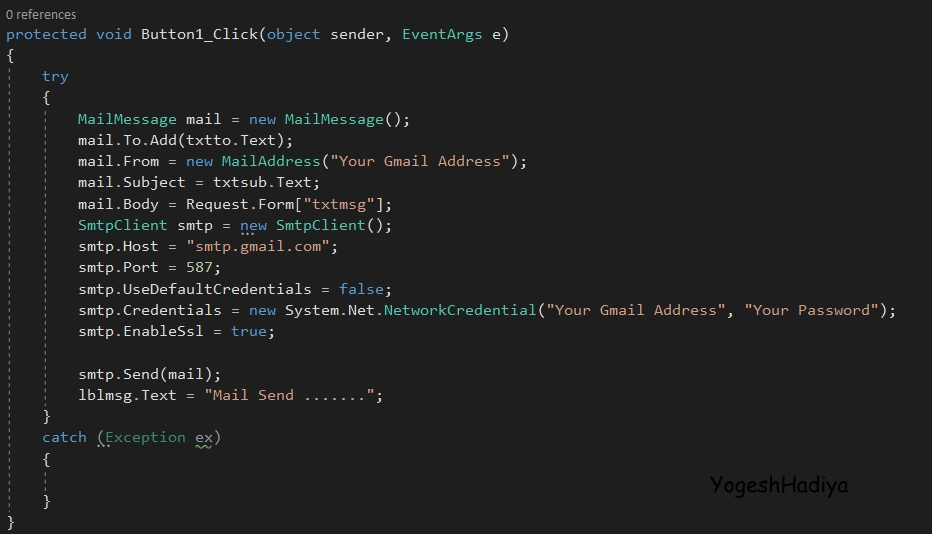
Under Standing Code
- MailMessage mail = new MailMessage() is create object of class which is In System.Net.Mail namespace which use for send mails
- Mail.to is contain email address of receiver (here you can add multiple email addresses)
- Mail.from is contain sender email address
- Mail.body is for mail body which contain your message for mail
- SmtpClient SMTP = new SmtpClient() is create object of SMTP services
- smtp.host attribute tells the server that you use this as your mail host. Here, the user Gmail as a host you can define other as well
- smtp.port is define port for you host 587 is port number of Gmail
- smtp.UseDefaultCredentials: If this is set as true, is uses default Credentials which define in your host server. But if you need to use your email then you need to set it to false
- smtp.Credentials is use to define your username and password to enable your server to login into your account
- smtp.EnableSsl: if this is set false mail send with HTTP only and if it set with true mail send with HTTPS
- smtp.Send(mail): it sends the mail containing the above information
Step 9
Now run your website and try to send mail.
However, you will get an error as seen in the below image.
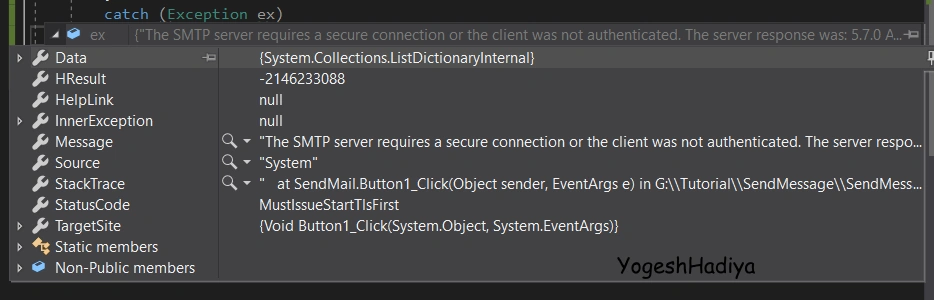
This error comes when the server does not log in to your account. There are two main reasons for this.
- The first reason is that your username or password is incorrect
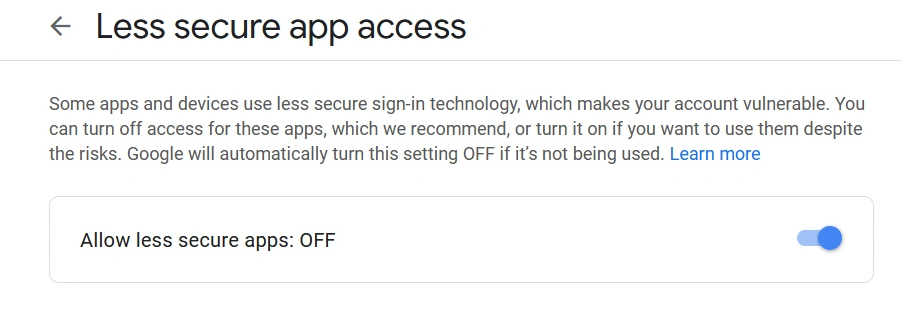
- The second reason is your account does not allow access to other apps. for change this setting go to this https://myaccount.google.com/lesssecureapps?pli=1 and turn on the button to allow less secure apps, as seen in the below image.
Step 10
Now re-run your website and enter details and click on the send button.
Step 11
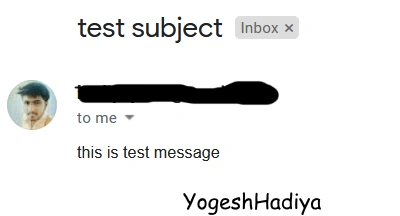
Now check your email, as you can see in the below image, the mail has been received successfully.
Below is the source code for designing the file (.aspx file)
- <%@ Page Language="C#" AutoEventWireup="true" CodeFile="SendMail.aspx.cs" Inherits="SendMail" %>
- <!DOCTYPE html>
- <html xmlns="http://www.w3.org/1999/xhtml">
- <head runat="server">
- <title></title>
- <link href="Content/bootstrap.min.css" rel="stylesheet" />
- </head>
- <body>
- <br /><br /><br />
- <asp:Label ID="lblmsg" runat="server" Text=""></asp:Label>
- <form id="form1" runat="server">
- <div class="card col-lg-6 col-sm-12 col-md-6">
- <div class="row">
- <div class="col-sm-12 col-md-6 col-lg-6">
- <asp:Label ID="Label1" runat="server" Text="Enter Receiver Email"></asp:Label>
- </div>
- <div class="col-sm-12 col-md-6 col-lg-6">
- <asp:TextBox ID="txtto" CssClass="form-control" runat="server"></asp:TextBox>
- </div>
- </div>
- <div class="row">
- <div class="col-sm-12 col-md-6 col-lg-6">
- <asp:Label ID="Label2" runat="server" Text="Enter Subject"></asp:Label>
- </div>
- <div class="col-sm-12 col-md-6 col-lg-6">
- <asp:TextBox ID="txtsub" CssClass="form-control" runat="server"></asp:TextBox>
- </div>
- </div>
- <div class="row">
- <div class="col-sm-12 col-md-6 col-lg-6">
- <asp:Label ID="Label3" runat="server" Text="Enter Message"></asp:Label>
- </div>
- <div class="col-sm-12 col-md-6 col-lg-6">
- <textarea id="txtmsg" class="form-control" cols="20" rows="5" name="txtmsg"></textarea>
- </div>
- </div>
- <div class="row text-center">
- <asp:Button ID="Button1" runat="server" CssClass="btn btn-success" Text="Send Mail" OnClick="Button1_Click" />
- </div>
- </div>
- </form>
- <script src="Scripts/bootstrap.min.js"></script>
- </body>
- </html>
- using System;
- using System.Collections.Generic;
- using System.Linq;
- using System.Web;
- using System.Web.UI;
- using System.Web.UI.WebControls;
- using System.Net.Mail;
- public partial class SendMail : System.Web.UI.Page
- {
- protected void Button1_Click(object sender, EventArgs e)
- {
- try
- {
- MailMessage mail = new MailMessage();
- mail.To.Add(txtto.Text);
- mail.From = new MailAddress("Your Gmail Address");
- mail.Subject = txtsub.Text;
- mail.Body = Request.Form["txtmsg"];
- SmtpClient smtp = new SmtpClient();
- smtp.Host = "smtp.gmail.com";
- smtp.Port = 587;
- smtp.UseDefaultCredentials = false;
- smtp.Credentials = new System.Net.NetworkCredential("Your Gmail Address", "Your Password");
- smtp.EnableSsl = true;
- smtp.Send(mail);
- lblmsg.Text = "Mail Send .......";
- }
- catch (Exception ex)
- {
- }
- }
- }
Join the conversation! Your thoughts help the community grow.