

Hi Folks! Search in SharePoint is always an important part of organization when a user looks for uploaded content or important updated content. I have come across scenarios where I was asked to implement search across hub sites, communication sites, team sites, SharePoint On-Premises and SharePoint online. And at that point you will question yourself -- which search shall I implement, Classic or Modern Search or PnP search?
In this article, we will deep dive into how to implement search in Modern Hub sites.
What is Search in SharePoint?
Search can be defined as function which helps a user to find the relevant content or information from a defined set of files or documents. In SharePoint search can be used to find files, documents, images, people, SharePoint sites, etc.
Three types of Searches- Classic search, Modern search, and PnP search. Whereas classic and modern search uses same search index to search the content across organization. Administrators cannot turn off these searches, these are turned on by default.
A) Classic Search
Classic search are accessible on SharePoint On-premises and Office 365. You can implement classic search on below sites: -
- Publishing sites.
- Classic Team site.
- Search Center.
Important Aspects of Classic Search
- Classic search provides search refiners to provide concise search results.
- Search scope can be bind to a specific site collection, sites, Lists/Libraries etc. by site admin.
- It provides a controlled way of search for the same words so that the user will find the same results.
- Promoted results can be implemented by site admin to search important content.
B) Modern/Microsoft Search
Modern search also known as Microsoft search. It provides personalized way of search experience. Modern search can be applied on below list of sites -
- Hub sites.
- Communication sites.
- Modern Team sites.
- SharePoint Home Page.
Important Aspects of Microsoft Search
- Microsoft search helps to find Locations, Conversations, SharePoint sites, Files, Groups, People, Resources, and tools etc.
- Microsoft search uses Microsoft graph to search the content.
- This search does not require to be configured by Site Administrator. By default, it is located on top header of the SharePoint.
- Microsoft search does not support sortable and refinable i.e., Changing of sort order and refiners on metadata is not possible in Microsoft search.
- Modern search does not provide the capability of customization.
C) PnP Search
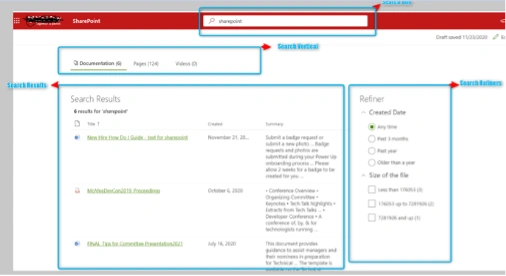
PnP search comes to the picture where the user demands a more flexible, personalized, and customized way of search results page. The “Pnp Modern Search Webpart” comes with four Apps as mentioned below and all are interconnected with its own configuration settings.
- Search Box- Entered Search keyword.
- Search Results-
- Search Query configuration: Build search query template.
- Search settings configuration: Get data from Result source.
- Styling Option Configuration: There are various layout selection option: Simple list, Details list (currently applied on the below screenshot), Tiles etc.
- Search Refiners- search filter based on Managed Property.
- Search Verticals- configure different scopes by providing the Tab name. it will display the result count against the scope.
Below is the screenshot for the above four apps -
Configuration and Deployment of PnP search
Here we will discuss below -
- PnP Search Package Deployment.
- PnP Search Webpart Configuration.
Description
The purpose of the below is to capture PnP search deployment and configuration.
1. PnP Search Package Deployment.
- Run PowerShell script to enable site-collection app catalog
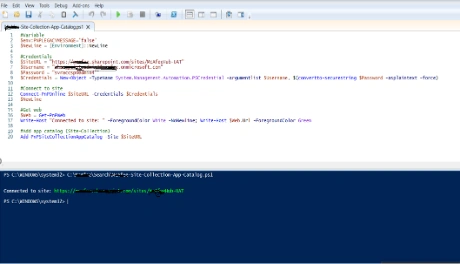
- Added site-collection app catalog.
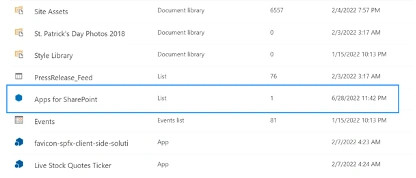
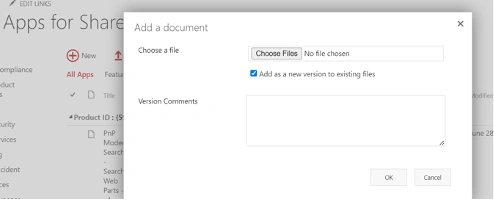
- Upload PnP search package to site-collection app catalog.
- Deploy PnP search package to current site-collection.
- Deployed PnP search package with NO errors.
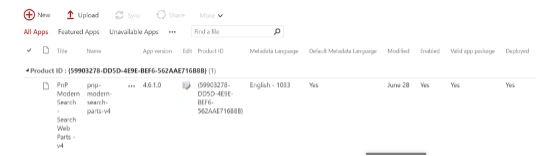
- Add PnP modern search web-parts v4 to current site collection.
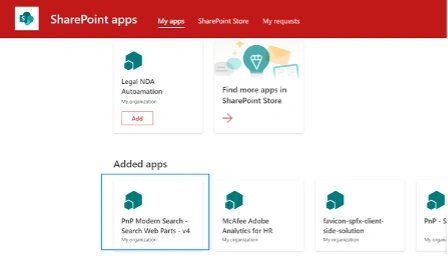
- Successfully added PnP modern search web-parts v4 to current site collection.
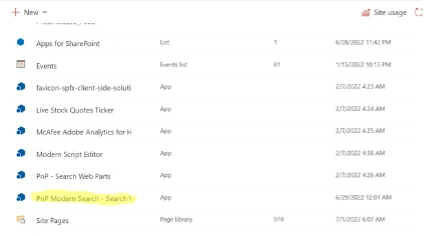
- You need site collection administrator privilege in current site-collection to perform above mentioned activities.
- PnP Modern Search Web-Parts – v4 can be downloaded from GitHub repository and reused as it is.
2) PnP Search Webpart Configuration
- Create custom search page.

- Search and add ‘PnP - Search Results’ web-part.
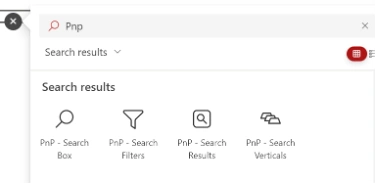
- Edit ‘PnP - Search Results’ web-part.
- Choose ‘SharePoint Search’ option.
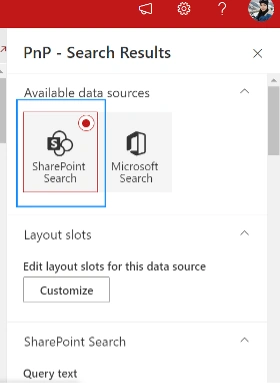
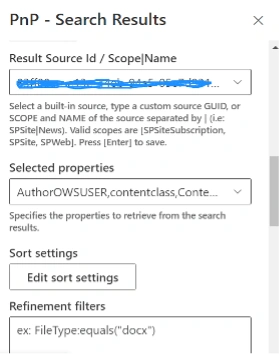
- Provide ‘Result Source ID / Scope | Name’.
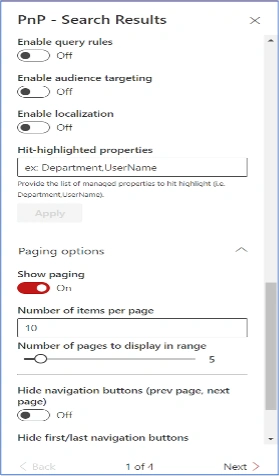
You need site collection administrator privilege in current site-collection to perform above mentioned activities.
So, these are ways you can configure PnP search in hub sites.
Join the conversation! Your thoughts help the community grow.