

In many technical blogs, we use code snippets to share code with readers and explain the implementation. In a previous article, we have seen how to create a blogging site with Angular and Scully. If you are creating a technical blogging site you might also need to add code snippets to your blog.
So In this article, we will see how to add a code block with syntax highlighting feature. We will continue working on the previous article example, If you want to code along with that example clone or download the code from this GitHub Repository
Previous Articles of Scully Series,
In the markdown file, we can add a code block with the following syntax,
So In this article, we will see how to add a code block with syntax highlighting feature. We will continue working on the previous article example, If you want to code along with that example clone or download the code from this GitHub Repository
Previous Articles of Scully Series,
- Getting Started With Scully - Angular Static Site Generator
- Create Blogging Site With Angular and Scully
Adding Code Block in Markdown file
In the markdown file, we can add a code block with the following syntax,
- ```
- --- CODE BLOCK ---
- ```
Optionally you can also set the language as
- ```language
- --- CODE BLOCK ---
- ```
For Example,
Add the following sample code block in getting-started-with-scully.md file
- ```javascript
- import { ScullyConfig } from '@scullyio/scully';
- export const config: ScullyConfig = {
- projectRoot: "./src",
- projectName: "portfolio",
- outDir: './dist/static',
- routes: {
- '/blog/:slug': {
- type: 'contentFolder',
- slug: {
- folder: "./blog"
- }
- },
- }
- };
- ```
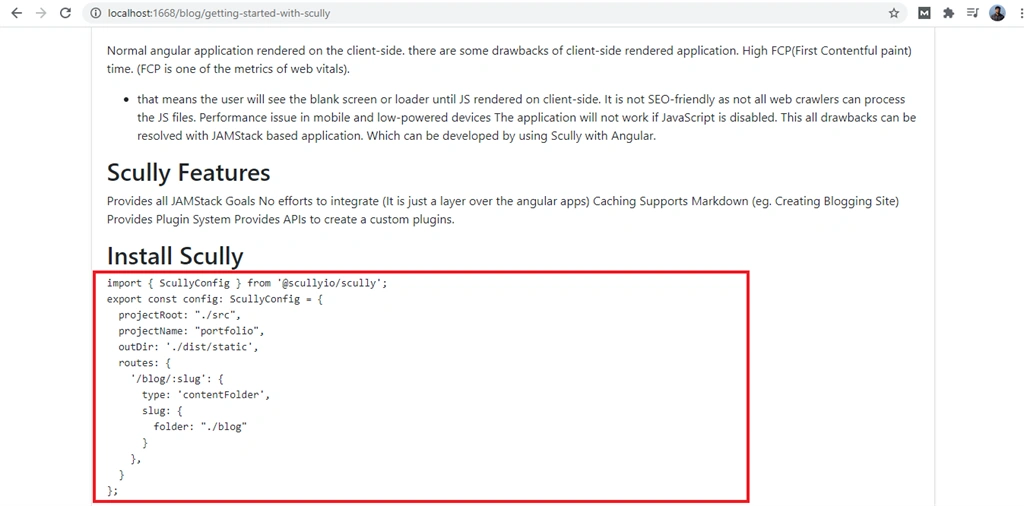
As you can see it generates the code block with preformatted code, but it doesn't have any syntax highlighting.
Adding Syntax Highlighting Feature
Scully has a markdown plugin, which transforms markdown files to HTML files at the time of Scully build. This plugin provides an option to enable syntax highlighting at the time of Scully build.
As you can see below, We will use the setPluginConfig function to configure plugins. set enableSyntaxHighlighting to true in the markdown plugin to enable syntax highlighting.
- // scully.[projectName].config.ts
- import { ScullyConfig, setPluginConfig } from '@scullyio/scully';
- setPluginConfig('md', { enableSyntaxHighlighting : true});
- export const config: ScullyConfig = {
- projectRoot: "./src",
- projectName: "portfolio",
- outDir: './dist/static',
- routes: {
- '/blog/:slug': {
- type: 'contentFolder',
- slug: {
- folder: "./blog"
- }
- },
- }
- };
- /* include CSS for prism toolbar */
- @import '~prismjs/plugins/toolbar/prism-toolbar.css';
- /* check node_modules/prismjs/themes/ for the available themes */
- @import '~prismjs/themes/prism-tomorrow';
Great !!! We are done with the implementation, Now take and build and test it.
Final Output
Take a new build of the angular app, as we have made changes in styles.css, then take a Scully build and start the static server using the following commands
Now check the blog in which you have added code snippets / code blocks :
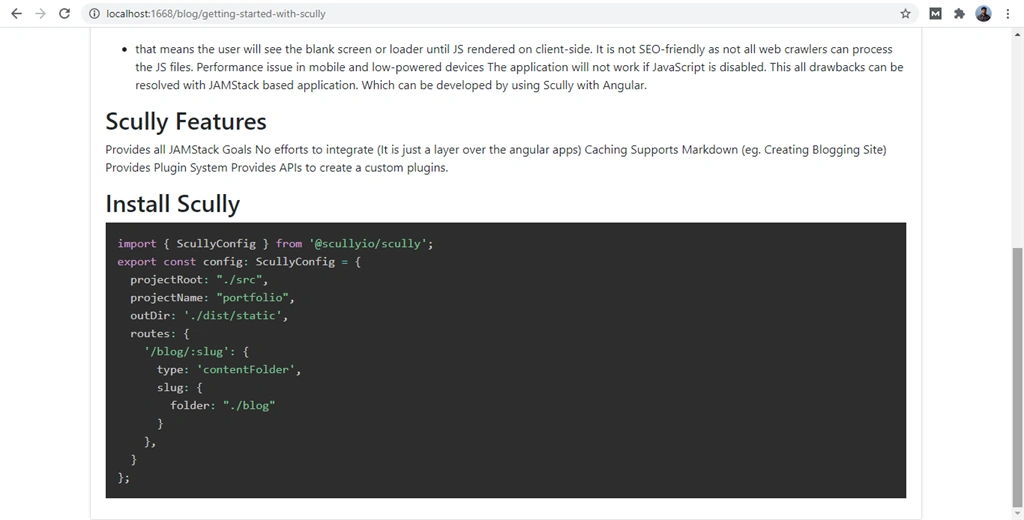
Great !!! Our code block syntax is highlighted ✨
In this article, We have seen how to add a syntax highlighting feature for the markdown code block in a blog made with Scully.
I hope you like this article, please provide your valuable feedback and suggestions🙂.
Take a new build of the angular app, as we have made changes in styles.css, then take a Scully build and start the static server using the following commands
- ng build --prod
- npm run scully
- npm run scully:serve
Great !!! Our code block syntax is highlighted ✨
Get the Source Code at this Github Repository
Summary
In this article, We have seen how to add a syntax highlighting feature for the markdown code block in a blog made with Scully.
I hope you like this article, please provide your valuable feedback and suggestions🙂.
If you feel this is useful to others please like and share.
Join the conversation! Your thoughts help the community grow.