

This Article is for those developers who want to take backup of their working directory files on a daily basis without doing it manually.
Purpose of this article:
The main purpose of this article is to show you how you can take daily backup of your working directory, automatically. You don't have to worry if you forgot to take backup of your files, the system will do it for you, and without losing any changes. All you need to do is, just setup the automatic backup once.
So, let’s start.
Step 1
I have created a Console application and written the code for copying all the files and directories from Source Directory to Destination Directory, along with the tracking of your task log, either failed or successful, in a text file.
So, let’s start.
Step 1
I have created a Console application and written the code for copying all the files and directories from Source Directory to Destination Directory, along with the tracking of your task log, either failed or successful, in a text file.
- using System;
- using System.Collections.Generic;
- using System.IO;
- using System.Linq;
- using System.Reflection;
- using System.Text;
- using System.Threading.Tasks;
- namespace TakeBackupDaily
- {
- class Program
- {
- static void Main(string[] args)
- {
- try
- {
- string Source = @"D:\Source";
- string Destination = @"D:\Destination";
- CopyAllFiles(Source, Destination);
- }
- catch (Exception)
- {
- throw;
- }
- CreateTextFileLog("Task Completed successfully.");
- }
- private static void CopyAllFiles(string Source, string Destination)
- {
- try
- {
- // Get the subdirectories for the specified directory.
- DirectoryInfo dir = new DirectoryInfo(Source);
- DirectoryInfo[] dirs = dir.GetDirectories();
- if (!dir.Exists)
- {
- CreateTextFileLog("Source directory does not exist or could not be found: "
- + Source);
- }
- // If the destination directory doesn't exist, create it.
- if (!Directory.Exists(Destination))
- {
- Directory.CreateDirectory(Destination);
- }
- // Get the files in the directory and copy them to the new location.
- FileInfo[] files = dir.GetFiles();
- foreach (FileInfo file in files)
- {
- string temppath = Path.Combine(Destination, file.Name);
- file.CopyTo(temppath, true);
- }
- foreach (DirectoryInfo subdir in dirs)
- {
- string temppath = Path.Combine(Destination, subdir.Name);
- CopyAllFiles(subdir.FullName, temppath);
- }
- }
- catch (Exception ex)
- {
- CreateTextFileLog(ex.ToString());
- }
- }
- private static void CreateTextFileLog(string Message)
- {
- StreamWriter SW;
- if (!File.Exists(Path.Combine(Path.GetDirectoryName(Assembly.GetExecutingAssembly().Location), "txt_" + DateTime.Now.ToString("yyyyMMdd") + ".txt")))
- {
- SW = File.CreateText(Path.Combine(Path.GetDirectoryName(Assembly.GetExecutingAssembly().Location), "txt_" + DateTime.Now.ToString("yyyyMMdd") + ".txt"));
- SW.Close();
- }
- using (SW = File.AppendText(Path.Combine(Path.GetDirectoryName(Assembly.GetExecutingAssembly().Location), "txt_" + DateTime.Now.ToString("yyyyMMdd") + ".txt")))
- {
- SW.WriteLine(Message);
- SW.Close();
- }
- }
- }
- }
I am ready with my application. Now, I will set up my application in “Windows Scheduler”.
Point to remember- You need to have admin rights for this task. Otherwise, you won't be able to do this.
How to open Windows Scheduler?
Go to the Start menu and search for scheduler.
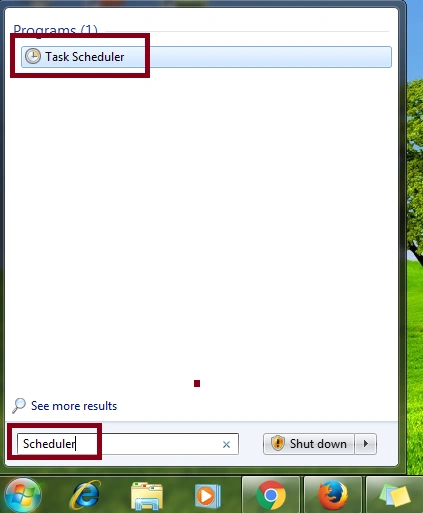
After clicking on Task Scheduler, a window will open where you can “Create task”.
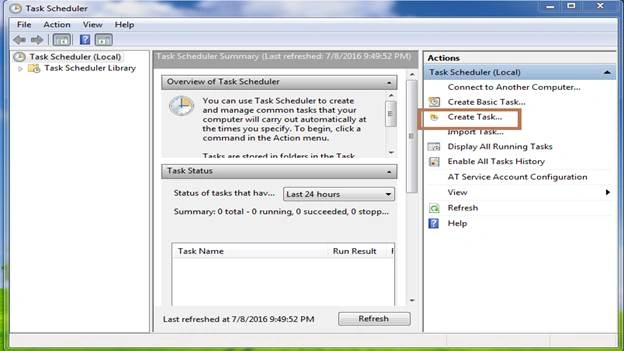
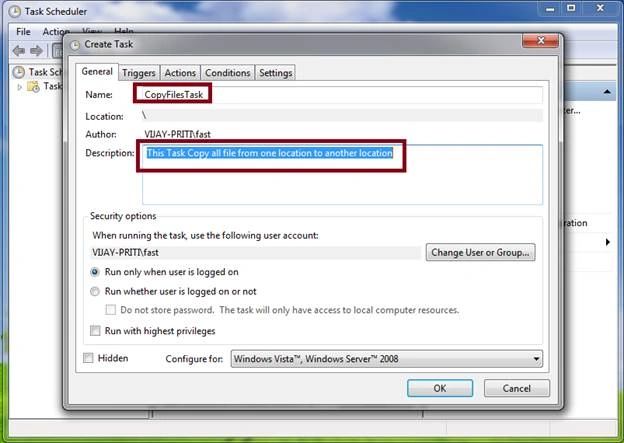
After clicking on Create Task, a window will open. There, you will see a couple of tabs, like General, Trigger, Action and so on. In the "General Tab”, we need to specify scheduler's name and description. Please see the following screenshot.
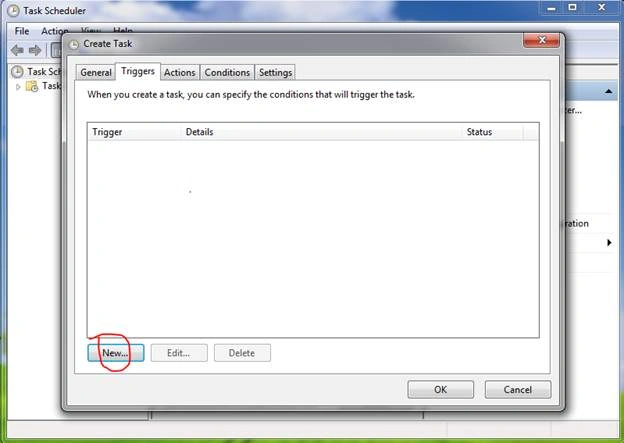
In the “Trigger Tab”, we need to set date and time for Scheduler execution. Click on New. A new window will open where we will set the time for execution of task.
In the below window, you can see a couple of options available, but we set the options as per the requirement. Here, I have set my .exe file to be executed once a day at 8:00PM.
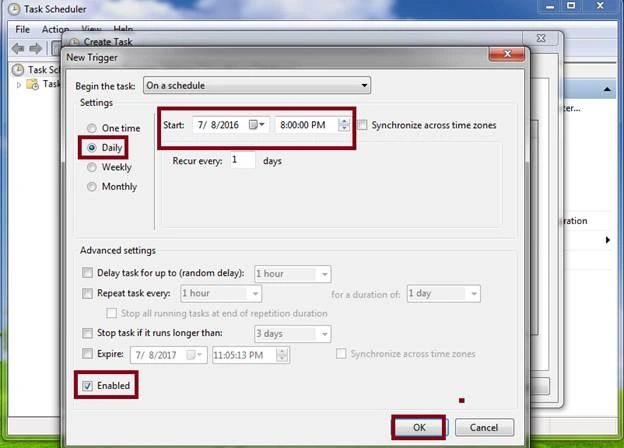
In the “Action tab“, we need to set what the scheduler will execute.
In Action tab, click on the New button.
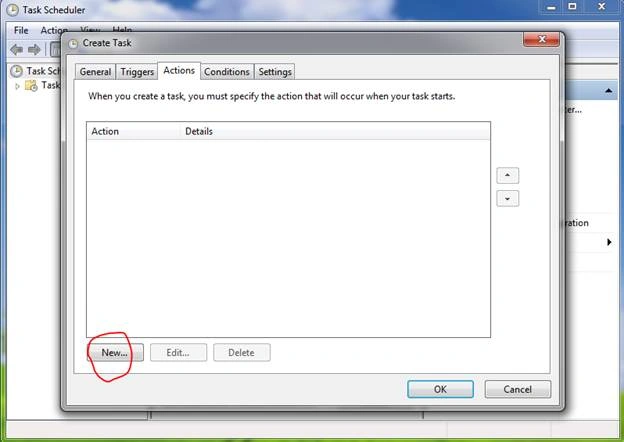
A window will open. In the following screenshot, I have selected Action: “Start a Program”. After that, browse to where your exe file is stored in directory. You can find your exe file in the application bin/debug folder.
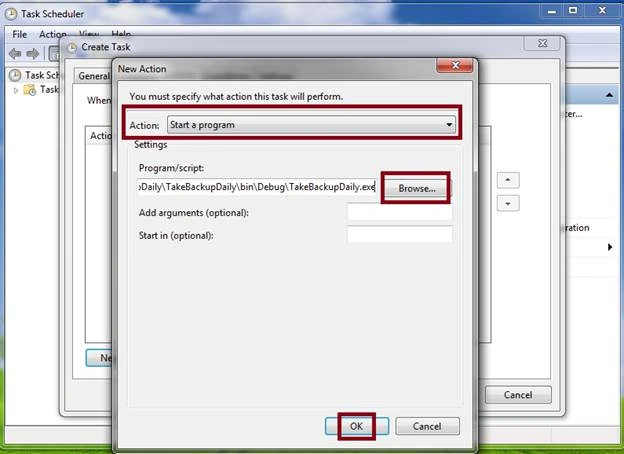
Please follow the following screenshot.
Once scheduler is created, it will run at the specified time.
If your code runs properly, it will do the task which is to copy files from one location to another location.
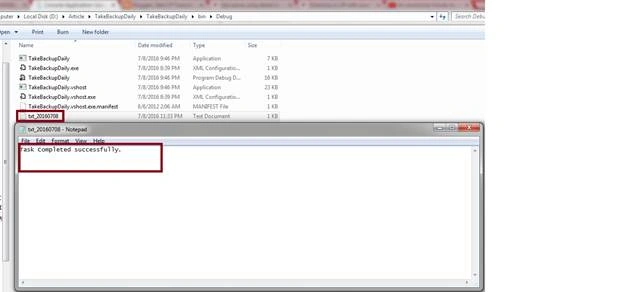
You can see my output here,
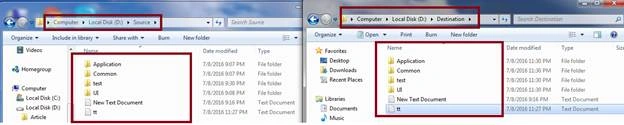
Also, create a log text file and maintain task execution details for a day.
Subhashkumar YadavPosted Dec 29, 2016, 12:05 AM
How to take all directory files copy from one server to another server?
Manav PandyaPosted Dec 23, 2016, 5:13 AM
Good to know article ma'm Priti Kumari
Jitendra GangwarPosted Oct 20, 2016, 2:13 PM
Nice Article....
Nitish SainiPosted Aug 11, 2016, 2:11 AM
Good. :)
Amatya AgyeyPosted Jul 13, 2016, 1:53 AM
Good 1 .. Keep it up :)
Vignesh ManiPosted Jul 11, 2016, 5:42 PM
Useful one
Gowtham KPosted Jul 10, 2016, 8:38 AM
Good One, Thanks for sharing:)
RakeshPosted Jul 10, 2016, 1:51 AM
Good share
Guest UserPosted Jul 9, 2016, 9:12 PM
The other way could be by creating a .BAT or .PS file where you write a script to do that and run via Task Scheduler
Guest UserPosted Jul 9, 2016, 9:12 PM
You implemented your way to copy and paste directory via .Net code, which is good too.
sai babuPosted Jul 9, 2016, 8:56 PM
Good one Priti
kalu singh raoPosted Jul 9, 2016, 8:44 PM
Nice...