

Introduction
If you want to use Azure Data Warehouse for a couple of hours/days, you can certainly do that by *AUTOMATICALLY PAUSING* your Data warehouse. This will minimize the Azure Cost to a great extent.
In this article, I will explain the nitty gritty of the process step by step. You just need to replicate the steps at your Azure Environment.
Prerequisites
- Azure Subscription.
- Azure SQL Server and Azure Data Warehouse Database
Let’s start!
I am going to use *Azure RunBook* and *Scheduler*, so everything will be under the Azure environment. Let’s start now.
Create Automation AccountWe need to create an Azure Automation account for RunBook; you could use your existing automation account as well. Please give a suitable name, choose a subscription, Resource Group, and a location. Please choose the location as per your geography. As I’m from Canada, I choose Central Canada and hit Create, as shown below.
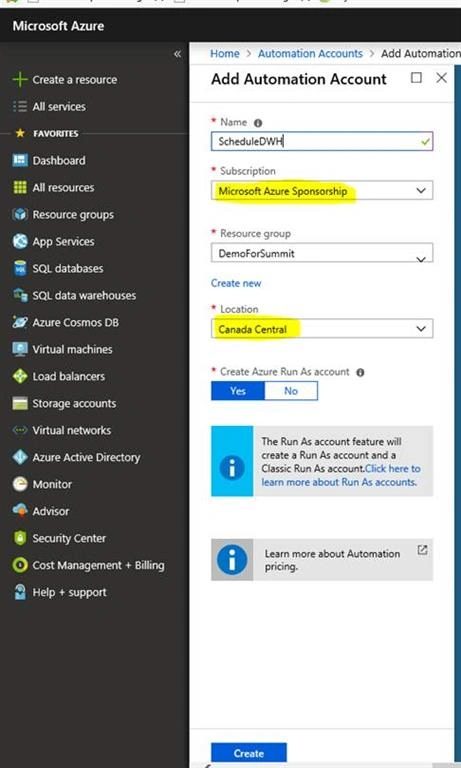
Automation Account
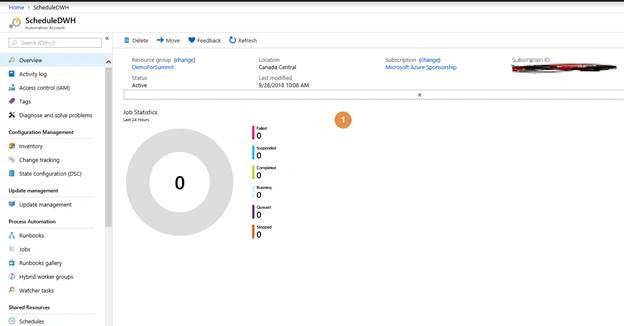
You will see a screen like below.
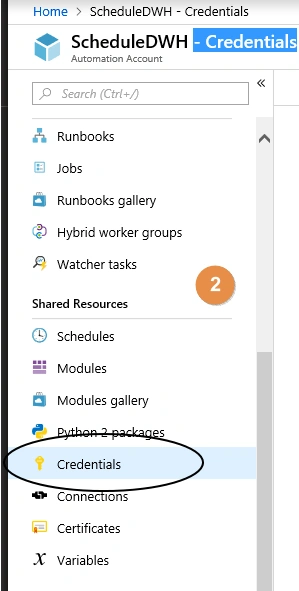
Now, it’s time to create the credentials of the Automation Account. You will find it under ‘Shared Resources’ as shown below.
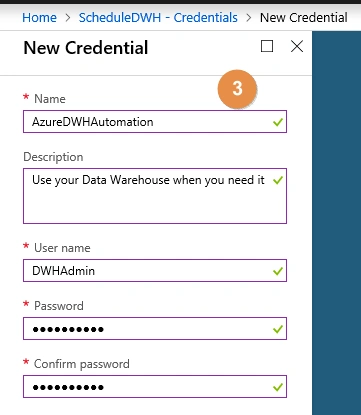
Click on Credentials >> ‘Add New Credentials’. I prefer to use a service account with a non-expiring password. Otherwise, you need to change the password frequently.

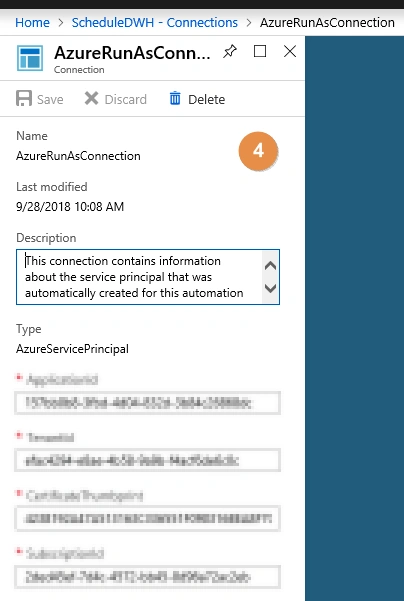
Under Connection, you will find ‘AzureRunASconnection’ and information about the Azure environment like ApplicationID, TenantId, SubscriptionID etc.
I will use the below variables to prevent Hardcoded values:
- ResourceGroupName
- ServerName
- DatabaseName
Please note that we have to use the EXACT name in the POWERSHELL, so please add a new variable for ResourceGroupName and add the name of the Resource Group that is used by your Azure Database.
Now, add Servername (name without .database.windows.net)
And finally, the DatabaseName (the name of your Azure DWH database).
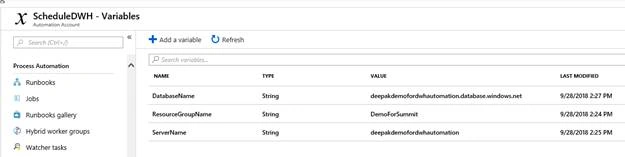
Usually, here we make mistakes with the name. Please be extra aware of that so as to save your debugging time.
Create RunbooksNow, go to runbook and click on ‘Create a new runbook’. Give your Runbook a suitable name and Runbook type as ‘PowerShell’.
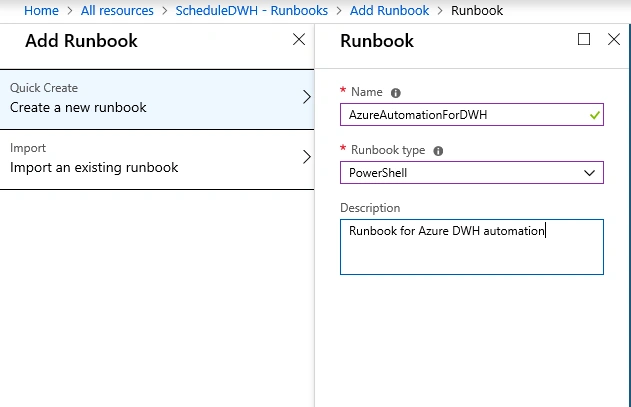
And it will open the following window.
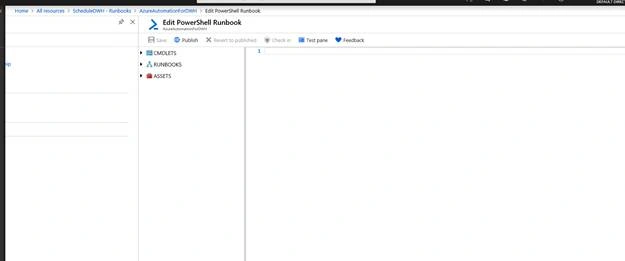
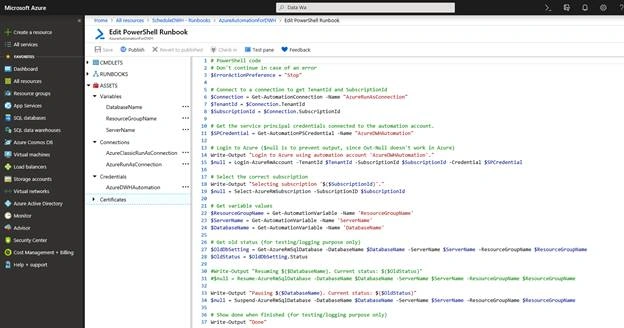
Paste the attached script and click the Test Pane.
The Test Pane will open like below.
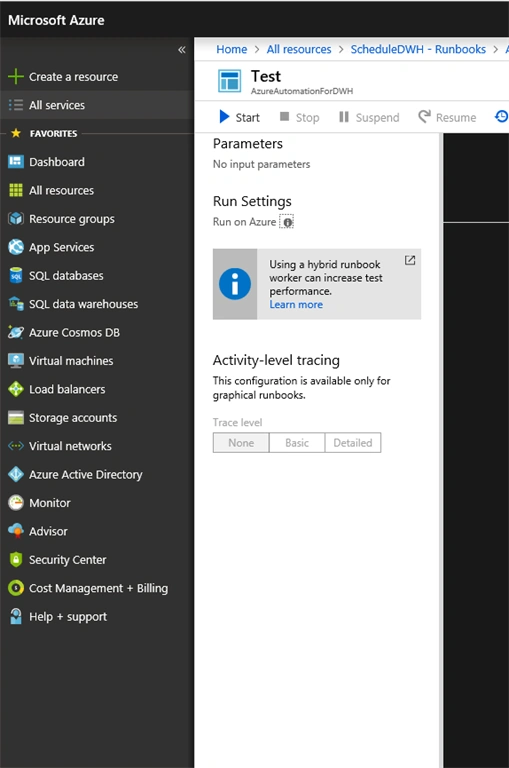
Hit the Start button.
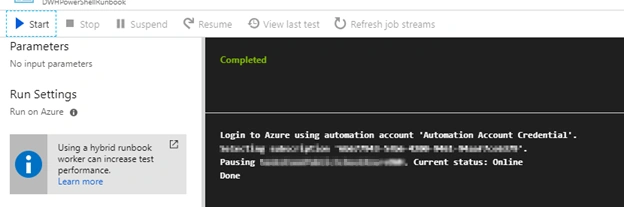
The PowerShell script is as per my need and I put in my comments to make it easily understandable. However, you could modify it as per your business need.
Thanks for your time, I hope it will be helpful for you guys!
Keep Learning!
Siddharth SharmaPosted Aug 10, 2021, 2:54 PM
Can I get the script?
Siddharth SharmaPosted Aug 10, 2021, 2:52 PM
Where is script
Pete SchePosted Feb 3, 2020, 9:43 AM
Hi, Like Craig below I also have issues with credentials when test running the script... I tried my own username (Owner) but error on credentials. I tried using my own username/pw (I am Owner) but get error 400
CraigPosted May 16, 2019, 2:36 AM
Hi Deepak. In the step where you're creating the credential, you mention using a service account. Can you advise how / where you created that? Thanks
Tiago FerreiraPosted Nov 22, 2018, 9:58 AM
Great post! Thanks for the work Deepak - The script in unavailable though, if you could send it through, I'd appreciate it!
Jared GraystonPosted Oct 15, 2018, 7:47 PM
Hi, where can I find the script to paste?
Md Tahmidul AbedinPosted Oct 10, 2018, 10:58 PM
Really nice one.