

Introduction
How to set up the task scheduler used to Schedule Automatic Shut Down in Windows 10. I will provide step-by-step with screenshots below.
Step 01
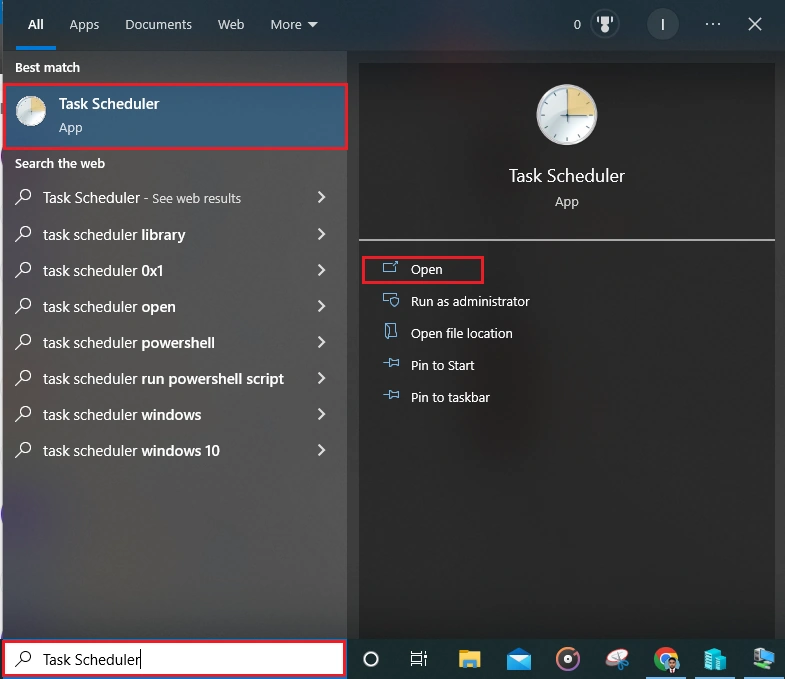
Go to windows search bar to search task scheduler
Step 02
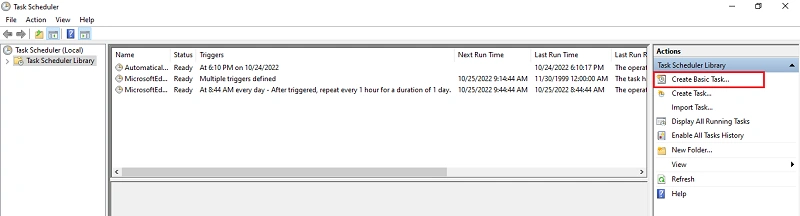
Next create Basic Task
Step 03
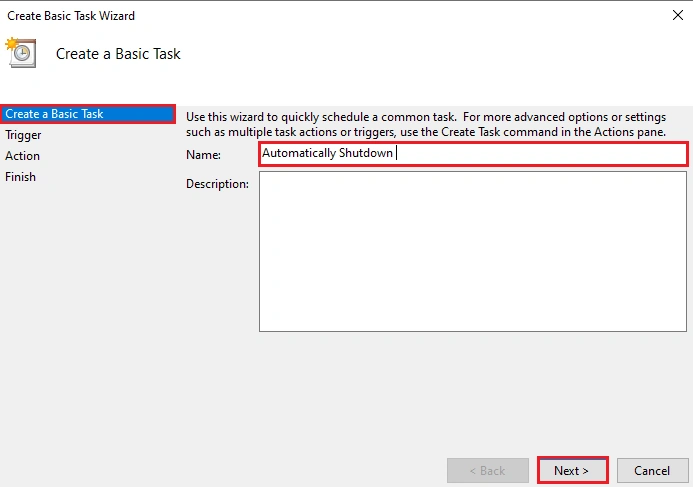
Create a Basic Task, enter the Task Name and click Next
Step 04
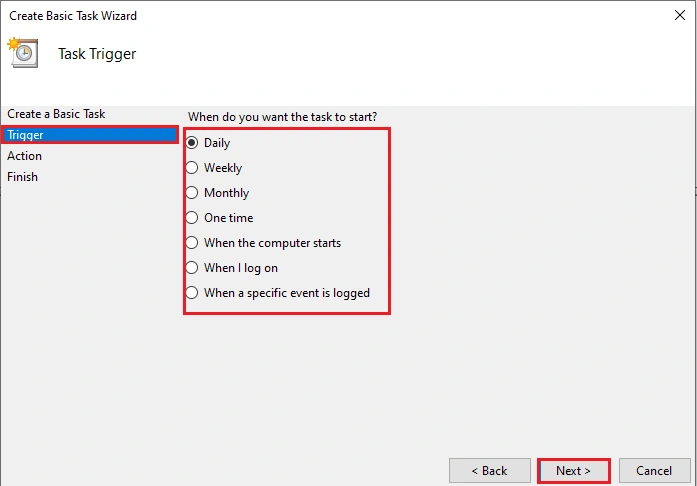
Trigger selected one task to start and click Next
Step 05
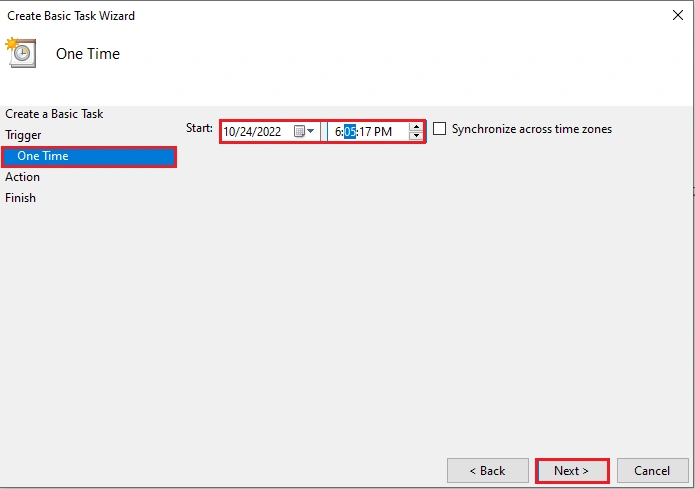
Next select date and Time and click Next
Step 06
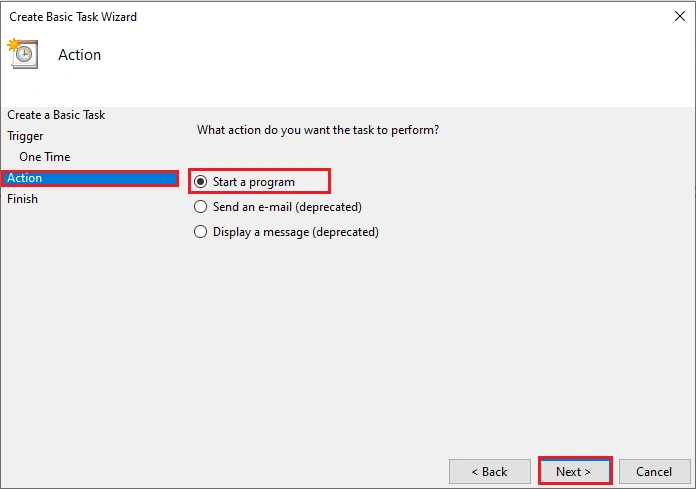
Action select task to perform and click Next
Step 07
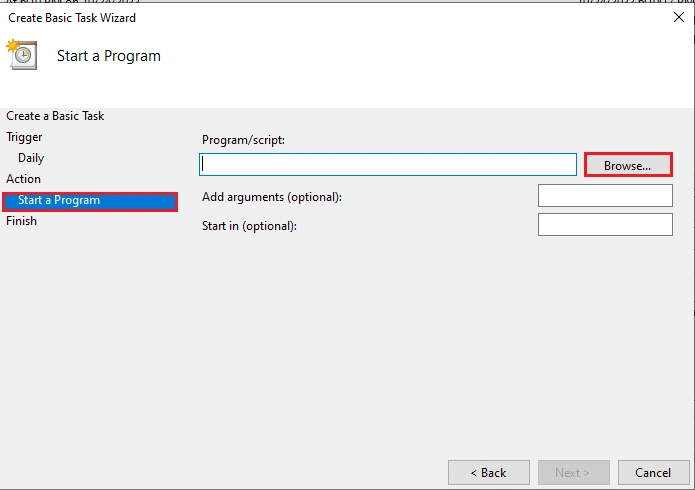
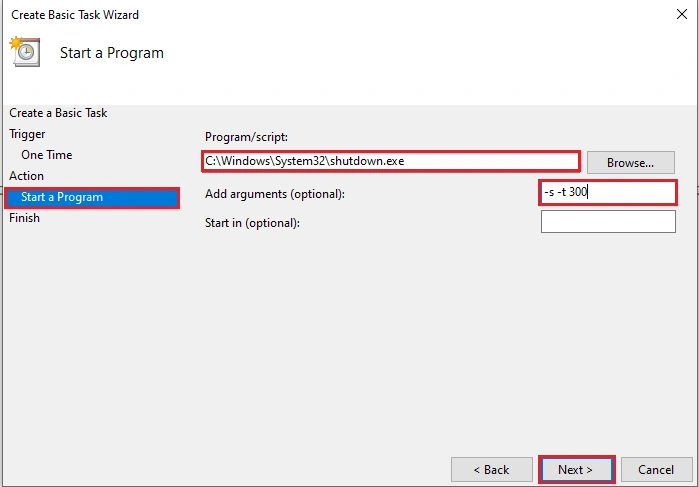
Now click Browse button to open Auto shutdown script
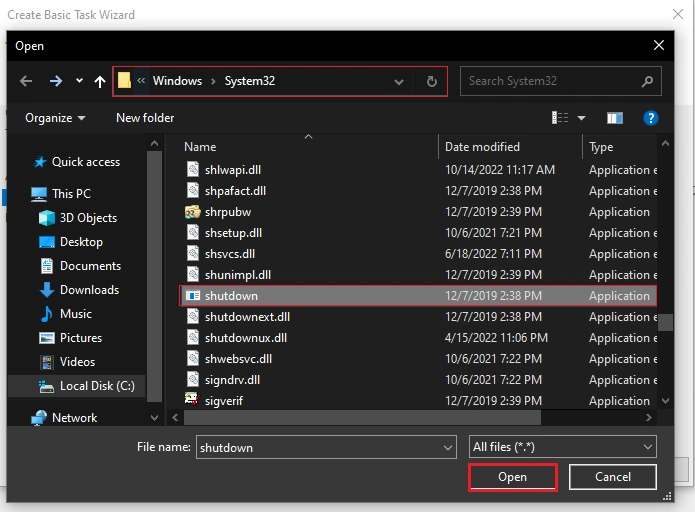
Go to c: > Windows >System32 > Shutdown.exe and click open
Add Arguments option will make the computer to shutdown after prompt
Type -s -t 300 where 300 is the second in 5 minutes
Note: delay time should be entered in seconds, not in minutes or Hours
Click Next
Step 08
Click Finish button
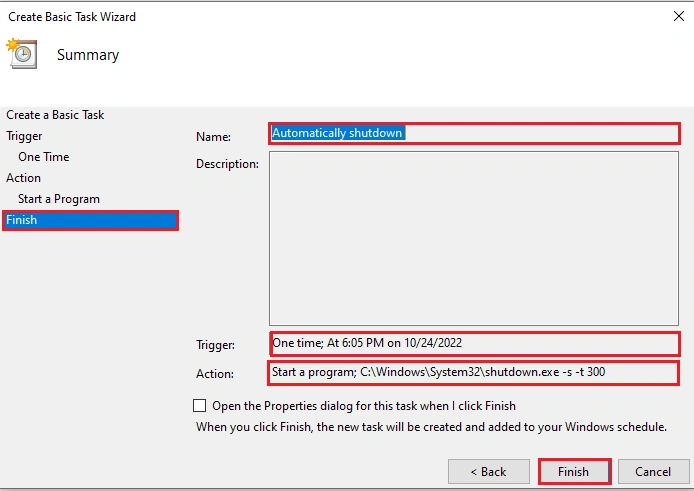
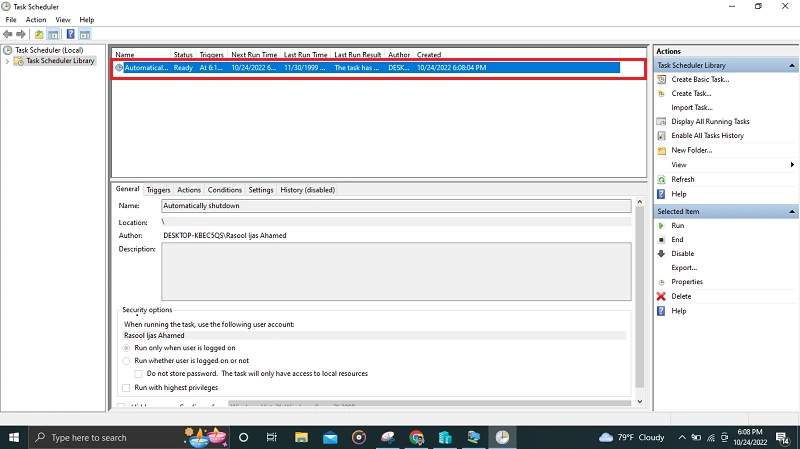
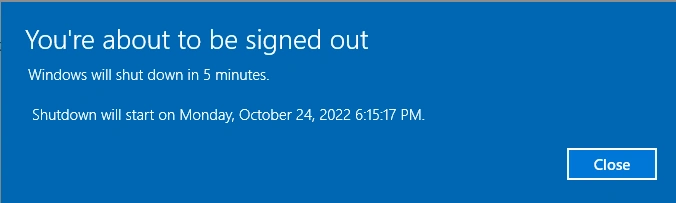
Successfully created automatic shut down task
Conclusion
This article taught us how to set up Schedule Automatic Shut Down Windows 10. If you have any questions, please contact me
Join the conversation! Your thoughts help the community grow.