

Follow the below given points,
- First log in, using your business account.
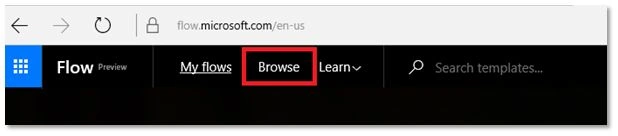
- Click the “Browse” option, shown on top of the page, as shown below:
- Here, you will be able to see the flow templates from Microsoft.
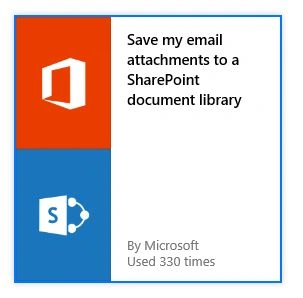
- Select “Save my email attachment to a SharePoint document library” template.
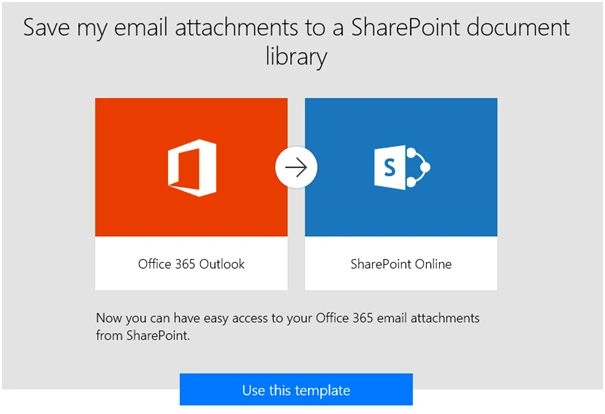
- Next, screen will be shown, as shown below and click Use this template.
- It will redirect to the flow design page and looks similar to Nintex workflows.
- Here is the exact image of the screen below:
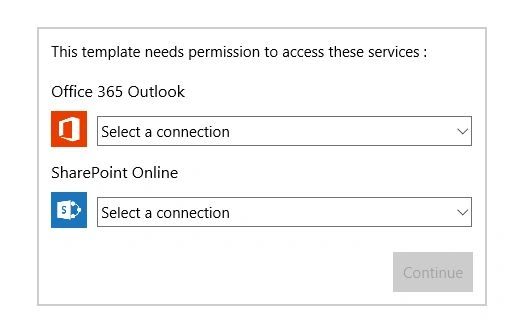
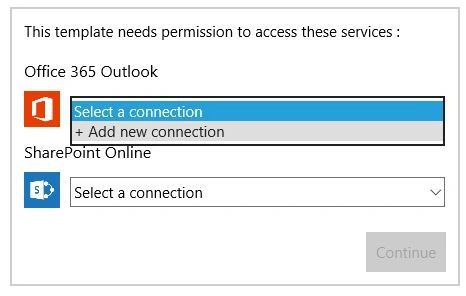
- Select the connection, if you have already created a new connection by selecting the option shown below:
- It will ask to login in the next screen, as shown below:
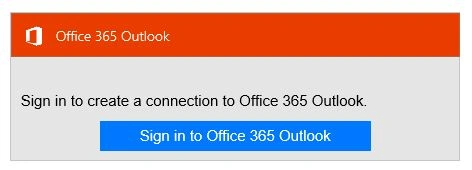
- Log into your account. Here, it will create the connection and it will add your Email to the flow.
- Once you are done with the above step, select SharePoint online connection or create a new connection, as explained above.
- It will be shown in the screen shown below and click “Continue” button.
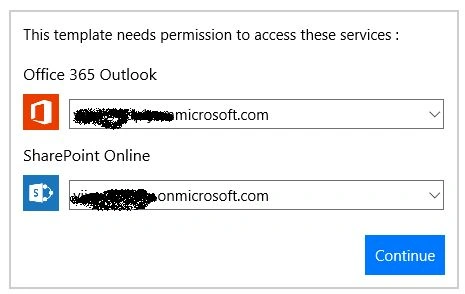
- In the next level, it will be shown as shown below once you click the continue button.
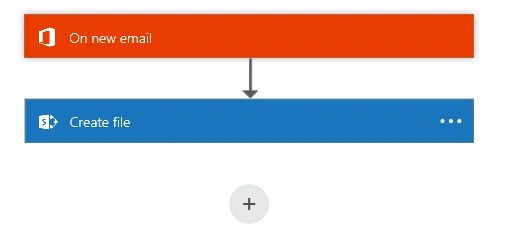
- Now, click the first option to select the mail folder. Here, you can select the folders like the inbox or sub folders.
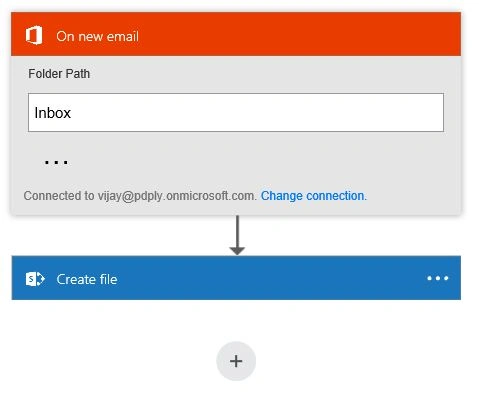
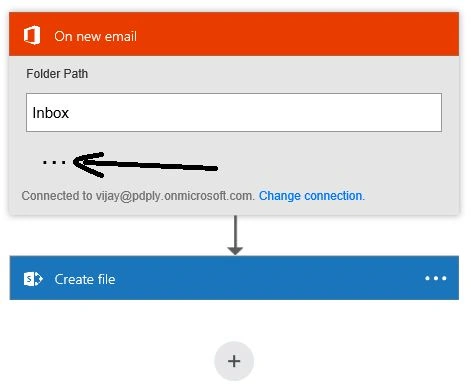
- To add more filters, click the menu, as shown in the image below:
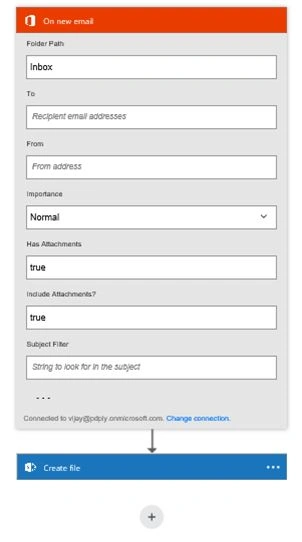
- It will open more options to add more filters, as shown below, but these are not the mandatory fields.
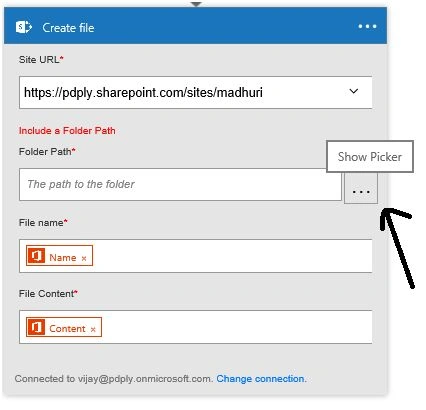
- Click the “Create a file” option to add the site where you want to create the file. It will open, as shown below:
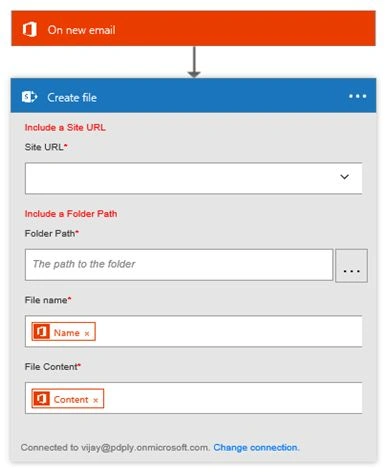
- Select the URL by clicking the down arrow.
- Once you have selected the URL, you can select the library by clicking the menu shown in the screen below:
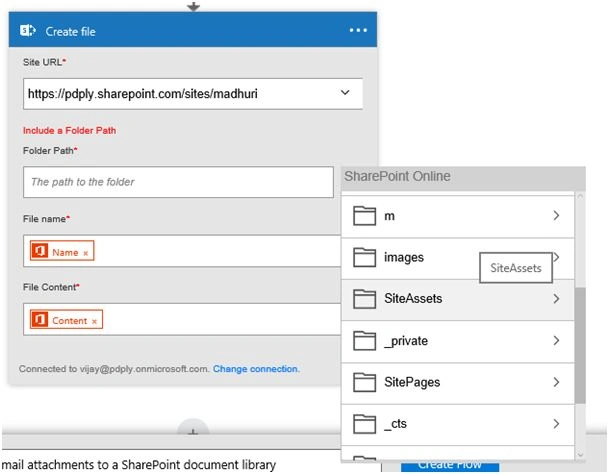
- It will show the folders and the libraries, as shown in the screen below and select any document library where you want to create a file. Here, I am selecting “SiteAssests” library.
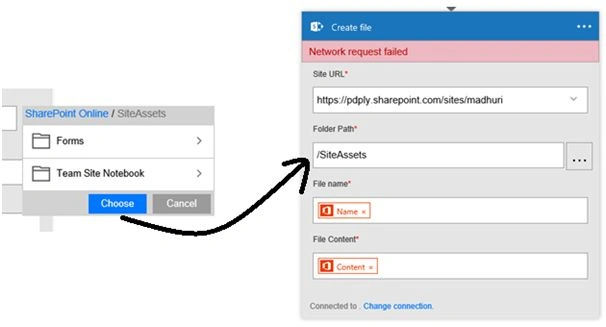
- Click choose and then it will set the folder path.
- Select the file name - Name and File content - Content
- Give your own flow name and create the flow.

- Now, your flow is ready to test. Please send a test mail to your Email with an attachment. It will create a file in SharePoint site ->SiteAssests library.
You can create more flows, using templates. Please comment below for more suggestions.
Suneel PrakashPosted Sep 6, 2018, 7:56 AM
How to Save the Outlook Email's data like the subject, sender, CC in the columns of document library next to the attachment.
Santhakumar MunuswamyPosted Jun 25, 2016, 3:20 AM
Nice share
Humayun Kabir MamunPosted Jun 15, 2016, 1:16 AM
Nice...
Kuppurasu NagarajPosted Jun 14, 2016, 1:19 PM
Nice Sharing..
Vignesh ManiPosted Jun 11, 2016, 4:36 PM
nice
Debasis SahaPosted Jun 11, 2016, 2:17 AM
Good One..