

Introduction
This article will help you run a Bot application of counting the words in Bot Framework, using Bot Framework Channel Emulator.
What is Microsoft Bot?
Microsoft Bot helps you build and deploy the bot which you can utilize for conversations and have a good experience. The Bot Framework allows you to build, connect, manage, and publish the bots that interact wherever users are talking – from text/SMS to Skype, Facebook Messenger, Office 365 Mail, and other services.
Important Links
- Bot Framework and to build your first Bot Application
- Download the latest Bot Framework Channel Emulator from this
- Download Bot Application template from this link and add it on your directory address - “%USERPROFILE%\Documents\Visual Studio 2015\Templates\ProjectTemplates\Visual C#".
Pre-requisites to work on this demo.
- Visual Studio 2015
- Bot Application Template added in your Visual Studio 2015.
Follow the below steps, now, to run your Bot application in the Emulator.
Step 1 - Open Visual Studio 2015 with the project that you have already created in the previous demo. You can go through the above links to learn how to create your bot application project.
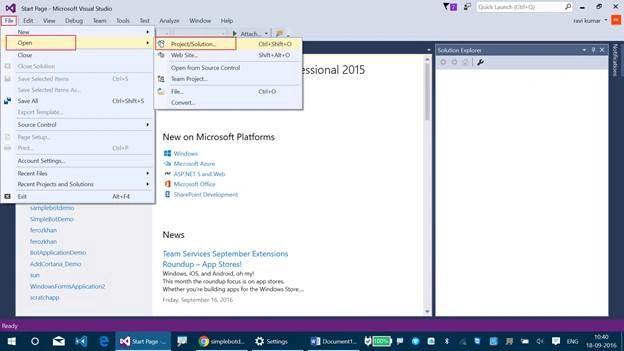
Now, go to File >> Open >> Project/Solution.
Step 2 - Run this project using your desired browser in Visual Studio 2015.
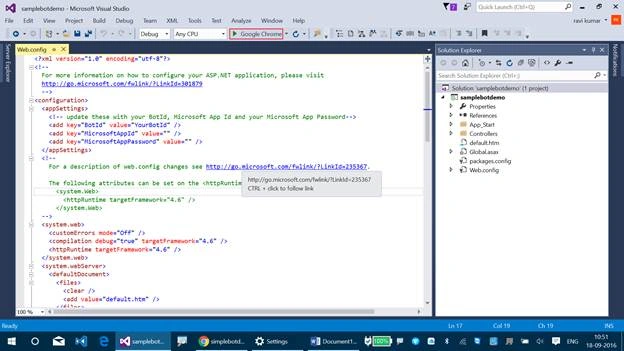
You will be getting the following screen.
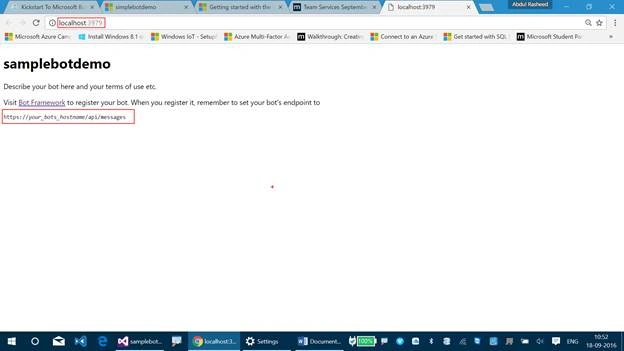
Copy the URL from the browser and make sense on the directory link given in the body content of page, which we will be using in the Emulator now.
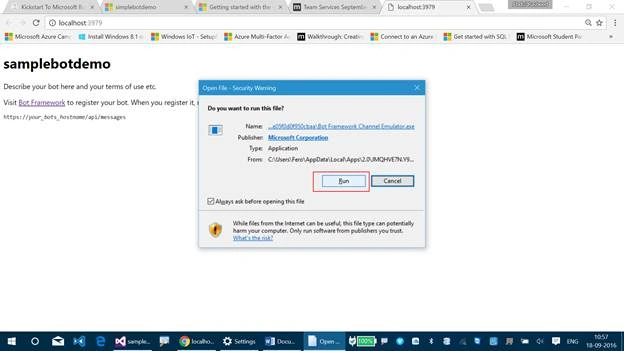
Step 3 - Open Bot Framework Channel Emulator, now. (Start >> Bot Framework Channel Emulator.)
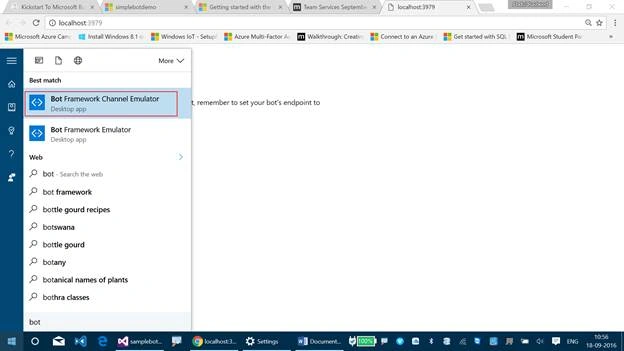
Click on Run.
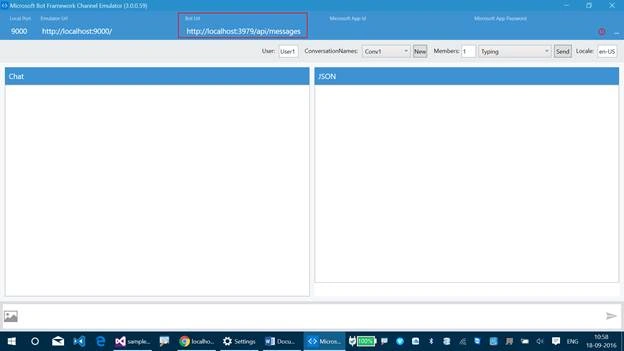
Step 4 - In the Bot URL, replace the default one with the URL localhost address of which you got from the web browser.
http://localhost:3979/ - Localhost address which you got from the web browser.
http://localhost:3979/api/messages - Bot URL for Emulator.
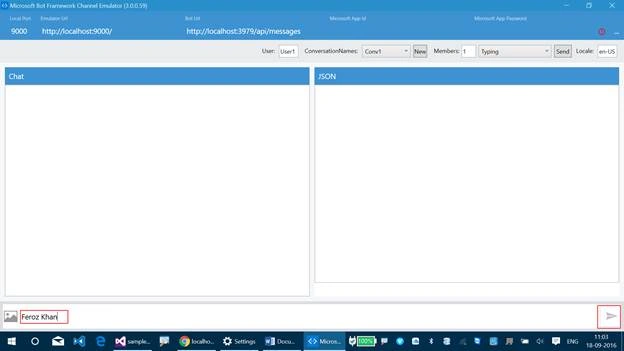
Step 5 - Type any word in the below Chat pane and click on the Send button below.
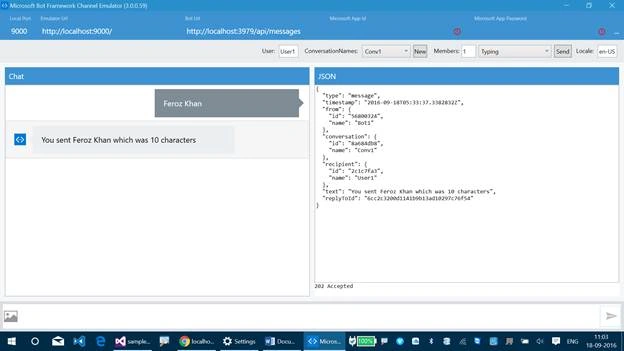
That's it. This was how you run the Bot Application which displays the number of characters from the text you entered in the text pane. Here, in the below screen, we have the number of characters displayed from the text I have entered.
Follow my next article to work on publishing your Bot Application to Microsoft Azure and registering your Bot with Microsoft Bot Framework.
Gomathi NallasivanPosted Apr 6, 2018, 2:05 AM
Hi , It's informative and I have tried to use the Azure URL(bot deployed in the Azure) in the emulator for eg : http://bbbbbb.azurewebsites.net/api/messages and I am trying to connect it from Emulator using valid MS App Id and Password but it's showing the log in the emulator as { "type": "log", "timestamp": 1522998031599, "level": "info", "msg": "Error: Failed to perform the requested operation on Azure Table. Message: The account being accessed does not have sufficient permissions to execute this operation.\nRequestId:f992ab45-f002-004b-4974-cded53000000\nTime:2018-04-06T07:00:31.6024411Z. Error code: InsufficientAccountPermissions. Do you have any ideas to resolve ? It's connecting and bot also replying for testing the bot on localhost. Thank you
prasanna rajPosted Dec 15, 2017, 7:44 AM
Hi .. Nice article , suggest me is there any option available for auto compete in bot framework emulator from database.
Vignesh ManiPosted Sep 19, 2016, 8:22 AM
Good One