

Note: this article is published on 10/25/2024.
This series of articles are to discuss a task to remove IIS Log Files. We start from doing the task manually, then make automation, and the last deploy the automation to pipelines (different servers):
- Remove IIS Log Files (1) --- Manually
- Remove IIS Log Files (2) --- Automation by Windows Task Scheduler
- Remove IIS Log Files (3) --- Deploy VBScript Automation by Pipeline --- this article
- Remove IIS Log Files (4) --- Deploy PowerShell Automation by Pipeline
A - Introduction
In the previous articles, we have introduced the VB Script to remove the IIS Log Files, and to automate the script running through Windows Task Scheduler. This article will automate the deployment of the task to different servers through pipeline. The content of this article will include
- A - Introduction
- B - Create the Script to Remove IIS Log Files
- C - Automate to trigger the Removing Script
- D - Automate the deployment of the Task
B - Create the Script to Remove IIS Log Files
We have done this job in the article
The script is
sLogFolders = Array("D:\LOGS\IIS\CRMHPE","D:\LOGS\IIS\Microsoft Dynamics CRM")
iMaxAge = 14   'in days
Set objFSO = CreateObject("Scripting.FileSystemObject")
For each sLogFolder in sLogFolders
	set colFolder = objFSO.GetFolder(sLogFolder)
	For Each colSubfolder in colFolder.SubFolders
			Set objFolder = objFSO.GetFolder(colSubfolder.Path)
			Set colFiles = objFolder.Files
			For Each objFile in colFiles
					iFileAge = now-objFile.DateCreated
					if iFileAge > (iMaxAge+1)  then
							objFSO.deletefile objFile, True
					end if
			Next
	Next
Next
C - Automate to trigger the Removing Script
We have done this job in the second article
where we made a Task Scheduler: Delete Log Files
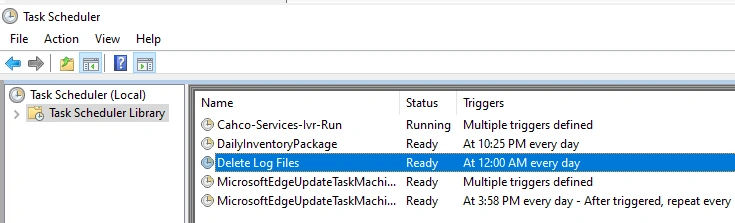
with Actions:
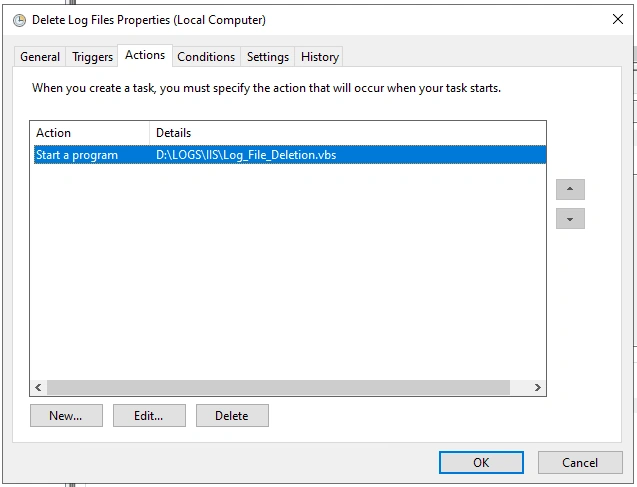
and Trigger as Daily running
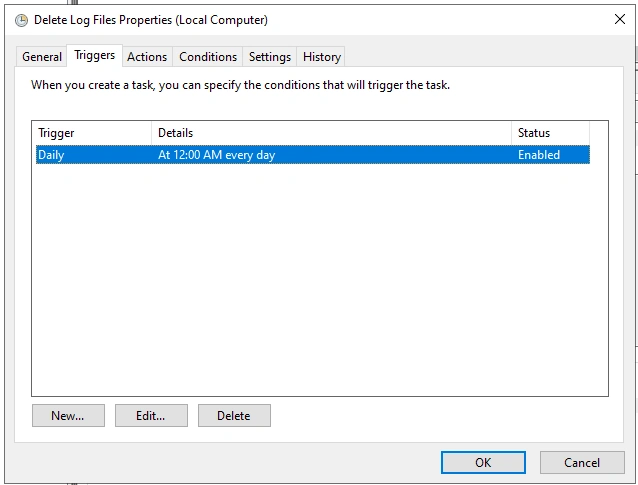
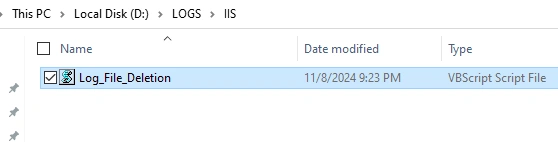
to Run the VB Script:
D - Automate the deployment of the Task
Now we try to automate the deployment process through pipeline by a ymal file (PowerShell Script).
First Step: Export a XML file from the Task Scheduler as an installation file:
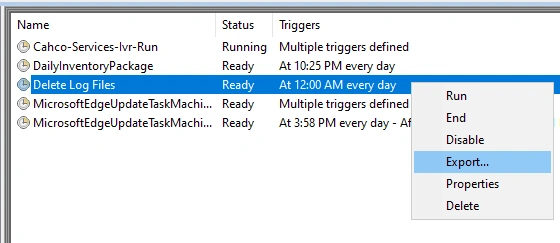
This is the XML file:
<?xml version="1.0" encoding="UTF-16"?>
<Task version="1.2" xmlns="http://schemas.microsoft.com/windows/2004/02/mit/task">
  <RegistrationInfo>
    <Date>2024-10-13T17:05:07.8938926</Date>
    <Author>MAXCORP\502397</Author>
    <URI>\Delete Log Files</URI>
  </RegistrationInfo>
  <Triggers>
    <CalendarTrigger>
      <StartBoundary>2024-10-24T00:00:00</StartBoundary>
      <Enabled>true</Enabled>
      <ScheduleByDay>
        <DaysInterval>1</DaysInterval>
      </ScheduleByDay>
    </CalendarTrigger>
  </Triggers>
  <Principals>
    <Principal id="Author">
      <UserId>S-1-5-21-2348582935-4244423625-3639050881-1011020</UserId>
      <LogonType>Password</LogonType>
      <RunLevel>HighestAvailable</RunLevel>
    </Principal>
  </Principals>
  <Settings>
    <MultipleInstancesPolicy>IgnoreNew</MultipleInstancesPolicy>
    <DisallowStartIfOnBatteries>true</DisallowStartIfOnBatteries>
    <StopIfGoingOnBatteries>true</StopIfGoingOnBatteries>
    <AllowHardTerminate>true</AllowHardTerminate>
    <StartWhenAvailable>false</StartWhenAvailable>
    <RunOnlyIfNetworkAvailable>false</RunOnlyIfNetworkAvailable>
    <IdleSettings>
      <StopOnIdleEnd>true</StopOnIdleEnd>
      <RestartOnIdle>false</RestartOnIdle>
    </IdleSettings>
    <AllowStartOnDemand>true</AllowStartOnDemand>
    <Enabled>true</Enabled>
    <Hidden>false</Hidden>
    <RunOnlyIfIdle>false</RunOnlyIfIdle>
    <WakeToRun>false</WakeToRun>
    <ExecutionTimeLimit>PT72H</ExecutionTimeLimit>
    <Priority>7</Priority>
  </Settings>
  <Actions Context="Author">
    <Exec>
      <Command>D:\LOGS\IIS\Log_File_Deletion.vbs</Command>
    </Exec>
  </Actions>
</Task>
Second Step: Create a PowerShell Script to Deploy
# Register a task to delete IIS Log Files
Write-LogInfo "Begin to Register the Task Scheduler."

Add-ScheduledTaskFromXmlFile -XmlFile "$ScriptsPath\Delete Log Files.xml" -ServiceAccount $ServiceAccount -ErrorAction Stop

# copy the vbs file from $ScriptsPath to the local folder: D:\LOGS\IIS
$localDirectory = 'D:\LOGS\IIS'
Write-Host "Copy Log_File_Deletion.vbs from $ScriptsPath to $localDirectory"
$copiedFile = $ScriptsPath + "Log_File_Deletion.vbs"
Copy-Item $copiedFile -Destination $localDirectory

Write-LogInfo "Register Delete IIS Log Files Task Scheduler Successfully."
where
- Add-ScheduledTaskFromXmlFile command will run the xml to create the task scheduler
- Copy-Item command will copy the target file from yaml temp folder to the local server folder
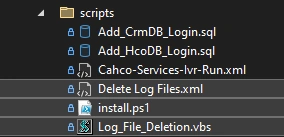
This piece of script will be in the install.ps1 associated with two files:
- XML file --- Task Scheduler Installation file
- VB Script file --- Remove IIS Log Files file
like this
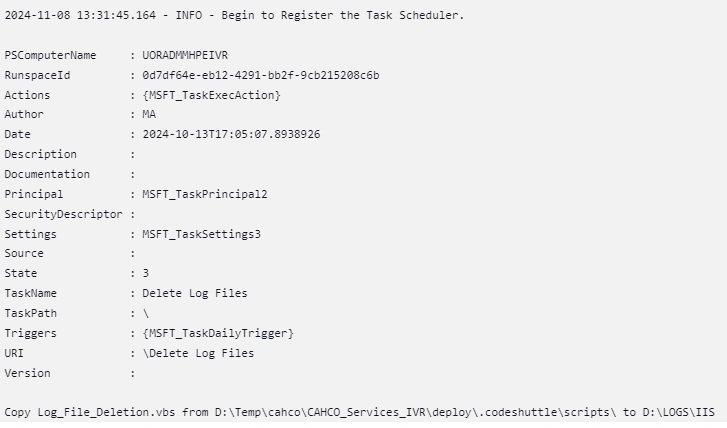
The output will be like this
References:
- use powershell to register a xml task scheduler - Google Search
- Register-ScheduledTask (ScheduledTasks) | Microsoft Learn
- windows server 2016 - Creating scheduled task from powershell using xml - Server Fault
- Import Scheduled Tasks with PowerShell
- how to run a task scheduler by pipeline - Google Search
- Start-ScheduledTask (ScheduledTasks) | Microsoft Learn
- Use PowerShell to Create Scheduled Tasks - Scripting Blog [archived]
- powershell - How to run a scheduled task in task scheduler through powers shell command - Stack Overflow
- Configure schedules to run pipelines - Azure Pipelines | Microsoft Learn
- Daily Trigger Example (XML) - Win32 apps | Microsoft Learn
- use powershell to register a xml task scheduler using powershell - Google Search
- Registration Trigger Example (XML) - Win32 apps | Microsoft Learn
Join the conversation! Your thoughts help the community grow.