

Introduction
This article demonstrates the Run and Stop activity indicator in Xamarin.Forms application.
Let's start.
Step 1
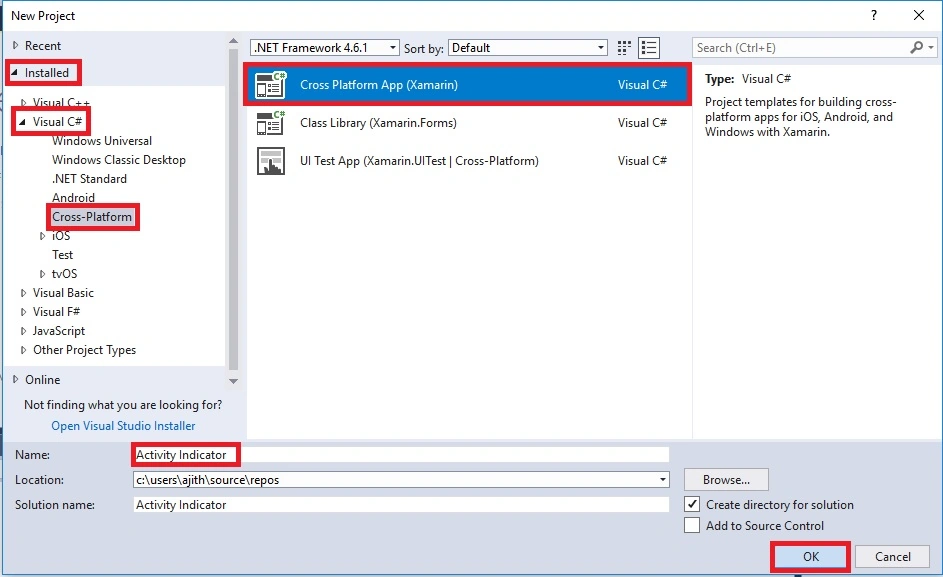
Open Visual Studio and go to New Project >> Installed >> Visual C# >> Cross-Platform.
Select Cross-Platform app, then give your project a name and location.
Step 2
Update the following NuGet Packages to your project.
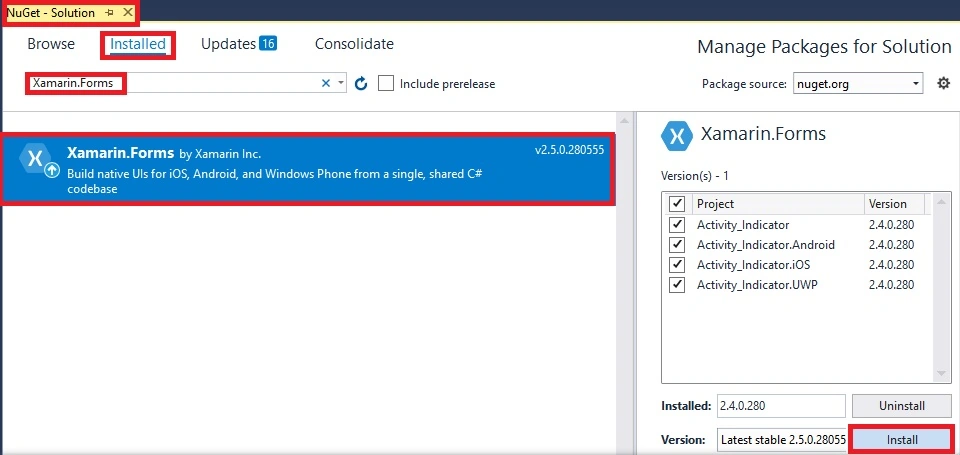
- Xamarin.Forms
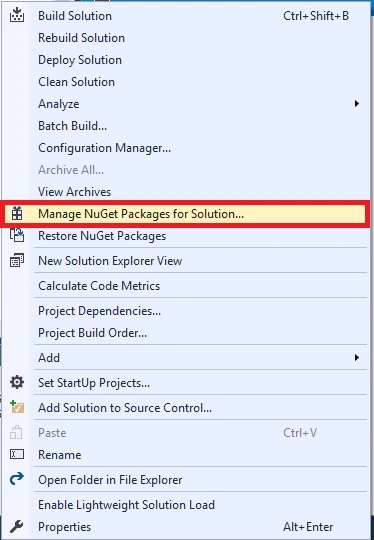
Now, select the following NuGet Packages and select your project to update the packages.
Step 3
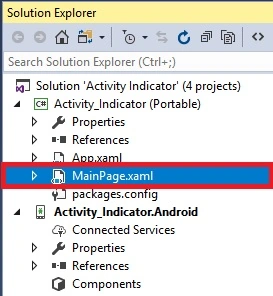
Open Solution Explorer >> Project Name (Portable) >> MainPage.xaml. Open the design view of this page.
The code is given below.
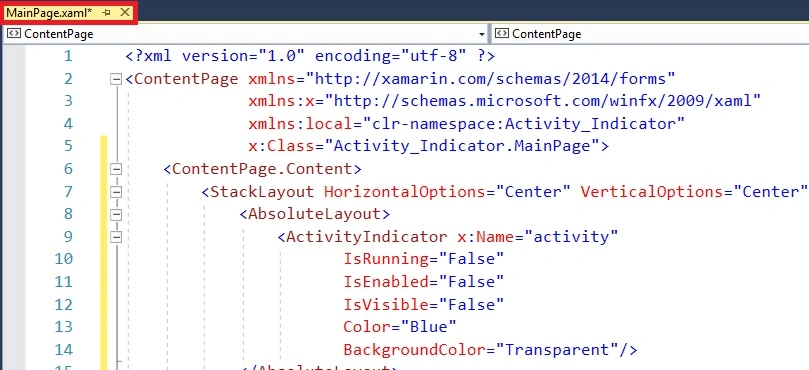
Xaml Code
We are creating an activity indicator in AbsoluteLayout and a button inside the StackLayout. Two buttons are created -- one button in "Run" and the second button in "Stop".
- <?xml version="1.0" encoding="utf-8" ?>
- <ContentPage xmlns="http://xamarin.com/schemas/2014/forms"
- xmlns:x="http://schemas.microsoft.com/winfx/2009/xaml"
- xmlns:local="clr-namespace:Activity_Indicator"
- x:Class="Activity_Indicator.MainPage">
- <ContentPage.Content>
- <StackLayout HorizontalOptions="Center" VerticalOptions="Center">
- <AbsoluteLayout>
- <ActivityIndicator x:Name="activity"
- IsRunning="False"
- IsEnabled="False"
- IsVisible="False"
- Color="Blue"
- BackgroundColor="Transparent"/>
- </AbsoluteLayout>
- <Button Text="Run" Clicked="Button_Clicked"/>
- <Button Text="Stop" Clicked="Button_Clicked_1"/>
- </StackLayout>
- </ContentPage.Content>
- </ContentPage>
Step 4
Open Solution Explorer >> Project Name (Portable) >> MainPage.xaml.cs. Open the design view of this page.
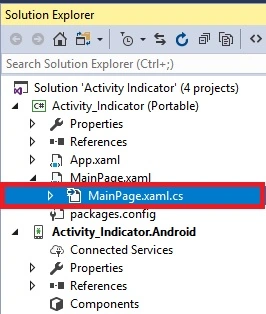
The code is given below.
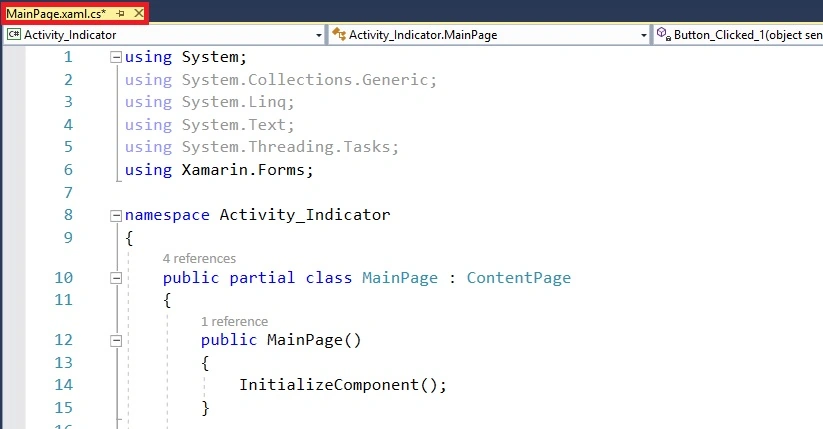
C# Code
- using System;
- using System.Collections.Generic;
- using System.Linq;
- using System.Text;
- using System.Threading.Tasks;
- using Xamarin.Forms;
- namespace Activity_Indicator
- {
- public partial class MainPage : ContentPage
- {
- public MainPage()
- {
- InitializeComponent();
- }
- private void Button_Clicked(object sender, EventArgs e)
- {
- activity.IsEnabled = true;
- activity.IsRunning = true;
- activity.IsVisible = true;
- }
- private void Button_Clicked_1(object sender, EventArgs e)
- {
- activity.IsEnabled = false;
- activity.IsRunning = false;
- activity.IsVisible = false;
- }
- }
- }
Step 5
Next, select the build & deploy option, followed by selecting from the list of Android Emulator or Simulator. You can choose any API (Android Program Interface) Level Emulator or Simulator to run it.
Output
After a few seconds, you will see your app working.
Output 1
Click the "Run" Button and run the activity indicator.
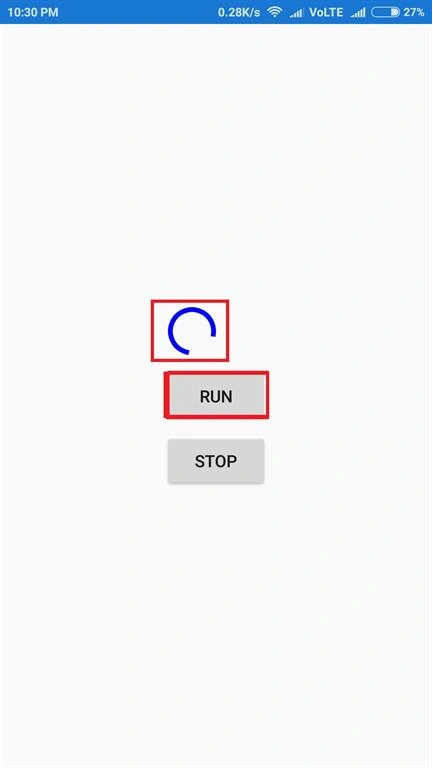
Output 2
Click the "Stop" Button to stop the activity indicator.
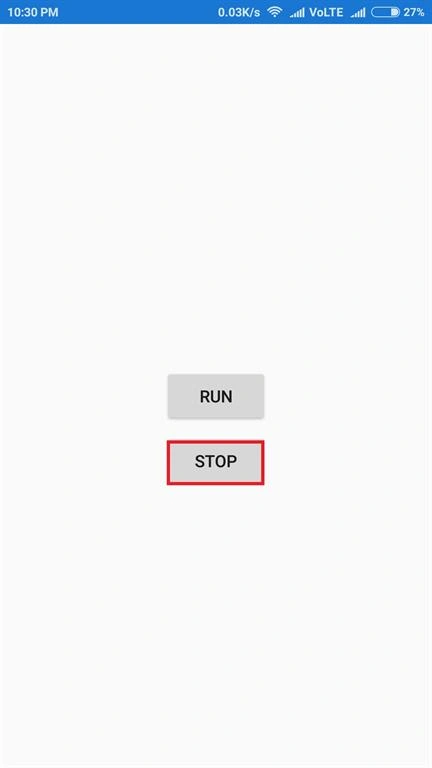
Output 3
The result is displayed.
Finally, we have successfully created a Xamarin.Forms Run and Stop Activity Indicator.
rameshkumarp pPosted Jun 9, 2018, 5:11 AM
Hi AjithKumar. Your Pieces of information is helping much for Xamarin developers. Can you please let me know how to print a small POS receipt to receipt printer using Xamarin Android/UWP applications with visual studio.?. Suggest how can we achieve this local USB Printer from Mobile device?.