

Overview
In my previous article Intent in Android, we saw how to use Intent in Android Applications. It is very important to get and pass the data between the two activities.
Introduction
In this article, I will explain about returning and passing the data, using an Intent object in Android Applications.
Coding
In the same project, add the following statements in the activity_my_second.xml file.
- <LinearLayout xmlns:android="http://schemas.android.com/apk/res/android"
- xmlns:tools="http://schemas.android.com/tools" android:layout_width="fill_parent"
- android:layout_height="fill_parent"
- android:paddingLeft="@dimen/activity_horizontal_margin"
- android:paddingRight="@dimen/activity_horizontal_margin"
- android:paddingTop="@dimen/activity_vertical_margin"
- android:paddingBottom="@dimen/activity_vertical_margin"
- android:orientation="vertical"
- tools:context="com.example.administrator.intentexampleapp.MySecondActivity">
- <TextView android:text="@string/MySecond_Activity"
- android:layout_width="fill_parent"
- android:layout_height="wrap_content" />
- <TextView
- android:layout_width="fill_parent"
- android:layout_height="wrap_content"
- android:layout_marginTop="10dp"
- android:text="Enter your name" />
- <EditText
- android:layout_width="fill_parent"
- android:layout_height="wrap_content"
- android:id="@+id/txtusername" />
- <Button android:layout_height="wrap_content"
- android:layout_width="fill_parent"
- android:text="OK"
- android:id="@+id/btnOk"
- android:onClick="onClick" />
- </LinearLayout>
The code given below needs to be added in MySecondActivity.java file. The method called onClick is implemented in this code.
- public void onClick(View view)
- {
- //create an instance of an Intent object.
- Intent data= new Intent();
- //Get the EditText view and typecast here.
- EditText txtusername=(EditText)findViewById(R.id.txtusername);
- //set the value/data to pass back
- data.setData(Uri.parse(txtusername.getText().toString()));
- //set a result code, It is either RESULT_OK or RESULT_CANCELLED
- setResult(RESULT_OK,data);
- //Close the activity
- finish();
- }
- import android.content.Intent;
- import android.widget.EditText;
Add the code in the MainActivity.java file, as given below:
- public void showSecondActivity(View view)
- {
- Intent intent= new Intent(this,MySecondActivity.class);
- // startActivity(intent);
- startActivityForResult(intent, request_Value);
- }
- public void onActivityResult(int requestCode, int resultCode, Intent data){
- if(requestCode == request_Value){
- if(resultCode == RESULT_OK){
- Toast.makeText(this,data.getData().toString(),Toast.LENGTH_SHORT).show();
- }
- }
- }
Explanation
The method onClick() is implemented in the MySecondActivity.java file. In this method, an Intent object is used to send the data to the calling activity via setData() method. The setResult() method sets a result code to either RESULT_OK or RESULT_CANCELLED and the data to be returned back to the calling activity (MainActivity.java file). The finish() method is used to close the activity and returns back to the calling activity.
In the code, mentioned above, of MainActivity.java file (calling activity), the onActivityResult() method is implemented because it is called whenever an activity returns.
Run the Application and get the result, as shown below,
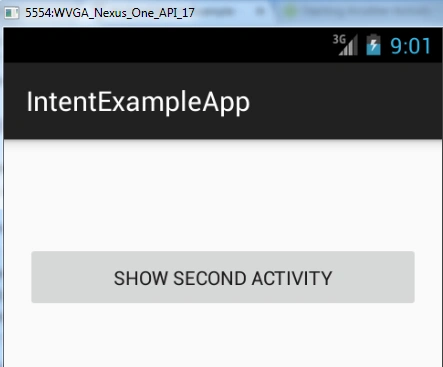
When the user clicks the button, the second activity is displayed, as shown below,
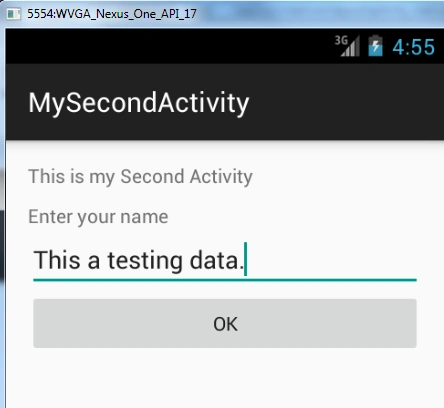
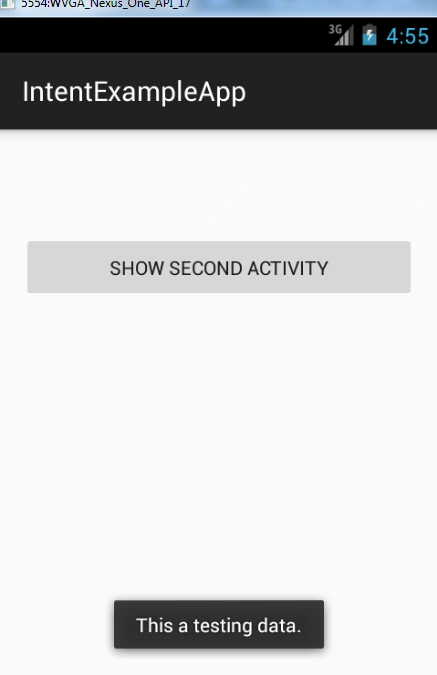
Test data is filled by the user and while clicking on the button, entered value displays on the first activity.
Conclusion
In the article, written above, we saw how to return the results/data from an Intent. In the next article, I will explain about passing the data, using an Intent object.
Ravi KandelPosted Jul 14, 2016, 12:08 PM
Thanks for sharing.
Abhijeet SinghPosted Jul 13, 2016, 1:28 AM
Good one..
kalu singh raoPosted Jul 12, 2016, 1:49 AM
Nice...