

Introduction
In this article, I explain how to retrieve the items & files from SharePoint using Microsoft Graph API.
Why use Graph API?
Recently, I had a query from one developer. He needs to show the file information from a document library. It's always possible using SharePoint REST API, but they are facing a problem for certain users who not have access to the library.
Let’s achieve this using MS GraphAPI.
Endpoint: https://graph.microsoft.com/v1.0/sites/{siteid}/lists/{listid}/items
Permission Scope: Sites.Read.All
Follow the below article to learn how to fetch an access token using Microsoft Graph API:
In your tenant Azure portal, navigate to Azure active directory “App Registration”. Open your app to provide the permission for accessing the SharePoint site lists & libraries via Microsoft Graph API.
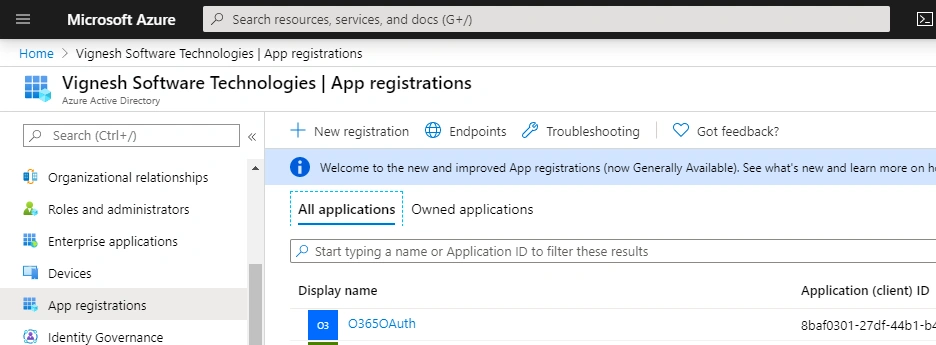
Once you navigate to the registered application -> Click API Permissions
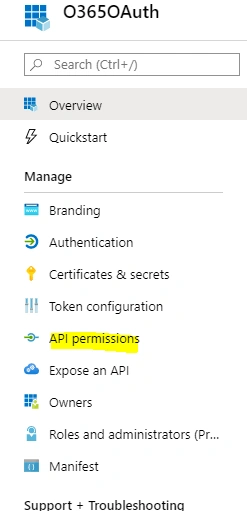
Now Choose Add Permission -> Select Microsoft Graph API ->Application Permission -> Under “Sites” node select “Sites.Read.All”
Finally, it looks like below:
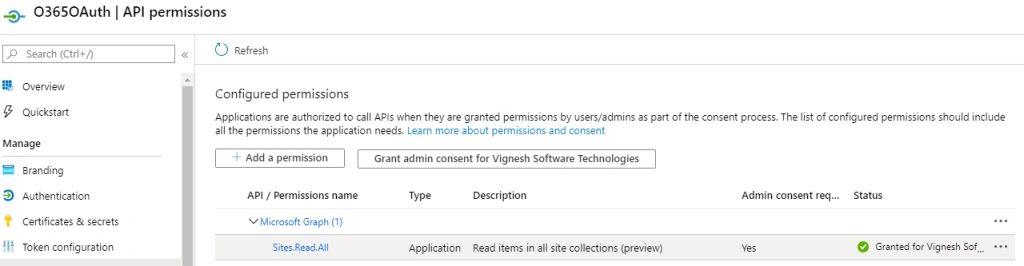
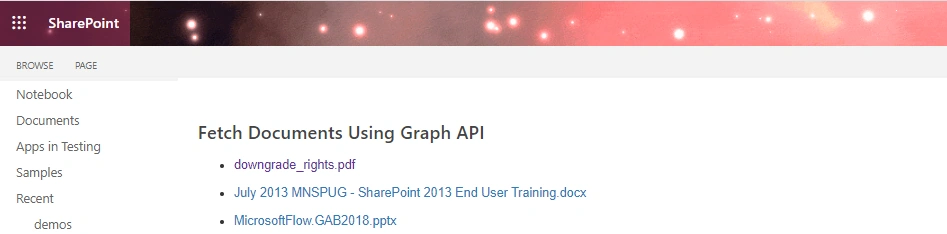
Once done, let’s display file information in SharePoint Content Editor Webpart with the help of some HTML/JQuery.
Create the function name “requestToken()” to fetch the access token on a page load:
- function requestToken() {
- $.ajax({
- "async": true,
- "crossDomain": true,
- "url": "https://howling-crypt-47129.herokuapp.com/https://login.microsoftonline.com/sharepointtechie.onmicrosoft.com/oauth2/v2.0/token", // Pass your tenant name instead of sharepointtechie
- "method": "POST",
- "headers": {
- "content-type": "application/x-www-form-urlencoded"
- },
- "data": {
- "grant_type": "client_credentials",
- "client_id ": "8baf0301-27df-44b1-b4fe-7911b9a918de", //Provide your app id
- "client_secret": "tZ76oVPN039WlWPoAp+1aICq66vs7oUtE4lhDQYwxGY=", //Provide your secret
- "scope ": "https://graph.microsoft.com/.default"
- },
- success: function(response) {
- console.log(response);
- token = response.access_token;
- console.log(token);
- FetchSharepointLibraries();
- },
- error: function(error) {
- console.log(JSON.stringify(error));
- }
- })
- }
Required Parameters
Client ID, Client Secret,Scope, Grant_Type: client_credentials By default
After successfully retrieving the access token, let’s create another function to query the SharePoint site lists/libraries
- function FetchSharepointLibraries(){
- var SPSiteID = "sharepointtechie.sharepoint.com,1a634409-8e14-4d07-b1a7-366eec870233,4047d743-691c-4578-9795-4c1458096e98"; // Sharepoint Site ID
- var ListID = "07f64111-6d12-47d0-9672-7124bdddce3b"; // List/LibraryID
- var GraphURL = "https://graph.microsoft.com/v1.0/sites/"+ SPSiteID +"/lists/"+ ListID +"/items"; //Constructed URL
- $.ajax({
- method: 'GET',
- url: GraphURL,
- headers: {
- 'Authorization': 'Bearer ' + token,
- 'Content-Type': 'application/json'
- },
- success: function(response) {
- var data = response.value;
- console.log(data);
- },error: function(error) {}
- })
- }
Let’s do some fancy work to display the files:
Full Code
- <script src="https://ajax.aspnetcdn.com/ajax/jQuery/jquery-3.3.1.min.js"></script>
- <link rel="stylesheet" href="https://maxcdn.bootstrapcdn.com/bootstrap/3.3.7/css/bootstrap.min.css">
- <script type="text/javascript">
- var token;
- $(document).ready(function () {
- requestToken();
- });
- function requestToken() {
- $.ajax({
- "async": true,
- "crossDomain": true,
- "url": "https://howling-crypt-47129.herokuapp.com/https://login.microsoftonline.com/sharepointtechie.onmicrosoft.com/oauth2/v2.0/token", // Pass your tenant name instead of sharepointtechie
- "method": "POST",
- "headers": {
- "content-type": "application/x-www-form-urlencoded"
- },
- "data": {
- "grant_type": "client_credentials",
- "client_id ": "8baf0301-27df-44b1-b4fe-7911b9a918de", //Provide your app id
- "client_secret": "tZ76oVPN039WlWPoAp+1aICq66vs7oUtE4lhDQYwxGY=", //Provide your secret
- "scope ": "https://graph.microsoft.com/.default"
- },
- success: function (response) {
- console.log(response);
- token = response.access_token;
- console.log(token);
- FetchSharepointLibraries();
- },
- error: function (error) {
- console.log(JSON.stringify(error));
- }
- })
- }
- function FetchSharepointLibraries() {
- var SPSiteID = "sharepointtechie.sharepoint.com,1a634409-8e14-4d07-b1a7-366eec870233,4047d743-691c-4578-9795-4c1458096e98";
- var ListID = "07f64111-6d12-47d0-9672-7124bdddce3b";
- var GraphURL = "https://graph.microsoft.com/v1.0/sites/" + SPSiteID + "/lists/" + ListID + "/items";
- $.ajax({
- method: 'GET',
- url: GraphURL,
- headers: {
- 'Authorization': 'Bearer ' + token,
- 'Content-Type': 'application/json'
- },
- success: function (response) {
- var data = response.value;
- var html = '';
- $.each(data, function (index, data) {
- var fileName = data.webUrl.split("Shared%20Documents/")[1];
- fileName = decodeURIComponent(fileName)
- html += "<li><a href="+ data.webUrl +">"+ fileName +"</a></li><br>";
- })
- $('#files').append(html)
- }, error: function (error) { }
- })
- }
- </script>
- <body>
- <ul id="files"></ul>
- </body>
Final output look like below:
keep Sharing …..
Amulya aPosted Mar 24, 2021, 11:11 PM
How do I get SharePoint Site ID?
mayank bhargavPosted Mar 1, 2021, 6:58 PM
As client id and client secret is shared in exposed in the JavaScript, this is not the right solution