

Introduction
In this article, we will go through restoring a larger volume of data. The script is written by Jose and is slightly modified by George (kudos to both George and Jose) and this script has control on no. of items that can be retrieved and no. of items to run the batch operation, to overcome the throttle limitation from Microsoft.
Steps
Step 1
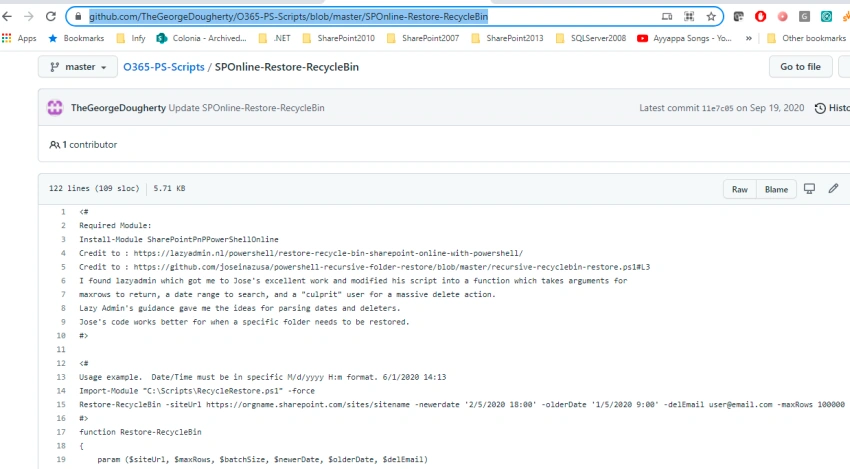
Copy the code and save it with the proper file name in your local Powershell ISE. Here I have saved it as Restore-Recyclebin-LargerVolume.ps1. The code can be found below URL
https://github.com/TheGeorgeDougherty/O365-PS-Scripts/blob/master/SPOnline-Restore-RecycleBin
simply copy the entire code. I was trying cloning using git commands but was not successful.
Step 2
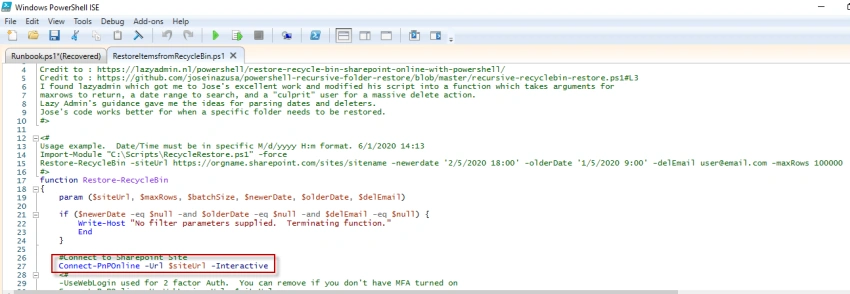
Update the code to support MFA by adding the parameter interactive at line 27.
Step 3
Save the file and import the file, in this case, Restore-Recyclebin-LargerVolume.ps1 into your Powershell command line.

Step 4
Run the function with site collection and required parameters.
$SiteUrl="https://YOURCOMPANY.sharepoint.com/sites/SITENAME"
$BatchSize=100
$MaxRows=2000
$DelEmail = [email protected] #(email of the user)
Restore-RecycleBin-siteUrl$SiteUrl-maxRows$MaxRows-batchSize$BatchSize

Replace the $SiteUrl with your company URL.
Step 5
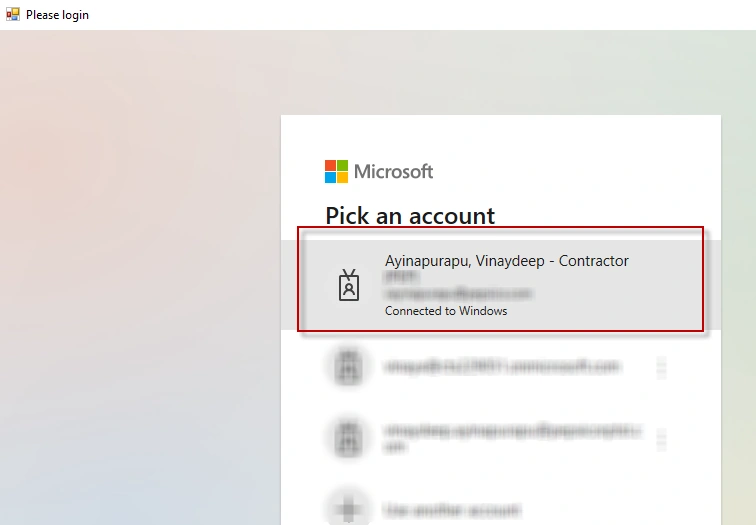
Once the above steps are followed run the restore operation with the required parameters. You will be prompted to login. Make sure the account has Site Collection admin rights.
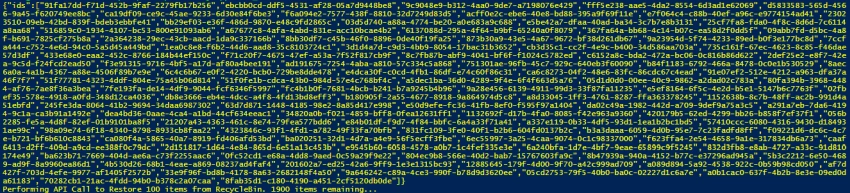
Once connected successfully, it will fetch the items from recycle bin with 100 items in batch and restores up to 2000 items since in this case the batch size is given as 100 and max items to restore are given as 2000.

Points to Note
- I have taken batch size as 100 as this gives the best results and reduces the chances of throttling.
- The max row size is 2000 as this is the highest no. of result it can fetch without performance issues.
- While running this operation, when accessing the site you might end up with a throttling message, and it goes away after 20 to 30 minutes.
- While running the restore operation, there could be an error in the PS script that says validation error. This is pure because of the throttling. Please refer to the below screen captures for reference. when this error occurs give it 20 to 30 minutes of time and perform the operation again.


During the restore when trying to access the site, you might be getting the below error message,
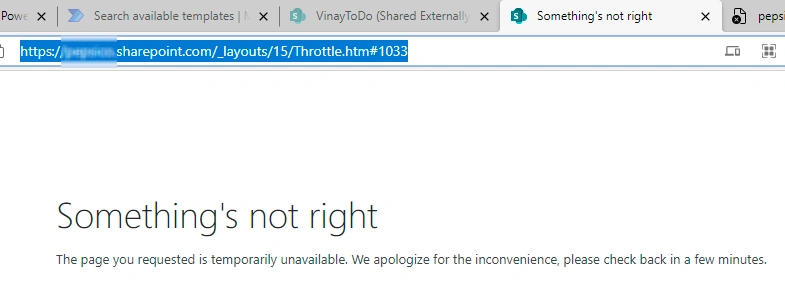
This is due to the restore operation, the SharePoint sites try to not access/process new requests. Try accessing the site in the next 15 to 20 minutes.
Due to the above reasons, it is always recommended to try large restore operation outside the normal business hours.
Conclusion
Thus, in this article, we have seen how to retrieve a large volume of items from recycle bin using Powershell script by specifying the batch size and max items to retrieve. These settings are recommended to overcome the throttling enforced by SharePoint. You can refer to the attached PS script.
References
Brandon NelsonPosted Feb 9, 2023, 5:51 PM
I figured it out. I replaced $_.DeletedByEmail with $_.DeletedByName and it's working now for system account.
Brandon NelsonPosted Feb 9, 2023, 4:19 PM
Are you able to do this by display name? For example I'm trying to restore Items for System Account but I don't have an email for it.
Venkatasubbarao PolisettyPosted Sep 15, 2021, 3:42 AM
Vinay Ayinapurapu Article is interesting, thanks for writing!