

Let's try this!
Description
You can now disable all the unwanted content place holders from the user and make your application responsive with bootstrap.
Creating Master Page
Step 1
Download the Responsive Master Page Template.zip here.
Step 2
Go to your site collection and navigate to Site Settings.
Step 3
Make sure you have enabled the publishing feature in site collection level. Select the Master pages and page layouts option under Galleries.
Step 4
Extract the downloaded zip file and copy.
Responsive Master Page Template->MasterPage->ResponsiveMaster and upload the folder under the master page list (Make sure you have uploaded the “ResponsiveMaster” folder. Inside the masterpage folder, one master file will be there).
Step 5
Click "All Site Content" link from Quick Launch pane. (Site Collection Level)
Step 6
Select "Style Library" list to upload the CSS and JS styles.
Step 7
Extract the downloaded zip file and copy Responsive Master Page Template->StyleLibrary->ResponsiveMaster and upload it under the Style Library list.
(Make sure you have uploaded the “ResponsiveMaster” folder. Inside the "StyleLibrary" folder- CSS fonts, images, js sub folders will be there.)
Step 8
Check in all the uploaded files and folders and approve it.
Now, your responsive master page is ready.
Note
Don’t set this master page as your default master. It will replace your V4.master as in your sub site level.
You can make it as a custom master page from the designer and change the master page url in the aspx page from masterurl/default.
master to ~masterurl/custom.master
Please follow the below steps to apply this master page for individual site pages. (Better apply this master page for user level pages).
Creating Site Page with Responsive Master Page
Step 1
Create a site under the above site collection.
Step 2
Extract the downloaded zip file and copy Responsive Master Page Template->SitePage -> ResponsivePageTemplate.aspx and use this template for your site pages.
Step 3
Create your own responsive content under “contentplaceholdermain” and publish it.
Step 4
The center banner is placed in master page and we have a content place holder to update the text inside the banner. You can change it in all your ASPX pages.
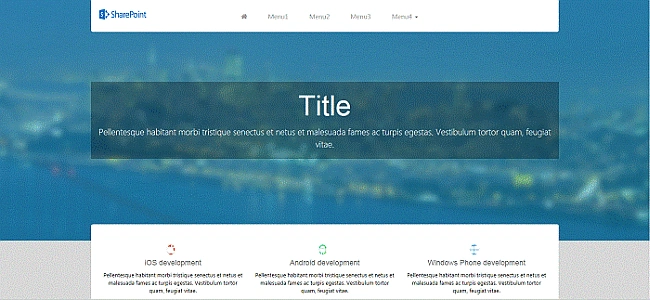
Desktop View
In desktop view, you will get "logo.png" as a lengthy size logo (Change the logo file in images folder).
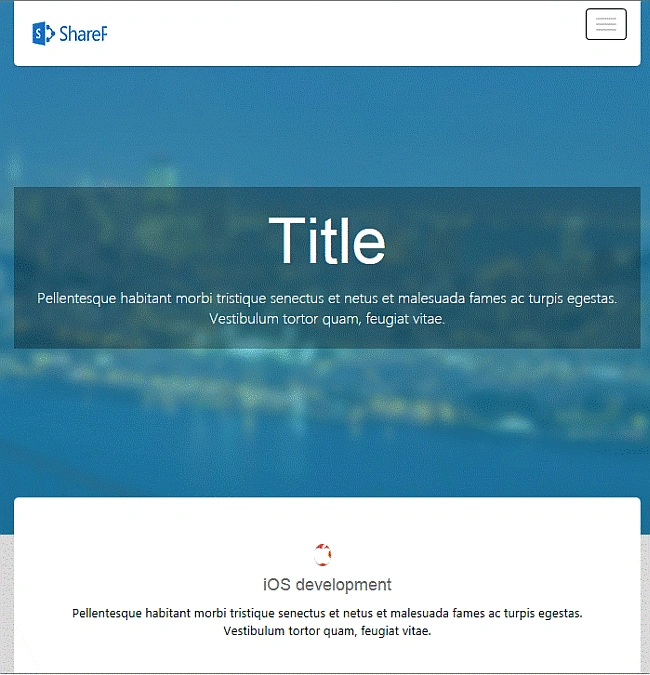
Mobile/Tablet View
In Mobile/Tablet view, you will get "logo-small.png" as a small size logo/ icon (Change the logo-small file in images folder)
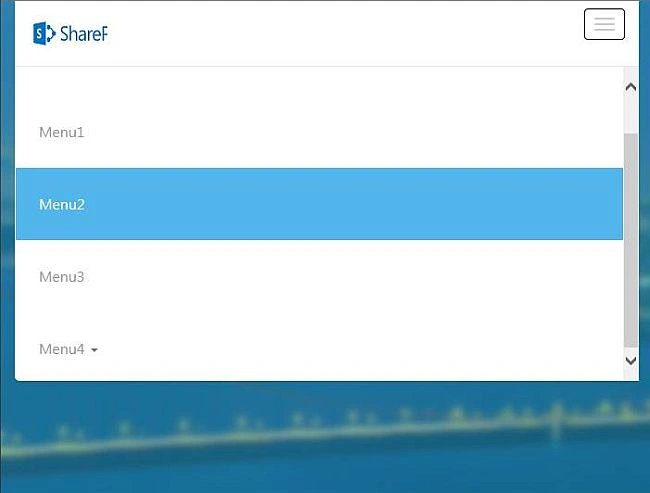
Mobile/Tablet View Menu
Set Master page file Url like below, to inherit the above responsive master page.
HTML
- <%@ Page language="C#" MasterPageFile=../../_catalogs/masterpage/ResponsiveMaster/ ResponsiveMaster.master meta:progid="SharePoint.WebPartPage.Document" inherits="" %>
HTML
- <%@ Page language="C#" MasterPageFile=~masterurl/custom.master meta:progid="SharePoint.WebPartPage.Document" inherits="" %>
HTML
- <asp:Content ID="Content5" ContentPlaceHolderId="bannerText" runat="server">
- <h1>Title </h1>
- <p class="lead">Pellentesque habitant morbi tristique senectus et netus et malesuada fames ac turpis egestas. Vestibulum tortor quam, feugiat vitae.</p>
- </asp:Content>
HTML
- <asp:Content ID="Content6" ContentPlaceHolderId="PlaceHolderPageTitle" runat="server">
- Responsive Page - Custom Title
- </asp:Content>
Please let me know if you guys have any queries.
Abhishek KumarPosted Aug 9, 2018, 2:12 PM
Hican you hel;p me for making default master page to customize
maddy worksPosted May 1, 2018, 7:58 AM
Hi, Great Post! However, I have followed all the steps but the page through error. in the logs its shows this error " Error=Cannot find ContentPlaceHolder 'PlaceHolderTitleBreadcrumb' in the master page '/sites/IMDT/_catalogs/masterpage/ResponsiveMaster/ResponsiveMaster.master', verify content control's ContentPlaceHolderID attribute in the content page. at System.Web.UI.MasterPage.CreateMaster(TemplateControl owner, HttpContext context, VirtualPath masterPageFile, IDictionary contentTemplateCollection) at System.Web.UI.Page.get_Master() at System.Web.UI.Page.ApplyMasterPage() at System.Web.UI.Page.PerformPreInit() at System.Web.UI.Page.ProcessRequestMain(Boolean includeStagesBeforeAsyncPoint, Boolean includeStagesAfterAsyncPoint) e7de629e-cd02-401c-8314-703257fe8ea4"
Madhanmohan DevarajanPosted Oct 25, 2016, 4:10 PM
Good one