

Hi Viewers, I am explaining step-by-step how to go to with the Report Viewer Control and the procedure to avoid some frequent errors that happen for report sections.
- Open VS 2010.
- Create any small demo project.
- Create a folder inside the main project.
Add a reference as in the following: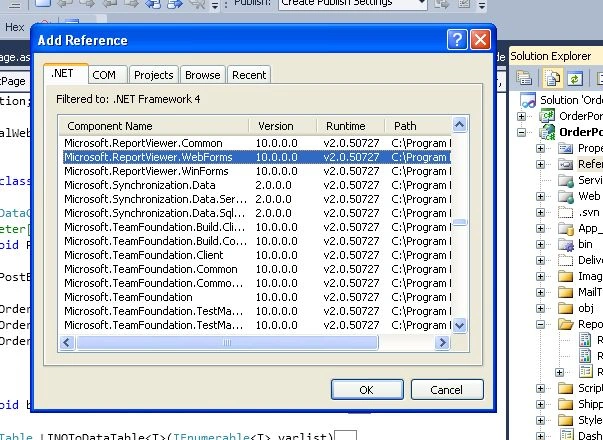
Add a new item using "Reporting" -> "Report" then select "Add" as in the following: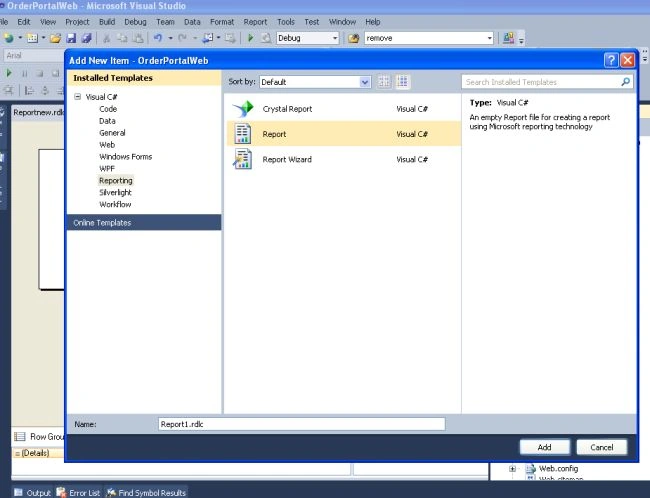
Select items from Toolbox (which displays the report items).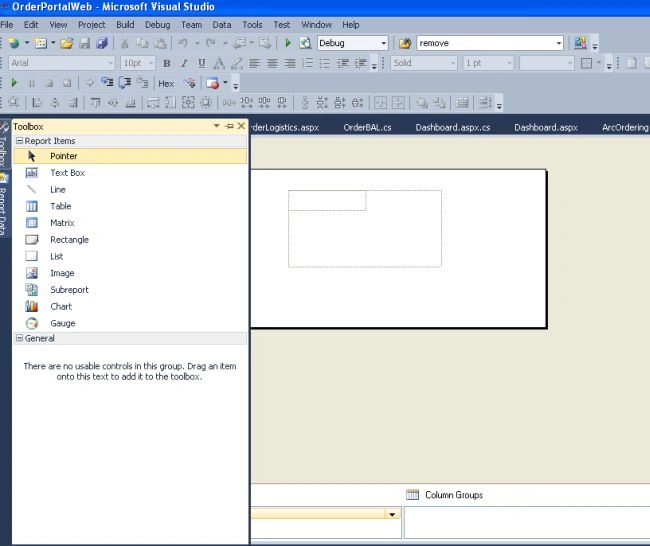
We need to add a data source for the report.
From the Toolbox, drag a list. It will open the dataset properties.
Create a new connection and select the data source.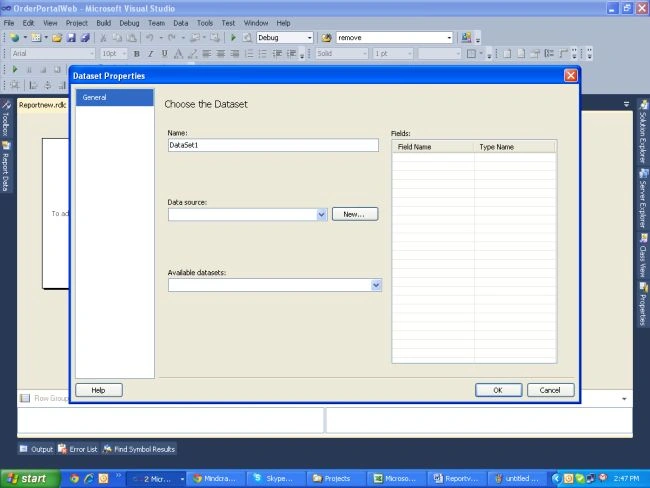
Select Dataset (any existing SP that would retrieve data) of that data source.
Now inside that list, drag a TextBox. Click on the blue corner of the TextBox to bind the field.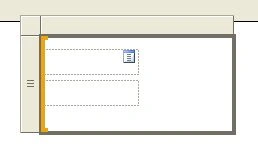
In a list box, you can only bind the data from the one dataset you have chosen.
If you want a label then drag the TextBox and double-click it and type the text; don't bind it.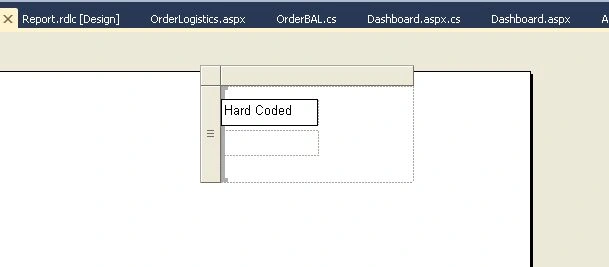
You can also drag an image from the toolbox.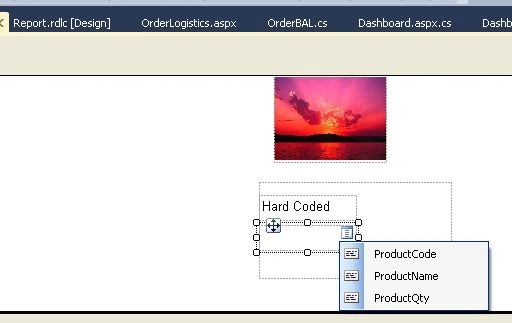
Now if you want to show the data in the report from another data source/dataset then you can drag another list from the toolbox and bind it to the other dataset.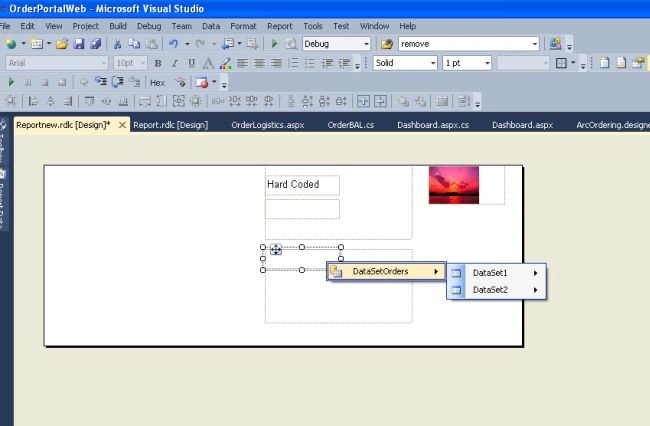
Once the report screen is ready, make sure you set its properties so that whenever you print it you get data in the A4 sheet.
To do that, right-click outside the report page designed and it open its report properties.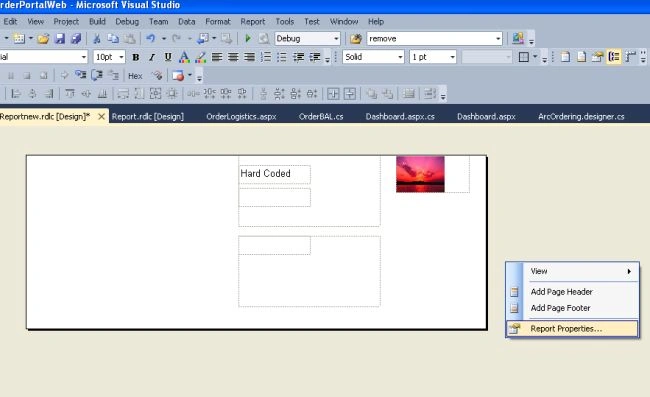
Select the Page size A4 and set all margins to 0 since it may increase the number of printed pages.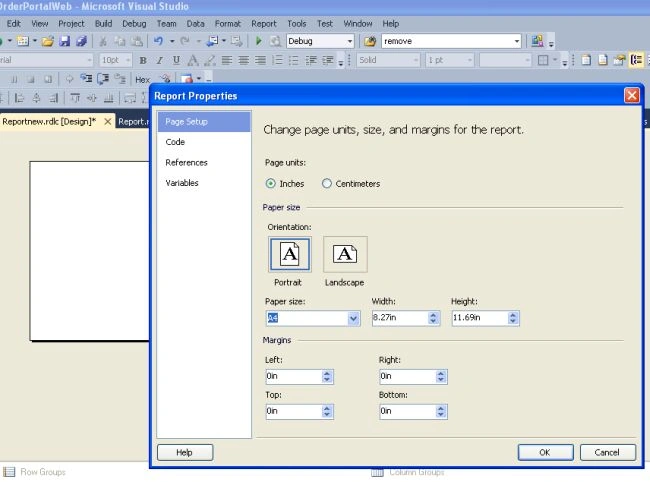
Now drag a .aspx page. Use the namespace:
using Microsoft.Reporting.WebForms;
Drag a Report Viewer Control from the Toolbox then select "Reporting" -> "Reportviewer".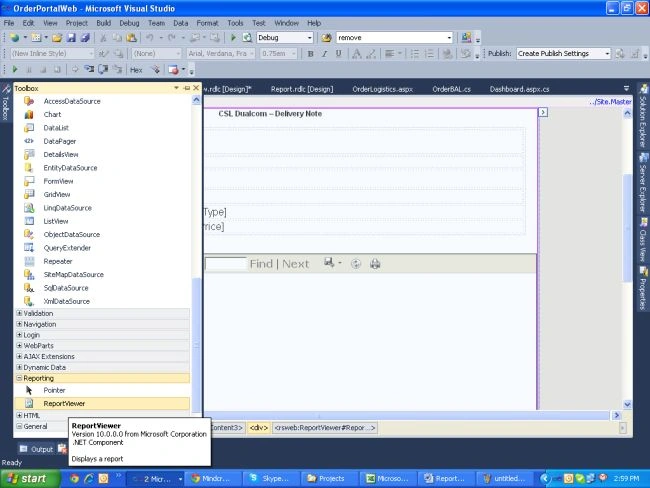
Drag a button, named "Run Report". On clicking the button, the report will be generated.
On the OnClick event of the button I have used the following code:
protected void btnRunReport_Click(object sender, EventArgs e)
{
ReportViewer1.Visible = true;
// SqlConnection thisConnection = new SqlConnection(thisConnectionString);
DataTable dt1 = new DataTable();
DataTable dt2 = new DataTable();
DataTable dt3 = new DataTable();
db = new ArcOrderingDataContext();
//thisDataSet
var objResult = db.GetOrderDetailsInvoice(ddlOrder.SelectedItem.Text.ToString());
foreach (var item in objResult)
{
lblOrderDeliveryType.Text = item.DeliveryCompanyName + " - "+ item.DeliveryShortDesc;
lblDeliveryType.Visible = true;
lblOrderDeliveryType.Visible = true;
lblOrderDelieryPrice.Text = "£ " +item.DeliveryCost.ToString();
lblDelieryPrice.Visible = true;
lblOrderDelieryPrice.Visible = true;
}
dt1 = LINQToDataTable(db.GetOrderDetailsInvoice(ddlOrder.SelectedItem.Text.ToString()));
db.Dispose();
db = new ArcOrderingDataContext();
dt2 = LINQToDataTable(db.GetOrderItemsInvoice(ddlOrder.SelectedItem.Text.ToString()));
db.Dispose();
db = new ArcOrderingDataContext();
dt3 = LINQToDataTable(db.GetOrderDepProductsinvoice(ddlOrder.SelectedItem.Text.ToString()));
db.Dispose();
/* Associate thisDataSet (now loaded with the stored
procedure result) with the ReportViewer datasource */
ReportDataSource datasource1 = new ReportDataSource("DataSet1", dt1);
ReportDataSource datasource2 = new ReportDataSource("DataSet2", dt2);
ReportDataSource datasource3 = new ReportDataSource("DataSet3", dt3);
ReportViewer1.LocalReport.DataSources.Clear();
ReportViewer1.LocalReport.DataSources.Add(datasource1);
ReportViewer1.LocalReport.DataSources.Add(datasource2);
ReportViewer1.LocalReport.DataSources.Add(datasource3);
ReportViewer1.LocalReport.Refresh();
}
//this is a method to convert the Linq Data to Data table
public DataTable LINQToDataTable<T>(IEnumerable<T> varlist)
{
DataTable dtReturn = new DataTable();
// column names
PropertyInfo[] oProps = null;
if (varlist == null) return dtReturn;
foreach (T rec in varlist)
{
// Use reflection to get property names, to create table, Only first time, others will follow
if (oProps == null)
{
oProps = ((Type)rec.GetType()).GetProperties();
foreach (PropertyInfo pi in oProps)
{
Type colType = pi.PropertyType;
if ((colType.IsGenericType) && (colType.GetGenericTypeDefinition()
== typeof(Nullable<>)))
{
colType = colType.GetGenericArguments()[0];
}
dtReturn.Columns.Add(new DataColumn(pi.Name, colType));
}
}
DataRow dr = dtReturn.NewRow();
foreach (PropertyInfo pi in oProps)
{
dr[pi.Name] = pi.GetValue(rec, null) == null ? DBNull.Value : pi.GetValue
(rec, null);
}
dtReturn.Rows.Add(dr);
}
return dtReturn;
}
I hope it will help you a lot if you are really looking for working with reports.
Former memberPosted Dec 15, 2014, 1:54 AM
nice work...!!!!!!!!!!
Amaan SayedPosted Jul 21, 2014, 1:28 AM
hi i am trying to develop invoice generator application but i confuse how to
Josymar MayhuaPosted Dec 3, 2013, 6:53 AM
That was really helpful Sonan. Thank you :)
Santosh KumarPosted Oct 21, 2013, 6:42 AM
Very nice.
Sonam SharmaPosted Sep 6, 2013, 5:27 AM
thanks
Christian NwambaPosted Aug 26, 2013, 7:52 AM
Nice One
Dinesh BeniwalPosted Aug 5, 2013, 11:30 AM
Good start sonam welcome to the C# Corner
Akhil MittalPosted Aug 5, 2013, 11:15 AM
Nice Article Sonam.Good Start.Keep it up :-)