

Introduction
React is designed to build dynamic, interactive user interfaces and at the heart of that dynamism are dynamic values. When do you need dynamic values? great question, say you're handling user input, fetching data, or responding to events like button clicks, React makes it easy to update the UI in real-time. In this article, we’ll walk through how to render and manage dynamic values using core React concepts like JSX expressions, state, props, event handlers, and more.
Table of Contents
- File Structure
- What Are Dynamic Values in React?
- Rendering Dynamic Variables
- JSX Expressions
- State: React’s Way to Handle Change
- Event Handlers + State
- Using Props for Reusability
- Conditional Rendering
- Lists & .map()
- Bonus: String Interpolation, Template Literals
- Conclusion
1. File Structure
📁 src/
├── 📁 components/
│   └── 📄 ProfileCard.js
├── 📄 App.js
└── 📄 index.js
React Norms Covered
- Component file names should use PascalCase (e.g., ProfileCard.js)
- Component functions should start with capital letters (e.g., function ProfileCard)
2. What Are Dynamic Values in React?
Dynamic values are the parts of your UI that change over time like user input, fetched data, or button clicks. React allows you to inject those values directly into your UI using JSX expressions, state, and props.
3. Rendering Dynamic Variables
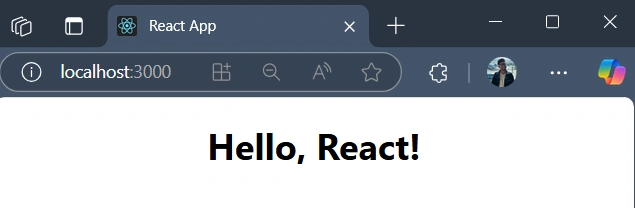
Anything inside { } in JSX is treated as JavaScript this is how you "inject" values into your HTML-like code.
export default function ProfileCard(){
    const name = "React";
    return <h1>Hello, {name}!</h1>;
}
4. JSX Expressions
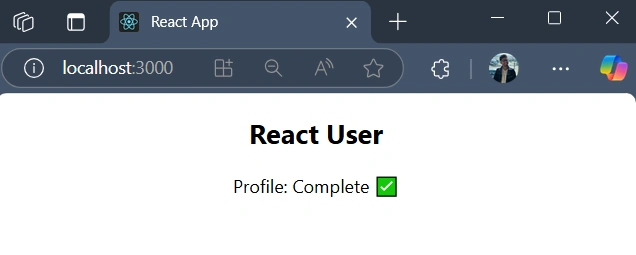
export default function ProfileCard(){
    const name = "React User";
    const profileCompletion = 85; // out of 100

    return (
      <div className="profile-card">
        <h2>{name}</h2>
        <p>
          Profile: {profileCompletion >= 80 ? "Complete ✅" : "Incomplete ❌"}
        </p>
      </div>
    );
}
You can also do,
Sure! Here's the list continued in your style.
You can do,
- Math: {score + 10} // Adds 10 to the score value.

- Ternaries: {isLoggedIn ? "Welcome" : "Please log in"} // If isLoggedIn is true, show "Welcome", otherwise show "Please log in".

- Logical AND: {isAdmin && <button>Delete</button>} // If isAdmin is true, show the "Delete" button. If false, nothing is rendered.

- Function calls: {formatDate(new Date())} // Calls the formatDate function with the current date and returns the formatted string.

- Mapping arrays: {items.map(item => <li>{item}</li>)} // Loops through items array and renders each item inside an <li> element.

- String interpolation: {"Hello, " + name} // Uses string concatenation to combine a string and variable, like Hello, React.

- Object property access: {user.email} // Accesses and displays the email property of the user object.

- String methods: {username.toUpperCase()} // Converts username to uppercase.

- Nullish coalescing: {user.bio ?? "No bio"} // If user.bio is null or undefined, show "No bio". Otherwise, show user.bio.

- Optional chaining: {user.address?.city} // Safely accesses city under address, and returns undefined if address is null or undefined.

- Array length: {messages.length} // Returns the length of the messages array.

- Date formatting: {new Date().toLocaleDateString()} // Formats the current date using the browser's default locale settings.
5. State: React’s Way to Handle Change
React’s useState lets components remember values and re-render when they change. Meaning, when you click the button, count updates, and React re-renders the component with the new value.
import { useState } from "react";

function Counter() {
  const [count, setCount] = useState(0);
  return (
    <div>
      <p>You clicked {count} times.</p>
      <button onClick={() => setCount(count + 1)}>Click me</button>
    </div>
  );
}

export default Counter
- useState(0): Initializes the count state variable with a default value of 0.
- setCount: The function used to update the count value.
- <button onClick={() => setCount(count + 1)}>Click me</button>: When the button is clicked, it increments the count by 1 using the setCount function.
6. Event Handlers + State
User actions often update the state. Here's an example of toggling themes.
import { useState } from "react";

function ThemeToggle() {
  const [darkMode, setDarkMode] = useState(false);

  return (
    <button onClick={() => setDarkMode(!darkMode)}>
      Switch to {darkMode ? "Light" : "Dark"} Mode
    </button>
  );
}

export default ThemeToggle
7. Using Props for Reusability
When you pass data into a React component (or just a function returning JSX), that data becomes parameters, you can name them whatever you want! Let’s break it down using your two examples.
Example 1. The Object Parameter
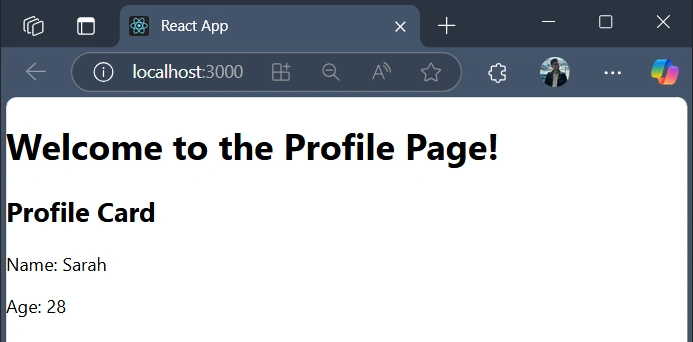
function ProfileCard(props) {
  return (
    <div className="profile-card">
      <h2>Profile Card</h2>
      <p>Name: {props.name}</p>
      <p>Age: {props.age}</p>
    </div>
  );
}

export default ProfileCard;

//Call it like this
 <ProfileCard name="Sarah" age={28}></ProfileCard>

//or like this
{ProfileCard('Alex', 28)}
- props are just a placeholder: you could name them props, data, info, or anything else.
- Whatever you pass to this component becomes an object (just like props in a real React component).
- Inside the function, you access props.name and props.age because blah is expected to look like.
Example 2. Plain Function Parameters
function ProfileCard(name, age) {
    return (
      <div className="profile-card">
        <h2>Profile Card</h2>
        <p>Name: {name}</p>
        <p>Age: {age}</p>
      </div>
    );
  }

export default ProfileCard

//Call it like this
{ProfileCard('Alex', 28)}
- Now you’re not passing an object. Instead, you’re passing plain values, 'Alex' and 28.
- The ProfileCard function takes two parameters: name and age.
- You can use this if you're calling ProfileCard like a plain function, not a component with JSX (<ProfileCard />).
Regardless of how parameters are passed, you use dynamic values simply inside { }.
8. Conditional Rendering
We saw a bit of this earlier in the ternary operator example. You can show or hide parts of the UI using conditions.
{isLoggedIn ? <Dashboard /> : <Login />}

or

{showBanner && <Banner />}
9. Lists & .map() for Dynamic Arrays
key helps React track elements for performance.
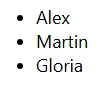
const users = ["Alex", "Martin", "Gloria"];

return (
  <ul>
    {users.map(user => (
      <li key={user}>{user}</li>
    ))}
  </ul>
);
10 Bonus: String Interpolation, Template Literals
You can use it.
const name = "Alex";
const greeting = `Hello, ${Alex}`;
- Backticks (`) are used instead of quotes.
- ${name} is string interpolation, it injects the value of the name variable into the string.
Inside JSX.
<h2>{`Welcome, ${name}`}</h2>
Conclusion
React is reactive, literally. The beauty of React lies in how easily your code updates the UI as your data changes. Once you master dynamic values, you're one step closer to building interactive experiences.
- Use { } to embed variables and expressions
- Use props to pass dynamic values between components
- Use state to track values that change
- Use event handlers to update the state
- Use .map() for lists and conditional rendering to show/hide content
Join the conversation! Your thoughts help the community grow.