

Introduction
This article explains how to access data from the database and how to update the records using a F# Windows Forms Application.
Create Table In Database
The following will create a table in the database:
CREATE TABLE [dbo].[UserInformation](
[UserId] [int] IDENTITY(1,1) NOT NULL,
[UserName] [varchar](30) NULL,
[FirstName] [varchar](30) NULL,
[LastName] [varchar](30) NULL,
[Address] [nvarchar](max) NULL,
[City] [varchar](30) NULL
)
Insert values into the table fields:
insert into userinformation values ('Pank','Pankaj','Lohani','a-43 santnagar','Delhi')
insert into userinformation values ('Nicks','Nimit','Joshi','Vinod Nagar','Delhi')
insert into userinformation values ('pr','pravesh','khanduri','pratap vihar','Delhi')
insert into userinformation values ('Nicks','Nimit','Joshi','Vinod Nagar','Delhi')
insert into userinformation values ('Ammu','Amit','Senwal','East Vinod Nagar','Delhi')

Create Stored Procedure
The following will create a Stored Procedure for the updates:
create proc UpdateRecord
@uid int,
@username varchar(30),
@firstname varchar(30),
@lastname varchar(30),
@address nvarchar(max),
@city varchar(30)
as
begin
update UserInformation set UserName=@username,FirstName=@firstname,LastName=@lastname,Address=@address,City=@city where UserId=@uid
end
Now let's use the following procedure.
Step 1:
Open Visual Studio and select "Create New Project" then select "F# Console Application".
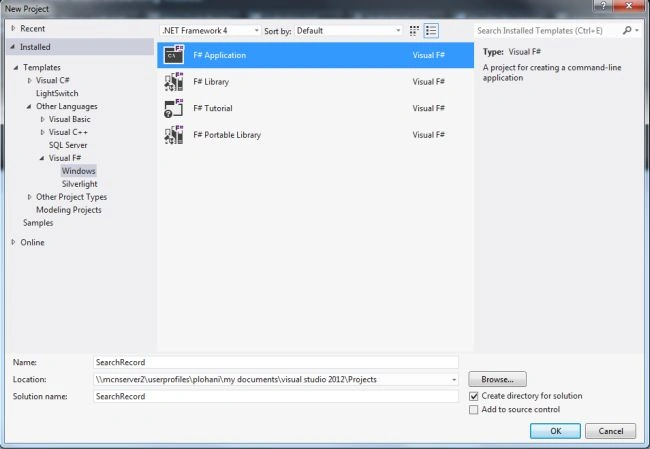
Step 2:
Now go the Solution Explorer on to the right side of the application. Select "References" and right-click on it and select "Add references".

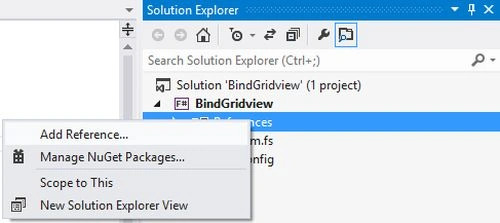
Step 3:
After selecting "Add References", in the framwork template you need to select "System.Windows.Forms", "System.Drawing" and "System.Data" while holding down the Ctrl key and click on "Ok."

Step 4:
Write the following code for the F# applcation:
// Learn more about F# at http://fsharp.net
// See the 'F# Tutorial' project for more help.
//Adding NameSpaces
open System
open System.Windows.Forms
open System.Data.SqlClient
open System.Drawing
open System.Data
//Connection String
let constring = @"Data Source=MCNDESKTOP20;Initial Catalog=information;User ID=sa; Password=password@123"
let con = new SqlConnection(constring)
let com1 = new SqlCommand() //creating the command object
let com2 = new SqlCommand()
//Creating Window Form
let form = new Form()
//Creating usercontrols on forms
let lbluserId = new Label(Top = 10, Left = 0, Height = 20)
let txtuserId = new TextBox(Top =10, Left = 100,Height = 20)
let lblusername = new Label(Top = 50, Left = 0,Height = 20)
let lbluserfname = new Label(Top = 90, Left = 0,Height = 20)
let lbluserlname = new Label(Top = 130, Left = 0,Height = 20)
let lbluseraddress = new Label(Top = 170, Left = 0, Height = 20)
let lblusercity = new Label(Top = 200, Left = 0, Height = 20)
let txtname = new TextBox(Top = 50, Left = 100,Height = 20)
let txtfname = new TextBox(Top = 90, Left = 100,Height = 20)
let txtlname = new TextBox(Top = 130, Left = 100, Height = 20)
let txtaddress = new TextBox(Top = 170, Left = 100, Height = 20)
let txtcity = new TextBox(Top = 200, Left = 100, Height = 20)
let searchbtn = new Button(Top = 230, Left=80)
let updatebtn = new Button(Top=230, Left=170)
//Adding Controls()
form.Controls.Add(lbluserId)
form.Controls.Add(txtuserId)
form.Controls.Add(lblusername)
form.Controls.Add(txtname)
form.Controls.Add(lbluserfname)
form.Controls.Add(txtfname)
form.Controls.Add(lbluserlname)
form.Controls.Add(txtlname)
form.Controls.Add(lbluseraddress)
form.Controls.Add(txtaddress)
form.Controls.Add(lblusercity)
form.Controls.Add(txtcity)
form.Controls.Add(searchbtn)
form.Controls.Add(updatebtn)
form.Text <- "Updating The Records"
searchbtn.Text <-"Search"
updatebtn.Text <-"Update"
lbluserId.Text <- "Enter UserId :"
lblusername.Text <- "UserName:"
lbluserfname.Text <- "FirstName :"
lbluserlname.Text <- "LastName :"
lbluseraddress.Text <- "Address :"
lblusercity.Text <- "City :"
//Search the records
searchbtn.Click.Add(fun _->
con.Open()
com1.Connection <- con
com1.CommandText <- " select * from UserInformation where UserId = "+txtuserId.Text+" "
let dr = com1.ExecuteReader()
while dr.Read() do
txtname.Text <- dr.Item(1).ToString()
txtfname.Text <- dr.Item(2).ToString()
txtlname.Text <- dr.Item(3).ToString()
txtaddress.Text <- dr.Item(4).ToString()
txtcity.Text <- dr.Item(5).ToString())|>ignore
//Update the Records
updatebtn.Click.Add(fun _->
con.Close()
com1.Connection <- con
con.Open()
com1.CommandType <- CommandType.StoredProcedure
com1.CommandText <- "UpdateRecord" //UpdateRecord is a stored procedure
com1.Parameters.AddWithValue("@uid",txtuserId.Text) |> ignore
com1.Parameters.AddWithValue("@username",txtname.Text ) |> ignore
com1.Parameters.AddWithValue("@firstname",txtfname.Text) |> ignore
com1.Parameters.AddWithValue("@lastname",txtlname.Text) |> ignore
com1.Parameters.AddWithValue("@address",txtaddress.Text) |> ignore
com1.Parameters.AddWithValue("@city",txtcity.Text) |> ignore
com1.ExecuteNonQuery()|> ignore
con.Close()
MessageBox.Show("Records Updated")|>ignore
txtname.Clear()
txtfname.Clear()
txtlname.Clear()
txtaddress.Clear()
txtcity.Clear()
txtname.Focus() |>ignore
)
Application.Run(form)// Run the application
Step 5:
Debug the application by pressing F5 and the result will be shown in the application as given below.
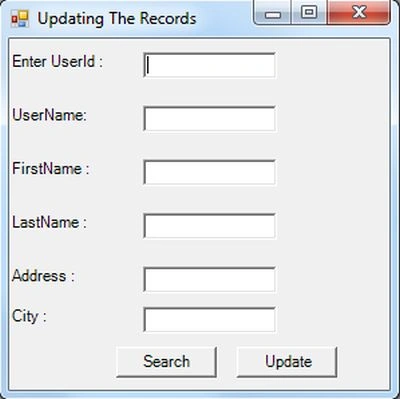
Step 6:
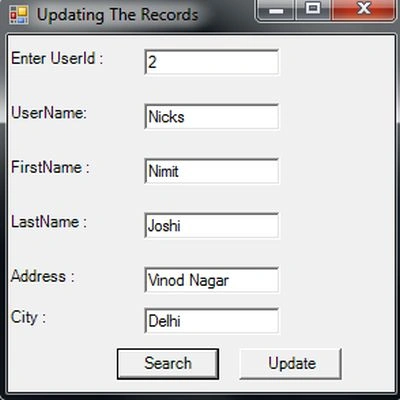
Now you need to enter the user id because the user id is defined as a primary key in the table for locating the records uniquely from the database. Now click on the "Search" button.
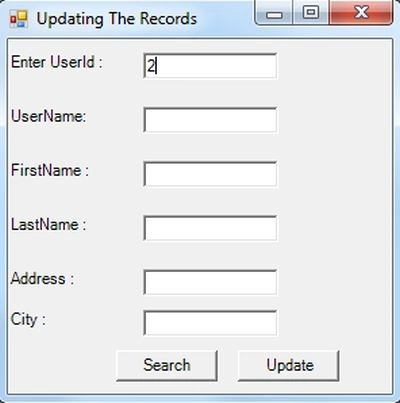
Step 7:
After clicking on the Search button all the records are fetched into the textboxes from the database.
Step 8:
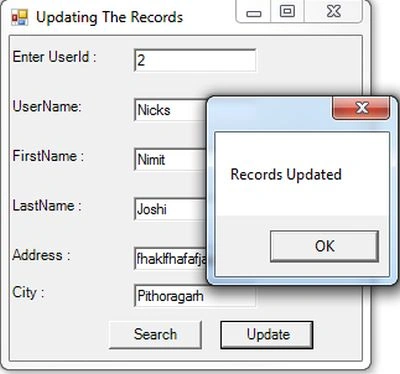
Now you can update your records and after updating the fetched records, just click the "Update" button then the records are saved to the database.

Step 9:
To check your updated records, go to the SQL Server database and write the following query in the Query Editor and execute the query by pressing F5:
select * from UserInformation

Summary
In this article you have seen how to create a table and insert values into the table fields and how to search the records in the database to a Windows Forms application and after fetching these records you can update your records and save then back into the database.
Bhuvanesh MohankumarPosted Apr 30, 2016, 3:16 PM
Good one...