

Introduction
This is the next part of the last article (Create and Write CSV Files Using File Connector in MuleSoft) of the File Connector series.
In this article, we will learn how to Read Files Using a File Connector in MuleSoft.
Getting Started
Let’s do a quick project setup and include the required global config files; these are the quick steps:
- First, open Anypoint Studio and Create a New Mule Project.
- Enter a project name and selection location and click finish.
- Click on Add Modules in the Mule palette and find File in the featured components.
- Drag and drop the File onto the Mule palette before adding it to the project.
- Now let's add a new Mule Configuration File and give the name as global.
- Enter the file name as global.
- Go to Global Elements, click the Create button, and add an HTTP Listener config.
- Leave everything as default and click ok.
- Click the Create button, Select File Config, and click OK.
- Provide the Working Directory path in the General tab.
Next, drag and drop HTTP >> Listener from Mule palette to Message flow and give Display Name, select Connector configuration, and enter the Path.
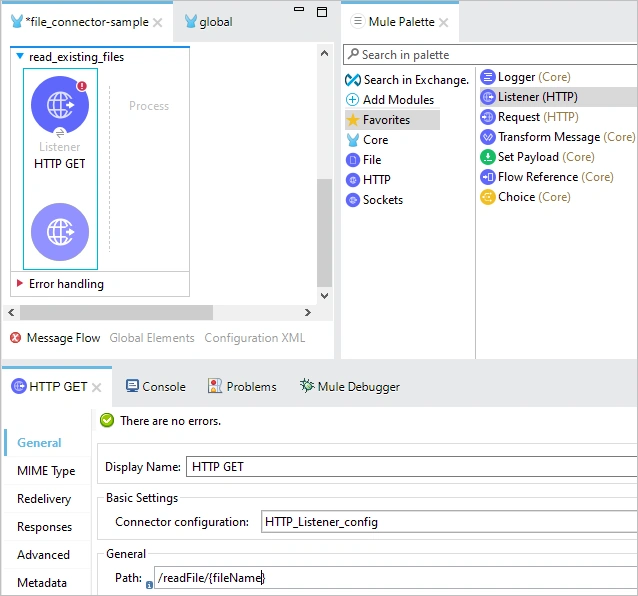
Enter Display Name (HTTP GET) and Select Connector Configuration ([Connector Name]) and Path (Endpoint Path).
Note. Connector configuration is created in a global file.
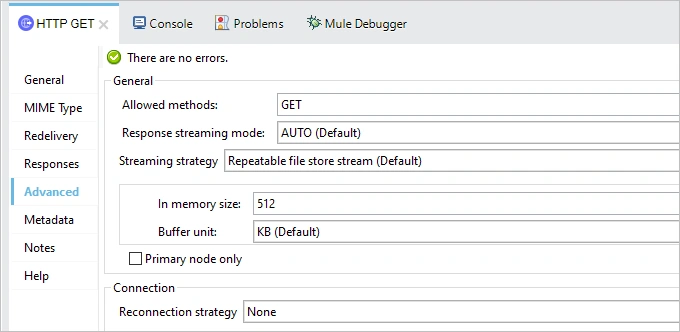
Also, provide Allowed methods (GET) in Advanced properties.
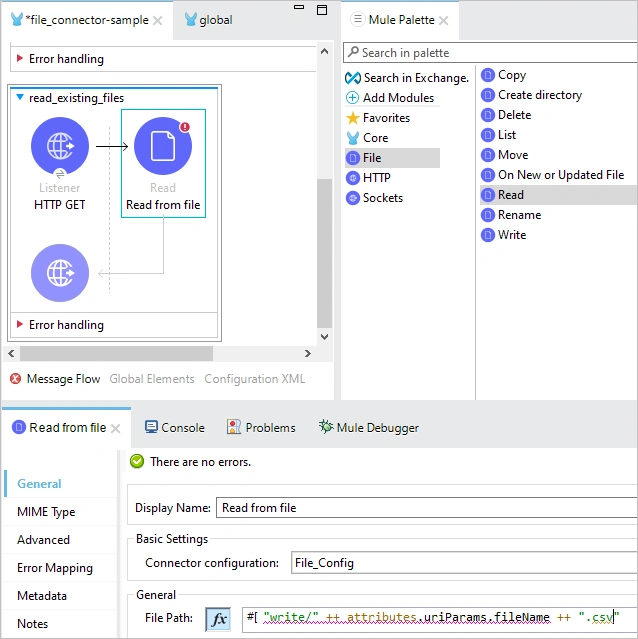
Next, Drag and Drop File> Read component from the File palette, enter the Display name, and select Connector and File Path. File Path sets the path dynamically to read the file name.
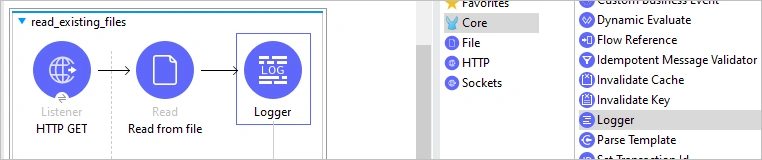
Next, drag and drop Logger from the Core palette and set the payload.
Define payload.
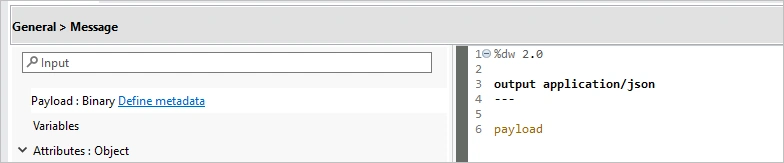
At last, drag and drop Set Payload and define payload.
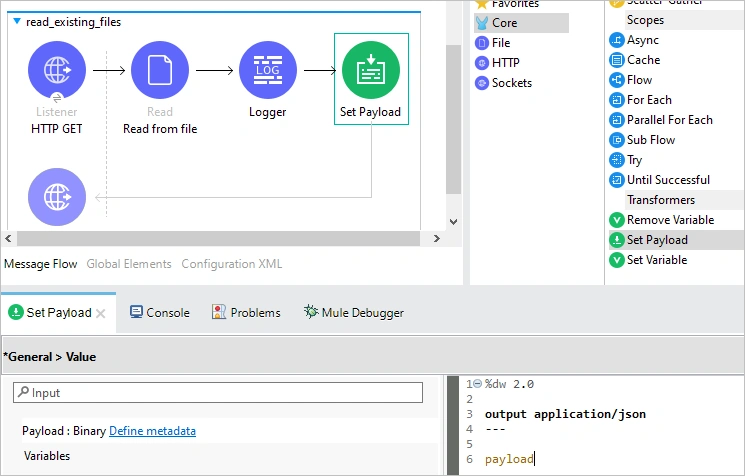
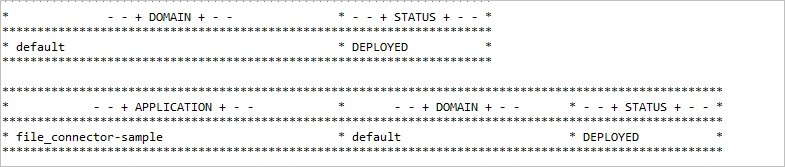
Let's run the application now.
Open Postman and enter Endpoint to see the output result.
Once the application is deployed, Pass the file name in the endpoint, available in the right folder or whatever folder name you mentioned, and click Send button.
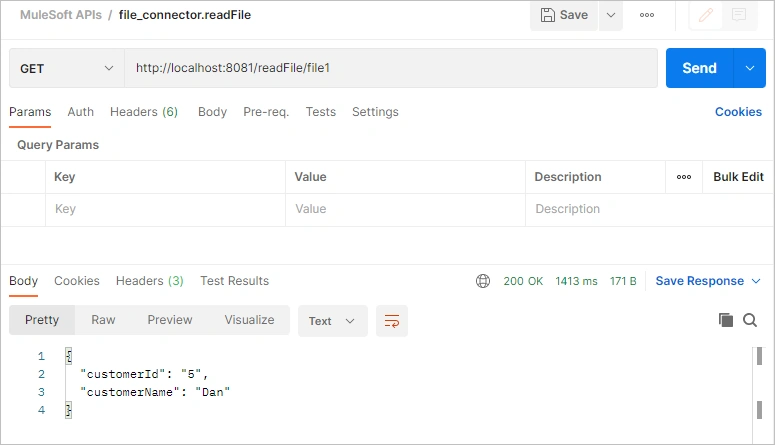
As you can see, we can read file1 data. If you go back into the folder and open the csv file, then the data is the same, which API provides.
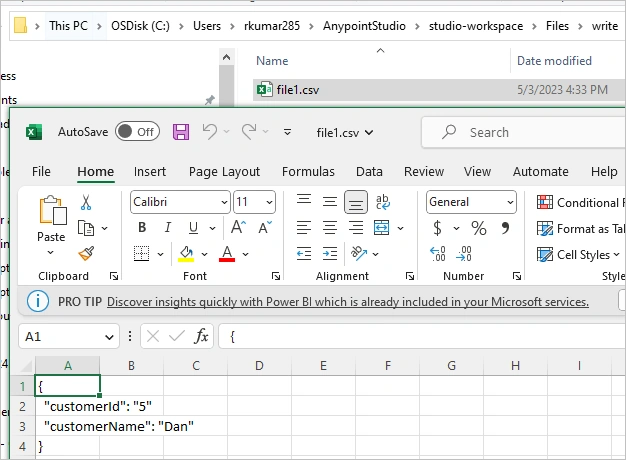
What happens if you enter a file name which doesn’t exist in the folder?
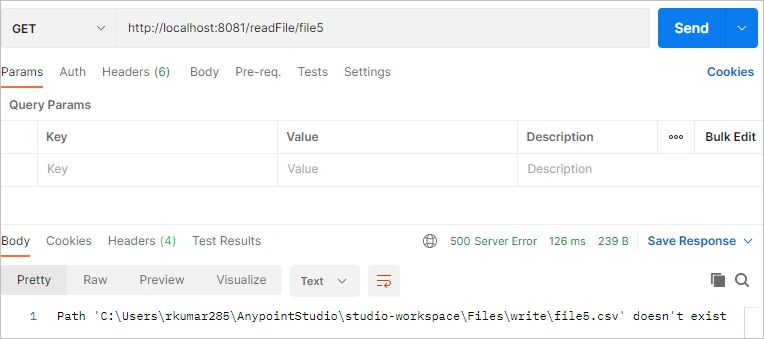
The logger is working as expected to provide the proper logging if the given File does not exist.
Conclusion
This article taught us to read CSV files using File Connector in MuleSoft and display results in Postman.
Join the conversation! Your thoughts help the community grow.