

Initially, RDLC was used in just web applications but presently, it can be used in both, web and desktop applications. This tutorial assumes we already have a basic understanding of C# and WPF, so I will just dive into the demo.
Make sure you have the Microsoft RDLC Reporting Designer installed in Visual Studio.
Create a new WPF
Create a new WPF project and name it "RDLCDemo".
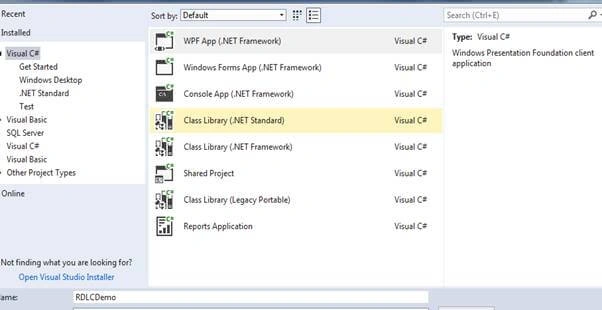
Add the following dll to your references.
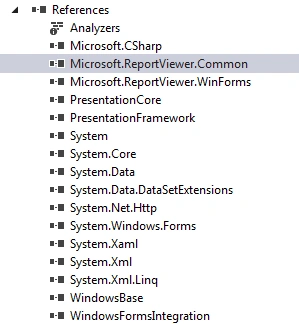
- Microsoft.ReportViewer.common
- Microsoft.ReportViewer.Winforms
- WindowFormsIntegration.
Create a new class
Create a new class called Person. cs and add the following codes to it.
namespace RDLCDemo
{
   public class Person
    {
        public int id {get; set;}
        public string Name {get; set;}
        public int Age {get; set;}

    }
}
Rebuild the solution
Add a new Report Item and name it MainReport.rldc.
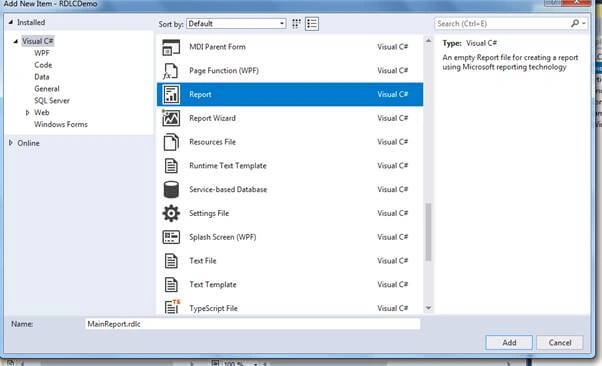
Go to the MainReport.rdlc file.
- Drag and drop a table from the toolbox; a dialog will show up demanding a Dataset. Name it "Person_DS".
- Select "New" in the data source to add Data sources. A dialog will show up demanding a data source.
- The Data source can be directly from a database but in our scenario, we are getting the data from the person class object. So, select the object as the data source.
- A list of available models will be provided; check the Person Checkbox since that will be the model we are using.
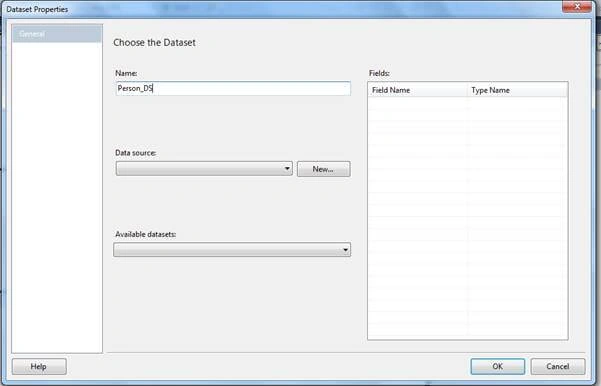
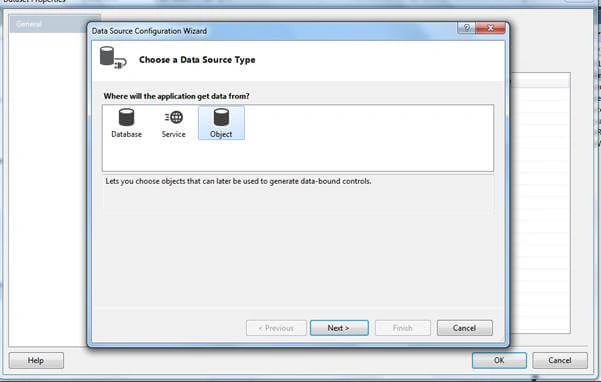
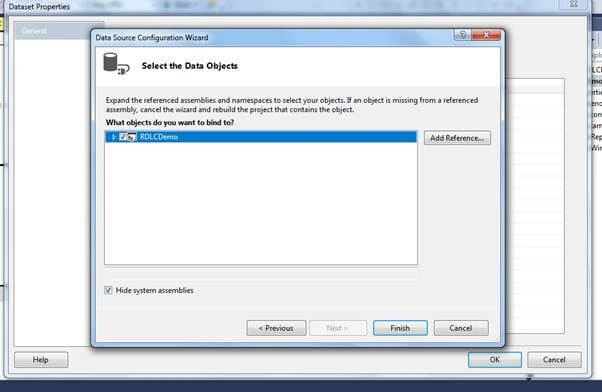
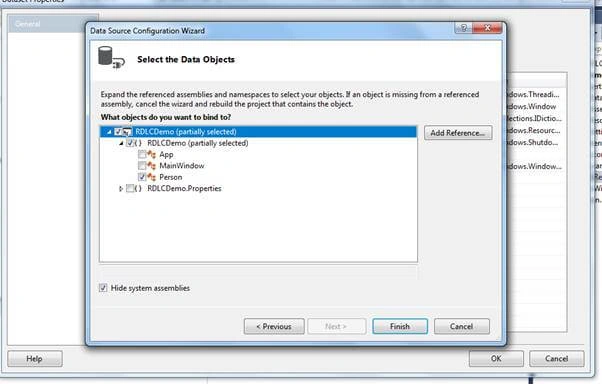
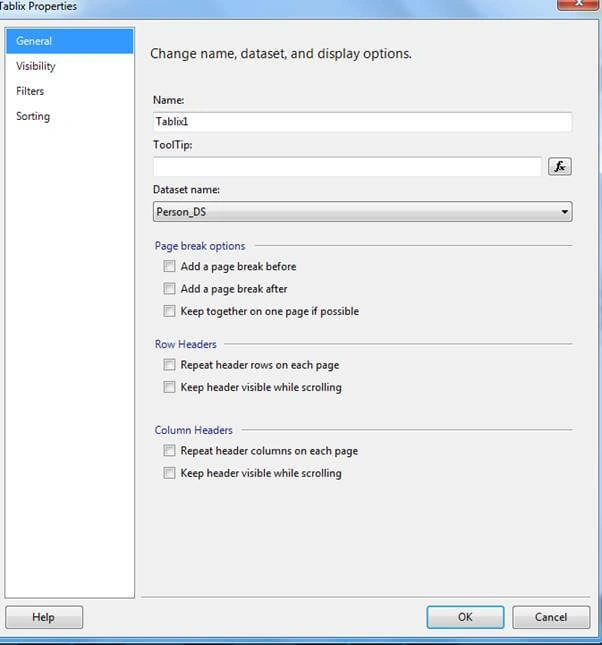
Right-click on the table and go to Tablix Properties, select the Person_DS as the data set, and click OK.
Enter the corresponding header for the table and map them with the correct properties, as shown below.

Add this code to the personViewModel.cs.
using System.IO;
namespace RDLCDemo
{
    public class PersonViewModel
    {
        private MainWindow _window;
        private LocalReport _Report;
        private ReportViewer _reportviewer;
        public ViewModel(MainWindow window)
        {
            _window = window;
            this. _reportviewer = window. _reportviewer;
            Initialize ();
        }
private IEnumerable<Person> people = new List<Person>() { new Person { Name = "Gloria", id = 46, Age =12} ,
        new Person {Name = "John", id = 1, Age =23},
         new Person {Name = "Francis My Staff", id = 2, Age =12},
        new Person {Name = "Ndu", id = 3, Age =32},
        new Person {Name = "Murphy", id = 4, Age =22},
        new Person {Name = "Mr Charles our boss", id = 5, Age =52}};
      private void Initialize ()
        {
         _reportviewer.LocalReport.DataSources.Clear();
       var rpds_model = new ReportDataSource () { Name = "Person_DS",Value = people };
            _reportviewer.LocalReport.DataSources.Add(rpds_model);
            _reportviewer.LocalReport.EnableExternalImages = true;
   private static string _path = Path.GetDirectoryName(Path.GetDirectoryName(Path.GetDirectoryName(System.IO.Directory. GetCurrentDirectory())));
   public static string ContentStart = _path + @"\ReportProject\MainPage.rdlc";
            _reportviewer.LocalReport.ReportPath = ContentStart;
            _reportviewer.SetDisplayMode(DisplayMode.PrintLayout);
            _reportviewer.Refresh();
            _reportviewer.RefreshReport();
        }
   }
}
This class initializes the Report Viewer. Set the correct data source and indicate the path of the MainReport.rdlc file.
Add the following code to your MainWindow.Xaml.
<Window x:Class="RDLCDemo.MainWindow"
        xmlns="http://schemas.microsoft.com/winfx/2006/xaml/presentation"
        xmlns:d="http://schemas.microsoft.com/expression/blend/2008"
        xmlns:x="http://schemas.microsoft.com/winfx/2006/xaml"
        xmlns:mc="http://schemas.openxmlformats.org/markup-compatibility/2006"
        xmlns:rdlcreport="clr-namespace:Microsoft.Reporting.WinForms;assembly=Microsoft.ReportViewer.WinForms"
        mc:Ignorable="d"
        Title="MainWindow" Height="450" Width="800">
    <Grid>
        <WindowsFormsHost Name="windowsFormsHost1" Grid.Row="0">
            <rdlcreport:ReportViewer x:Name="_reportviewer"/>
        </WindowsFormsHost>
    </Grid>
</Window>
Add this code to the MainWindow.Xaml. cs file.
namespace RDLCDemo
{
    /// <summary>
    /// Interaction logic for MainWindow.xaml
    /// </summary>
    public partial class MainWindow : Window
    {
        public MainWindow()
        {
            InitializeComponent();
            DataContext = new PersonViewModel(this);
        }
    }
}
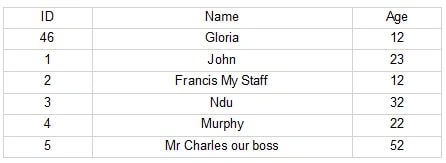
Run the application and you will have a table like this in the reportView.
Thank you.
Sakshi AroraPosted Apr 20, 2023, 1:15 PM
Facing an issue in adding Object data source. Adding Object Data Source to a class is throwing me Object Reference Error. Any idea what could be issue?
Андрей ЗаярныйPosted Jul 24, 2020, 7:08 AM
Thank you much from Russia with love!
Fernando CarvalhoPosted Sep 6, 2019, 10:16 AM
This Not Works In Netcore 3.0
Tilo GlaeserPosted Sep 5, 2019, 3:14 PM
Hi Gloria, your article helped me a lot to understand RDLC reporting using WPF. I‘m looking for a dynamic design of RDLC report at runtime using WPF. Unfortunately I didn‘t find anything after days of search. Do you have an approach to solve this problem? THX, Tilo
Muhammad SadiqPosted Aug 31, 2019, 1:52 PM
Can you explain c# code to show rdlc report in wpf window using dataset
nihar dasPosted Feb 5, 2019, 3:45 AM
Hi Gloria,Hw r u????I want dynamic report without html page exporting in excell.
Francis EnyiPosted Jan 28, 2019, 5:00 AM
Did you just call me your staff? Who is 12years old? Good job Gloria, Oh no sorry! Great job.
Md SarfarajPosted Jan 26, 2019, 7:05 AM
Nice article Gloria
Mahesh ChandPosted Jan 25, 2019, 9:25 AM
Welcome to C# Corner, Gloria. Nice to see young women getting involved in community and programming. Feel free to reach out to me for any help. Best