

Cross-Browser HTML5 Canvas
Canvas is a relatively new HTML5 technology that provides a "scriptable" image. You can add a <canvas> element to your page and draw on its surface using JavaScript commands.
The HTML5 Canvas element is an HTML tag similar to the <div>, <a>, or <table> tag, with the exception that its contents are rendered with JavaScript.
A "canvas" tag can be placed on an HTML5 page with the following code:
- <canvas id="myCanvas" width="200" height="100" style="border:1px solid #000000;">
- Your browser does not support the HTML5 canvas tag.
- </canvas>
Assuming that the canvas tag is supported, JavaScript can be used to draw directly onto the canvas.
First, we will find the "<canvas>" element:
var c=document.getElementById("myCanvas");
Then, call its "getContext()" method (you must the string "2d" to the "getContext()" method):
var ctx=c.getContext("2d");
The getContext("2d") object is a built-in HTML5 object, with many properties and methods for drawing paths, boxes, circles, text, images, etc.
ctx.fillStyle="#FF0000";
ctx.fillRect(0,0,150,75);
The fillStyle property can be a CSS color, a gradient, or a pattern. The default fillStyle is #000000 (black).
The fillRect(x,y,width,height) method draws a rectangle filled with the current fill style.
Step 1:
Beginning with the code, our HTML5 head contains a small script that declares a canvas element.
- <!DOCTYPE html>
- <html lang="en">
- <head>
- <meta charset="UTF-8" />
- <title>Canvas Example</title>
- <script>
- document.createElement("canvas");
- </script>
Step 2:
We can now define CSS styles for our canvas tag.
- <style>
- #mycanvas {
- float: left;
- width: 300px;
- height: 300px;
- margin: 0 20px 0 0;
- background-image: url(rain.jpg);
- border: 1px solid #000;
- }
- #mycanvas.active {
- background-image: none;
- }
- </style>
Step 3:
We can now place a canvas tag on the page.
- </head>
- <body>
- <h1>HTML Canvas Example with Image Fall Back</h1>
- <canvas id="mycanvas" width="300" height="300"></canvas>
Step 4:
The first few lines check whether canvas is supported, and applies a class of "active" to the element to remove the static background:
- var canvas = document.getElementById("mycanvas");
- if (canvas.getContext) {
- // canvas supported
- canvas.className = "active";
Step 5:
The following will start the animation:
- // start animation
- var cxt = canvas.getContext("2d");
- cxt.fillStyle = "rgba(255,255,255,0.5)";
- setInterval(function() {
- var x = Math.round(Math.random()*canvas.width),
- y = Math.round(Math.random()*canvas.height),
- e = 20 + Math.round(Math.random()*30),
- s = 0;
- (function() {
- s++;
- if (s <= e) {
- setTimeout(arguments.callee,s);
- var c = 255-(e-s)*3;
- cxt.strokeStyle = "rgb("+c+","+c+","+c+")";
- cxt.beginPath();
- cxt.arc(x,y,s,0,Math.PI*2,true);
- cxt.fill();
- cxt.stroke();
- }
- })();
- },100);
- }
Example:
- <!DOCTYPE html>
- <html lang="en">
- <head>
- <meta charset="UTF-8" />
- <title>Canvas Example</title>
- <script>
- document.createElement("canvas");
- </script>
- <style>
- body {
- font-family: sans-serif;
- margin: 20px;
- color: #333;
- background-color: #fff;
- }
- #mycanvas {
- float: left;
- width: 300px;
- height: 300px;
- margin: 0 20px 0 0;
- background-image: url(rain.jpg);
- border: 1px solid #000;
- }
- #mycanvas.active {
- background-image: none;
- }
- </style>
- </head>
- <body>
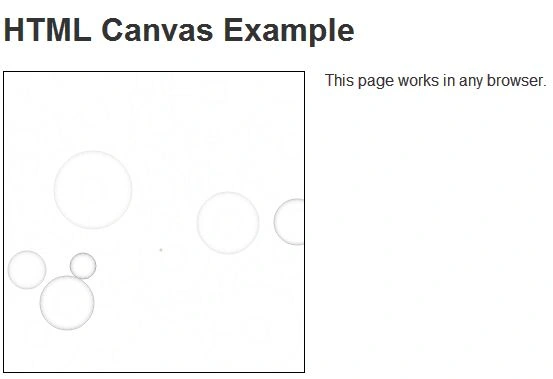
- <h1>HTML Canvas Example</h1>
- <canvas id="mycanvas" width="300" height="300"></canvas>
- <p>This page works in any browser.</p>
- <script>
- var canvas = document.getElementById("mycanvas");
- if (canvas.getContext) {
- // canvas supported
- canvas.className = "active";
- // start animation
- var cxt = canvas.getContext("2d");
- cxt.fillStyle = "rgba(255,255,255,0.5)";
- setInterval(function () {
- var x = Math.round(Math.random() * canvas.width),
- y = Math.round(Math.random() * canvas.height),
- e = 20 + Math.round(Math.random() * 30),
- s = 0;
- (function () {
- s++;
- if (s <= e) {
- setTimeout(arguments.callee, s);
- var c = 255 - (e - s) * 3;
- cxt.strokeStyle = "rgb(" + c + "," + c + "," + c + ")";
- cxt.beginPath();
- cxt.arc(x, y, s, 0, Math.PI * 2, true);
- cxt.fill();
- cxt.stroke();
- }
- })();
- }, 100);
- }
- </script>
- </body>
- </html>
Output
Join the conversation! Your thoughts help the community grow.