

Introduction
Azure Content Moderator API is a cognitive service that checks text, image, and video content for material that is potentially offensive, risky, or otherwise undesirable. When such material is found, the service applies appropriate labels (flags) to the content. Mobile Application/ Website handle flagged content in order to comply with regulations or maintain the intended environment for users.
Microsoft published the online Content Moderator Review tool to test the Text, image and video functionality of Content Moderator without having to write any code. If you wish to integrate to the application, let's review and look the all content moderator demos quickly. You can read my previous article to understand the Cognitive Service Content Moderator.
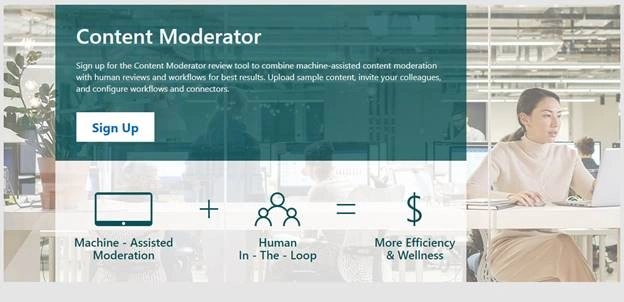
Setup Moderator Portal
Step 1 - Navigate content moderator portal and register.
Step 2 - Login using your registered login/ Microsoft or work login.
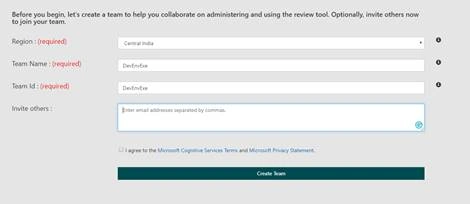
Step 3 - Create a team and invite your team to join the portal
Try Content Moderator
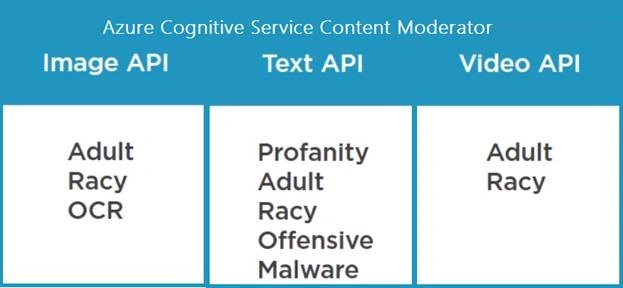
Now, you are ready to try the content moderator. In the main menu select Try and select operation like text, image and video and upload the content, application will return following result from relevant API.
Text Content Moderator
Navigate content moderator portal > Click on Try > Select “Text” and provide your text of up to 1024 characters at a time and currently will support only English. Score is between 0 and 1. The higher the score, the higher the model is predicting that the category may be applicable. This feature relies on a statistical model rather than manually coded outcomes. We recommend testing with your own content to determine how each category aligns to your requirements.
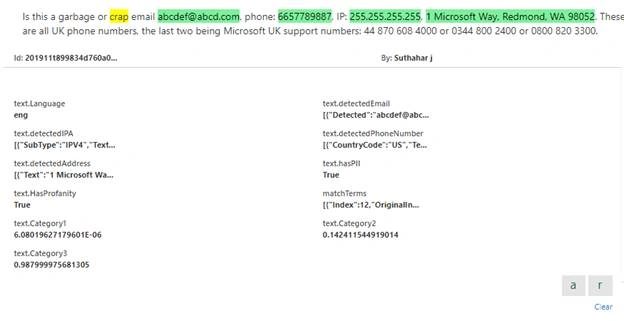
- Category1 refers to potential presence of language that may be considered sexually explicit or adult in certain situations.
- Category2 refers to potential presence of language that may be considered sexually suggestive or mature in certain situations.
- Category3 refers to potential presence of language that may be considered offensive in certain situations.
- The personal data feature detects the potential presence of this information,
- Email address
- US Mailing address
- IP address
- US Phone number
- UK Phone number
- Social Security Number (SSN)
Image Content Moderator
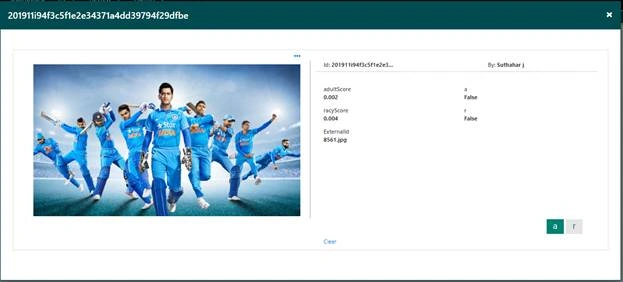
Navigate content moderator portal > Click on Try > Select “Image” and upload the image. Scan images for text content and extract that text, and detect faces.
The Evaluate operation returns a confidence score between 0 and 1. It also returns Boolean data equal to true or false. These values predict whether the image contains potential adult or racy content
Video Content Moderator
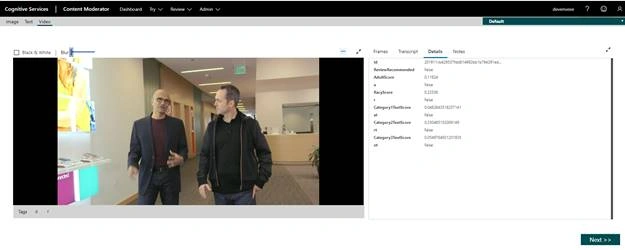
Navigate content moderator portal > Click on Try > Select “Video” and upload the Video. Machine-assisted video classification is either achieved with image trained models or video trained models. Unlike image-trained video classifiers, Microsoft's adult and racy video classifier is trained with videos.
Summary
I hope you have understood what is Azure Content moderator and Content moderator Web portal. The next step is how to create the Azure API and implement to the application using C# . Please leave your feedback/query using the comments box, and if you like this article, please share it with your friends.
Join the conversation! Your thoughts help the community grow.