

Introduction
In this article, we will see how to set up Python in Visual Studio 2017 (I am using the free Community Edition) and later, we will create a sample web app with the help of the Bottle framework (Bottle template is available in Visual Studio 2017).
Due to Python’s popularity, Microsoft has now started Python language support in many of their products. They already started Python support in Visual Studio 2013 and VS 2015 and now integrated Python with SQL Server 2017 too. Python is a general-purpose language and lots of third-party are libraries available there with Python. That makes it very easy to use. If we use Python with Visual Studio, we can leverage the advantages of many Visual Studio features (like a debugger).
Step 1- Install Python is already installed Visual Studio 2017/New installation with Python
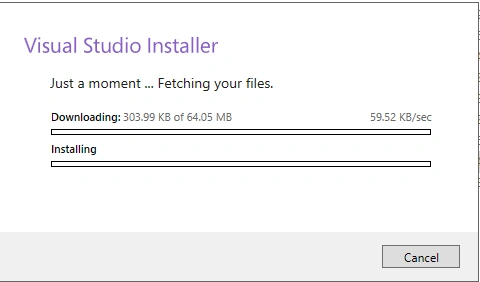
You can download the Visual Studio Community Edition online installer from this URL and run it. If you have already installed Visual Studio, it will check for the existing installation.
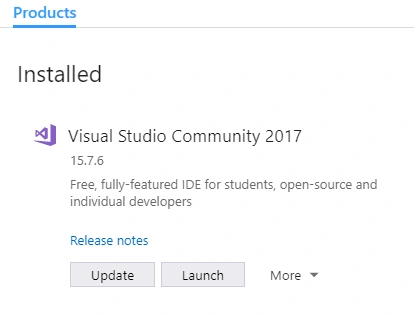
 After some time, it will show the existing version of Visual Studio. You can click the "More" drop-down button and click "Modify".
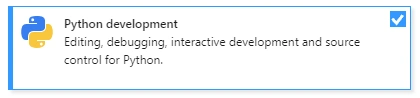
  Now, select the "Python development" option.
 On the right side, it shows the selected features. By default, it selects three features, as shown below.
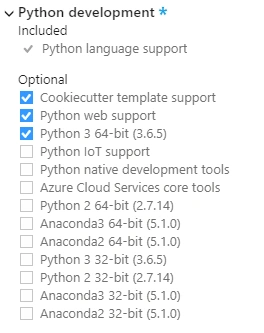 You can add more features to it if needed.
Please click the "Install" button and it will take some time to install all the new features. Step 2- Details about the Python features available with Visual Studio 2017
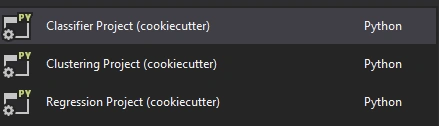
There are two types of Python applications currently available in the Visual Studio Machine Learning Category.
You can add more features to it if needed.
Please click the "Install" button and it will take some time to install all the new features. Step 2- Details about the Python features available with Visual Studio 2017
There are two types of Python applications currently available in the Visual Studio Machine Learning Category.
Web Category
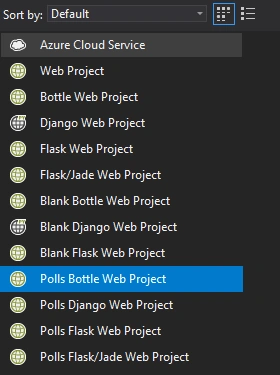
Step 3- Create a Bottle Framework Project
We are going to create a simple Polls project with a Bottle framework. The bottle is a simple, fast, powerful and lightweight web-framework for Python. It is distributed as a single file module and has no dependencies other than the Python Standard Library. It supports Routing, Templates, Utilities, and HTTP services. You can get more details about the Bottle framework from here.
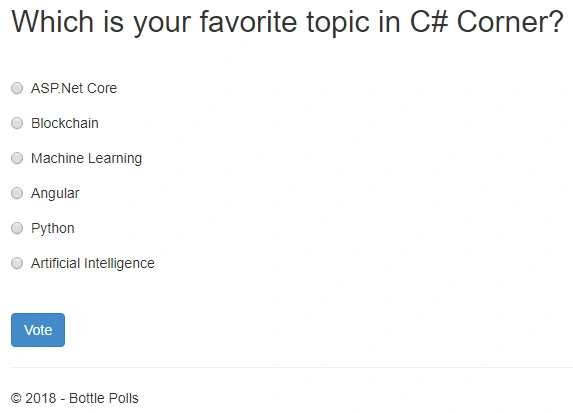
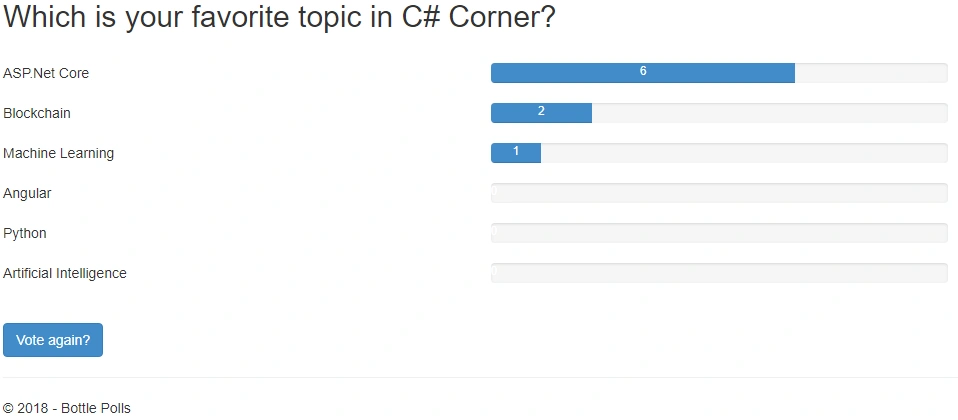
In this Polling Application, the users can give their vote to any topic they choose and later, they can view the total polls on that topic.
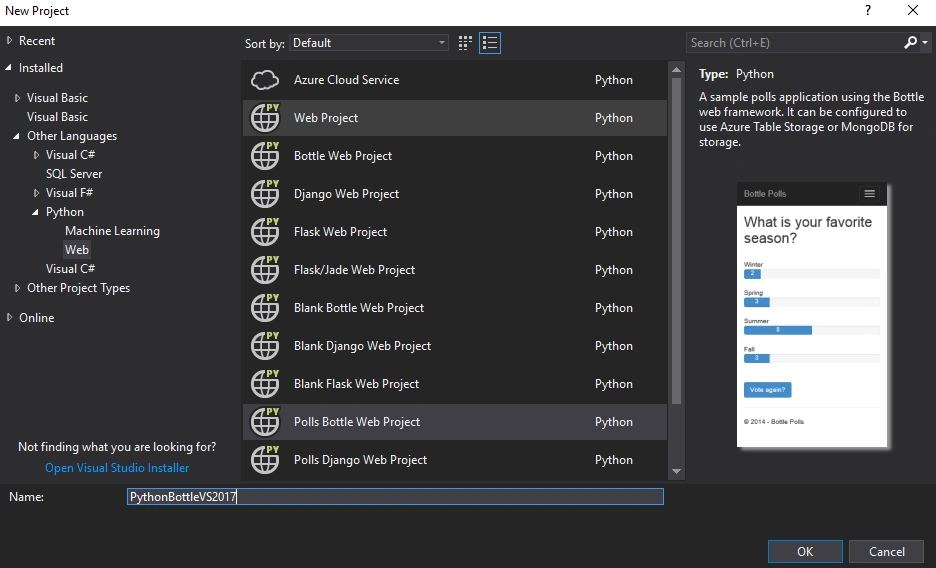
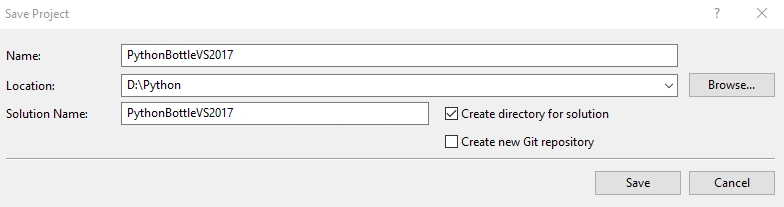
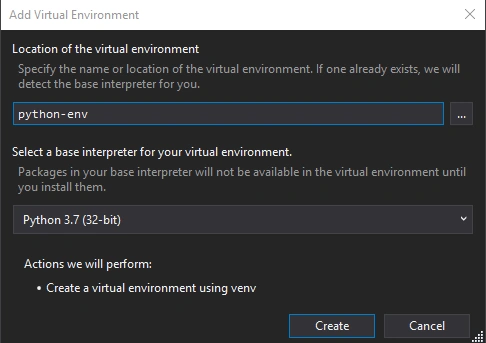
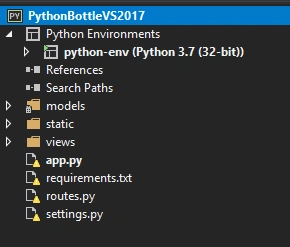
Choose the Python Bottle project template and give a name to that.
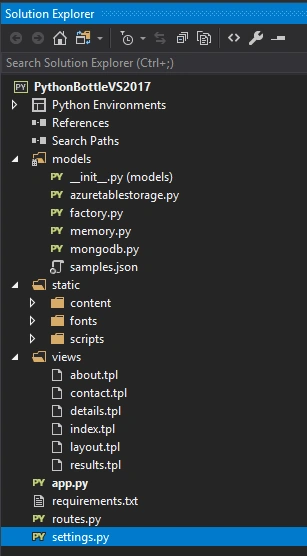
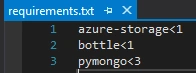
Step 4- Installing the required libraries from requirment.txt
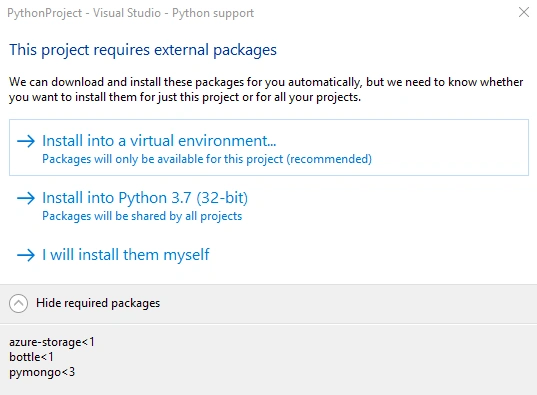
Right-click the Python environment and click "Install" from the requirments.txt option.
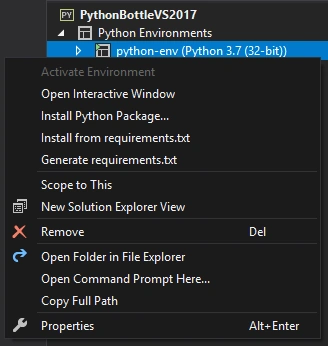 It will get the required details from library repositories and install them into our Python environment.
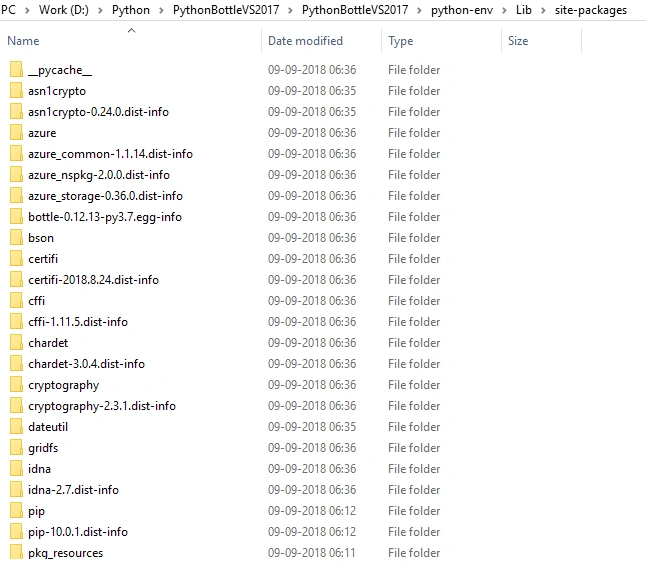
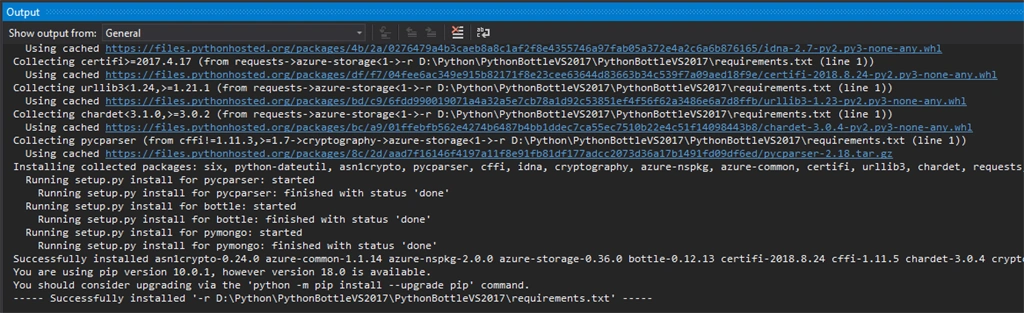 If you check the project location, you can see all the library files saved in the environment folder python-env > Lib > site-packages.
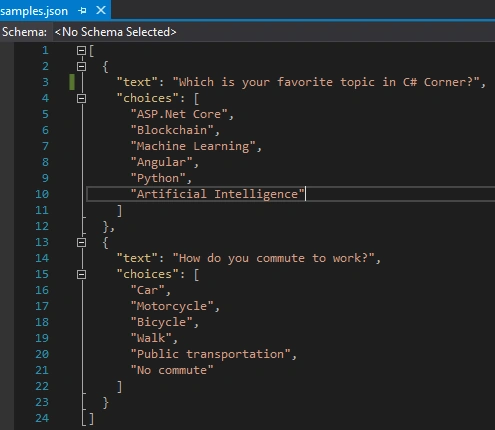
 Before running the application, I have just edited the sample.json file in the Models folder to modify the topics in our polling.
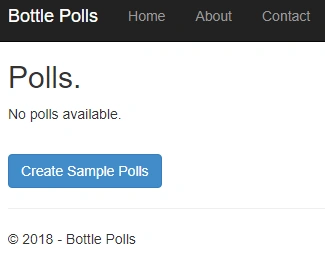
 Please note that we are running the application in the “memory” mode. So, on every run, it resets the previous polling data.
Step 5- Running the Python Bottle Application
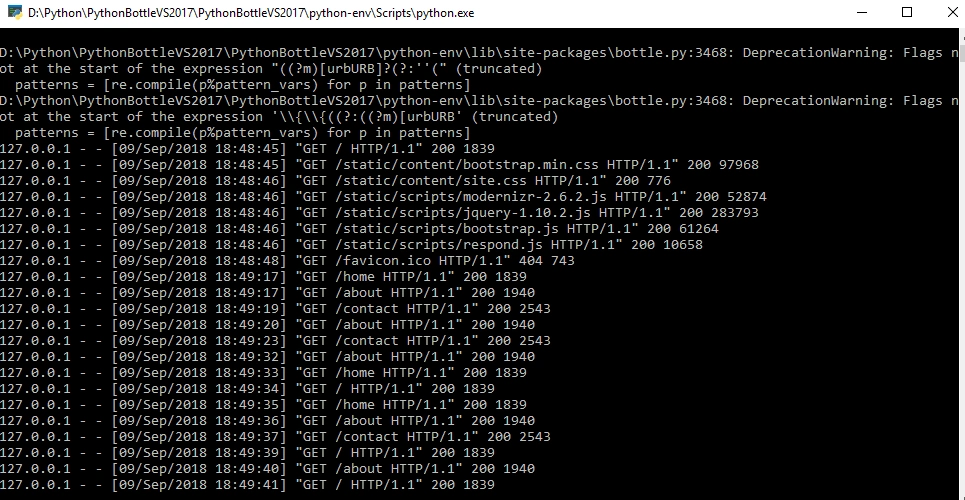
Please run the application. Visual Studio will automatically create a web server (like IIS local server) and it listens to every action from the browser and the log.
Please note that we are running the application in the “memory” mode. So, on every run, it resets the previous polling data.
Step 5- Running the Python Bottle Application
Please run the application. Visual Studio will automatically create a web server (like IIS local server) and it listens to every action from the browser and the log.
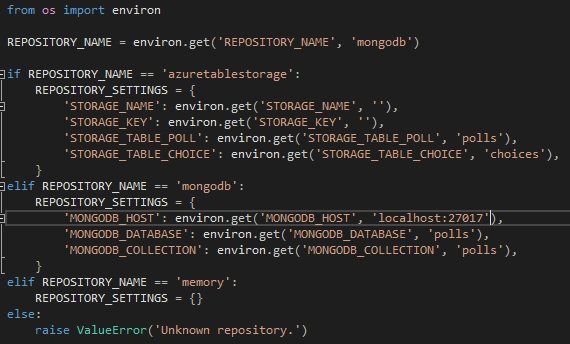
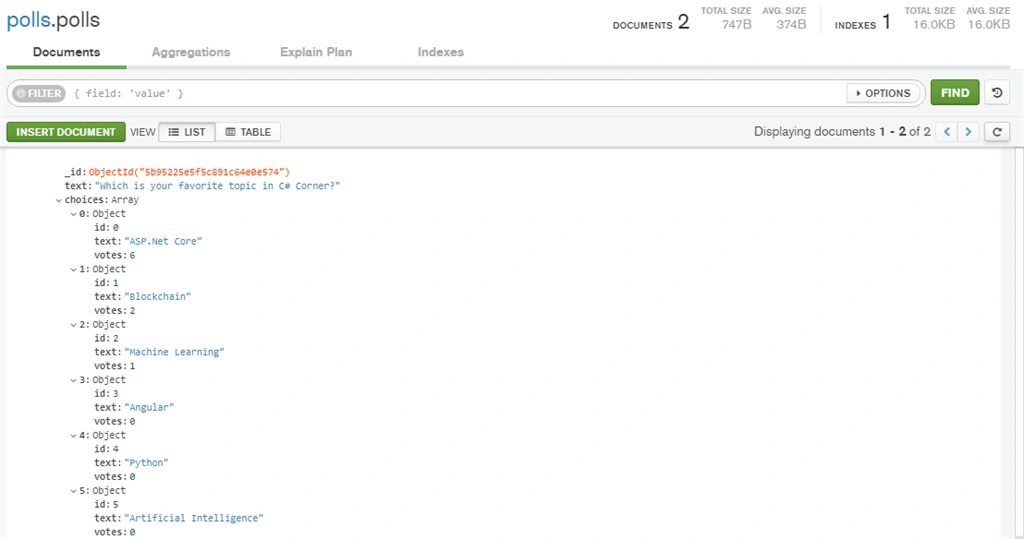
If you have MongoDB Compass Community or any other MongoDB data explorer tools available, you can see a new "polls" database and "polls" collection created now.
Summary
I have attached the sample source code with this article.
Join the conversation! Your thoughts help the community grow.