

Introduction
As per Google documentation,
“Google Cloud Messaging for Android (GCM) is a service that helps developers send data from servers to their Android applications on Android devices”.
Using this service you can send data to your application whenever new data is available instead of making requests to the server in a timely fashion. Integrating GCM in your Android application enhances user experience and saves a lot of battery power. I will explain how to send push notifications to Android devices from a Java server.
Steps required to do this are as follows:
- Register with Google Cloud Messaging from the Google API console to get the sender id and API key for Google cloud messaging.
- Set emulator for Google cloud messaging library.
- Create an Android project to register with Google Cloud Messaging (GCM).
- Create a server-side code that will accept the registration id and will send push messages to the Android devices.
Describing each step in details,
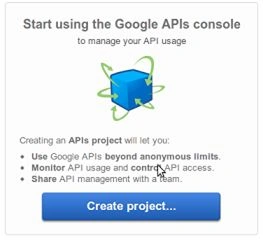
- Go to Google API Console.
- If you haven’t created a project yet, this page will prompt you to do so.
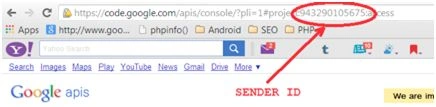
- After creating the project you can see the project Id in the URL. Note down the project id which will be used further as SENDER_ID in the Android project, and it will be like the following.
- In the API console page select services and toggle on Google Cloud Messaging for Android.
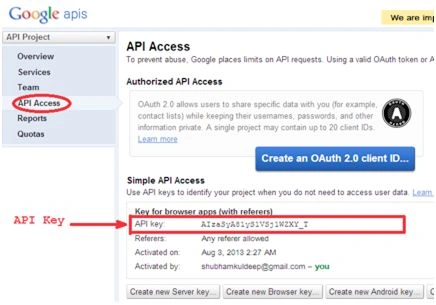
- Click API Access and note down the API Key.
Before we start writing the Android code we need to install the helper libraries and make required changes to the emulator. These library methods will be used to register and unregister with GCM.
- Go to the Android SDK folder and open SDK Manager and install Google Cloud Messaging for Android library under Extras.

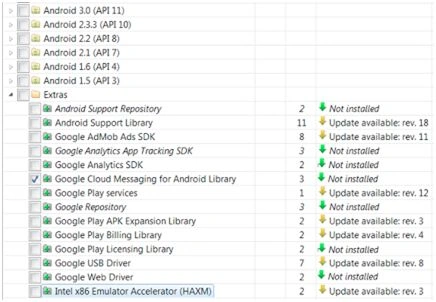
- After installing the library it will create gcm.jar file in your ANDROID_SDK_FOLDEREXTRASGOOGLEGCM-CLIENTDIST.
- Now open your AVD Manager and create a new Google API Emulator and start the emulator.
- After launching emulator press menu button, go to Settings, select Accounts & Sync. Then press Add Account button and add a Google account.
NB: If you not add a google account and run this example then you will get an error account_missing.
Create the Android Application
AndroidManifest.xml
The following permissions are required to make your application support GCM
- INTERNET – To make your application use internet services.
- ACCESS_NETWORK_STATE – To access network states.
- GET_ACCOUNTS – Required as GCM needs Google account.
- WAKE_LOCK – Needed if your app need to wake your device when it sleeps.
- VIBRATE – Needed if your application support vibration when receiving notification also add some broadcast receivers as mentioned below:
Config.java
- <?xml version="1.0" encoding="utf-8"?>
- <manifest
- xmlns:android="http://schemas.android.com/apk/res/android" package="com.javapapers.android" android:versionCode="1" android:versionName="1.0">
- <uses-permission android:name="android.permission.INTERNET" />
- <uses-permission android:name="android.permission.GET_ACCOUNTS" />
- <uses-permission android:name="android.permission.WAKE_LOCK" />
- <permission android:name="com.javapapers.android.permission.C2D_MESSAGE" android:protectionLevel="signature" />
- <uses-permission android:name="com.javapapers.android.permission.C2D_MESSAGE" />
- <uses-permission android:name="com.google.android.c2dm.permission.RECEIVE" />
- <uses-permission android:name="android.permission.ACCESS_NETWORK_STATE" />
- <uses-permission android:name="android.permission.VIBRATE" />
- <uses-sdk android:minSdkVersion="9" android:targetSdkVersion="16" />
- <application android:icon="@drawable/ic_launcher" android:label="@string/app_name">
- <activity android:name=".RegisterActivity" android:label="@string/app_name">
- <intent-filter>
- <action android:name="android.intent.action.MAIN" />
- <category android:name="android.intent.category.LAUNCHER" />
- </intent-filter>
- </activity>
- <activity android:name="com.javapapers.android.MainActivity" android:configChanges="orientation|keyboardHidden" android:label="@string/app_name"></activity>
- <receiver android:name=".GcmBroadcastReceiver" android:permission="com.google.android.c2dm.permission.SEND">
- <intent-filter>
- <action android:name="com.google.android.c2dm.intent.RECEIVE" />
- <action android:name="com.google.android.c2dm.intent.REGISTRATION" />
- <category android:name="com.javapapers.android" />
- </intent-filter>
- </receiver>
- <service android:name=".GCMNotificationIntentService" /><
- /application>
Model class contains all the configuration values.APP_SERVER_URL – your webserver url or localhost.GOOGLE_PROJECT_ID = Google project id you have got from Google API console.RegisterActivity.java- public interface Config
- {
- static final String APP_SERVER_URL = "http://192.168.1.28:8080/GCM-App-Server/GCMNotification?shareRegId=1";
- static final String GOOGLE_PROJECT_ID = "324797211425";
- static final String MESSAGE_KEY = "message";
- }
This class contains two buttons and these button handling the registration and sharing of registration id.The register button click will register your application with the Google server and it will give a registration id. This id is required to send push notification from server.And the share button click will share this registration id with our java server.ShareExternalServer.java- public class RegisterActivity extends Activity
- {
- Button btnGCMRegister;
- Button btnAppShare;
- GoogleCloudMessaging gcm;
- Context context;
- String regId;
- public static final String REG_ID = "regId";
- private static final String APP_VERSION = "appVersion";
- static final String TAG = "Register Activity";
- @Override
- public void onCreate(Bundle savedInstanceState)
- {
- super.onCreate(savedInstanceState);
- setContentView(R.layout.activity_register);
- context = getApplicationContext();
- btnGCMRegister = (Button) findViewById(R.id.btnGCMRegister);
- btnGCMRegister.setOnClickListener(new View.OnClickListener()
- {
- @Override
- public void onClick(View arg0)
- {
- if (TextUtils.isEmpty(regId))
- {
- regId = registerGCM();
- Log.d("RegisterActivity", "GCM RegId: " + regId);
- }
- else
- {
- Toast.makeText(getApplicationContext(), "Already Registered with GCM Server!", Toast.LENGTH_LONG).show();
- }
- }
- });
- btnAppShare = (Button) findViewById(R.id.btnAppShare);
- btnAppShare.setOnClickListener(new View.OnClickListener()
- {
- @Override
- public void onClick(View arg0)
- {
- if (TextUtils.isEmpty(regId))
- {
- Toast.makeText(getApplicationContext(), "RegId is empty!", Toast.LENGTH_LONG).show();
- }
- else
- {
- Intent i = new Intent(getApplicationContext(), MainActivity.class);
- i.putExtra("regId", regId);
- Log.d("RegisterActivity", "onClick of Share: Before starting main activity.");
- startActivity(i);
- finish();
- Log.d("RegisterActivity", "onClick of Share: After finish.");
- }
- }
- });
- }
- public String registerGCM()
- {
- gcm = GoogleCloudMessaging.getInstance(this);
- regId = getRegistrationId(context);
- if (TextUtils.isEmpty(regId))
- {
- registerInBackground();
- Log.d("RegisterActivity", "registerGCM - successfully registered with GCM server - regId: " + regId);
- }
- else
- {
- Toast.makeText(getApplicationContext(), "RegId already available. RegId: " + regId, Toast.LENGTH_LONG).show();
- }
- return regId;
- }
- private String getRegistrationId(Context context)
- {
- final SharedPreferences prefs = getSharedPreferences(MainActivity.class.getSimpleName(), Context.MODE_PRIVATE);
- String registrationId = prefs.getString(REG_ID, "");
- if (registrationId.isEmpty())
- {
- Log.i(TAG, "Registration not found.");
- return "";
- }
- int registeredVersion = prefs.getInt(APP_VERSION, Integer.MIN_VALUE);
- int currentVersion = getAppVersion(context);
- if (registeredVersion != currentVersion)
- {
- Log.i(TAG, "App version changed.");
- return "";
- }
- return registrationId;
- }
- private static int getAppVersion(Context context)
- {
- try
- {
- PackageInfo packageInfo = context.getPackageManager().getPackageInfo(context.getPackageName(), 0);
- return packageInfo.versionCode;
- }
- catch (NameNotFoundException e)
- {
- Log.d("RegisterActivity", "I never expected this! Going down, going down!" + e);
- throw new RuntimeException(e);
- }
- }
- private void registerInBackground()
- {
- new AsyncTask < Void, Void, String > ()
- {
- @Override
- protected String doInBackground(Void...params)
- {
- String msg = "";
- try
- {
- if (gcm == null)
- {
- gcm = GoogleCloudMessaging.getInstance(context);
- }
- regId = gcm.register(Config.GOOGLE_PROJECT_ID);
- Log.d("RegisterActivity", "registerInBackground - regId: " + regId);
- msg = "Device registered, registration ID=" + regId;
- storeRegistrationId(context, regId);
- }
- catch (IOException ex)
- {
- msg = "Error :" + ex.getMessage();
- Log.d("RegisterActivity", "Error: " + msg);
- }
- Log.d("RegisterActivity", "AsyncTask completed: " + msg);
- return msg;
- }
- @Override
- protected void onPostExecute(String msg)
- {
- Toast.makeText(getApplicationContext(), "Registered with GCM Server." + msg, Toast.LENGTH_LONG).show();
- }
- }.execute(null, null, null);
- }
- private void storeRegistrationId(Context context, String regId)
- {
- final SharedPreferences prefs = getSharedPreferences(MainActivity.class.getSimpleName(), Context.MODE_PRIVATE);
- int appVersion = getAppVersion(context);
- Log.i(TAG, "Saving regId on app version " + appVersion);
- SharedPreferences.Editor editor = prefs.edit();
- editor.putString(REG_ID, regId);
- editor.putInt(APP_VERSION, appVersion);
- editor.commit();
- }
This class is used to share our registration id with the Java service.MainActivity.java- public class ShareExternalServer
- {
- public String shareRegIdWithAppServer(final Context context, final String regId)
- {
- String result = "";
- Map < String, String > paramsMap = new HashMap < String, String > ();
- paramsMap.put("regId", regId);
- try
- {
- URL serverUrl = null;
- try
- {
- serverUrl = new URL(Config.APP_SERVER_URL);
- }
- catch (MalformedURLException e)
- {
- Log.e("AppUtil", "URL Connection Error: " + Config.APP_SERVER_URL, e);
- result = "Invalid URL: " + Config.APP_SERVER_URL;
- }
- StringBuilder postBody = new StringBuilder();
- Iterator < Entry < String, String >> iterator = paramsMap.entrySet().iterator();
- while (iterator.hasNext())
- {
- Entry < String, String > param = iterator.next();
- postBody.append(param.getKey()).append('=').append(param.getValue());
- if (iterator.hasNext())
- {
- postBody.append('&');
- }
- }
- String body = postBody.toString();
- byte[] bytes = body.getBytes();
- HttpURLConnection httpCon = null;
- try
- {
- httpCon = (HttpURLConnection) serverUrl.openConnection();
- httpCon.setDoOutput(true);
- httpCon.setUseCaches(false);
- httpCon.setFixedLengthStreamingMode(bytes.length);
- httpCon.setRequestMethod("POST");
- httpCon.setRequestProperty("Content-Type", "application/x-www-form-urlencoded;charset=UTF-8");
- OutputStream out = httpCon.getOutputStream();
- out.write(bytes);
- out.close();
- int status = httpCon.getResponseCode();
- if (status == 200)
- {
- result = "RegId shared with Application Server. RegId: " + regId;
- }
- else
- {
- result = "Post Failure." + " Status: " + status;
- }
- }
- finally
- {
- if (httpCon != null)
- {
- httpCon.disconnect();
- }
- }
- }
- catch (IOException e)
- {
- result = "Post Failure. Error in sharing with App Server.";
- Log.e("AppUtil", "Error in sharing with App Server: " + e);
- }
- return result;
- }
- }
GCMBroadcassReceiver.java- public class MainActivity extends Activity
- {
- ShareExternalServer appUtil;
- String regId;
- AsyncTask < Void, Void, String > shareRegidTask;
- @Override
- public void onCreate(Bundle savedInstanceState)
- {
- super.onCreate(savedInstanceState);
- setContentView(R.layout.activity_main);
- appUtil = new ShareExternalServer();
- regId = getIntent().getStringExtra("regId");
- Log.d("MainActivity", "regId: " + regId);
- final Context context = this;
- shareRegidTask = new AsyncTask < Void, Void, String > ()
- {
- @Override
- protected String doInBackground(Void...params)
- {
- String result = appUtil.shareRegIdWithAppServer(context, regId);
- return result;
- }
- @Override
- protected void onPostExecute(String result)
- {
- shareRegidTask = null;
- Toast.makeText(getApplicationContext(), result, Toast.LENGTH_LONG).show();
- }
- };
- shareRegidTask.execute(null, null, null);
- }
- }
- GCMNotificationIntentService.java
- public class GCMNotificationIntentService extends IntentService
- {
- public static final int NOTIFICATION_ID = 1;
- private NotificationManager mNotificationManager;
- NotificationCompat.Builder builder;
- public GCMNotificationIntentService()
- {
- super("GcmIntentService");
- }
- public static final String TAG = "GCMNotificationIntentService";
- @Override
- protected void onHandleIntent(Intent intent)
- {
- Bundle extras = intent.getExtras();
- GoogleCloudMessaging gcm = GoogleCloudMessaging.getInstance(this);
- String messageType = gcm.getMessageType(intent);
- if (!extras.isEmpty())
- {
- if (GoogleCloudMessaging.MESSAGE_TYPE_SEND_ERROR.equals(messageType))
- {
- sendNotification("Send error: " + extras.toString());
- }
- else if (GoogleCloudMessaging.MESSAGE_TYPE_DELETED.equals(messageType))
- {
- sendNotification("Deleted messages on server: " + extras.toString());
- }
- else if (GoogleCloudMessaging.MESSAGE_TYPE_MESSAGE.equals(messageType))
- {
- for (int i = 0; i < 3; i++)
- {
- Log.i(TAG, "Working... " + (i + 1) + "/5 @ " + SystemClock.elapsedRealtime());
- try
- {
- Thread.sleep(5000);
- }
- catch (InterruptedException e)
- {}
- }
- Log.i(TAG, "Completed work @ " + SystemClock.elapsedRealtime());
- sendNotification("" + extras.get(Config.MESSAGE_KEY));
- Log.i(TAG, "Received: " + extras.toString());
- }
- }
- GcmBroadcastReceiver.completeWakefulIntent(intent);
- }
- private void sendNotification(String msg)
- {
- Log.d(TAG, "Preparing to send notification...: " + msg);
- mNotificationManager = (NotificationManager) this.getSystemService(Context.NOTIFICATION_SERVICE);
- PendingIntent contentIntent = PendingIntent.getActivity(this, 0, new Intent(this, MainActivity.class), 0);
- NotificationCompat.Builder mBuilder = new NotificationCompat.Builder(this).setSmallIcon(R.drawable.gcm_cloud).setContentTitle("GCM Notification").setStyle(new NotificationCompat.BigTextStyle().bigText(msg)).setContentText(msg);
- mBuilder.setContentIntent(contentIntent);
- mNotificationManager.notify(NOTIFICATION_ID, mBuilder.build());
- Log.d(TAG, "Notification sent successfully.");
- }
- }
JAVA Service ( GCMNotification.java)- public class GcmBroadcastReceiver extends WakefulBroadcastReceiver
- {
- @Override
- public void onReceive(Context context, Intent intent)
- {
- ComponentName comp = new ComponentName(context.getPackageName(), GCMNotificationIntentService.class.getName());
- startWakefulService(context, (intent.setComponent(comp)));
- setResultCode(Activity.RESULT_OK);
- }
- }
- @WebServlet("/GCMNotification")
- public class GCMNotification extends HttpServlet
- {
- private static final long serialVersionUID = 1 L;
- // Put your Google API Server Key here
- private static final String GOOGLE_SERVER_KEY = "GOOGLE_API_KEY";
- static final String MESSAGE_KEY = "message";
- public GCMNotification()
- {
- super();
- }
- protected void doGet(HttpServletRequest request, HttpServletResponse response) throws ServletException, IOException
- {
- doPost(request, response);
- }
- protected void doPost(HttpServletRequest request, HttpServletResponse response) throws ServletException, IOException
- {
- String share = request.getParameter("shareRegId");
- // GCM RedgId of Android device to send push notification
- String regId = "";
- if (share != null && !share.isEmpty())
- {
- regId = request.getParameter("regId");
- PrintWriter writer = new PrintWriter("GCMRegId.txt");
- writer.println(regId);
- writer.close();
- request.setAttribute("pushStatus", "GCM RegId Received.");
- request.getRequestDispatcher("index.jsp").forward(request, response);
- }
- else
- {
- try
- {
- String id = "REG_ID";
- StringBuffer buffer = new StringBuffer();
- buffer.append("tets one #STATUS OnGoing #COMMENT test one sample notification #EFFORT .5hrs");
- //buffer.append("\n");
- //buffer.append("tetst two #STATUS OnGoing #COMMENT test two sample notification #EFFORT .5hrs");
- String userMessage = request.getParameter("message");
- Sender sender = new Sender("GOOGLE_SERVER_KEY");
- Message message = new Message.Builder().timeToLive(3).delayWhileIdle(true).addData(MESSAGE_KEY, userMessage).build();
- System.out.println("regId: " + id);
- Result result = sender.send(message, id, 1);
- request.setAttribute("pushStatus", result.toString());
- }
- catch (IOException ioe)
- {
- ioe.printStackTrace();
- request.setAttribute("pushStatus", "RegId required: " + ioe.toString());
- }
- catch (Exception e)
- {
- e.printStackTrace();
- request.setAttribute("pushStatus", e.toString());
- }
- request.getRequestDispatcher("index.jsp").forward(request, response);
- }
- }
- }
Read more articles on Android
Gowtham RajamanickamPosted Apr 2, 2016, 5:22 AM
Good one...
kalu singh raoPosted Mar 26, 2016, 11:07 AM
Nice
Pranav J.DevPosted Mar 26, 2016, 10:50 AM
Thanks all for your support
Ankur MistryPosted Mar 25, 2016, 7:31 AM
Helpful stuff
Sibeesh VenuPosted Mar 25, 2016, 5:54 AM
Nice Share
Debasis SahaPosted Mar 24, 2016, 8:28 AM
Good One..
Vignesh ManiPosted Mar 24, 2016, 8:25 AM
Good