

Introduction:
A custom SharePoint list can be configured to collect any type of data and SharePoint automatically generates the forms for adding new items, editing items and viewing items.
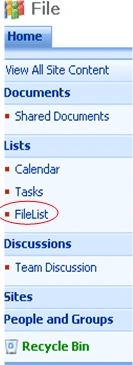
Team Web site comes with a built-in List Calendar, Task, which is listed on the Quick Launch bar. A new custom list has to be created for storing the files.
Steps creating custom list:
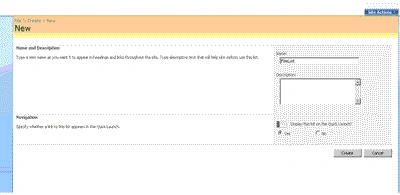
Custom list created
Custom Column Creation
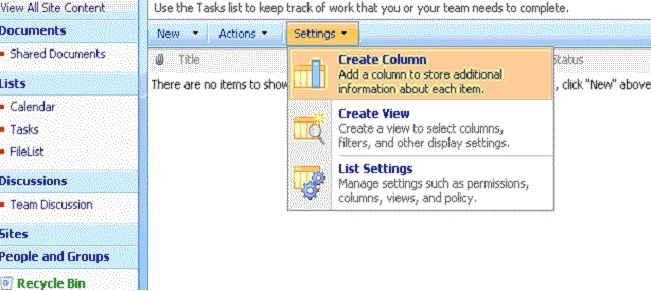
- While creating custom list Named as FileList default column will create Title.
- Modify column name Title as Filename.
- Create one more column as Filedate.
- Create one more column as FileSize.
Implementation of Web part
The files are added to the custom GridView (list) in web part level using browse file upload button. You can add and delete multiple files in this list. Finally all the files are uploaded in custom share point list Filelist using submit button in webpart.
The steps to create a web part
-
Make sure installed VS.net 2005.
-
Make sure installed Web part Project Library in your system.
-
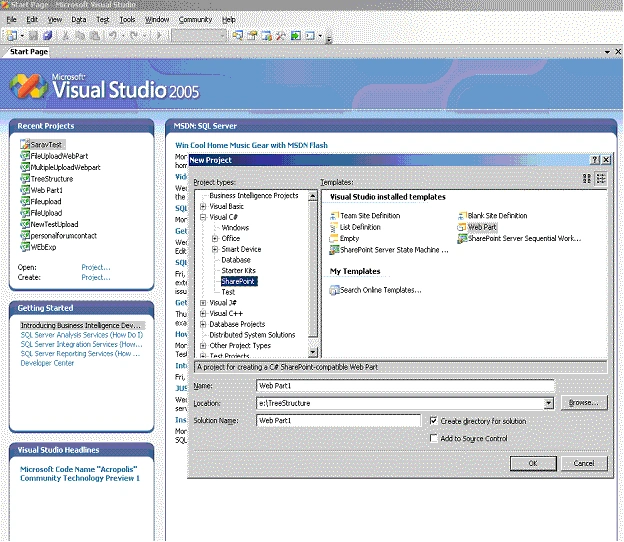
Start VS.Net 2005 and create a new project.
-
Select Project Type as Visual C#-->SharePoint.
-
Visual Studio Installed templates as Web Part.
-
Change Name as MultipleUploadWebpart.
-
Change Location as e:\ MultipleUploadWebpart.
-
Change Solution name as FileUploadWebPart.
Using the Render method
The Web part base class seals the Render method of System.Web.UI.Control because the Web Part infrastructure needs to control rendering the contents of a Web Part. For this reason, custom Web Parts must override the Render method of the Web part base class.
The Complete Web part Code
#region File Information
///<summary>
/// ------------------------------------------------------------------------------------------------------
/// Namespace : MultipleFileUploadWebPart
///
/// Purpose : To Create Webpart to programmatically upload MultipleFiles to Custom SharePoint List
///
/// Change History
/// -------------------------------------------------------------------------------------------------------
/// Date Edit Author Comment
/// -------------+--------+-------------------------------------------------------------------------------
///
/// -------------+--------+-------------------------------------------------------------------------------
///</summary>
using System;
using System.Runtime.InteropServices;
using System.Web.UI;
using System.Web;
using System.Web.UI.WebControls;
using System.Web.UI.HtmlControls;
using System.Web.UI.WebControls.WebParts;
using System.Xml.Serialization;
using System.Data;
using System.IO;
using System.Text;
using System.Web.SessionState;
using Microsoft.SharePoint;
using Microsoft.SharePoint.WebControls;
using Microsoft.SharePoint.WebPartPages;
namespace MultipleUploadWebpart
{
[Guid("2115a405-ff46-4040-8370-6e4fcb7b9194")]
public class MultipleUploadWebpart : System.Web.UI.WebControls.WebParts.WebPart
{
#region Variables
private HtmlInputFile inputFile;
private Button btnUpload;
private Label lblMessage;
private GridView dgdUpload;
private string fileName = "";
private Button btnSubmit;
private HyperLinkField hlnkFileName;
private BoundField bndFileSize;
private BoundField bndFileKb;
private ButtonColumn btnclmDelete;
private CommandField cmdDelete;
private double length;
byte[] contents;
DataTable dt;//datatable use for multiple file upload
DataRow dr;//datarow use for multiple file upload
DataColumn dc;//datacolumn use for multiple file upload
double count = 0;//count of file size
#endregion
#region Create Child Control
protected override void CreateChildControls()
{
#region inputfile
this.inputFile = new HtmlInputFile();
this.inputFile.ID = "_fileUpload";
#endregion
#region message label
this.lblMessage = new Label();
this.lblMessage.ID = "_lblMessage";
this.lblMessage.Text = "";
#endregion
#region Button
this.btnUpload = new Button();
this.btnUpload.ID = "_btnUploadUpload";
this.btnUpload.Text = "Upload";
this.btnUpload.Click += new EventHandler(btnUploadUploadClick);
this.btnSubmit = new Button();
this.btnSubmit.ID = "_btnSubmit";
this.btnSubmit.Text = "Submit";
this.btnSubmit.Click += new EventHandler(btnSubmit_Click);
#endregion
#region GridView
this.dgdUpload = new GridView();
this.hlnkFileName = new HyperLinkField();
this.hlnkFileName.DataTextField = "FileName";
this.hlnkFileName.DataNavigateUrlFormatString = "FilePath";
this.hlnkFileName.HeaderText = "FileName";
this.bndFileSize = new BoundField();
this.bndFileSize.HeaderText = "FileSize";
this.bndFileSize.DataField = "FileSize";
this.bndFileKb = new BoundField();
this.bndFileKb.HeaderText = "";
this.bndFileKb.DataField = "KB";
this.cmdDelete = new CommandField();
this.cmdDelete.HeaderText = "Delete";
this.cmdDelete.ButtonType = ButtonType.Link;
this.cmdDelete.InsertImageUrl = "delete.gif";
this.cmdDelete.DeleteText = "Delete";
this.cmdDelete.ShowDeleteButton = true;
this.dgdUpload.ID = "_dgdFileUpload";
this.dgdUpload.Columns.Add(hlnkFileName);
this.dgdUpload.Columns.Add(bndFileSize);
this.dgdUpload.Columns.Add(bndFileKb);
this.dgdUpload.Columns.Add(cmdDelete);
this.dgdUpload.AutoGenerateColumns = false;
this.dgdUpload.RowDeleting += new GridViewDeleteEventHandler
(dgdUpload_RowDeleting);
#endregion
#region Add Controls
this.Controls.Add(dgdUpload);
this.Controls.Add(inputFile);
this.Controls.Add(lblMessage);
this.Controls.Add(btnUpload);
this.Controls.Add(btnSubmit);
base.CreateChildControls();
#endregion
}
#endregion
#region RowDeleting
private void dgdUpload_RowDeleting(object sender, GridViewDeleteEventArgs e)
{
int recordToDelete= e.RowIndex;
dt = (DataTable)Page.Session["Files"];
int cn = dt.Rows.Count;
dt.Rows.RemoveAt(recordToDelete);
dt.AcceptChanges();
Page.Session["Files"] = dt;
this.dgdUpload.DataSource = dt
this.dgdUpload.DataBind();
}
#endregion
#region OnLoad
protected override void OnLoad(EventArgs e)
{
base.OnLoad(e);
}
#endregion
#region File in SharePoint List
private void btnSubmit_Click(object sender, EventArgs e)
{
SPWeb site = SPContext.Current.Web;
SPList list = site.Lists["FileList"];
SPListItem myNewItem ;
dt = (DataTable)Page.Session["Files"];
int _dtcnt = dt.Rows.Count;
string strDate="";
foreach (DataRow dr in dt.Rows)
{
strDate = System.DateTime.Now.Date.TimeOfDay.ToString();
myNewItem = list.Items.Add();
fileName = dr["Filename"].ToString();
string strFilepath= dr["FilePath"].ToString()
StreamReader sr = new StreamReader(strFilepath);
Stream fStream=sr.BaseStream ;
contents = new byte[fStream.Length];
fStream.Read(contents, 0, (int)fStream.Length);
fStream.Close();
myNewItem["Filename"] = dr["Filename"].ToString();
myNewItem["FileSize"] = dr["FileSize"].ToString();
myNewItem["Filedate"] = strDate;
myNewItem.Attachments.Add(fileName, contents);
myNewItem.Update();
System.IO.File.Delete(strFilepath);
}
lblMessage.Text = "Sucessfully Submited";
}
#endregion
#region Upload File Add in List
protected void btnUploadUploadClick(object sender, EventArgs e)
{
fileName = System.IO.Path.GetFileName(inputFile.PostedFile.FileName);
if (fileName != "")
{
string _fileTime = DateTime.Now.ToFileTime().ToString();
string _fileorgPath = System.IO.Path.GetFullPath
(inputFile.PostedFile.FileName);
string _newfilePath = _fileTime + "~" + fileName;
length = (inputFile.PostedFile.InputStream.Length) / 1024;
string tempFolder = Environment.GetEnvironmentVariable("TEMP");
string _filepath = tempFolder + _newfilePath;
inputFile.PostedFile.SaveAs(_filepath);
AddRow(fileName, _filepath, length);
lblMessage.Text = "Successfully Added in List";
}
else
{
lblMessage.Text="Select a File";
return;
}
}
#endregion
#region Render
protected override void Render(HtmlTextWriter writer)
{
// TODO: add custom rendering code here.
EnsureChildControls();
this.inputFile.RenderControl(writer);
this.btnUpload.RenderControl(writer);
this.lblMessage.RenderControl(writer);
this.dgdUpload.RenderControl(writer);
this.btnSubmit.RenderControl(writer);
}
#endregion
#region AddMoreRows for file upload
private void AddMoreColumns()
{
dt = new DataTable("Files");
dc = new DataColumn("FileName", Type.GetType("System.String"));
dt.Columns.Add(dc);
dc = new DataColumn("FilePath", Type.GetType("System.String"));
dt.Columns.Add(dc);
dc = new DataColumn("FileSize", Type.GetType("System.String"));
dt.Columns.Add(dc);
dc = new DataColumn("KB", Type.GetType("System.String"));
dt.Columns.Add(dc);
Page.Session["Files"] = dt;
}
#endregion
#region AddRow for file upload
private void AddRow(string file, string path, double length)
{
dt = (DataTable)Page.Session["Files"];
if (dt == null)
{
AddMoreColumns();
}
dr = dt.NewRow();
dr["FileName"] = file;
dr["FilePath"] = path;
dr["FileSize"] = Convert.ToString(length);
dr["KB"] = "KB";
dt.Rows.Add(dr);
Page.Session["Files"] = dt;
this.dgdUpload.DataSource = dt;
this.dgdUpload.DataBind();//bind in grid
}
#endregion
}
}
-
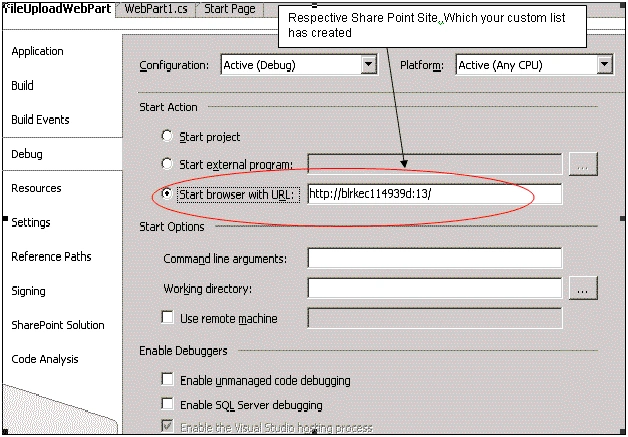
Right click solution file then select properties.
-
Select Debug Start browser with URL selects your respective SharePoint Site.
-
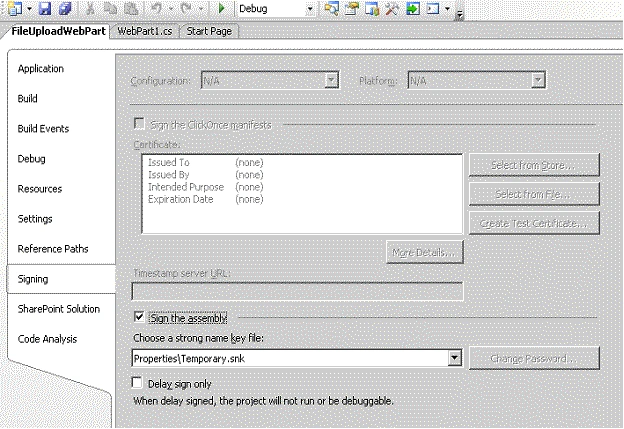
Select Signing option.
-
Ensure the strong name key and sign the assembly check box.
-
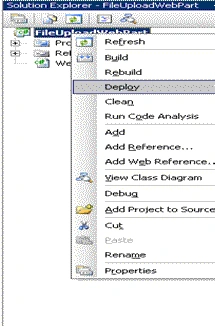
Right Click properties select Deploy.
-
It is automatically deployed the web part in respective site.
-
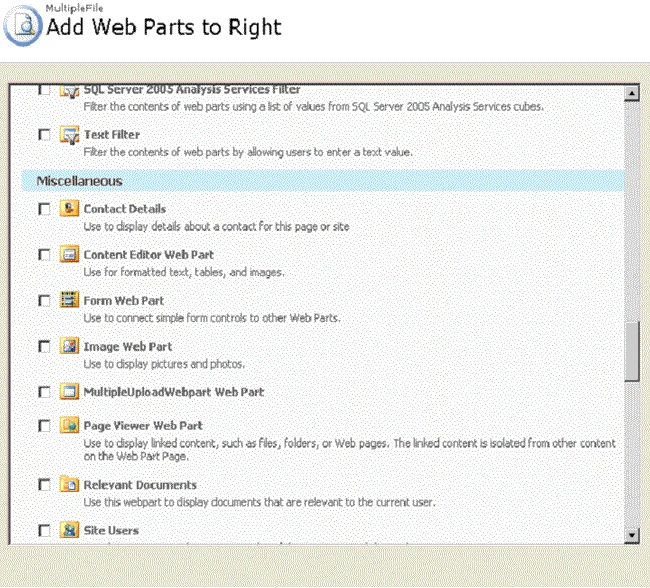
Deploy will take care of .Stop IIS, Buliding solution, Restarting Solution, Creating GAC, Restarting IIS like that.
-
Multiple Upload Webpart is new one.
-
New MultipleUploadWebpart Web Part.
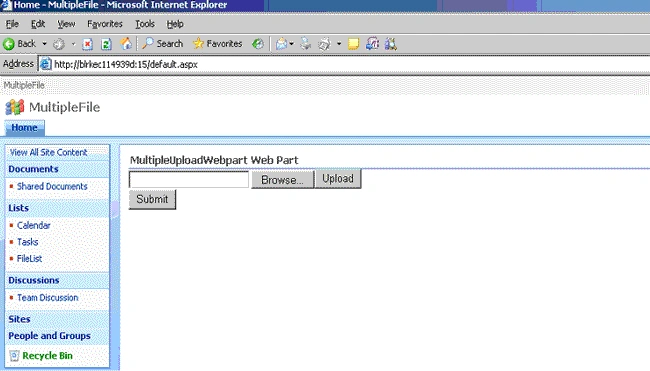
Events
1. Browse Button
It is used to browse and select the particular file.
2. Upload Button
It is used to upload file to the windows temp folder then list the files.
3. Submit Button
It is used to store all files in share point custom list.
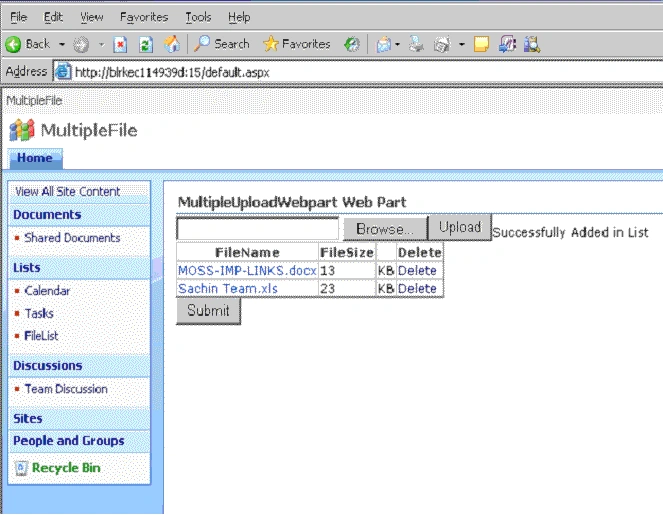
All the files are listed
Delete
using this option you need to delete the file in this list.Whenever you give the submit only it will go to SharePoint list.
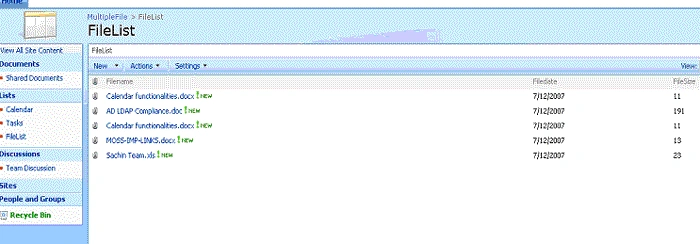
All the files are uploading in respective share point custom list.
Praveen KumarPosted Aug 6, 2018, 3:23 AM
HtmlString += '<li class="image">'; htmlString += '<a nowrap class="link_tag" href="'+ results1[i].DownloadURL.Url +'">'; htmlString += results1[i].Title; if(banner=jQuery(results1[i].Banner_Image.Url) === null ? '' : jQuery(results1[i].Banner_Image.Url)) { htmlString +='<img class="baner_image" src="'+banner+'" alt="">'; } Hi Saravanan, i am fetching the banner url from the list but i dont knew how to give null point exception to this function. can you please help me with this?
kalu singh raoPosted Jul 6, 2016, 1:50 AM
Nice...
Former memberPosted Sep 30, 2012, 1:21 PM
This is really nice article http://www.dotnetpools.com/Article/ArticleDetiail/?articleId=5&title=Fileupload%20Control%20In%20Asp.net
Junior MoraesPosted Jan 26, 2012, 11:14 AM
Thanks very much for your article, i used in solution for upload various attachments on list SharePoint 2007,I had to change some things for finish my project!! Thanks a lot!
SairamPosted Oct 7, 2010, 2:01 AM
Can u help me on this..
sdnaag sdnaagPosted Dec 14, 2009, 6:58 AM
its Nice one but i done with vs2008 that is sharepoint extension for vs2008.but here whenever u upload file the files are binding in gridview but not showing in the list. and second 1 is files are not binding in gridview when page loads...let me know if any updates
sdnaag sdnaagPosted Dec 14, 2009, 6:57 AM
its Nice one but i done with vs2008 that is sharepoint extension for vs2008.but here whenever u upload file the files are binding in gridview but not showing in the list. and second 1 is files are not binding in gridview when page loads...let me know if any updates
nagu vakaPosted Sep 25, 2009, 1:06 PM
Hi i am nagu working as sharepoint developer in hitachi,can you tell how to make upload file to accept the special charecter in file names
anup shahPosted May 25, 2009, 7:10 AM
This is very useful artical. can you give me download link
BalaGopal VemulaPosted May 8, 2009, 11:04 AM
It is very useful article for me. Thanks for providing this ariticle. Please keep posting.
santhosh babuPosted Dec 24, 2008, 3:49 AM
Excellent Excellent ......Thanks For giving this...
Jagruti PanchalPosted Nov 17, 2008, 7:59 PM
How you add this web part with FileList. I added File in my page int that only I have added this web part . So It will link with this web part. why I am geting error on Submit Button. and one more question How I can trace the error ?
Jagruti PanchalPosted Nov 17, 2008, 7:03 PM
On Submit button geting this error An unexpected error has occurred. Web Parts Maintenance Page: If you have permission, you can use this page to temporarily close Web Parts or remove personal settings. For more information, contact your site administrator.
Kuldeep KadyanPosted Mar 10, 2008, 3:54 AM
Hi, I had faced a problem a lot of time, when i am going to uplaod a file in customized by SPD. It will give me error(may be you had already seen). So is there any solution for that one.
Hemant KamalakarPosted Jan 9, 2008, 8:05 AM
Thanks for the article