

Introduction
In this arcticle you will learn about the PrintDocument Control, PictureBox Control and OpenFileDialog Class in a Windows Forms application.
PrintDocument Control
The PrintDocument class defines a reusable object that sends output to a printer. When printing from a Windows Forms application the PrintDocument class has the "print" method for starting the document printing process.
PictureBox Control
The "PictureBox" Control is generally used to display an image in a Windows Forms application. The Image can be of any type, like jpg, jpeg, .png, bitmap and so on. The "PictureBox" control is a control of the PictureBox class.
OpenFileDialog Class
The "OpenFileDialog" class allows us to browse the folders and to select files. You can browse and select the files from the Windows dialog box. This class has the "Filter" property in which you can filter string that determines what types of the files are displayed. The asterisk (*) indicates a wildcard, with an extension you can filter by a file type. For exam
opnfiledlg.Filter <- "JPEG Images (*.jpg,*.jpeg)|*.jpg;*.jpeg|Image Files (*.gif)|*.gif"
Now I will show you how to use a PrindtDocument control in a Windows Forms application. Use the following procedure to create the sample.
Step 1:
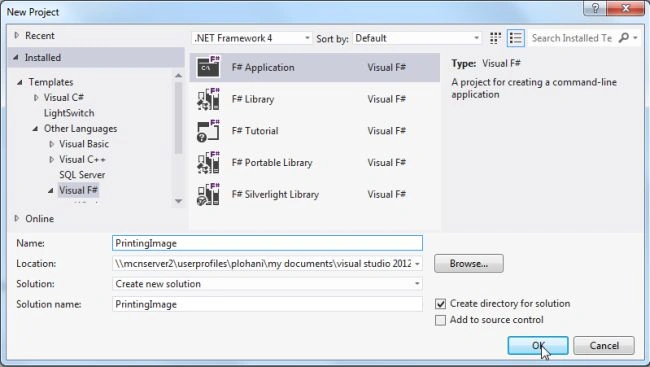
Open Visual Studio then select "Create New Project" --> "F# Console Application".
Step 2:
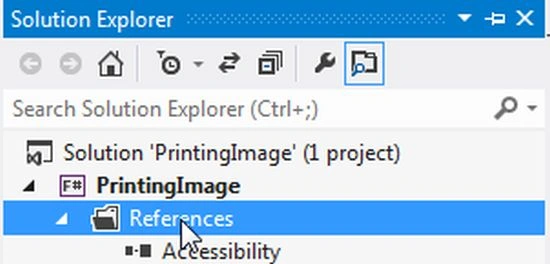
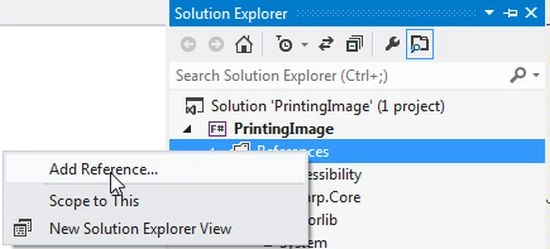
Now go the Solution Explorer on the right side of the application. Right-click on "References" and select "Add references".
Step 3:
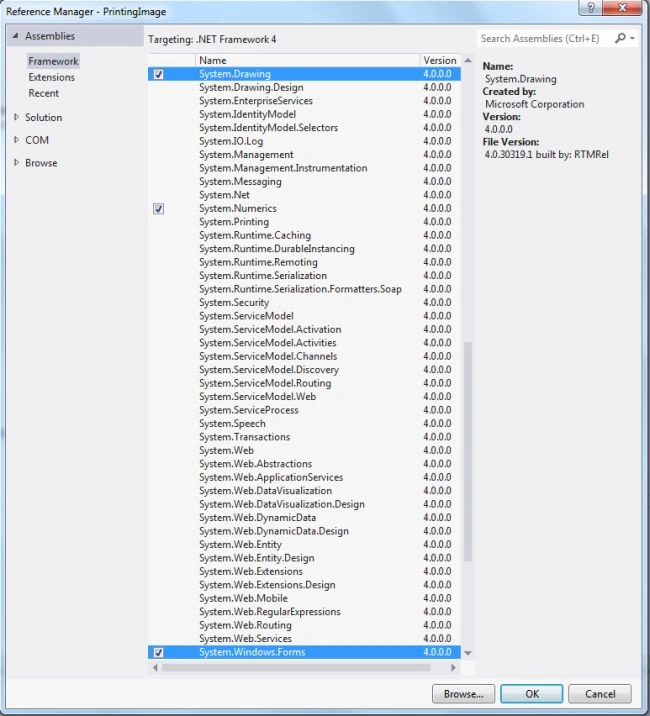
After selecting "Add References", in the framework template you need to select "System.Windows.Forms" and "System.Drawing" while holding down the Ctrl key and click on "Ok."
Step 4:
Use the following code that shows how to use a PrintDocument Control in a Windows Forms application.
open System
open System.Windows.Forms
open System.ComponentModel
open System.Drawing
open System.Drawing.Printing
open System.Drawing.Imaging
let loadimgform = new Form(Text="Printing Documents")
loadimgform.BackColor<-Color.Cornsilk
let picbox=new PictureBox(SizeMode=PictureBoxSizeMode.StretchImage,Top=40,Left=320,Height=200,Width=300,BorderStyle=BorderStyle.FixedSingle)
let lblfilename=new Label(AutoSize=true,Top=240,Width=400,Left=320,BorderStyle=BorderStyle.FixedSingle)
let printbtn=new Button(Text="Print",Top=270,Left=70)
printbtn.BackColor<-Color.Ivory
printbtn.ForeColor<-Color.Brown
let loadbtn=new Button(Text="Load",Top=270,Left=150)
loadbtn.BackColor<-Color.Ivory
loadbtn.ForeColor<-Color.Brown
let exitbtn=new Button(Text="Exit",Top=270,Left=230)
exitbtn.BackColor<-Color.Ivory
exitbtn.ForeColor<-Color.Red
let opnfiledlg=new OpenFileDialog()
let gr=loadimgform.CreateGraphics()
let prndoc=new System.Drawing.Printing.PrintDocument()
loadimgform .Controls.Add(picbox)
loadimgform.Controls.Add(loadbtn)
loadimgform.Controls.Add(lblfilename)
loadimgform.Controls.Add(printbtn)
loadimgform.Controls.Add(exitbtn)
printbtn.Click.Add(fun printing->prndoc.Print())
loadbtn.Click.Add(fun load->
opnfiledlg.Filter <- "JPEG Images (*.jpg,*.jpeg)|*.jpg;*.jpeg|Image Files (*.gif)|*.gif"
opnfiledlg.Title<-"Choose Image File"
if opnfiledlg.ShowDialog()=DialogResult.OK then
let bmp=new System.Drawing.Bitmap(opnfiledlg.FileName)
bmp.RotateFlip(RotateFlipType.RotateNoneFlipNone)
picbox.Image<-bmp
lblfilename.Text<-"\t\tFilename:" + Convert.ToString(Convert.ToChar(32))+ (opnfiledlg.FileName))
prndoc.PrintPage.Add(fun printdata->gr.DrawImage(picbox.Image,10,10))
exitbtn.Click.Add(fun quit->loadimgform.Close())
[<STAThread>]
Application.Run(loadimgform)
Step 5 :
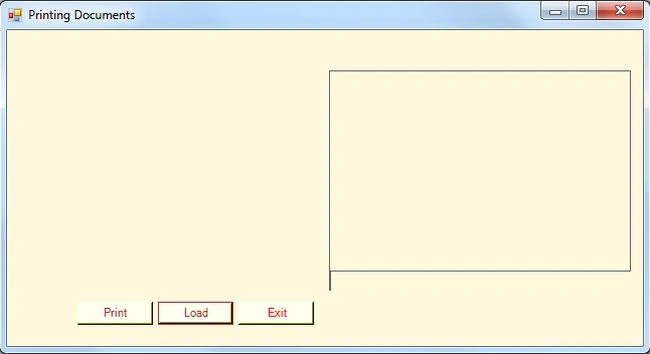
Debug the application by pressing F5 to execute the Windows Forms application. After debugging the application the output will be as in the following figure:
Step 6 :
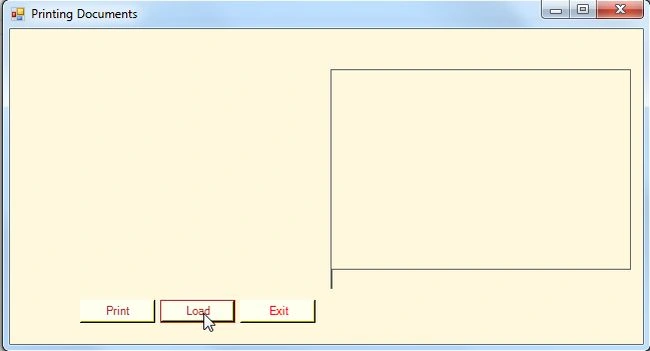
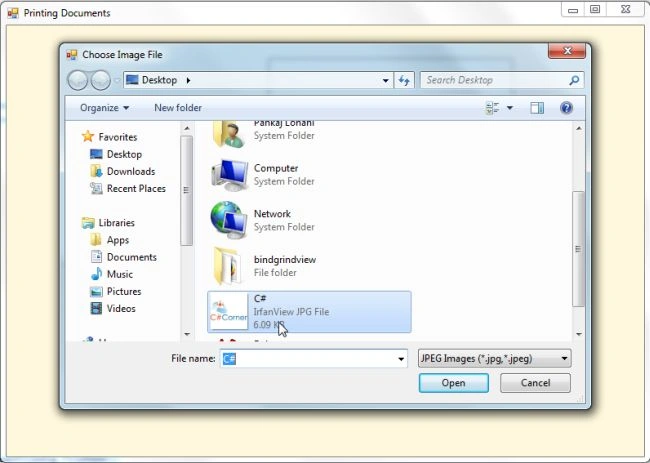
Now click on the Load Button to retrieve the file in the PictureBox Control as in the following figure:
Now select a file.
Step 7 :
The Image file is loaded in the Windows Forms form; now click on the "Print" Button as in the following figure:
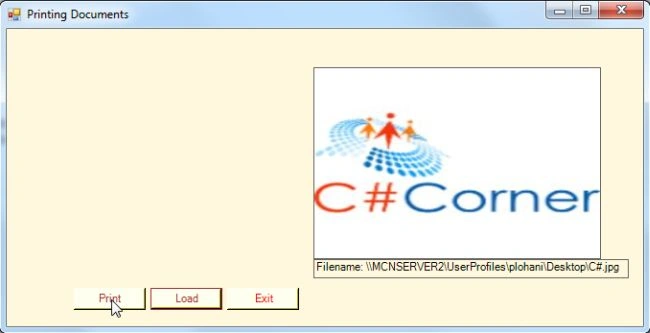
Now save the file in ".xps" format.
f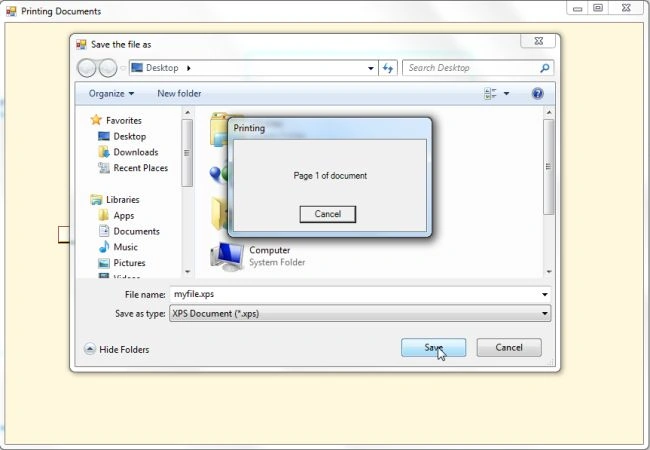
Step 8 :
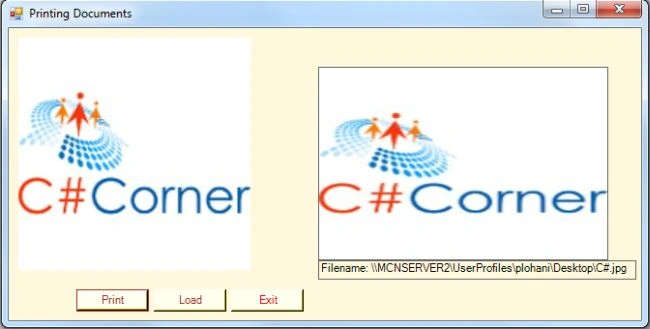
The selected file is printed in the Windows Forms form as in the following figure:
Summary
In this article you have learned about the PrintDocument Control, PictureBox Control and OpenFileDialog Class and you saw how to print an image from the Windows Forms application.
Join the conversation! Your thoughts help the community grow.