
Introduction
A Component Library in Power Apps is a centralized repository used to create and manage reusable components such as headers, footers, navigation menus, and custom controls. These components can be shared and used across multiple apps, ensuring consistency and efficiency in development.
What is a Component?
A component is a reusable building block in Power Apps that contains:
UI elements (labels, buttons, icons)
Custom properties (input/output)
Logic and formulas
Instead of creating the same design repeatedly, you can build it once and reuse it.
Why Use Component Library?
Using a Component Library provides several benefits:
Reusability: Create once and use in multiple apps
Consistency: Maintain uniform design across apps
Maintainability: Update in one place, reflect everywhere
Efficiency: Reduce development time and effort
When to Use What?
Use Component when:
The logic/design is needed only in one app
You want quick reuse within the same app
Use Component Library when:
You need consistency across multiple apps
You want centralized control and updates
You are building scalable or enterprise-level solutions
Common Use Cases
Some commonly used components include:
Application Header (Title, User Info)
Navigation Menu
Custom Buttons
Popup Dialogs
Loading Spinners
Getting Started: Creating a Component Library
Follow these steps to create a Component Library in Power Apps:
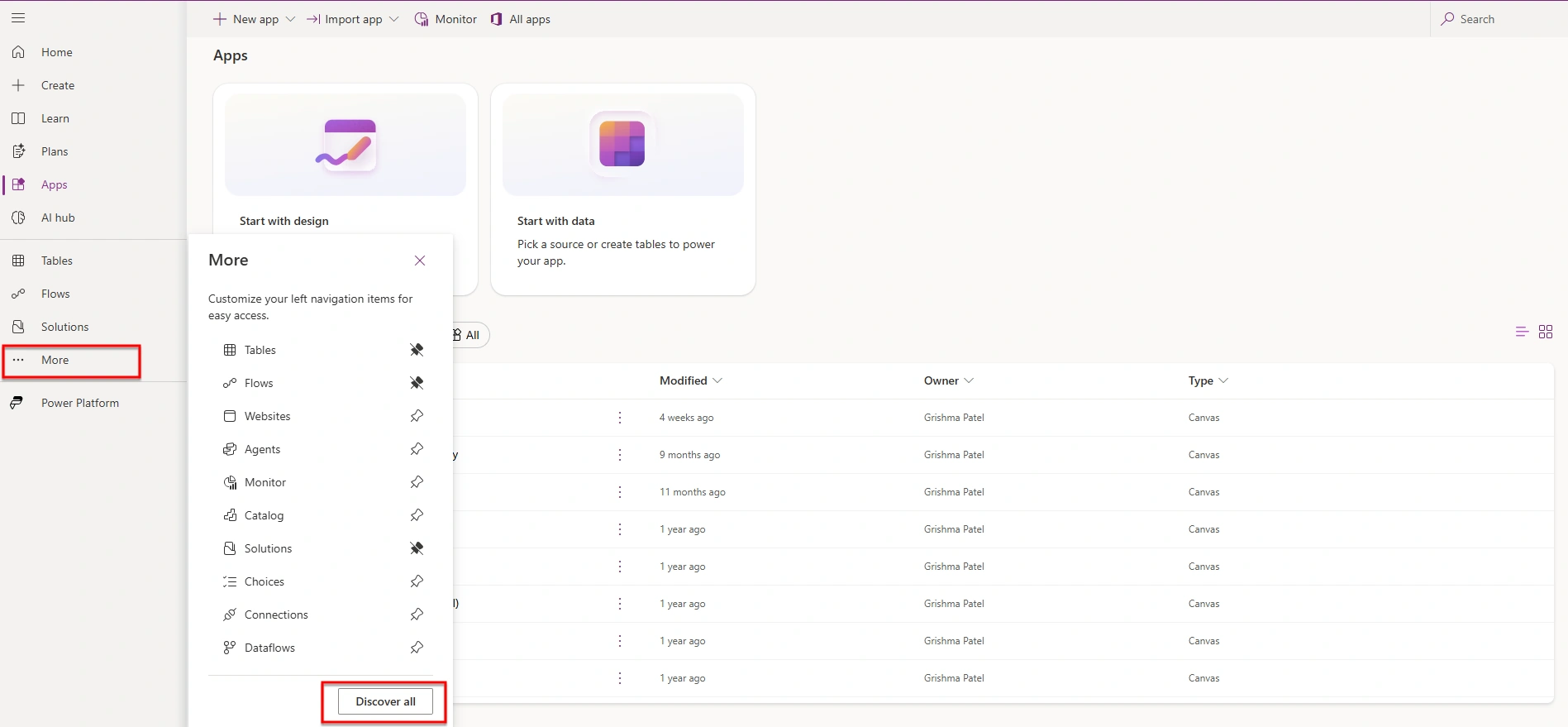
Step 1: Open Power Apps
Go to Power Apps
Navigate to Mores..
Select Discover all
Step 2: Create a Component Library
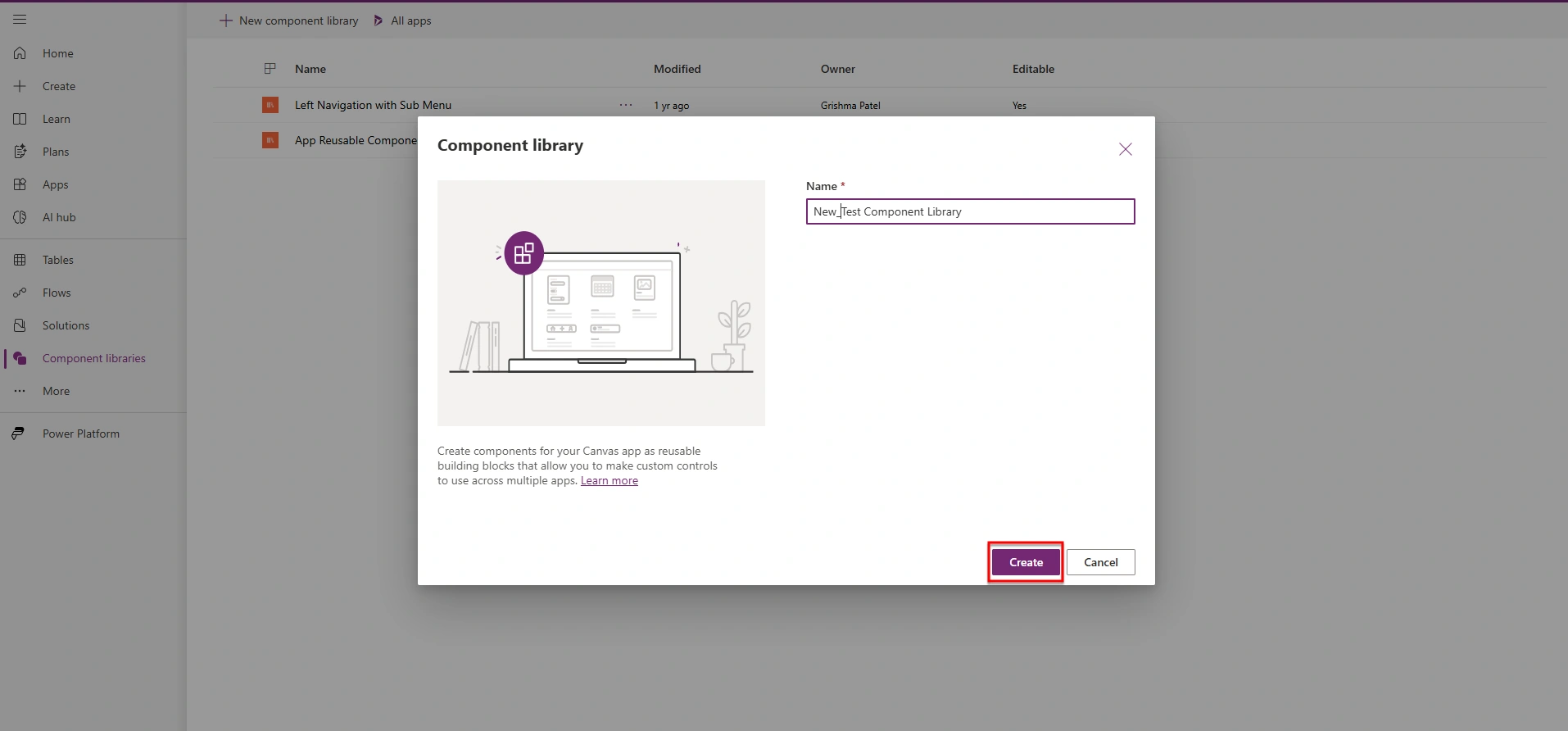
As shown Click on Component library

Select New Component Library.

Provide a name for your library
Click Create
Using an Existing Component Library
In this example, an existing library named “App Reusable Components Library” is used, which includes:
Alert Confirmation Component
Navigation Component
Header Component

How to Use Component Library in an App
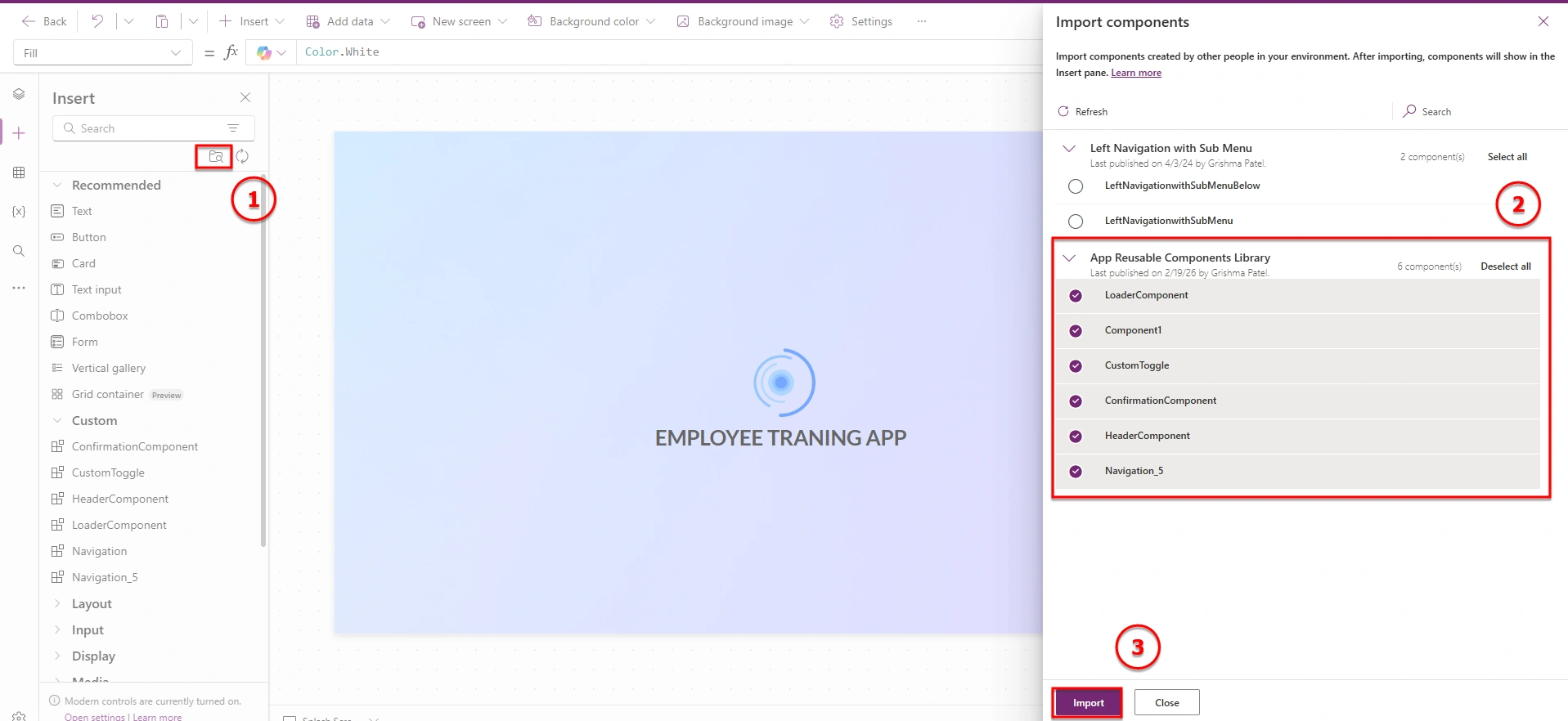
Step 1: Import the Component Library
Publish your Component Library
Open your app in Power Apps
Go to Insert → Get More Components
Select the required Component Library
Step 2: Add Components to the App
Browse available components
Select the required component
Step 3:Click Import to add it to your app
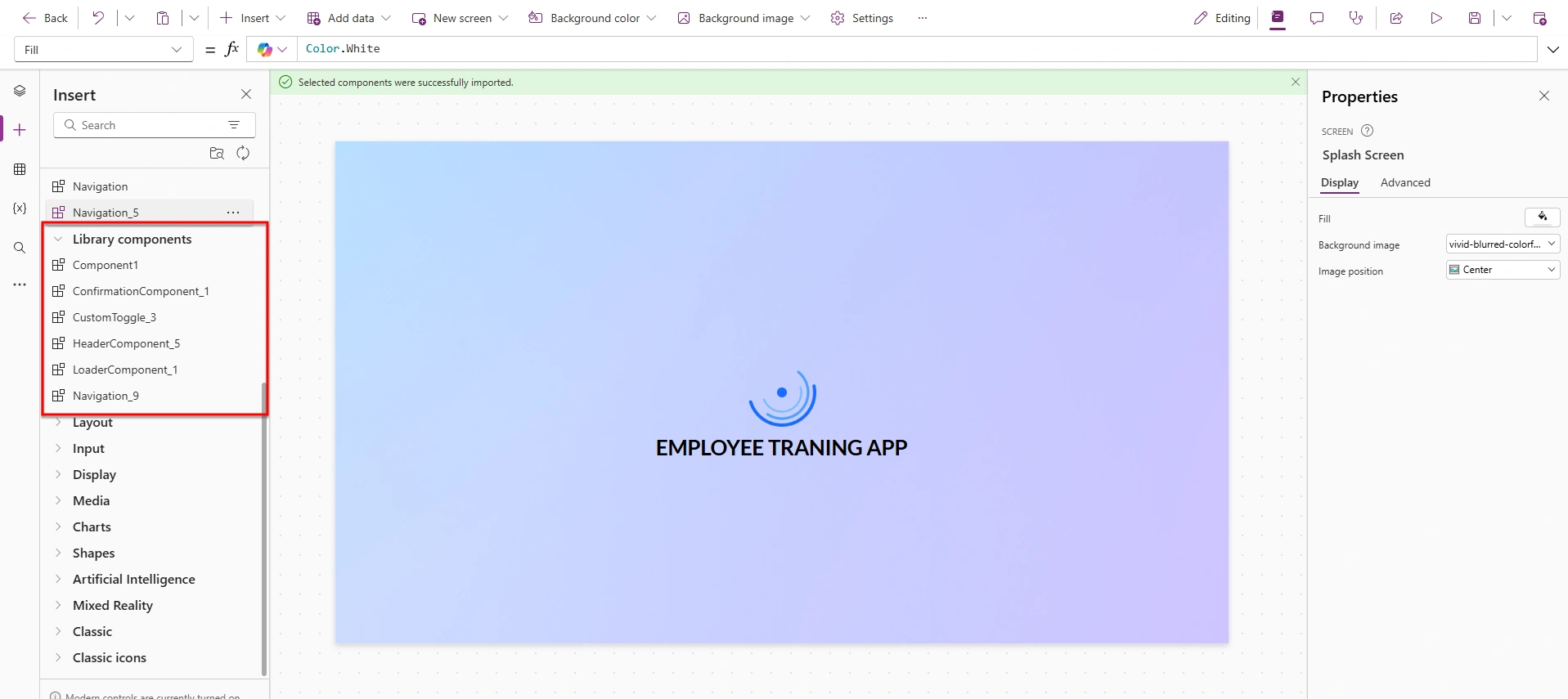
Step 4: Access Imported Components
Once imported, components will appear under the Components section
You can now use them anywhere in your app
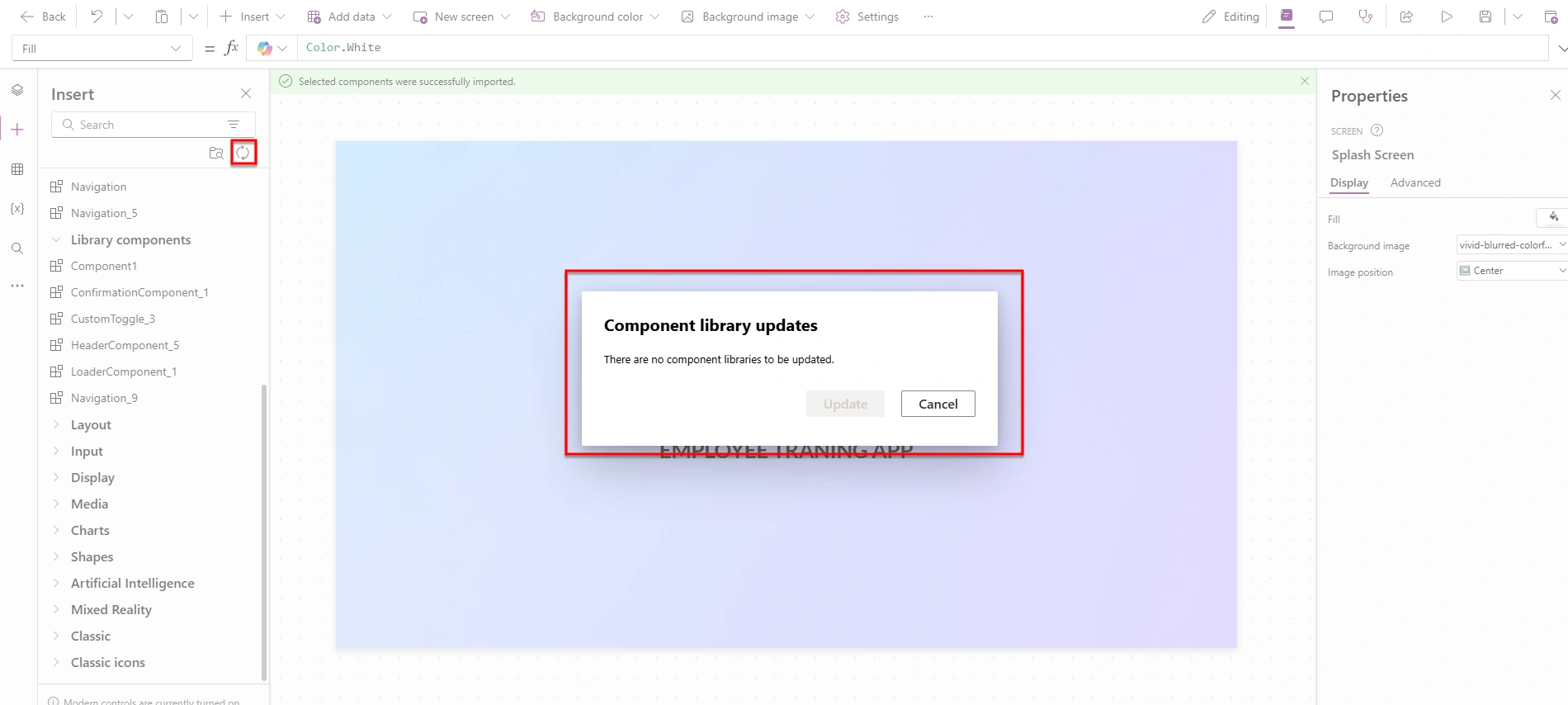
Step 5: Update Components
If changes are made in the Component Library:
You do not need to re-import it
Simply click Refresh in your app
Updates will automatically reflect in your app
Conclusion
Component Libraries in Power Apps are essential for building scalable and maintainable applications. By centralizing reusable components, developers can ensure consistency, reduce redundancy, and streamline the development process.
Join the conversation! Your thoughts help the community grow.