

Introduction
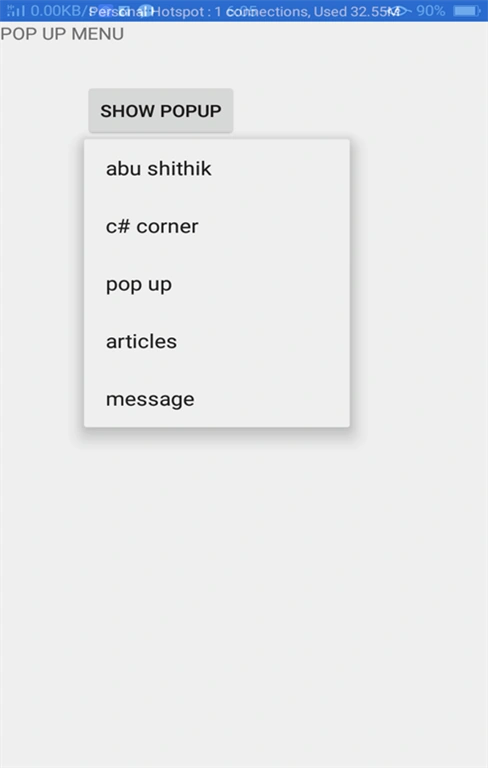
In this article, I will show you how to create a pop-up menu Android app using Android Studio. Android Popup menu displays the menu below the anchor text if space is available otherwise, it displays the menu above the anchor text. It disappears if you tap outside the pop-up menu.
Requirements
- Android Studio version 2.3.3
- Little bit XML and JAVA knowledge.
- Android Emulator (or) Android mobile
- Download link (Android Studio)
Steps to be followed
Follow these steps to create a pop-up menu Android app. I have included the source code below.
Step 1
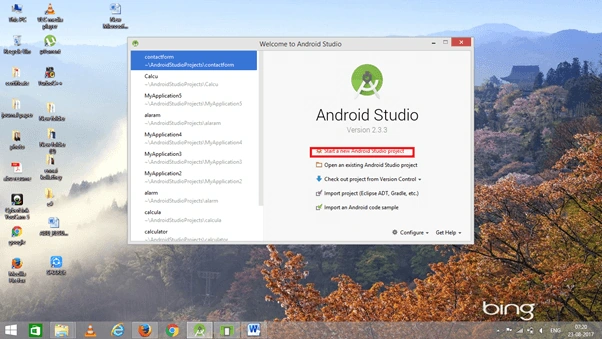
Open Android Studio and start a new Android Studio Project.
Step 2
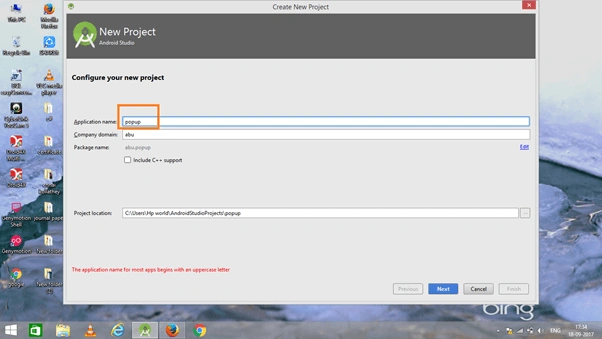
You can choose your application name and choose where your project is stored. If you wish to use C++ for coding the project, mark the "Include C++ support", and click the "Next" button.
Step 3
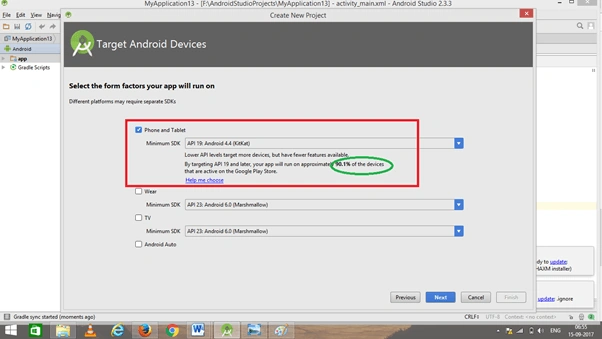
Now, select the version of Android and select the target Android devices. We need to choose the SDK level which plays an important role in running the application.
Step 4
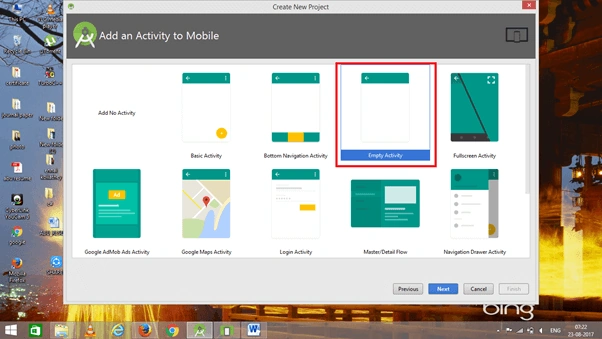
Now, add the activity and click the "Next" button.
Step 5
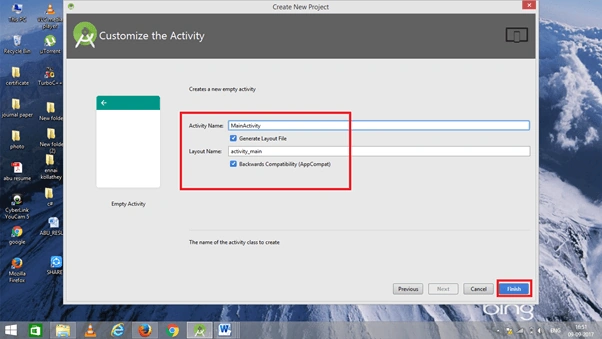
Add Activity name and click "Finish".
Step 6
Go to activity_main.xml. This XML file contains the designing code for your Android app.
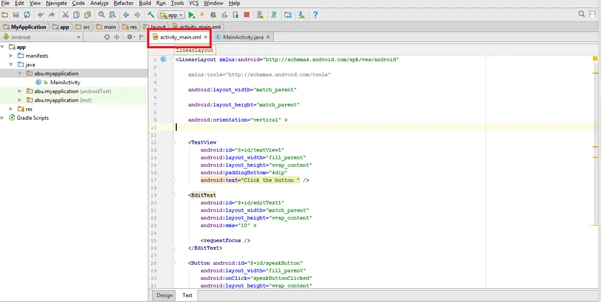
- <RelativeLayout
- xmlns:android="http://schemas.android.com/apk/res/android"
- xmlns:tools="http://schemas.android.com/tools"
- android:layout_width="match_parent"
- android:layout_height="match_parent"
- tools:context="abu.popup.MainActivity" >
- <TextView
- android:id="@+id/textView1"
- android:layout_width="wrap_content"
- android:layout_height="wrap_content"
- android:text="POP UP " />
- <Button
- android:id="@+id/button1"
- android:layout_width="wrap_content"
- android:layout_height="wrap_content"
- android:layout_alignParentLeft="true"
- android:layout_alignParentTop="true"
- android:layout_marginLeft="62dp"
- android:layout_marginTop="50dp"
- android:text="Show Popup" />
- </RelativeLayout>
Step 6
Go to Main Activity.java. This Java program is the backend language for Android.
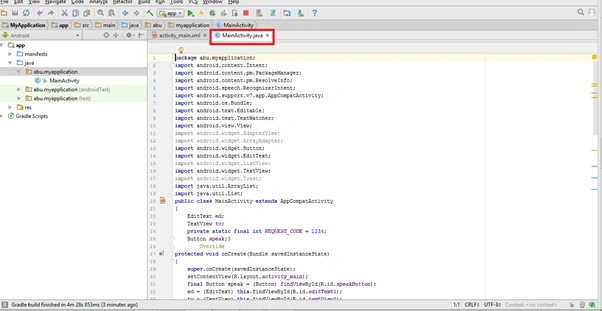 The Java code is given below.
- package abu.popup;
- import android.os.Bundle;
- import android.app.Activity;
- import android.view.Menu;
- import android.view.MenuItem;
- import android.view.View;
- import android.view.View.OnClickListener;
- import android.widget.Button;
- import android.widget.PopupMenu;
- import android.widget.Toast;
- public class MainActivity extends Activity {
- Button button1;
- @Override
- protected void onCreate(Bundle savedInstanceState) {
- super.onCreate(savedInstanceState);
- setContentView(R.layout.activity_main);
- button1 = (Button) findViewById(R.id.button1);
- button1.setOnClickListener(new OnClickListener() {
- @Override
- public void onClick(View v) {
- PopupMenu popup = new PopupMenu(MainActivity.this, button1);
- popup.getMenuInflater().inflate(R.menu.popup_menu, popup.getMenu());
- popup.setOnMenuItemClickListener(new PopupMenu.OnMenuItemClickListener() {
- public boolean onMenuItemClick(MenuItem item) {
- Toast.makeText(MainActivity.this,"You Clicked : " + item.getTitle(),Toast.LENGTH_SHORT).show();
- return true;
- }
- });
- popup.show(); }
- });
- }
- }
Step 7
Create a new XML file and name it as “popup_menu.xml”. Add the below code into it.
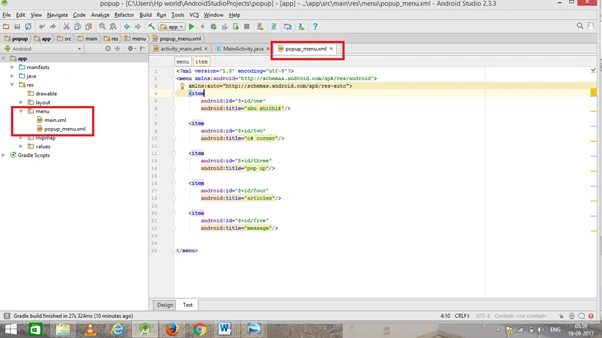
The menu XML code is given below.
- <?xml version="1.0" encoding="utf-8"?>
- <menu xmlns:android="http://schemas.android.com/apk/res/android">
- xmlns:auto="http://schemas.android.com/apk/res-auto">
- <item
- android:id="@+id/one"
- android:title="abu shithik"/>
- <item
- android:id="@+id/two"
- android:title="c# corner"/>
- <item
- android:id="@+id/three"
- android:title="pop up"/>
- <item
- android:id="@+id/four"
- android:title="articles"/>
- <item
- android:id="@+id/five"
- android:title="message"/>
- </menu>
Step 8
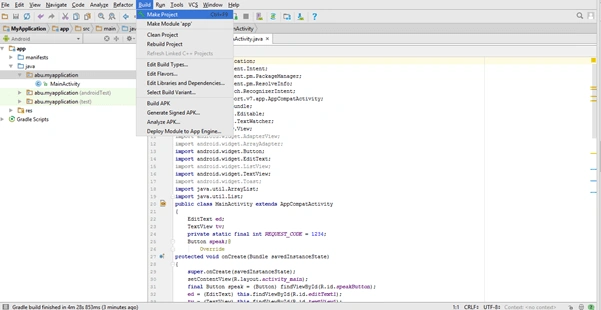
Now, go to the menu bar and click "Make Project" or press ctrl+f9 to debug the error.
 Step 9
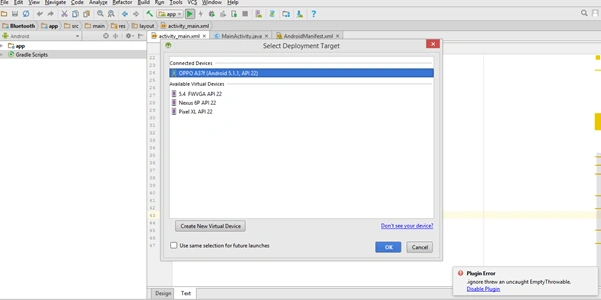
Then, click the "Run" button or press shift+f10 to run the project. Choose the "virtual machine" option and click OK.
Conclusion
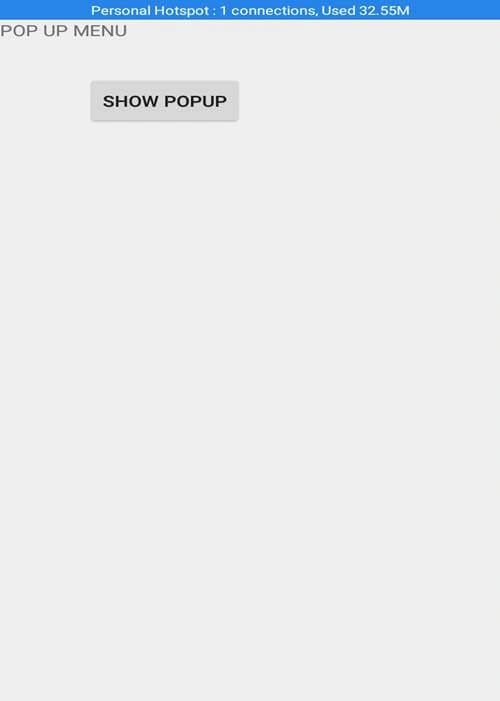
We have successfully created a pop-up menu Android application using Android Studio.
Join the conversation! Your thoughts help the community grow.