

Introduction
In this article I will describe services in Android. A service is an application component that is run in the background without user interaction. If we want to add a service to our application then we must add a declaration in the "AndroidManifest.xml" file and the service class must be extended. In this article, I will tell you how to play music in the background using a service. In this article, I took a MP3 song file that must play using a service in the app.
Step 1
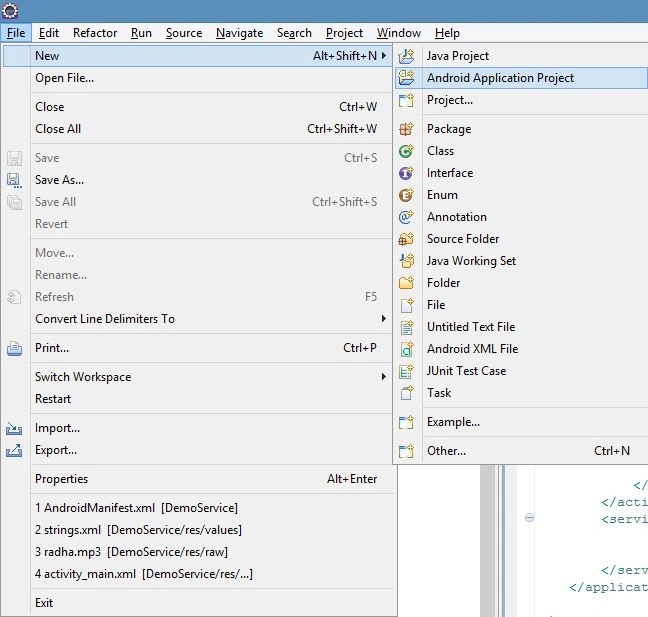
As usual first of all create a new project as "File" -> "New" -> "Android application Project".
Step 2
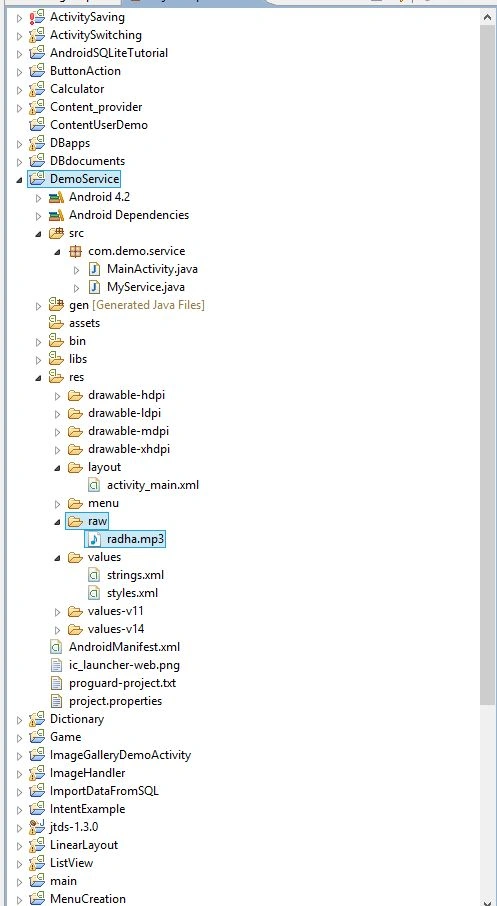
After that, import an audio file; I imported a MP3 file in my app as shown in the following image.
Step 3
Now open the "actiivity_main.xml" file and update it with the following code:
- <RelativeLayout xmlns:android="http://schemas.android.com/apk/res/android"
- xmlns:tools="http://schemas.android.com/tools"
- android:layout_width="match_parent"
- android:layout_height="match_parent"
- tools:context=".MainActivity"
- android:background="#0ff0ff" >
- <TextView
- android:id="@+id/song"
- android:layout_width="wrap_content"
- android:layout_height="wrap_content"
- android:layout_alignParentBottom="true"
- android:layout_alignParentLeft="true"
- android:layout_alignParentRight="true"
- android:layout_marginBottom="208dp"
- android:background="#f00f00"
- android:gravity="center"
- android:textSize="40sp"
- android:text="@string/play"
- android:textColor="#00f00f" />
- </RelativeLayout>
Step 4
Now open the "MainActivity.java" file and update it with the following code.
- package com.demo.service;
- import android.app.Activity;
- import android.content.Intent;
- import android.os.Bundle;
- import android.view.Menu;
- import android.view.View;
- import android.view.View.OnClickListener;
- import android.widget.TextView;
- public class MainActivity extends Activity {
- Intent intent;
- @Override
- protected void onCreate(Bundle savedInstanceState) {
- super.onCreate(savedInstanceState);
- setContentView(R.layout.activity_main);
- final TextView tv= (TextView) findViewById(R.id.song);
- intent=new Intent(this,MyService.class);
- tv.setOnClickListener(new OnClickListener() {
- @Override
- public void onClick(View v) {
- // TODO Auto-generated method stub
- tv.setText(R.string.playsongs);
- startService(intent);
- }
- });
- }
- @Override
- protected void onPause() {
- // TODO Auto-generated method stub
- stopService(intent);
- super.onPause();
- }
- @Override
- public boolean onCreateOptionsMenu(Menu menu) {
- // Inflate the menu; this adds items to the action bar if it is present.
- getMenuInflater().inflate(R.menu.activity_main, menu);
- return true;
- }
- }
Step 5
Create a new Java file extending the Service as "src/com.demo.service/MyService.java" and update it with the following code:
- package com.demo.service;
- import java.io.IOException;
- import android.app.Service;
- import android.content.Intent;
- import android.media.MediaPlayer;
- import android.os.IBinder;
- public class MyService extends Service {
- MediaPlayer media;
- @Override
- public IBinder onBind(Intent intent) {
- // TODO Auto-generated method stub
- return null;
- }
- @Override
- public void onCreate() {
- // TODO Auto-generated method stub
- super.onCreate();
- }
- @Override
- public int onStartCommand(Intent intent, int flags, int startId) {
- media=MediaPlayer.create(this, R.raw.radha);
- try {
- media.prepare();
- } catch (IllegalStateException e) {
- // TODO Auto-generated catch block
- e.printStackTrace();
- } catch (IOException e) {
- // TODO Auto-generated catch block
- e.printStackTrace();
- }
- media.start();
- // TODO Auto-generated method stub
- return super.onStartCommand(intent, flags, startId);
- }
- @Override
- public void onDestroy() {
- // TODO Auto-generated method stub
- media.release();
- super.onDestroy();
- }
- }
Step 6
Now open the "/androidManifest.xml" file and update it with the service in the application as in the following code:
- <?xml version="1.0" encoding="utf-8"?>
- <manifest xmlns:android="http://schemas.android.com/apk/res/android"
- package="com.demo.service"
- android:versionCode="1"
- android:versionName="1.0" >
- <uses-sdk
- android:minSdkVersion="8"
- android:targetSdkVersion="17" />
- <application
- android:allowBackup="true"
- android:icon="@drawable/ic_launcher"
- android:label="@string/app_name"
- android:theme="@style/AppTheme" >
- <activity
- android:name="com.demo.service.MainActivity"
- android:label="@string/app_name" >
- <intent-filter>
- <action android:name="android.intent.action.MAIN" />
- <category android:name="android.intent.category.LAUNCHER" />
- </intent-filter>
- </activity>
- <service android:name="MyService">
- </service>
- </application>
- </manifest>
Step 7
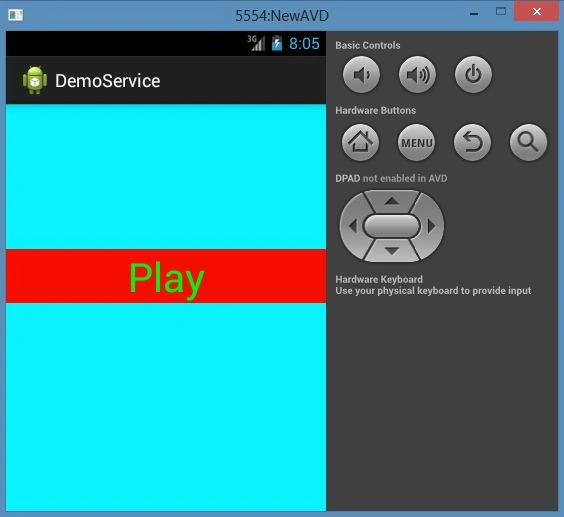
Click on "Play" and listen to the song "radha.mp3". Here if you click on the text "Play" then the song will play and if you click on the text "Pause" then the song will stop due to the service stopping.
Play
Pause

Join the conversation! Your thoughts help the community grow.