

What is Firebase phone authentication?
Firebase is a mobile and web application development platform. It provides various features and functionalities.
Phone authentication is one of its features, which provides authentication using mobile numbers along with the country code.
Firebase Initialization or configuration Settings
- import * as firebase from 'firebase'
- import 'firebase/firestore';
- const firebaseConfig = {
- apiKey: "XXXX-XXXX-XXXX",
- authDomain: "XXXX-app-web.firebaseapp.com",
- databaseURL: "https://XXXX-app-web.firebaseio.com",
- projectId: "XXXX-app-web",
- storageBucket: "XXXX-app-web.appspot.com",
- messagingSenderId: "XXXXXXXXXX",
- appId: "1:XXXX:web:XXXXXX",
- measurementId: "G-XXXXXXX"
- };
- export default !firebase.apps.length ? firebase.initializeApp(firebaseConfig).firestore() : firebase.app().firestore()
Note
Please refer to my earlier blog to get Firebase configuration details. You need to first add your application on the Firebase console and then create one web app in which you can get all details of configuration of the Firebase app.
After successful configuration of the Firebase App, you need to follow a few steps to integrate functionality of Phone Number Authentication using Firebase.
- Enable Phone Authentication in Firebase console
- Cofigure the reCAPTCHA verifier
- Send a verification code to a phone number
- Verify the six digit code which is sent on the phone number & sign in
- Sign out from Firebase Console
STEP 1 - Enable Phone Authentication in Firebase console
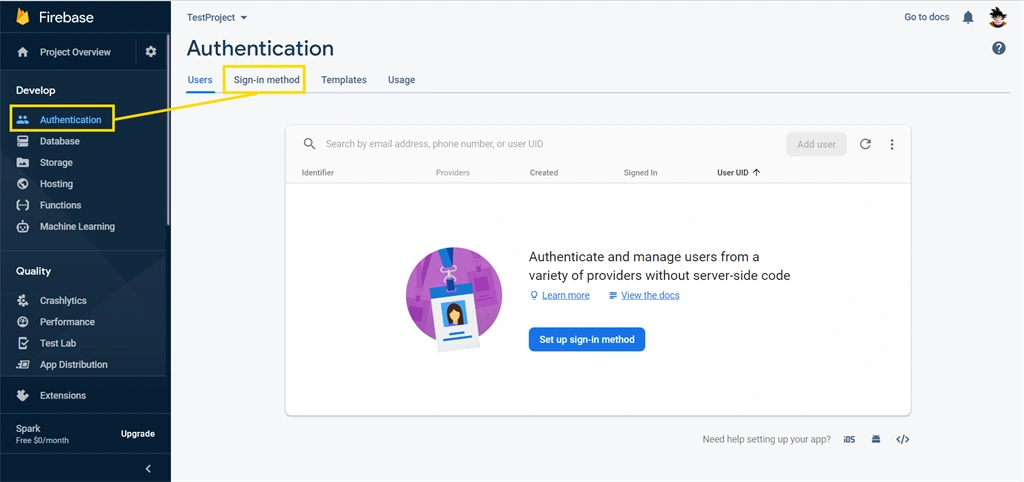
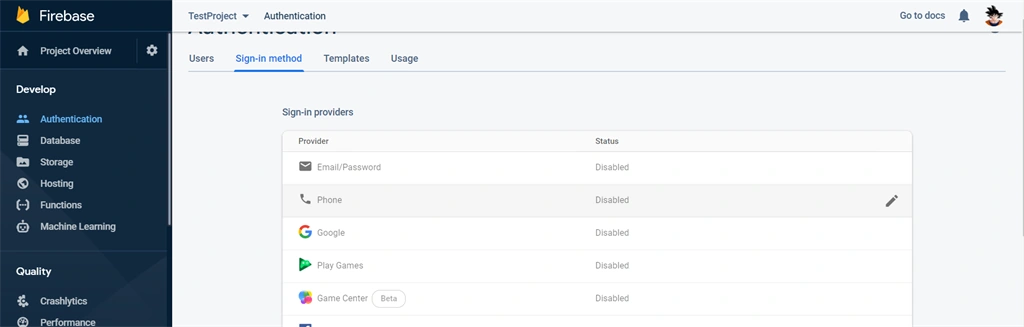
Once the web app is created and credentials have been set, we need to enable phone authentication mode from the Firebase console. From the left sidebar there will be an option for Authentication. Once you click on the Authentication menu there will be an option for Sign-In Method.
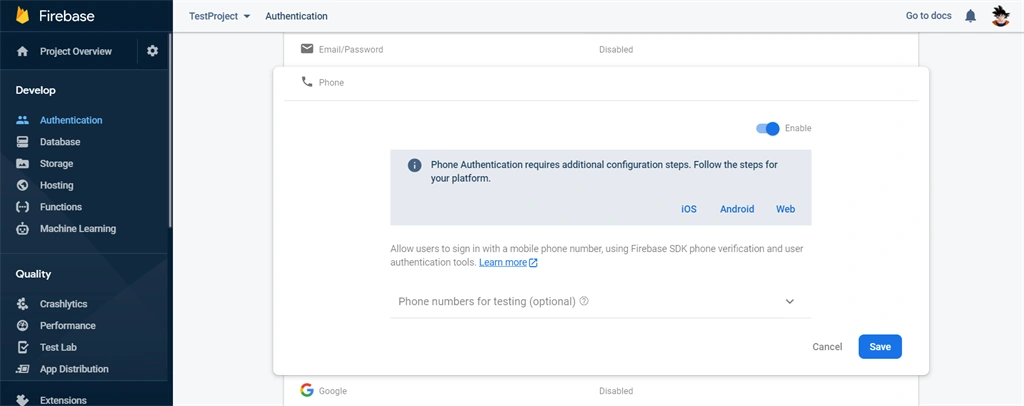
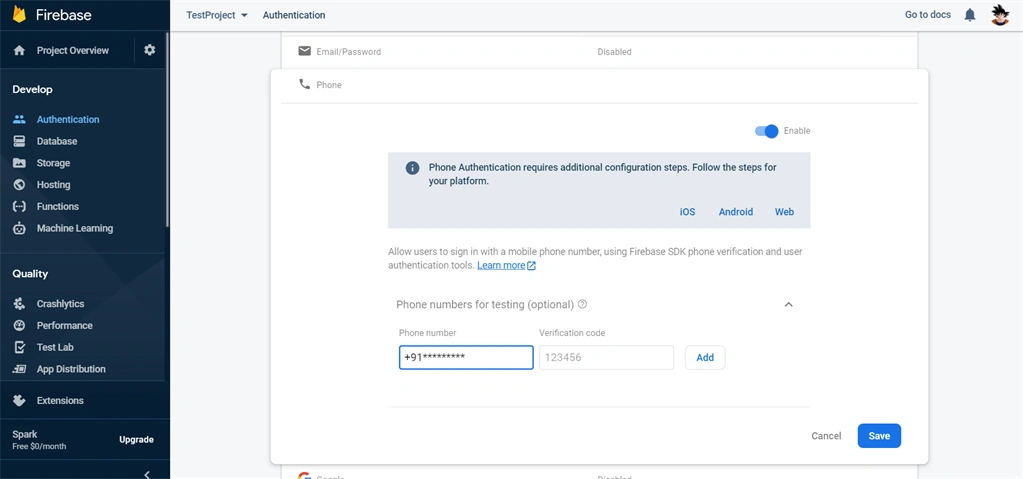
There will be an option to test authentication as well, so you can click on it. There, you need to provide the number. It will automatically send the verification code to the given number. In this way you can test and verify the authentication using your phone number.
STEP 2 - Cofigure the reCAPTCHA verifier
Once you enable the phone authentication mode to on, you need to configure reCAPTCHA verifier for Firebase which will prevent abuse.
We do not have to set up reCAPTCHA manually, SDK itself provides an options to configure reCAPTCHA functionality.
Firebase provides two properties for captcha size
We do not have to set up reCAPTCHA manually, SDK itself provides an options to configure reCAPTCHA functionality.
Firebase provides two properties for captcha size
- Normal
A visible captcha code to the user; and the captcha process is manual.
- Invisible
An invisible captcha code, automated captcha process is auto rendered in DOM.
- captchaInit = () => {
- if (this.applicationVerifier && this.recaptchaWrapperRef) {
- this.applicationVerifier.clear()
- this.recaptchaWrapperRef.innerHTML = `<div id="recaptcha-container"></div>`
- }
- this.applicationVerifier = new firebase.auth.RecaptchaVerifier(
- "recaptcha-container",
- {
- size: "invisible"
- }
- );
- }
- <div ref={ref => this.recaptchaWrapperRef = ref}>
- <div id="recaptcha-container"></div>
- </div>
STEP 3 - Send a verification code to Phone number
There is a predefined auth method of Firebase SDK which you can use to send a verification code to the provided number.
Note
Note
Mobile number must be with country dial code, for example: If you are from India then your number should be "+91 **********".
- // phoneNumber : which you need to get from the input of Phone number
- // appVerifier : window.recaptchaVerifier object automatically set once initialize the method
- firebase.auth().signInWithPhoneNumber(phoneNumber, appVerifier)
- .then(function (confirmationResult) {
- // SMS sent. On you mobile SMS will automatically sent via Firebase
- // save with confirmationResult.confirm(code).
- window.confirmationResult = confirmationResult;
- }).catch(function (error) {
- // Error; SMS will not sent
- });
STEP 4 - Verify the six digit code which is sent on Phone number & Sign-In
After calling the above mentioned method using Phone number and reCAPTCHA verifier, you will get notification of a SIX DIGIT CODE on your Phone which is sent via Firebase.
You can use Firebase SDK's predefined fuction, as below.
You can use Firebase SDK's predefined fuction, as below.
- // code = Need to get from user input
- confirmationResult.confirm(code).then(function (result) {
- // User signed in successfully.
- var user = result.user;
- }).catch(function (error) {
- // Wrong code added.
- });
STEP 5 - SignOut from Firebase Console
In case you have a logout button on your screen or module you can sign out a user using the below method.
- firebase.auth().signOut().then(function() {
- // SignOut successful.
- }).catch(function(error) {
- // Something wrong happened.
- })
Summary
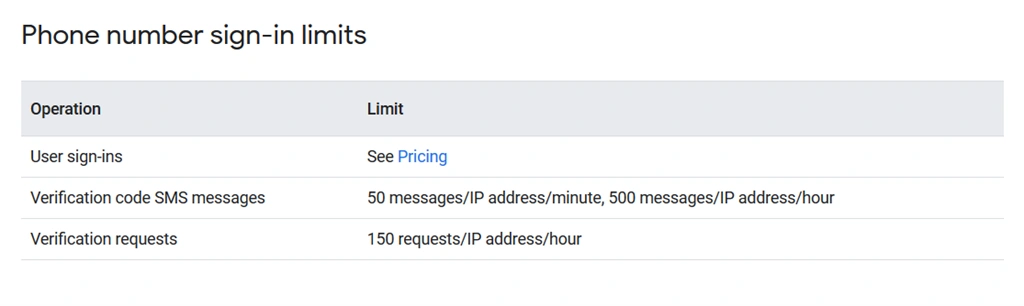
In the article, I've explained step by step implementation of Phone authentication using Firebase service. There is a limit quota for Firebase service calls, which you can refer to using Firebase Usage and limits.
For a working example in React please go through Git Repository - (Firebase -> Phone Number Verification)
Join the conversation! Your thoughts help the community grow.