

Introduction
Performance is the main factor in the quality of an application. Performance depends on how we are coding and configuring the infrastructure. Performance optimization is an important technique to consider before delivering any application. Because it will impact the user experience, in this article, we are going to explore performance optimization techniques in React.
Performance optimization in React
React uses the Virtual DOM concept to minimize the number of DOM operations. Other than this, developers should consider some important optimization factors while developing the React web application.
React.Fragment
Most of the time, the developer wants to render multiple or groups of elements, then they will wrap those elements within a parent "div" element.
<div>
    <h1>Title</h1>
    <p>Content</p>
</div>
In this case, you are adding an extra node to the DOM. It is an unnecessary node because it is used just to wrap the group of elements. I think if we keep on adding unnecessary extra nodes in the application, then it will impact the performance. How do you remove this in the best way?
<React.Fragment> allows us to group the elements without adding an extra node.
<React.Fragment>
    <h1>Title</h1>
    <p>Content</p>
</React.Fragment>
There is an alternate syntax for React.Fragment. You can also use the short syntax <></> for declaring a <React.Fragment>.
<>
    <h1>Title</h1>
    <p>Content</p>
</>
Using production built-in Webpack
If "webpack" is a module bundler for your application, then you have to set the "mode" option as "production" in the webpack config file. It means "webpack" to use the built-in optimization during the bundling of the application.
// webpack.production.config.js
module.exports = {
  mode: 'production'
};
//or pass it as a CLI argument
webpack --mode=development
Use lazy loading components
- Lazy loading is an important concept in modern web apps that allows us to load only the resources (scripts, images, etc.) we need. Instead of loading the entire web page and rendering in the browser all at once, just render the critical component first, then render the remaining components later or when required.
- There are two features to implement lazy loading in React applications.
- React.lazy(): React.lazy() is the function that allows the implementation of the dynamic import for regular components in React.
- React.Suspense: React.suspense has a fallback property that takes the react element that wants to render while the component is being loaded using React.lazy.
import React, { Suspense } from 'react';
const LazyComponent = React.lazy(() => import('./LazyComponent'));
function MyComponent() {
  return (
  <div>
    <Suspense fallback={<div>Loading....</div>}>
      <LazyComponent />
    </Suspense>
  </div>
 );
}
Please read the article Lazy Loading in React to learn more about Lazy Loading In React with examples.
Implement shouldComponentUpdate()
- In the React class component, the "shouldComponentUpdate()" life cycle method is invoked before rendering when new props are received or states are changed.
- By default "shouldComponentUpdate()" returns true which means every time the component will re-render if any props or states get changed (even if current and previous values are the same).
- To avoid this re-rendering, we need to implement the shouldComponentUpdate() method, check the previous value with current values, and decide whether the component needs to be re-rendered or not.
import React from "react";
export default class TestComponent extends React.Component {
  constructor(props) {
    super(props)
    this.state = {
      data: ""
    }
  }
  handleClick = () => {
    let value = document.getElementById("textvalue").value;
    this.setState({ data: value })
  }
  shouldComponentUpdate(nextProps, nextState) {
    if (nextState.data === this.state.data)
      return false
    return true
  }
  render() {
    console.log("Rendering");
    return (
      <div>
        <input id="textvalue" type="text" />
        <button onClick={this.handleClick}>Click</button>
        {this.state.data}
      </div>
    )
  }
}
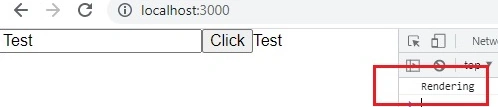
Consider, if the above code doesn't have the "shouldComponentUpdate()" method then, the component re-renders every time of button clicks (even the text box has the same value).

In the above code, the "shouldComponentUpdate()" lifecycle method has been implemented explicitly. In this method, the previous value is compared with the current value and if both are the same returns false (which means no re-rendering) otherwise returns true (re-render the component).
React.PureComponent
- Instead of implementing the "shouldComponentUpdate()" lifecycle method, we can use React.PureComponent.
- A React.PureComponent is the same as React. The component checks the props and state values(shallow comparison) and decides whether the component needs to re-render or not.
- No need to implement the "shouldComponentUpdate()" life cycle method explicitly. React.PureComponent optimizes the class components by reducing the number of unwanted renders.
- It performs a shallow comparison only when
- props or states contain primitive data.
- props and states have complex data but know when to call forceUpdate() to update the component.
The above "TestComponent" has been implemented using "React.PureComponent". Here, the component itself handled the "shouldComponentUpdate()" method for both shallow comparison and re-rendering.
import React from "react";

export default class TestComponent extends React.PureComponent {
  constructor(props) {
    super(props)
    this.state = {
      data: ""
    }
  }
  handleClick = () => {
    let value = document.getElementById("textvalue").value;
    this.setState({ data: value })
  }
  render() {
    console.log("Rendering");
    return (
      <div>
        <input id="textvalue" type="text" />
        <button onClick={this.handleClick}>Click</button>
        {this.state.data}
      </div>
    )
  }
}
Use memoization
- Memoization is an optimization technique to increase the performance of the application by storing the results and returning the cached result when the same inputs occur again.
- React. memo or useMemo is used to optimize the performance with the help of caching the components in React.
- React.memo is a higher-order component, and it’s similar to React.PureComponent but for using functional components instead of class components.
- When a functional component is rendered using React.Memo or useMemo then its result is saved in the memory and next time the component gets called with the same props then the cached result will return without any execution.
const UserDisplay = (userDetails) =>{
    const {name, age, address} = userDetails;

    return (
        <>
            <h4>{name}</h4>
            <p>{age} , {address}</p>
        </>
    )
}
export default React.memo(UserDisplay);
// First - UserDisplay component gets called and executed, and then rendered.
<UserDisplay
  name="Test"
  age="30"
  address="Test address"
/>
// Second - The cached result will render without any execution.
<UserDisplay
  name="Test"
  age="30"
  address="Test address"
/>
// Third - UserDisplay component gets called and executed, and then rendered.(because here value of the name value different)
<UserDisplay
  name="New Test"
  age="30"
  address="Test address"
/>
Use Functional/Stateless Components
The functional component prevents the construction of the class instance. It reduces the overall bundle size better than classes.
Binding the Functions in Early
- Binding the functions with elements in the render function will cause performance issues because the render() function creates a new function on every render.
- If the arrow function is used inside the render() function, then each time the browser executes an arrow function ("=>") statement, it creates a new function object. This can be an expensive operation, depending on the situation.
- If you are using the arrow function as props, then it will break the performance optimizations such as shouldComponentUpdate and PureComponent.
// Creates a new "onChange" function during each render()
<input type="text" onChange={this.onChange.bind(this)} />
// ...as do inlined arrow functions
<input type="text" onChange={files => this.onChange(files)} />
//Pass arrow function as props
<TestComponent click={() => this.onChange()}
// To avoid above issue, re-write the code as follows,
class TestComponent extends React.Component {
    constructor(props) {
        super(props);
        this.onChange = this.onChange.bind(this);
    }
    render() {
        <input type="text" onChange={this.onChange} />
    }
}
Virtualizing the long lists
- If you want to render a large list of data, then just render the smaller portion of the list at a time (limited to the viewport of the component) and render the remaining data whenever scrolled. This is called "windowing".
- It will reduce the re-rendering time and avoid the number of DOM nodes to be created.
Throttling and Debouncing
Throttling and Debouncing are important optimization concepts to avoid multiple API calls.
- Throttling: Throttling means executing the function at regular intervals, which means once the function is executed, it will start again only after a specified amount of time is over.
- Debouncing: Debouncing means the function will execute when a user hasn't carried out an event in a specified amount of time.
Please read the article Throttling And Debouncing Using JavaScript, to learn more about Throttling and Debouncing with examples.
Summary
- Use React.Fragment instead of "div" to wrap the elements.
- Use Production Build in Webpack by setting mode = production.
- Use Lazy loading components in React.
- Implement shouldComponentUpdate() to avoid unwanted renders.
- Use React.PureComponent to avoid unwanted renders.
- Use Memoization for functional compoenents.
- Use Functional Components.
- Avoid the arrow function inside the render() function.
- Virtualizing the long lists using the "windowing" concept.
- Implement Throttling and Debouncing to avoid multiple API calls.
Other than the above, many optimization techniques are available. Learn all the techniques before developing the React applications. It will help to deliver the application with better quality. I hope you liked it and learned about optimization techniques in React applications.
Join the conversation! Your thoughts help the community grow.