

Introduction
Person or Group are important fields in SharePoint List and Library, and most developers face difficulties in getting and binding the details for the People Picker field.
In this article I have given samples on how to bind the user details, disable the field, show the custom error messages and empty the field, as these are the commonly used action item on People Picker field; I hope this article will help you in day to day developer activities in SharePoint JavaScript object model (JSOM).
Bind People Picker with Logged in User Name
The below sample code will help to bind the current logged in user details to the people picker field, this is the common functionality we will be using in the SharePoint Forms.
Steps to configure the JavaScript Code.
- Edit the SharePoint list form.
- Add the Content Editor Web Part
- Add the JS file to the web part
Or you can use script editor Web Part to include this code.
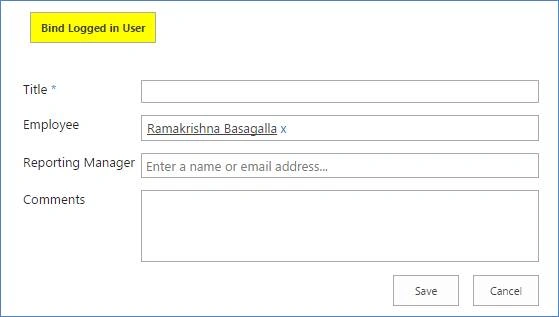
In this code on button click, we are binding current logged in user to Employee field.
- <script type = "text/javascript"
- src = "https://cdnjs.cloudflare.com/ajax/libs/jquery/3.3.1/jquery.js" > < /script>
- < button type = "button"
- id = "btnGetDetails"
- style = "background-color: yellow; font-weight:bold" > Get People Picker Person Details < /button> <
- script type = "text/javascript" >
- // Field Name
- var fEmployee = "Employee";
- $(document).ready(function() {
- // Button Click
- $("#btnGetDetails").click(function() {
- BindPeoplePickerWithLoggedinUser(fEmployee);
- });
- });
- function BindPeoplePickerWithLoggedinUser(ppTitle) {
- setTimeout(function() {
- var _PeoplePicker = $("div[title='" + ppTitle + "']");
- var peoplePickerEditor = _PeoplePicker.find("[title='" + ppTitle + "']");
- var _PeoplePickerTopId = _PeoplePicker.attr('id');
- peoplePickerEditor.val(_spPageContextInfo.userDisplayName);
- var ppobject = SPClientPeoplePicker.SPClientPeoplePickerDict[_PeoplePickerTopId];
- ppobject.AddUnresolvedUserFromEditor(true);
- }, 1000);
- }
- </script>
Get Values from the People Picker Field
The below example will explain how to get the Person details from the People Picker Field using JavaScript in SharePoint.
Below are the steps to get the People Picker filed information using JavaScript (JSOM)
Steps
- Edit the SharePoint list form.
- Add the Content Editor Web Part
- Add the JS file to the web part
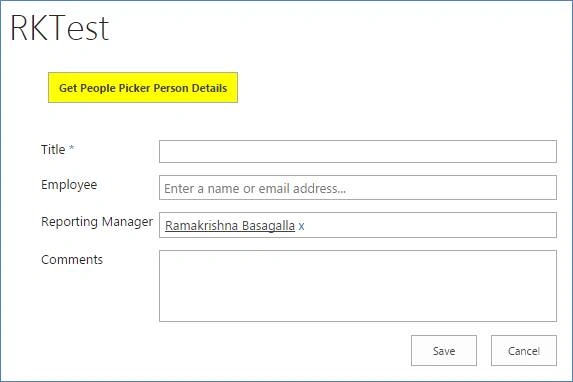
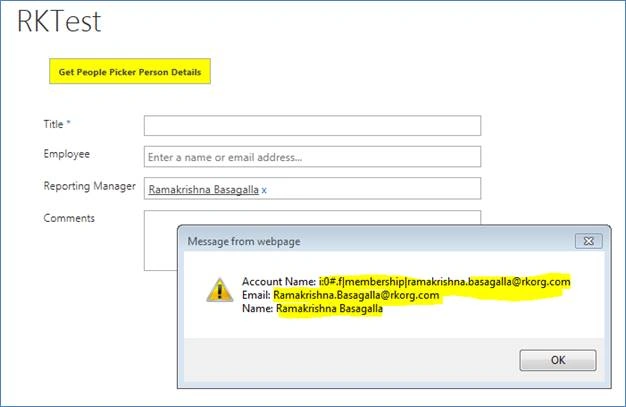
On button click we are getting the Reporting Manager Account Name, Email, and Display Name of the person using Person or Group field.
JavaScript Code
- <script type = "text/javascript"
- src = "https://cdnjs.cloudflare.com/ajax/libs/jquery/3.3.1/jquery.js" > < /script>
- <button type = "button"
- id = "btnGetDetails"
- style = "background-color: yellow; font-weight:bold" > Get People Picker Person Details < /button> <
- script type = "text/javascript" >
- // Field Name
- var fRepMgr = "Reporting Manager";
- var pEmail;
- var pAccountName;
- var pValue;
- $(document).ready(function() {
- // Button Click
- $("#btnGetDetails").click(function() {
- GetPeoplePickerDetails(fRepMgr);
- alert("Account Name: " + pAccountName + "\nEmail: " + pEmail + "\nName: " + pValue);
- });
- });
- // Get the People Picker Field Details
- function GetPeoplePickerDetails(ppTitle) {
- var _PeoplePicker = $("div[title='" + ppTitle + "']");
- var _PeoplePickerTopId = _PeoplePicker.attr('id');
- var ppobject = SPClientPeoplePicker.SPClientPeoplePickerDict[_PeoplePickerTopId];
- editorsInfo = ppobject.GetAllUserInfo();
- if (editorsInfo.length > 0) {
- pAccountName = editorsInfo[0].Key;
- pEmail = editorsInfo[0].Description;
- pValue = editorsInfo[0].DisplayText;
- }
- return null;
- }
- </script>
Empty People Picker (Multiple Users)
The below sample code will help you to empty the Person or Group field using JavaScript code, this will enable multiple users also.
This will be helpful when we need Employee name changes to update his profile details.
Steps to configure the code,
- Edit the page
- Add content Editor Web part
- Add script or link to the web part.
This JavaScript code will loop through the people picker filed and remove entries from there.
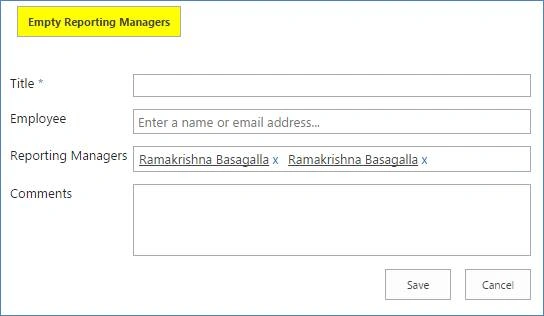
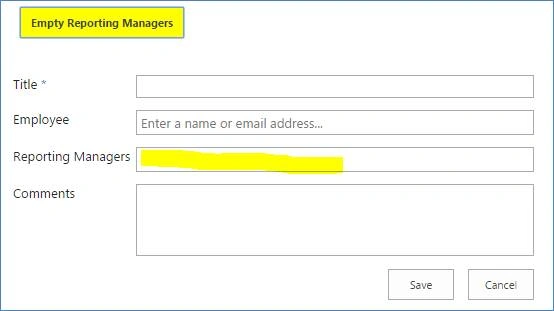
JavaScript code
- // Field Name
- var fRepMgr = "Reporting Managers";
- $(document).ready(function(){
- // Button Click
- $("#btnGetDetails").click(function(){
- EmptyPeoplePicker("Reporting Managers");
- });
- });
- function EmptyPeoplePicker(peoplePickerId){
- var _PeoplePicker = $("div[title='" + peoplePickerId + "']");
- var _PeoplePickerTopId = _PeoplePicker.attr('id');
- var ppobject = SPClientPeoplePicker.SPClientPeoplePickerDict[_PeoplePickerTopId];
- var usersobject = ppobject.GetAllUserInfo();
- usersobject.forEach(function (index) {
- ppobject.DeleteProcessedUser(usersobject[index]);
- });
- }
Disable the People Picker Field
This is one of the commonly used functionalities in SharePoint development, I see most of the developers face issues in disabling the People picker field, below the is the sample code to make the field as read-only using JavaScript.
Steps to configure the JavaScript
- Edit the SharePoint list form.
- Add the Content Editor Web Part
- Add the JS file to the web part
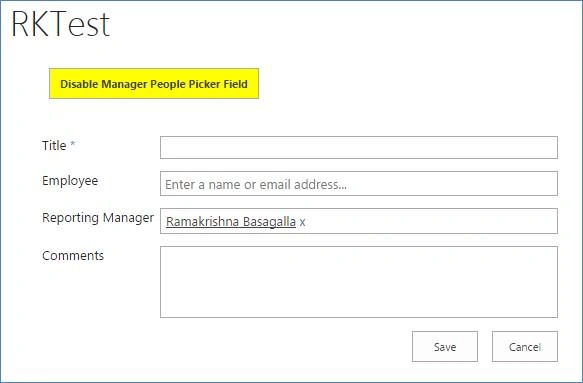
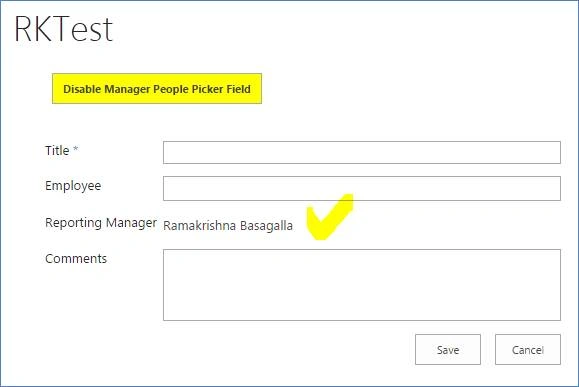
JavaScript Code
- <script type="text/javascript" src="https://cdnjs.cloudflare.com/ajax/libs/jquery/3.3.1/jquery.js"></script>
- <button type="button" id="btnHide" style="background-color: yellow; font-weight:bold">Disable Manager People Picker Field</button>
- <script type="text/javascript">
- // Field Name
- var fRepMgr = "Reporting Manager";
- $(document).ready(function(){
- // Button Click
- $("#btnHide").click(function(){
- DisablePeoplePicker(fRepMgr)
- });
- });
- // Disable the SP People Picker using Field Name
- function DisablePeoplePicker(title){
- $("div.sp-peoplepicker-topLevel[title='" + title + "']").css('border', 'hidden');
- $("input.sp-peoplepicker-editorInput[title='" + title + "']").prop('disabled', true);
- $("div[title='" + title + "']").css('margin-left', '-5px');
- $(".sp-peoplepicker-initialHelpText").css('display', 'none');
- $(".sp-peoplepicker-delImage").css("display","none") ;
- $("div[title='" + title + "'] span").css('text-decoration', 'none');
- }
- </script>
Display Custom Error Message for People Picker Field
This is one of the most important functionalities in SharePoint, this sample will explain you how we can provide our custom error message for a People Picker field in out of box SharePoint list form.
Using this code we can display the error message below the people picker field as SharePoint out of box will work.
Steps to configure
- Edit the SharePoint list form.
- Add the Content Editor Web Part
- Add the JS file to the web part
This is the commonly used functionality for most of the developer, hope this will help.
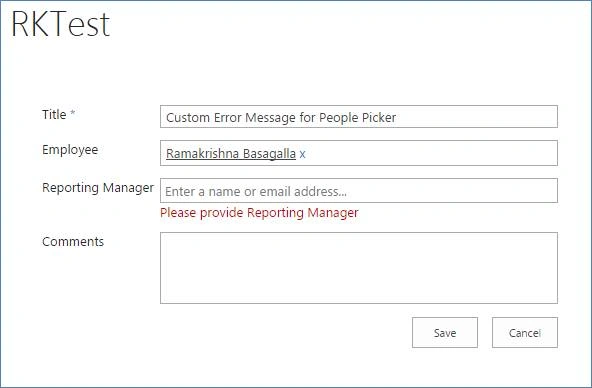
If we make Person or Group field mandatory, it will show message as ‘Field can’t be blank’, but using the below code we were able to show our custom message.
I hope this will help and simplifies your development.
JavaScript Code
- <script type="text/javascript" src="https://cdnjs.cloudflare.com/ajax/libs/jquery/3.3.1/jquery.js"></script>
- <script type="text/javascript">
- var fRepMgr = "Reporting Manager";
- function PreSaveItem() {
- // getting email address of the manager on presave
- var email = GetPeoplePickerEmail(fRepMgr);
- if(!email){
- // Reporting manager is empty, showing our custom error message
- var errorMsg = "Please provide Reporting Manager";
- PeoplePickerErrorNotification(fRepMgr, errorMsg);
- return false;
- }
- }
- // This funcation will displays the error message on below of People Picker field
- function PeoplePickerErrorNotification(ppTitle, message){
- var _PeoplePicker = $("div[title='" + ppTitle + "']");
- var ndiv = $('#ErrNotiDiv_' + ppTitle.replace(" ", ""));
- if(ndiv.length > 0){
- ndiv.remove();
- }
- $(_PeoplePicker).parent().append( "<div id='ErrNotiDiv_" + ppTitle.replace(" ", "") + "' style='color:#bf0000;'>" + message + "</div>" );
- }
- // This function will return the people picker email address
- function GetPeoplePickerEmail(ppTitle){
- var _PeoplePicker = $("div[title='" + ppTitle + "']");
- var _PeoplePickerTopId = _PeoplePicker.attr('id');
- var ppobject = SPClientPeoplePicker.SPClientPeoplePickerDict[_PeoplePickerTopId];
- editorsInfo = ppobject.GetAllUserInfo();
- if(editorsInfo.length > 0){
- return editorsInfo[0].Description;
- }
- return null;
- }
- </script>
Summary
I hope I have provided all commonly used code for Person or Group Field using JavaScript Object Model (JSOM), please provide your comments to improve this article.
Hope this article helps, Happy Coding!!
Solomon MengistuPosted Jun 5, 2020, 11:40 AM
Good stuff. How do you disable the a specific People Picker Field without a button click event? Let's say when a user creates a new list item?