

Introduction
This article demonstrates how to integrate the PayUMoney SDK in Android applications. With the help of this SDK, the Android application would be able to make electronic payments through Debit card, Credit card, and Netbanking.
Transaction status
A transaction can have different states. Some of them are as follows.
- Not Started
- Initiated
- Under Dispute
- Refunded
- Bounced
- Failed
- Completed
Integrating PayUMoney SDK in Android Project
- Click "Project Structure" under the "File" menu.
- Click on the "+" button to add a new module.
- Select "Import Gradle Project".
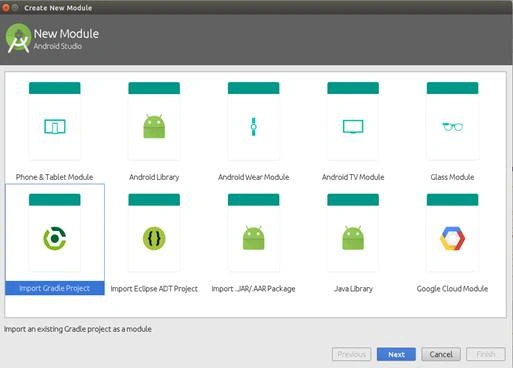
- Browse and select "PayUMoney SDK".
For adding this as a dependency in your project, please follow the steps given below.
- Click on File->Project Structure.
- Select your project and go to the "Dependencies" tab.
- Click "+" on the top right corner and select "Module dependency".
- Select "PayUMoney".
Now, we need to contact PayUMoney for getting our Merchant Id and Key.
In our application, there will be one button for initiating the payment. On click of that button, we need to call the PayUMoney SDK with some parameters, as given below.
| Parameter | Required | Value |
| key | Yes | Merchant key from PayUMoney |
| Txnid | Yes | Unique id |
| Amount | Yes | Amount to be collected from the user |
| ProductInfo | Yes | Description About product |
| FirstName | Yes | First name of the user |
| Yes | Email id of the user | |
| phone | Yes | Phone number of the user |
| Udf1 | User-defined field 1 | |
| Udf2 | User-defined field 2 | |
| Udf3 | User-defined field 3 | |
| Udf4 | User-defined field 4 | |
| udf5 | User-defined field 5 | |
| SURL | yes | Success URL to be called after payment success |
| FURL | yes | Failure URL to be called after payment Failure |
| hash | yes | Hash or Checksum =sha512(key|txnid|amount|productinfo|firstname|email |udf1|udf2|udf3|udf4|udf5|salt) (SALT will be provided by PayUmoney) |
Udf1 to udf5 are user-defined fields; these can have any values if the user wants to post any additional data.
Hash Calculation
- String hashSequence = key|txnid|amount|productinfo|firstname|email|udf1|udf2|udf3|udf4|udf5|salt;
The following function will calculate the hash code.
- public static String hashCal(String str) {
- byte[] hashseq = str.getBytes();
- StringBuilder hexString = new StringBuilder();
- try {
- MessageDigest algorithm = MessageDigest.getInstance("SHA-512");
- algorithm.reset();
- algorithm.update(hashseq);
- byte messageDigest[] = algorithm.digest();
- for (byte aMessageDigest : messageDigest) {
- String hex = Integer.toHexString(0xFF & aMessageDigest);
- if (hex.length() == 1) {
- hexString.append("0");
- }
- hexString.append(hex);
- }
- } catch (NoSuchAlgorithmException ignored) {
- }
- return hexString.toString();
- }
On the "Pay Money" button click of your application, please write the following code.
- PayUmoneySdkInitilizer.PaymentParam.Builder builder = new PayUmoneySdkInitilizer.PaymentParam.Builder();
- builder.setAmount(getAmount())
- .setTnxId(getTxnId())
- .setPhone("9895473514")
- .setProductName("ice cream")
- .setFirstName("pranav")
- .setEmail("[email protected]")
- .setsUrl("https://www.payumoney.com/mobileapp/payumoney/success.php")
- .setfUrl("https://www.payumoney.com/mobileapp/payumoney/failure.php")
- .setUdf1("")
- .setUdf2("")
- .setUdf3("")
- .setUdf4("")
- .setUdf5("")
- .setIsDebug(true)//should be false in production
- .setKey("dRQuiA")
- .setMerchantId("4928174");// Debug Merchant ID
- PayUmoneySdkInitilizer.PaymentParam paymentParam = builder.build();
- calculateServerSideHashAndInitiatePayment(paymentParam);
Here, we are calculating the hash code from the Server itself.
- private void calculateServerSideHashAndInitiatePayment(final PayUmoneySdkInitilizer.PaymentParam paymentParam) {
- // Replace your server side hash generator API URL
- String url = "https://test.payumoney.com/payment/op/calculateHashForTest";
- Toast.makeText(this, "Please wait... Generating hash from server ... ", Toast.LENGTH_LONG).show();
- StringRequest jsonObjectRequest = new StringRequest(Request.Method.POST, url, new Response.Listener<String>() {
- @Override
- public void onResponse(String response) {
- try {
- JSONObject jsonObject = new JSONObject(response);
- if (jsonObject.has(SdkConstants.STATUS)) {
- String status = jsonObject.optString(SdkConstants.STATUS);
- if (status != null || status.equals("1")) {
- String hash = jsonObject.getString(SdkConstants.RESULT);
- Log.i("app_activity", "Server calculated Hash : " + hash);
- paymentParam.setMerchantHash(hash);
- PayUmoneySdkInitilizer.startPaymentActivityForResult(MyActivity.this, paymentParam);
- } else {
- Toast.makeText(MyActivity.this,
- jsonObject.getString(SdkConstants.RESULT),
- Toast.LENGTH_SHORT).show();
- }
- }
- } catch (JSONException e) {
- e.printStackTrace();
- }
- }
- }, new Response.ErrorListener() {
- @Override
- public void onErrorResponse(VolleyError error) {
- if (error instanceof NoConnectionError) {
- Toast.makeText(MyActivity.this,
- MyActivity.this.getString(R.string.connect_to_internet),
- Toast.LENGTH_SHORT).show();
- } else {
- Toast.makeText(MyActivity.this,
- error.getMessage(),
- Toast.LENGTH_SHORT).show();
- }
- }
- }) {
- @Override
- protected Map<String, String> getParams() throws AuthFailureError {
- return paymentParam.getParams();
- }
- };
- Volley.newRequestQueue(this).add(jsonObjectRequest);
- }
Here, we are calling PayUmoneySdkInitilizer.startPaymentActivityForResult(MyActivity.this, paymentParam); to perform the transaction.
And after the payment is completed, the onActivityResult method will be called. There, we can show a response to the user.
- protected void onActivityResult(int requestCode, int resultCode, Intent data) {
- if (requestCode == PayUmoneySdkInitilizer.PAYU_SDK_PAYMENT_REQUEST_CODE) {
- if (resultCode == RESULT_OK) {
- Log.i(TAG, "Success - Payment ID : " + data.getStringExtra(SdkConstants.PAYMENT_ID));
- String paymentId = data.getStringExtra(SdkConstants.PAYMENT_ID);
- showDialogMessage("Payment Success Id : " + paymentId);
- } else if (resultCode == RESULT_CANCELED) {
- Log.i(TAG, "failure");
- showDialogMessage("cancelled");
- } else if (resultCode == PayUmoneySdkInitilizer.RESULT_FAILED) {
- Log.i("app_activity", "failure");
- if (data != null) {
- if (data.getStringExtra(SdkConstants.RESULT).equals("cancel")) {
- } else {
- showDialogMessage("failure");
- }
- }
- //Write your code if there's no result
- } else if (resultCode == PayUmoneySdkInitilizer.RESULT_BACK) {
- Log.i(TAG, "User returned without login");
- showDialogMessage("User returned without login");
- }
- }
- }
Summary
In this article, I have discussed how to integrate PayUMoney SDK into an Android application.
Nitin VatsPosted Jun 15, 2017, 8:01 AM
Can you show the source code of the hash generation API please? I am generating hash which works on postman when i manually input the parameters but when i request with this example given method it gives me no result .
Sundaram SubramanianPosted Jun 11, 2017, 10:01 PM
excellent one. thanks for sharing.
Ganeshan NPosted Jun 10, 2017, 9:12 PM
Nice article..... but video is more efficient than article
Thiruppathi RPosted Jun 9, 2017, 12:00 PM
Nice article.Thanks for sharing...
Manav PandyaPosted Jun 9, 2017, 12:11 AM
Nice one ...................