

In this article we will see how to do searching in Azure portal and search implementation through Visual Studio.
Searching in the Azure Portal
In my previous article I created Azure search service and an index on it using import data.
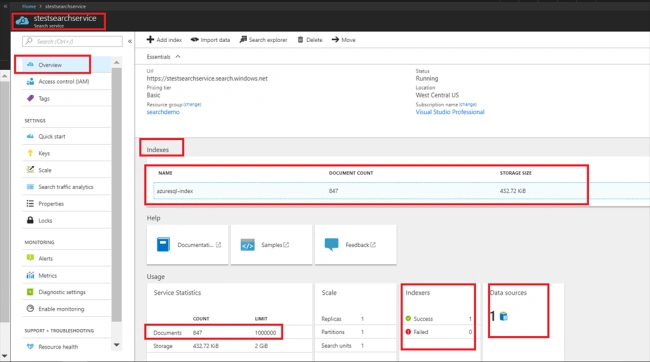
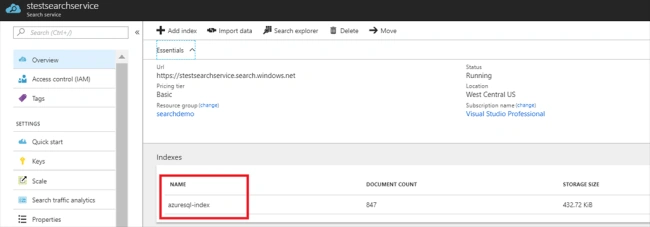
Go to Indexes
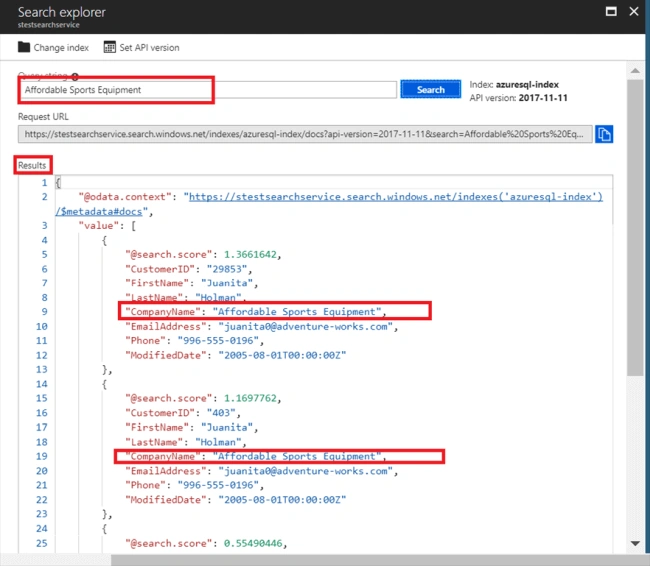
Search explorer -> enter query string to search -> Click Search -> Results shown below:
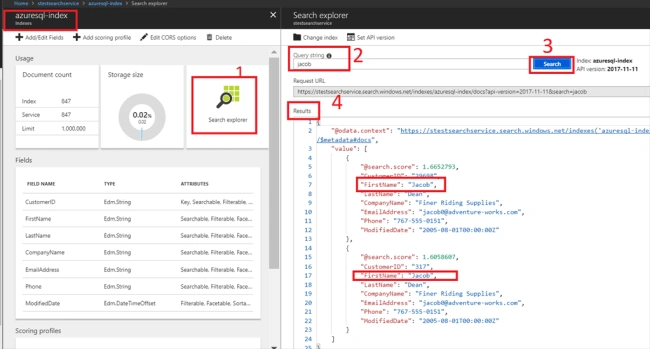
The text to search for All searchable fields are searched by default unless searchFields is specified.
To match any term, use * (this can be useful for Boolean filter queries). To read more about simple query syntax read msdn here
You can read more about filters using MSDN link here
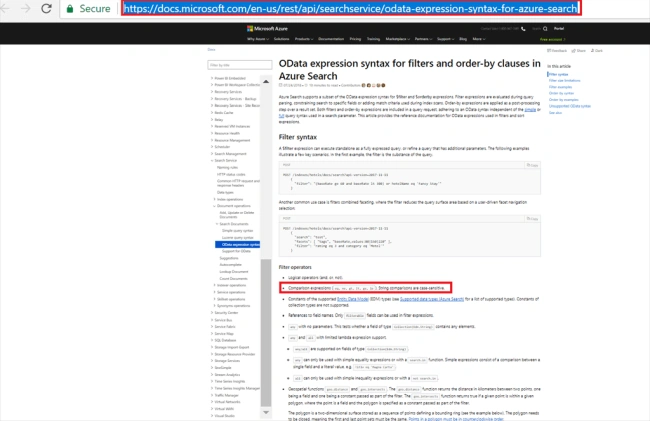
NOTE
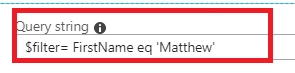
String comparisons are case sensitive [when you specify a filter]
For example - when we use:
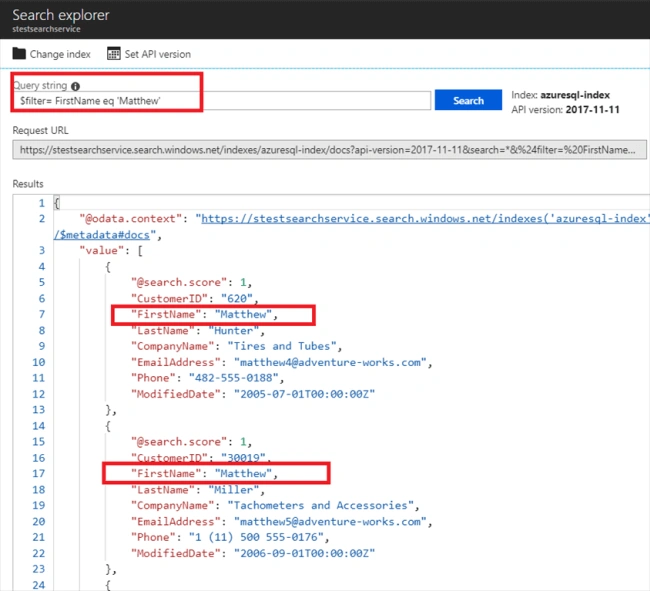
BUT,
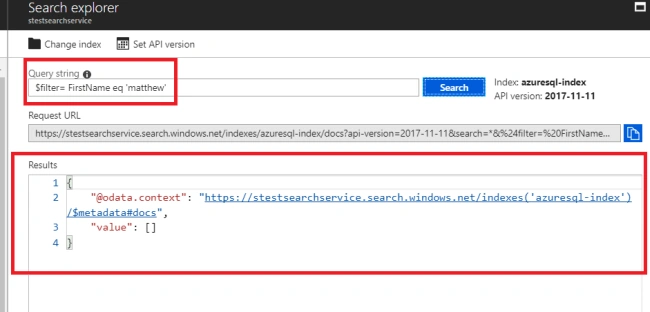
If we replace ‘Matthew’ with ‘matthew’ the result will be as shown:
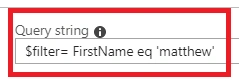
So string comparisons are case sensitive. [when you specify a filter]
Open Visual studio
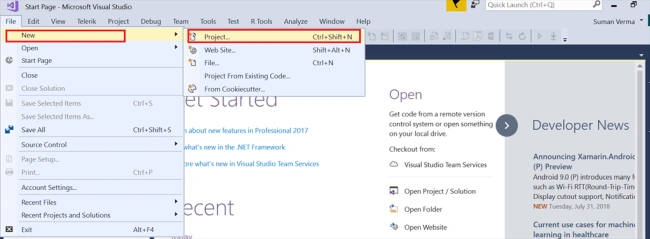
Click on File-> new-> Project
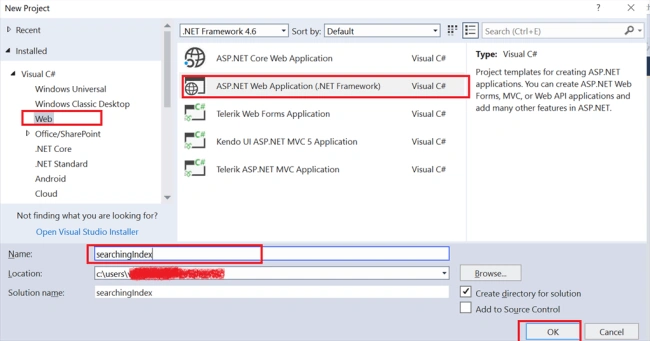
Select asp.net web application, enter project name as “searchingIndex” and click ok,
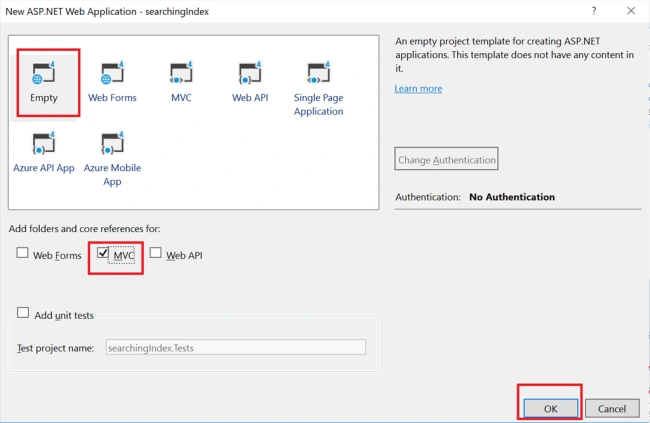
Choose empty MVC application and click ok:
Empty MVC application is created.
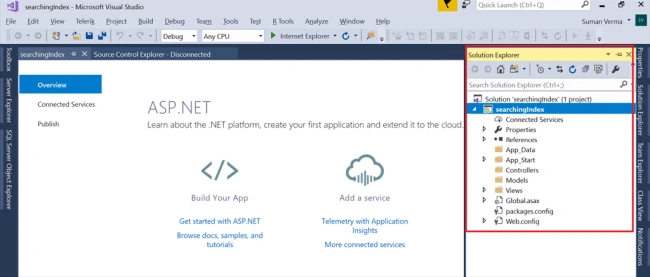
STEP 2 - Install Microsoft.Azure.search using NuGet Package manager
Right click on references and select Manage NuGet Pakages
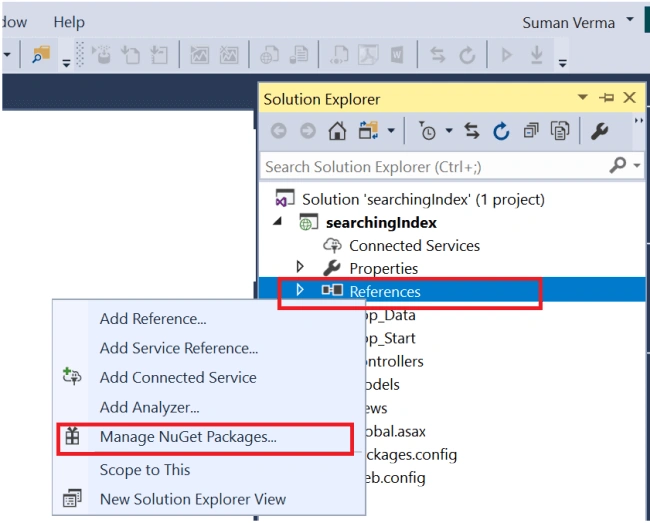
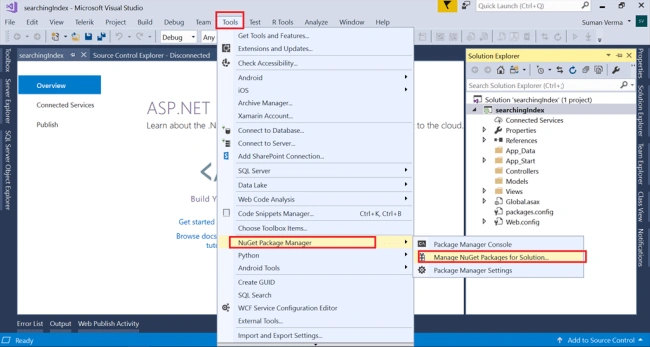
OR,
Go to Tools -> NuGet Pakage Manager -> Manage NuGet Package for Solution
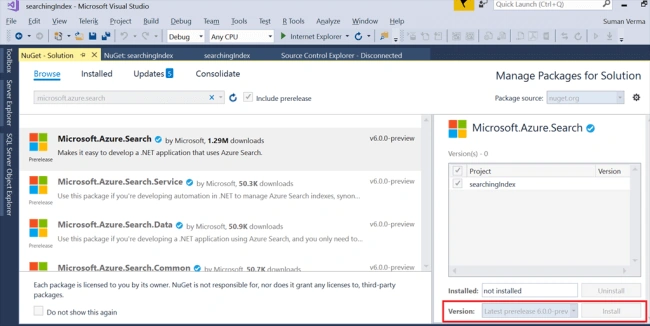
Search for Microsoft.azure.search
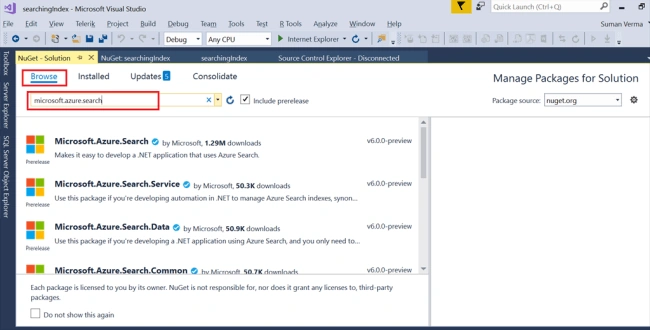
Click on Install,
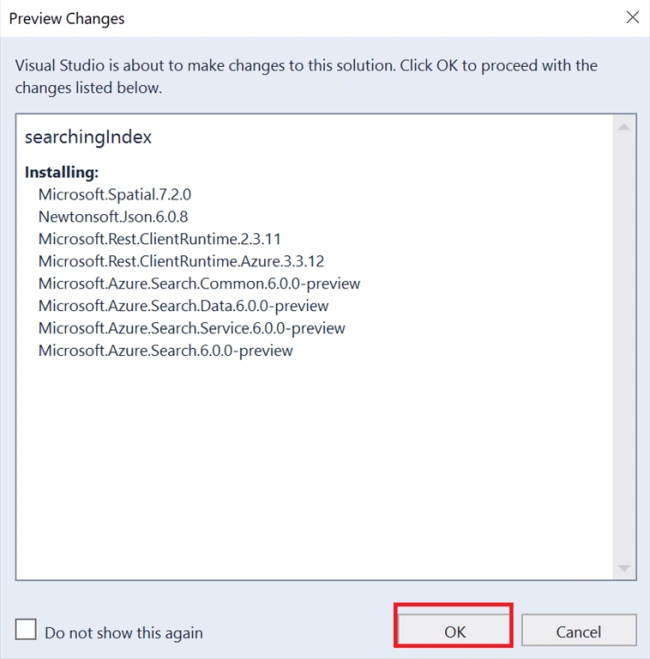
Click on Accept,
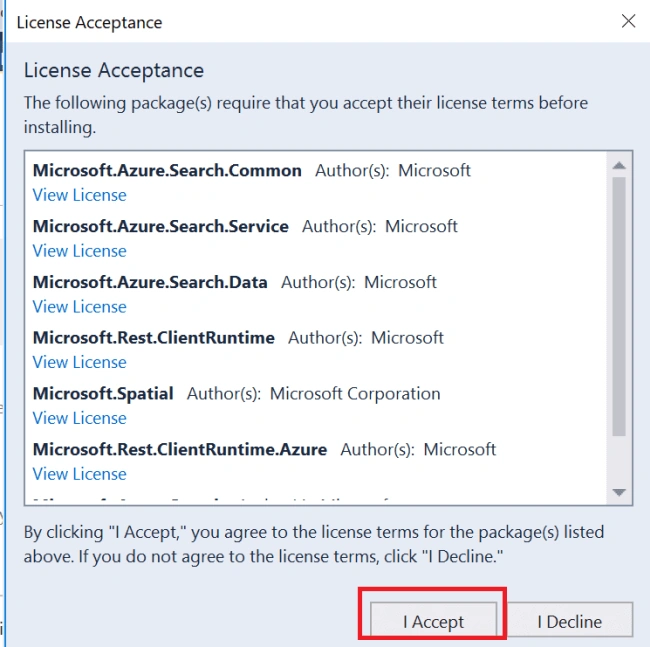
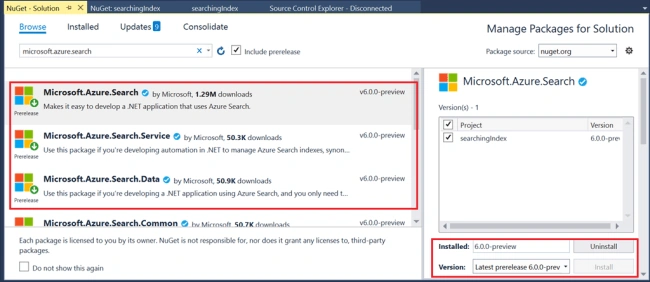
Microsoft.Azure.Search is installed successfully as shown.
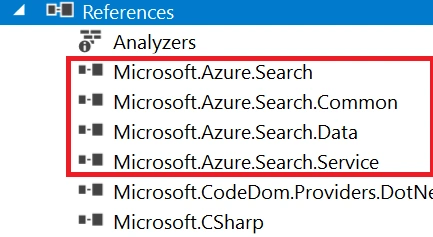
STEP 3 - Add Reference for System.Net.Http
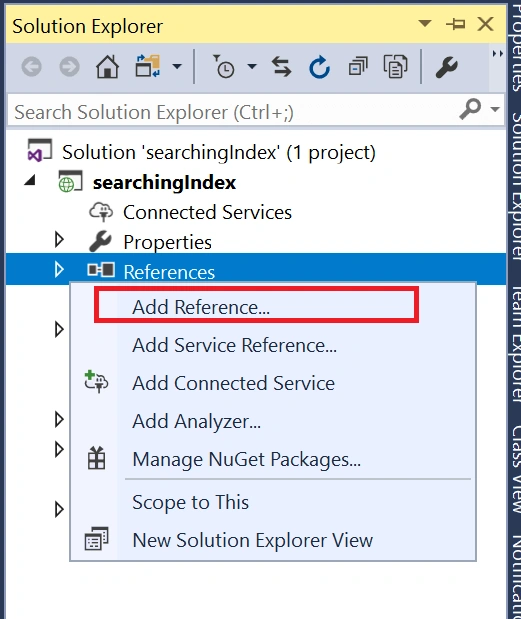
Right click on references -> add reference
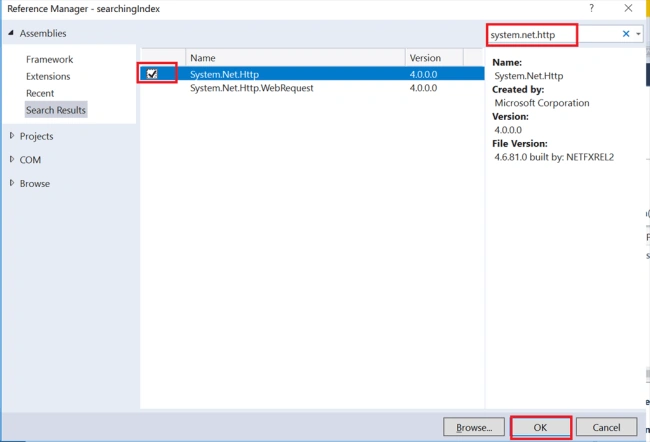
Search System.Net.Http and click ok
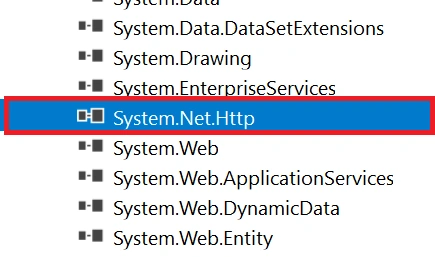
Reference added successfully in solution.
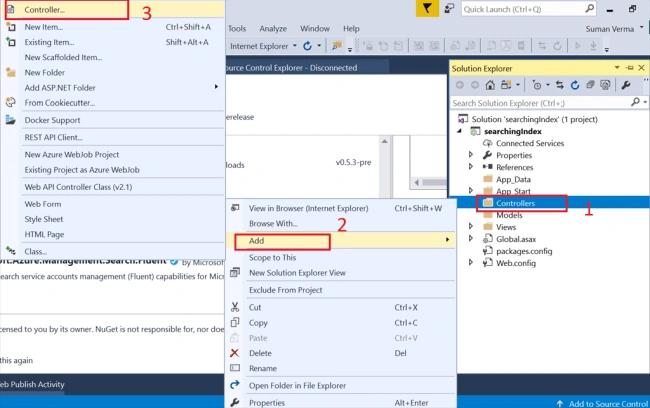
Right click on Controller folder -> click on Add -> Select Controller as shown.
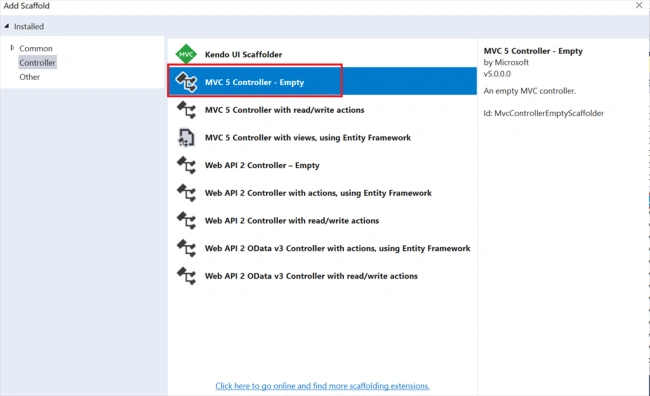
Select MVC 5 controller - Empty
Name the controller as “HomeController” and click on Add.

Controller created as shown
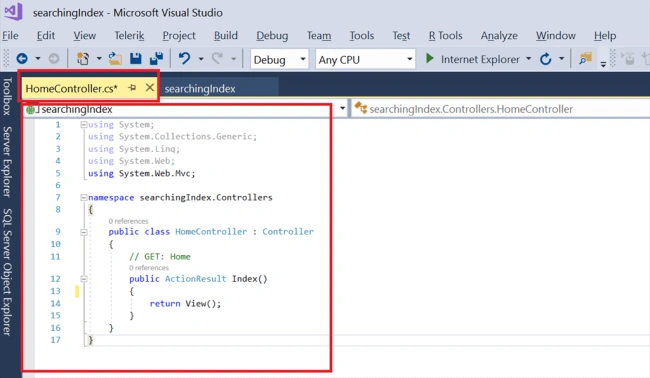
Define a variable to hold service name as we created in the Azure portal.
- //declare serch service name - host portion of search service URL in azure portal
- var sSearchService = "stestsearchservice";
The service name is the host portion of search service URL in Azure portal
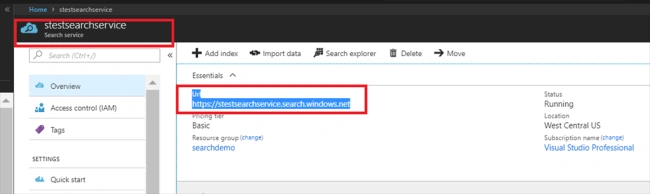
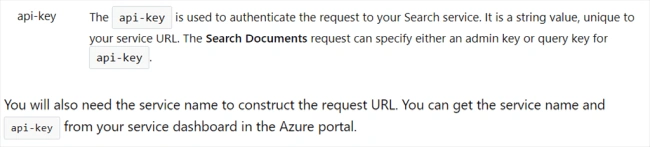
So under Azure search service -> click on keys – Copy Primary admin key
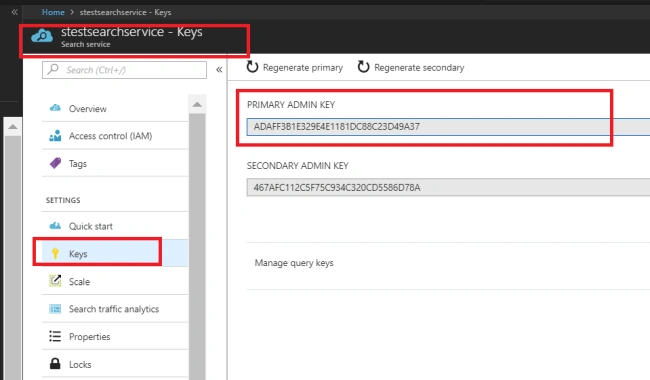
Use that apiKey here in the code.
- public ActionResult Index() {
- //declare serch service name - host portion of search service URL in azure portal
- var sSearchService = "stestsearchservice";
- // apiKey here
- var sApiKey = "ADAFF3B1E329E4E1181DC88C23D49A37";
- //search client
- var sSearchClient = new SearchServiceClient(sSearchService, new SearchCredentials(sApiKey));
- //index client
- var sIndexClient = sSearchClient.Indexes.GetClient("azuresql-index");
- //define serach parameters
- SearchParameters sp = new SearchParameters() {
- SearchMode = SearchMode.All
- };
- //Grab collection of documents
- var sDocs = sIndexClient.Documents.Search("Affordable Sports Equipment", sp);
- return Json(sDocs.Results, JsonRequestBehavior.AllowGet);
- }
Define the Search client [ import Microsoft.Azure.Search namespace]
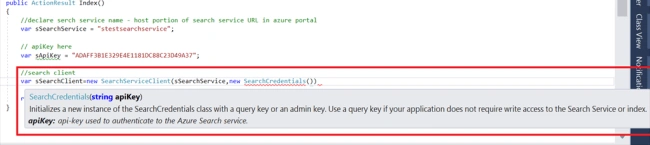
Pass the ‘searchServiceName’ and ‘searchCredentials’ to searchServiceClient class as shown.
- public ActionResult Index() {
- //declare serch service name - host portion of search service URL in azure portal
- var sSearchService = "stestsearchservice";
- // apiKey here
- var sApiKey = "ADAFF3B1E329E4E1181DC88C23D49A37";
- //search client
- var sSearchClient = new SearchServiceClient(sSearchService, new SearchCredentials(sApiKey));
- //index client
- var sIndexClient = sSearchClient.Indexes.GetClient("azuresql-index");
- //define serach parameters
- SearchParameters sp = new SearchParameters() {
- SearchMode = SearchMode.All
- };
- //Grab collection of documents
- var sDocs = sIndexClient.Documents.Search("Affordable Sports Equipment", sp);
- return Json(sDocs.Results, JsonRequestBehavior.AllowGet);
- }
Inside SearchCredentials we need to specify apiKey which is used to authenticate Azure Search service,
STEP 8 - Index Client
Now we are going to get index using searchSearvieclient and the using that index we will get Index client.
Index client is used to manage documents and query inside a specified index.
- public ActionResult Index() {
- //declare serch service name - host portion of search service URL in azure portal
- var sSearchService = "stestsearchservice";
- // apiKey here
- var sApiKey = "ADAFF3B1E329E4E1181DC88C23D49A37";
- //search client
- var sSearchClient = new SearchServiceClient(sSearchService, new SearchCredentials(sApiKey));
- //index client
- var sIndexClient = sSearchClient.Indexes.GetClient("azuresql-index");
- //define serach parameters
- SearchParameters sp = new SearchParameters() {
- SearchMode = SearchMode.All
- };
- //Grab collection of documents
- var sDocs = sIndexClient.Documents.Search("Affordable Sports Equipment", sp);
- return Json(sDocs.Results, JsonRequestBehavior.AllowGet);
- }
STEP 9 - Define Search Parameters
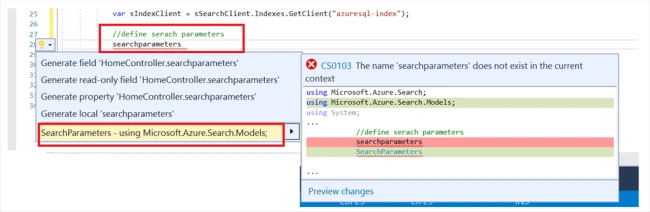
There are two types of search modes,
- All
- Any (Default)
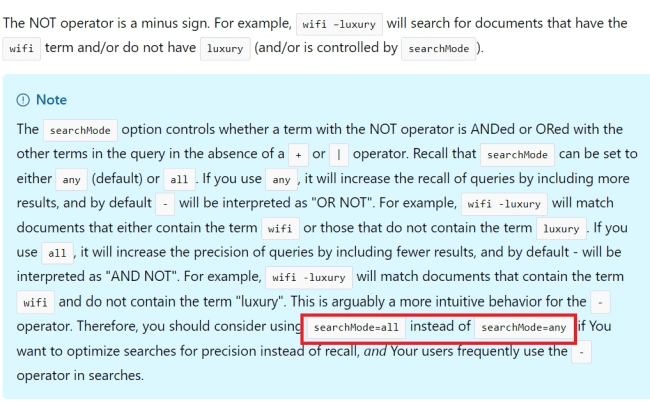
To read more about operators in simple query syntax read here,

- public ActionResult Index()
- {
- //declare serch service name - host portion of search service URL in azure portal
- var sSearchService = "stestsearchservice";
- // apiKey here
- var sApiKey = "ADAFF3B1E329E4E1181DC88C23D49A37";
- //search client
- var sSearchClient = new SearchServiceClient(sSearchService, new SearchCredentials(sApiKey));
- //index client
- var sIndexClient = sSearchClient.Indexes.GetClient("azuresql-index");
- //define serach parameters
- SearchParameters sp = new SearchParameters() {
- SearchMode = SearchMode.All
- };
- //Grab collection of documents
- var sDocs = sIndexClient.Documents.Search("Affordable Sports Equipment", sp);
- return Json(sDocs.Results, JsonRequestBehavior.AllowGet);
- }
Instead of returning view, I’ll return Json:

- public ActionResult Index() {
- //declare serch service name - host portion of search service URL in azure portal
- var sSearchService = "stestsearchservice";
- // apiKey here
- var sApiKey = "ADAFF3B1E329E4E1181DC88C23D49A37";
- //search client
- var sSearchClient = new SearchServiceClient(sSearchService, new SearchCredentials(sApiKey));
- //index client
- var sIndexClient = sSearchClient.Indexes.GetClient("azuresql-index");
- //define serach parameters
- SearchParameters sp = new SearchParameters() {
- SearchMode = SearchMode.All
- };
- //Grab collection of documents
- var sDocs = sIndexClient.Documents.Search("Affordable Sports Equipment", sp);
- return Json(sDocs.Results, JsonRequestBehavior.AllowGet);
- }

Summary
In this article we saw,
- How to search in Azure portal using simple query string
- How to create a Visual Studio solution for searching
Keep reading!!!
Hadshana KamalanathanPosted Sep 7, 2018, 12:04 PM
Thanks for sharing....
Mohsin AzamPosted Aug 29, 2018, 12:54 AM
Nice Article Suman,One question Can we send some custom parameters in Search API to Azure?I want specific Documents related to some specific Company.