

Introduction
I recently had a use case, where my customer wants to have data in a CSV file uploaded to SharePoint. Currently, they are updating manually, and it is cumbersome. This article explains how to automate the data update from CSV files to SharePoint online list. Here the CSV file is uploaded in OneDrive, but this file can be also in the SharePoint document library. Below is the block diagram which illustrates the use case. Thanks to Paulie Murana who has provided an easy way to parse the CSV file without any 3rd party or premium connectors.
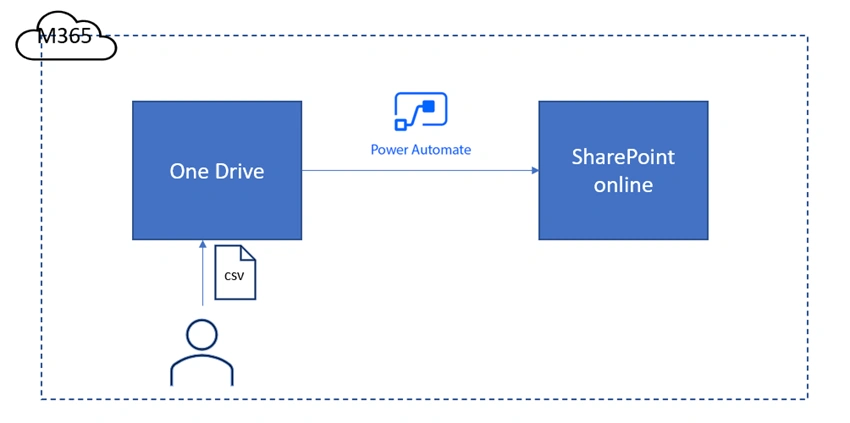
- User uploads the CSV in OneDrive
- Power Automate kicks of automatically
- Data gets updated in Sharepoint.
Steps
Step 1
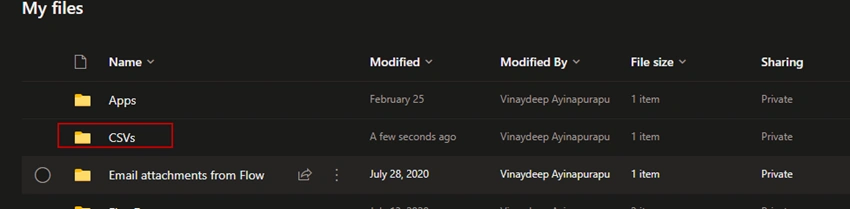
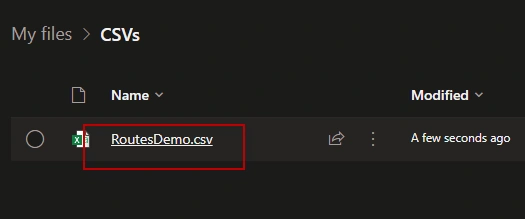
Upload the file in OneDrive for business. Here I am uploading the file in my dev tenant OneDrive. Here I have created a folder called ‘CSVs’ and put the file ‘RoutesDemo.csv’ inside the CSVs folder.
Step 2
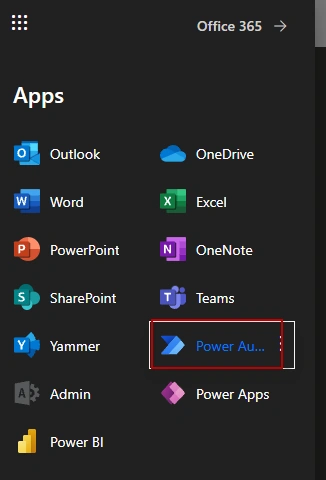
Go to Power Automate using the URL (https://flow.microsoft.com) or from the app launcher.
Step 3
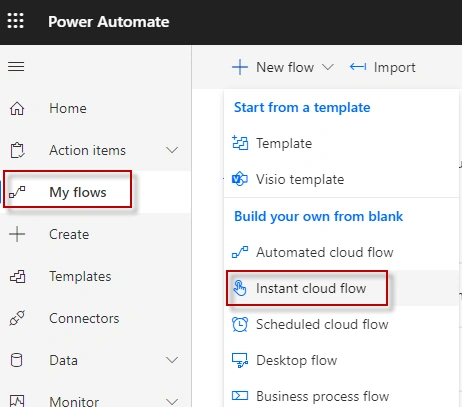
Now click on ‘My Flows’ and ‘Instant cloud flow’.
Step 4
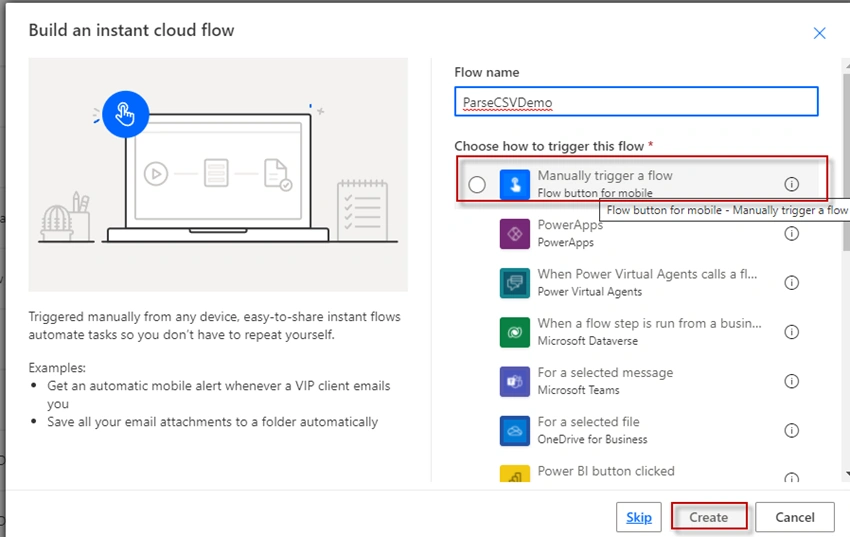
Here I am naming the flow as ‘ParseCSVDemo’ and selected ‘Manual Trigger’ for this article.
Step 5
It should take you to the flow designer page.

Step 6
Click on the new step and get the file from the one drive. Search for action ‘Get file content’ and select the action under ‘OneDrive for business’ actions.

Here I am selecting the file manually by clicking on the ‘folder’ icon.

The final action should look like below in my case.

Step 7
Now select the ‘Compose’ action and rename it to ‘Compose –new line’. inside the ‘Inputs’ field just hit the ‘Enter’ key. This denotes a new line.

Hit save. If the save is successful. then there is no errors inflow. If there is it will be denoted under ‘Flow checker’.

Step 8
Now select another compose. Rename it as ‘Compose – split by new line’. Here we need to split outputs of get file content, by the new line. let's see how to do this.
select expression and enter split([Select the outputs from file content], [select the output of compose-new line].
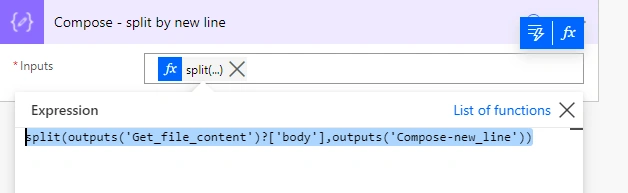
The expression of split should be,
split(outputs('Get_file_content')?['body'],outputs('Compose-new_line'))
Step 9
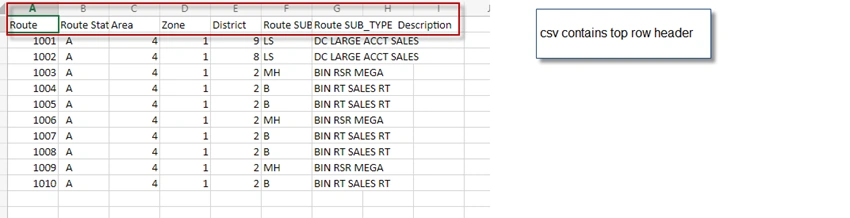
Now get the field names. We know from the CSV the top header has field names. Here my CSV has 7 field values.
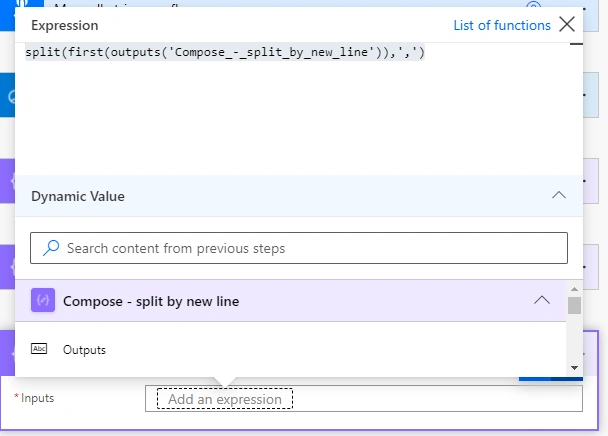
Click on ‘new step’ and add another compose action rename it as ‘Compose – get field names’. select the expression and here enter first([Select the outputs from the compose-split by new line) now split the result with, split(first([Select the outputs from the compose-split by new line),’,’
The result in my case is,
split(first(outputs('Compose_-_split_by_new_line')),',')
Step 10
Now add new step, and chose the ‘select’ action and underexpression it should skip the first record since the first row contains the data.
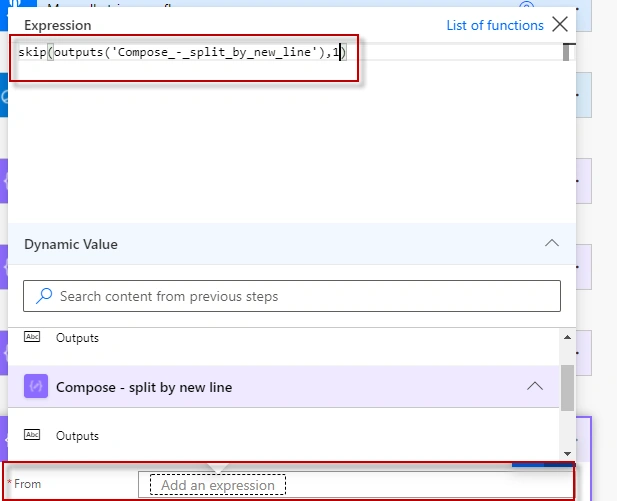
Now for the key: These should be values from the outputs ‘compose - get field names’. Note that we are getting the array values here.
value: It should be the values from the outputs of compose-split by new line’.
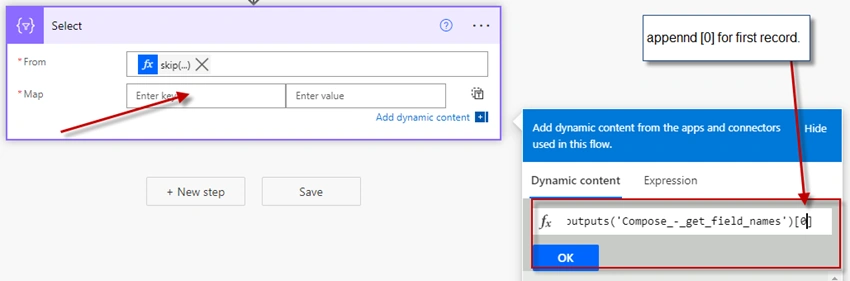
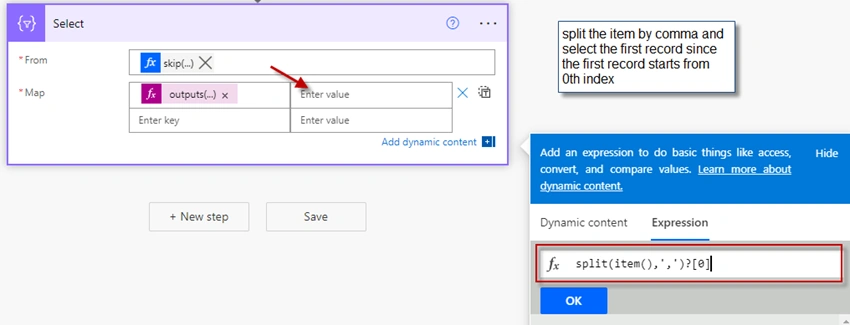
Since we have 7 field values, we will map the values for each field.
Second key, the expression, would be outputs('Compose_-_get_field_names')[1]
value would be split(item(),',')?[1] for the final record which is the 7th record
Key would be : ('Compose_-_get_field_names')[6]
value would be: split(item(),',')?[6]
For the first record,
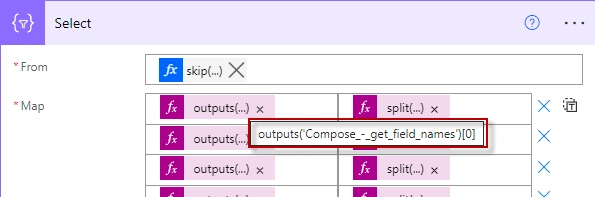
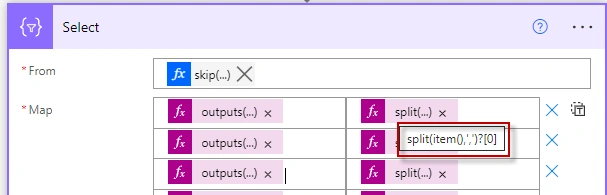
For the last record,
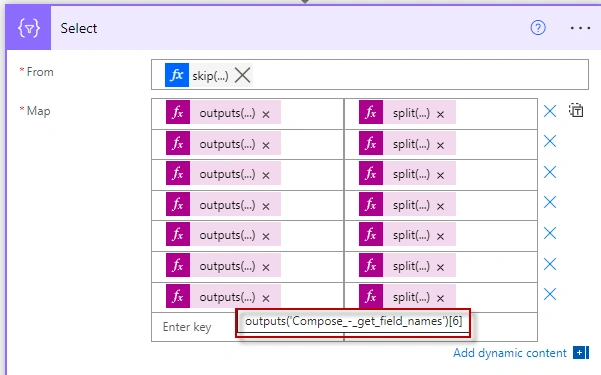
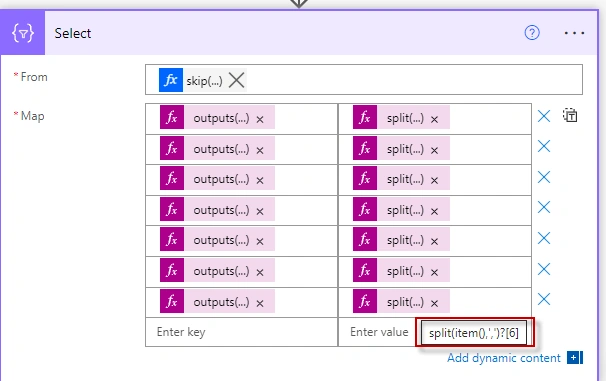
Step 11
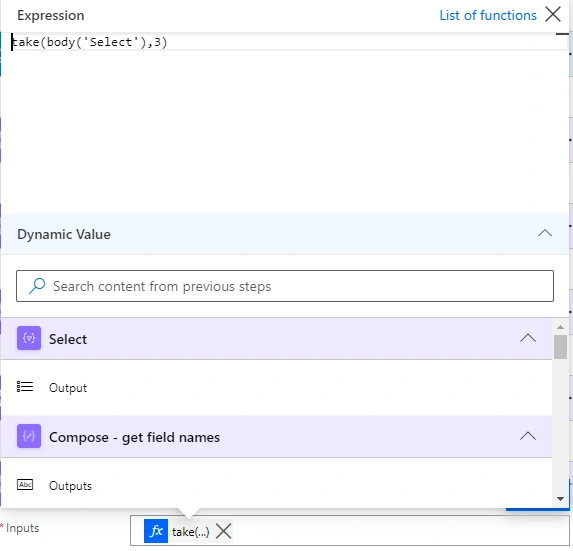
Now add another ‘Compose’ action to get the sample data. The schema of this sample data is needed for the ‘Parse Json’ action. The expression is taken (outputs from ‘select’, 3). This means it would select the top 3 records from the previous ‘Select’ output action.
take(body('Select'),3)
Step 12
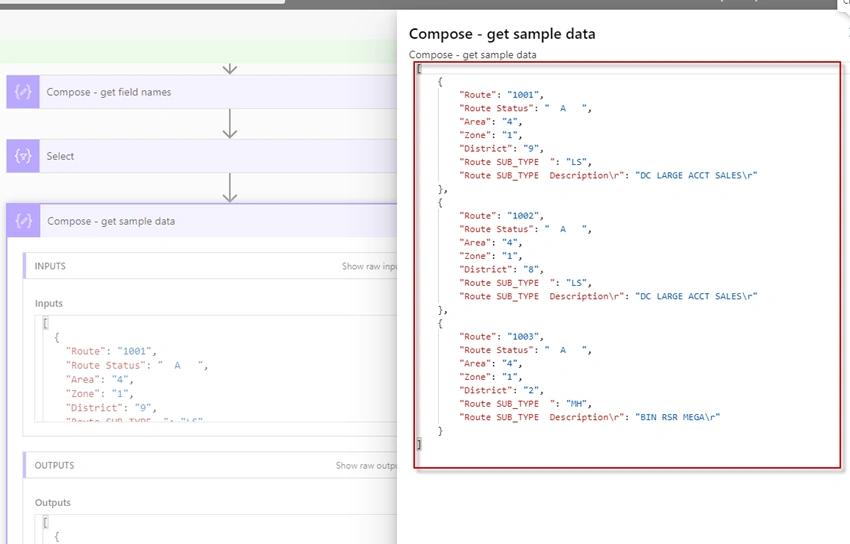
Now save and run the flow. And copy the output from the ‘Compose – get sample data’.
Step 13
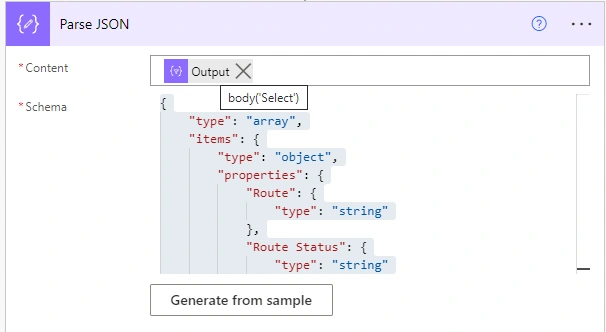
Now add ‘Parse Json’ action and configure the action
Content: It would be the output from the ‘Select’
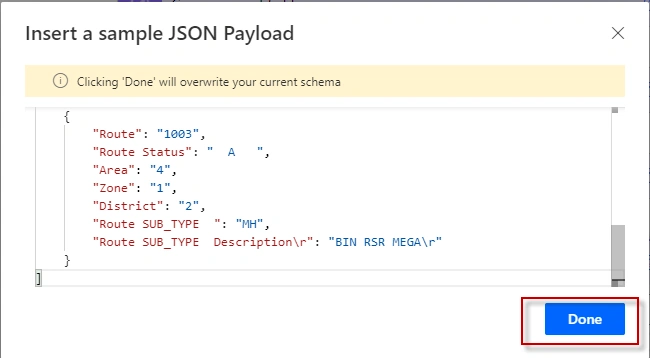
Schema: the output payload that you have copied before. Click on ‘Generate from sample’
The final ‘Parse JSON’ should look like below.
Step 14
Now for each record in JSON file, a SharePoint list item needs to be created.
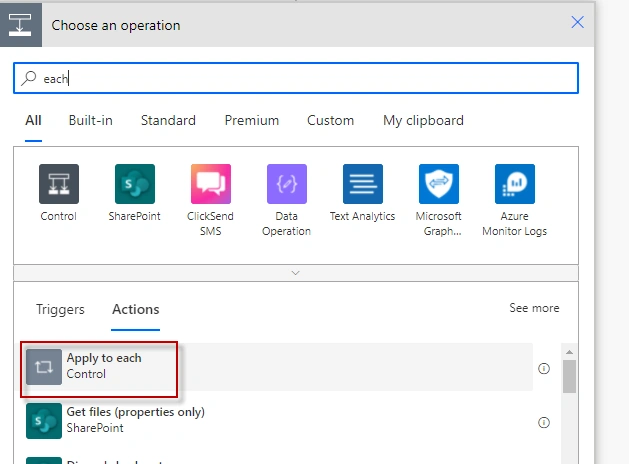
Now select the ‘Body from Parse JSON’ action item
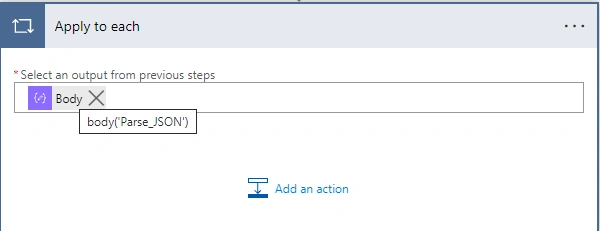
Step 15
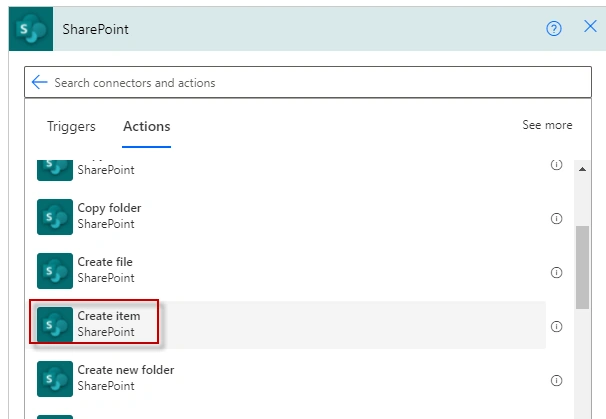
Inside apply to each, add SharePoint list create the item.
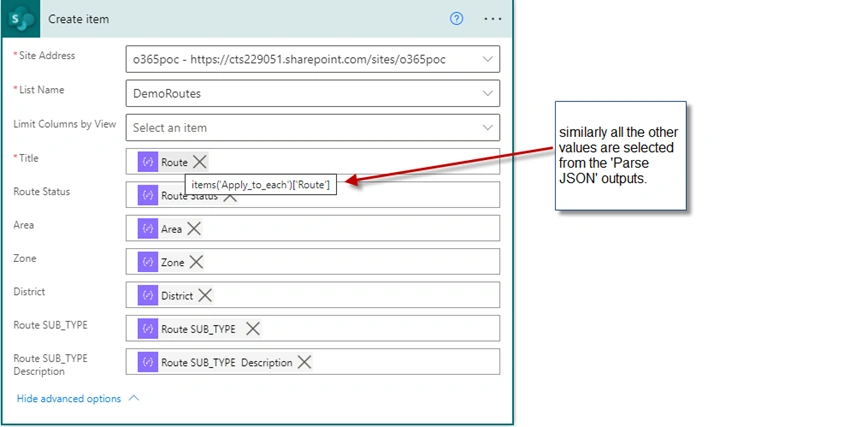
Configure the Site Address and the ‘List Name’ and the rest of the field values from the ‘Parse JSON’ dynamic output values. Please refer to the screen capture for reference.
Validation
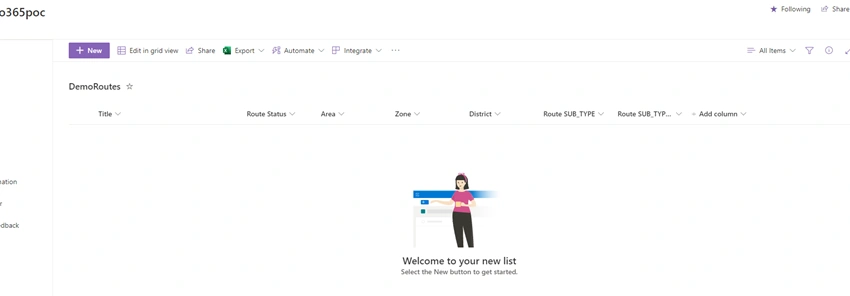
Before the run, I have no items on the list.
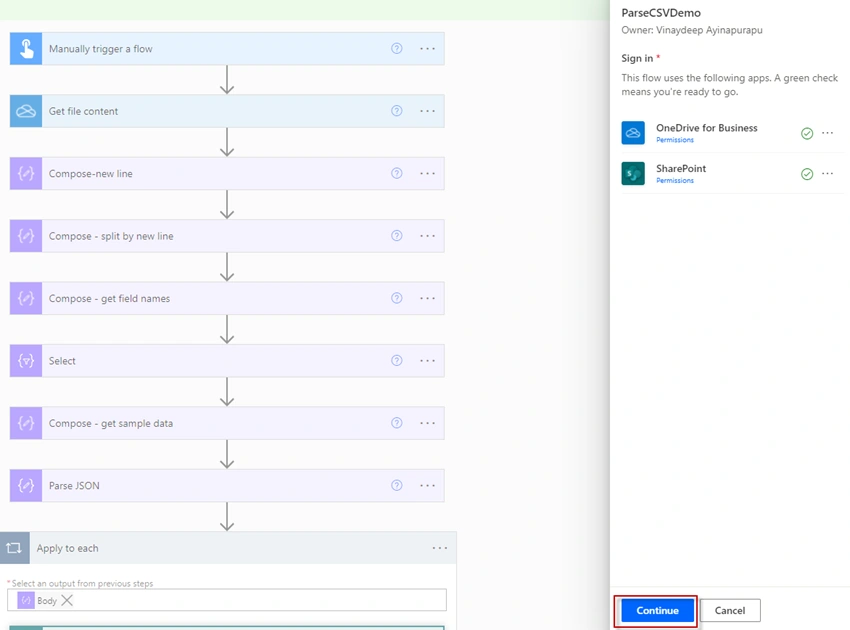
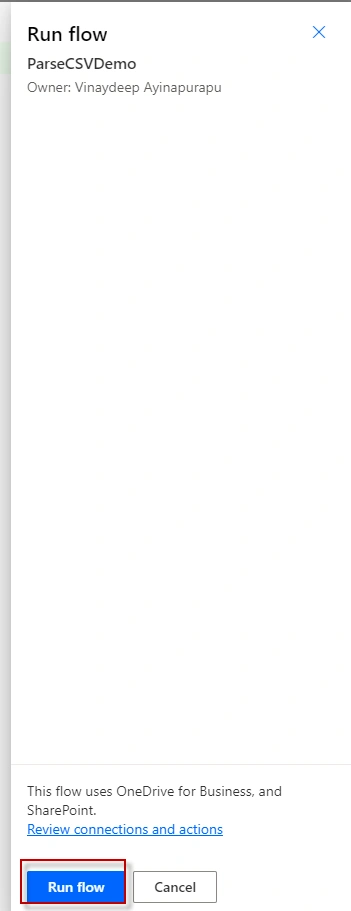
Initially, it will ask for permission to SharePoint list, click ‘Continue’ and then click on ‘Run Flow’.
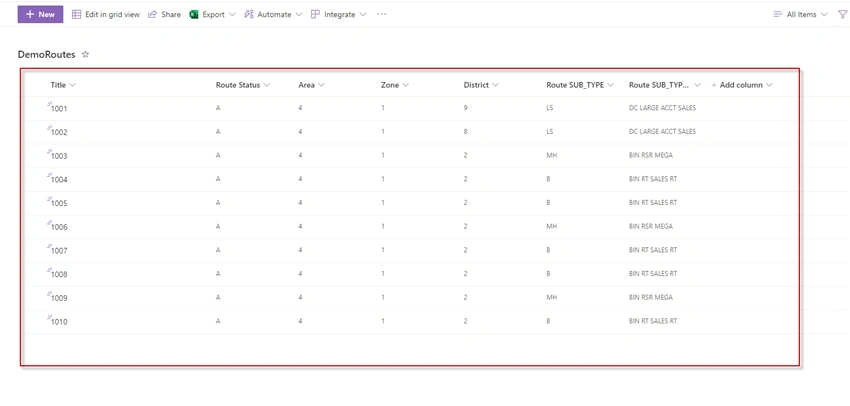
After the run, I could see the values from CSV successfully updated in the SPO list.
Conclusion
Thus, in this article, we have seen how to parse the CSV data and update the data in the SPO list. If you get stuck, you can refer to the attached flow template and check for issues. Also, make sure there are now blank values in your CSV file. If there are blank values your flow would error with message "message": "Invalid type. Expected String but got Null". In this case, go to your CSV file and delete the empty rows. The best way is to open the file in a notepad and look for blank spaces and if there are any remove them.
References
Vinay AyinapurapuPosted Jan 10, 2023, 4:44 PM
Have you tried downloading the export of the flow package and configuring it to your file and site properties?
Laszlo OlaszPosted Jan 9, 2023, 12:02 PM
Hello, I did everything as described, but I get a \r at the end that messes up my json, all field names are correct, except the last one, that one is "HR\r" instead of just HR and also the content has a \r. How could I fix this ?
Gopala KrishnaPosted Sep 16, 2022, 8:10 AM
How do you overcome \r issue in last column of CSV file?
D SPosted Aug 29, 2022, 1:41 PM
Thanks, issue has been fixed in the CSV.
D SPosted Aug 26, 2022, 11:33 AM
I am working on this flow. Failed at Parse JSON action: { "message": "Invalid type. Expected String but got Null.", "lineNumber": 0, "linePosition": 0, "path": "[9].Area", "schemaId": "#/items/properties/Area", "errorType": "type", "childErrors": [] }, CSV is correct:
Vinay AyinapurapuPosted Aug 2, 2022, 5:27 AM
Did you try downloading the flow and compare it against your configuration? Does your CSV properly formatted and make sure it has no empty or white spaces?
K FosterPosted Aug 1, 2022, 6:54 PM
The Select action (Step 10 in the guide) is returning an error: "The 'from' property value in the 'select' action inputs is of type 'String'. The value must be an array". Do you know what could be causing me to reach this step with a string rather than an array? Thanks in advance.
Vinay AyinapurapuPosted Jul 27, 2022, 11:00 PM
Sorry for delay. did you try downloading the flow template that is attached and check the configuration settings in compose action? Also does your csv has headers defined?
Florentine BaderPosted Jun 9, 2022, 5:42 PM
Hi, thanks for the approach - it is very helpful. However, I get an error: The template language expression '('Compose_-_get_field_names')[1]' cannot be evaluated because array index '1' is outside bounds (0, 0) of array. I tried to change the expression to if(equals(outputs('Compose_-_get_field_names')[1], -1), 'No character found', outputs('Compose_-_get_field_names')[1]). But its still not working. Does someone has an idea why it is not working? - Thanks!
ashwin singhPosted Apr 9, 2022, 10:49 PM
[ { "\"Number\"": "\"RITM17136208\"", "\"RequestedFor\"": "\"aliya.r.khan\"", "\"MeetingName\"": "\"CG&S Trailblazers Podcast - Sustainability Series - Oliver Wright and Tal Viskin\"", "\"Meeting Date & StartTime\"": "\"3/11/2022 11:00:00 PM\"", "\"Meeting Duration (Minutes)\"": "\"90\"", "\"MeetingEndTime\"": "\"3/12/2022 12:30:00 AM\"", "\"Microsoft Teams Recording Account\"\r": "\"Meeting.Recording2\"\r" }, { "\"Number\"": "\"RITM17708075\"", "\"RequestedFor\"": "\"janne.lee.a.artiaga\"", "\"MeetingName\"": "\"Midwest Live: Indianapolis - Getting to Know Your Indy Colleagues and Events\"", "\"Meeting Date & StartTime\"": "\"3/11/2022 10:30:00 PM\"", "\"Meeting Duration (Minutes)\"": "\"60\"", "\"MeetingEndTime\"": "\"3/11/2022 11:30:00 PM\"", "\"Microsoft Teams Recording Account\"\r": "\"Meeting.Recording2\"\r" }, { "\"Number\"": "\"RITM17445166\"", "\"RequestedFor\"": "\"nicole.p.goodrich\"", "\"MeetingName\"": "\"Improving the Staffing Process Training - South MU Session 3\"", "\"Meeting Date & StartTime\"": "\"3/11/2022 8:30:00 PM\"", "\"Meeting Duration (Minutes)\"": "\"60\"", "\"MeetingEndTime\"": "\"3/11/2022 9:30:00 PM\"", "\"Microsoft Teams Recording Account\"\r": "\"Meeting.Recording4\"\r" } ] How can I remove extra "\"\r from end and beginning. I am totally new to this.
Tyler KolotaPosted Mar 29, 2022, 12:22 PM
Feel free to also try this template to parse CSV files. Works even with in-data commas, trims blank lines, and has easy options to skip headers and/or footers. https://powerusers.microsoft.com/t5/Power-Automate-Cookbook/CSV-to-Dataset/td-p/1508191
Glenn BostonPosted Jan 31, 2022, 1:19 PM
Thank you, this is very helpful. I have two issues - the process that creates the CSV file puts a blank line on the bottom of it - if I manually delete that the Parse JSON works fine, if I don't it fails - I've tried getting sample data, but it doesn't seem to pick up the blank line. Anyway of ignoring blank lines? Also - the CSV file has quotation marks around each field - is there a way to strip those out? Thanks again.
james pennaPosted Jan 19, 2022, 3:48 AM
I am getting an error when running my flow at the Parse JSON Step, any recommendations? : [ { "message": "Invalid type. Expected Object but got Array.", "lineNumber": 0, "linePosition": 0, "path": "", "schemaId": "#", "errorType": "type", "childErrors": [] } ]
João ReisPosted Dec 6, 2021, 5:54 PM
Good article Vinay Ayinapurapu
Marie CastinePosted Dec 2, 2021, 2:23 PM
I am getting an error on the Compose Split by new line. It says that it expects a"string" but received an "object". How can i fix this?
Vinay AyinapurapuPosted Oct 28, 2021, 7:29 PM
Thank you venkata
Venkatasubbarao PolisettyPosted Oct 12, 2021, 4:46 PM
Well Written and good explanation. Thanks for writing Vinay Ayinapurapu