

About Salesforce
Salesforce is a cloud based online solution for customer relationship management, or CRM. Salesforce provides all of our departments like marketing, sales, commerce, and service with a shared view of our customers with a single integrated CRM platform.
The layout is an arrangement of different parts or components to have a simple and clear view.
PageLayout
The layout is an arrangement of different parts or components to have a simple and clear view.
“Pagelayouts control the layout and organization of buttons, fields, s-controls, Visualforce, custom links, and related lists on object record pages. They also help determine which fields are visible, read only, and required. Use page layouts to customize the content of record pages for your users.” – Salesforce.
It controls the layout of an object. Pagelayout defines which fields the user can view and edit when entering the data in sObjects. Also, Pagelayout contains a different set of Fields, Buttons, Related Lists, Custom Links, Visual force pages on the objects record page. It is also used to assign field accessibility.
Reading this article, you can learn how to create and edit pagelayout in SalesForce.
The prerequisites are for Creating a Page Layout in SalesForce as,
Register a Salesforce Free Trail account using the following link here.
Step 1
Login your Salesforce Account and Click Setup
Step 2
Create a Student, ActivityGroup objects and StudActive (Junction Object), Please refer the link here.
Step 3
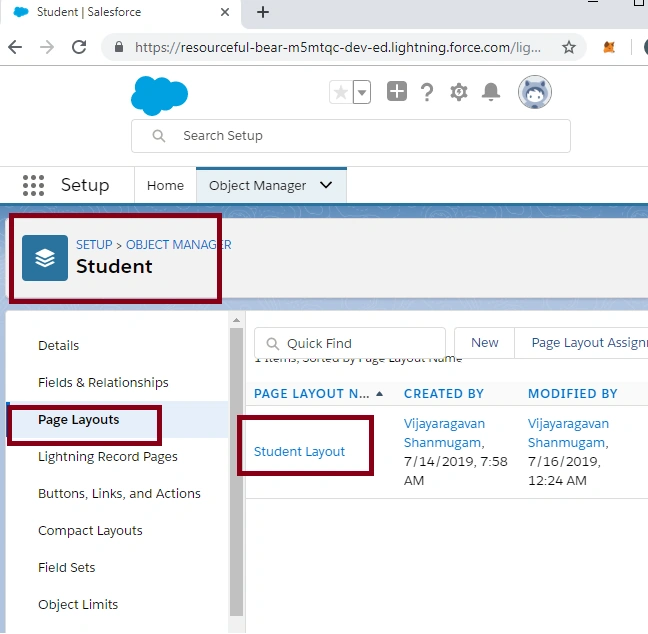
Now, select the Student object and select Page Layouts and click Student Layout
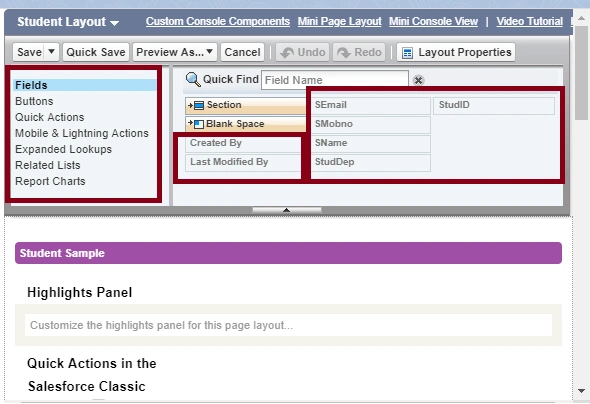
InStudent Layout, we can add Fields, Buttons, Quick Actions, Related Lists, Report charts etc
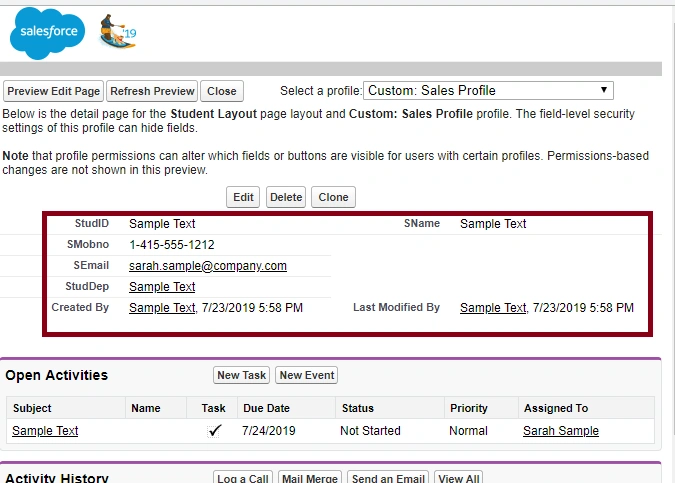
Default Student PageLayout display is,
Section contains selected fields in the respective object,
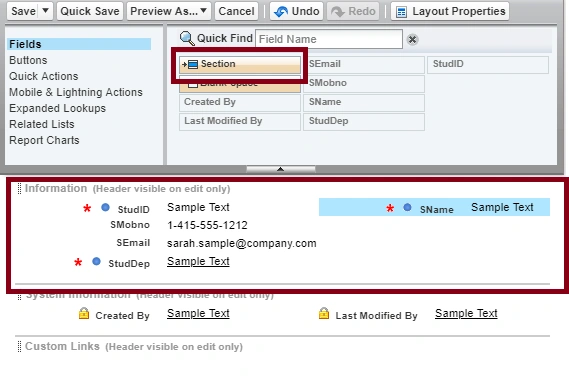
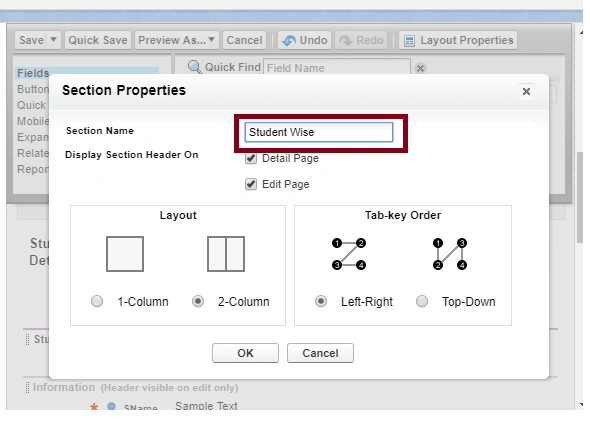
Add new section named Student Wise,
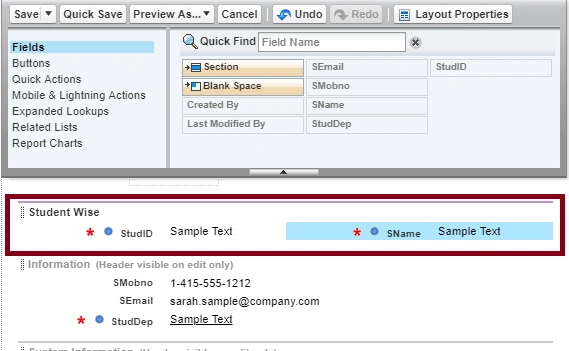
Drag the fields for display,
Step 4
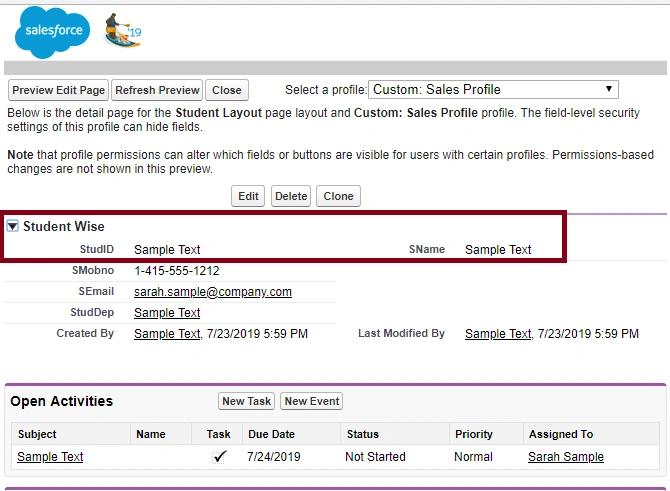
Now we can verify the Customized Student Page Layout, StudID and Sname are displayed in Student Wise Section,
Summary
Now you have successfully tested the PageLayout in Student object in a SalesForce environment.
Join the conversation! Your thoughts help the community grow.