

Introduction
In HTML, there are the following types of lists:
- Unordered Lists (<ul>) - The list items are marked with bullets.
- Ordered Lists (<ol>) - The list items are marked with numbers or letters.
- Definition Lists(<dl>)- This arranges your items in the same way as they are arranged in a dictionary.
All lists must contain one or more list elements.
Unordered HTML Lists
An unordered list is a collection of related items that have no special order or sequence. An unordered list starts with the <ul> element. Each list item starts with the <li> element.
The list items will be marked with bullets (black circles).
- <!DOCTYPE html>
- <html>
- <head>
- <title>HTML Unordered List</title>
- </head>
- <body>
- <ul>
- <li>JavaScript</li>
- <li>ASP.NET</li>
- <li>CSS</li>
- <li>HTML</li>
- </ul>
- </body>
- </html>

Note
If you not giving any type attribute to the <ul> tag, then this takes the default value (In small black Circles).
The type Attribute
You can use type attribute for <ul> tag to specify the type of bullet you like to use. The fFollowing are the possible options:
- <ul type="square">
- <ul type="disc">
- <ul type="circle">
- <ul type="none">
Unordered List with Square Bullets
The following is an example where we used <ul type="square">.
- <!DOCTYPE html>
- <html>
- <head>
- <title>Square Bullets</title>
- </head>
- <body>
- <ul type="square">
- <li>Amit</li>
- <li>Gagan</li>
- <li>Vikram</li>
- <li>Mudit</li>
- </ul>
- </body>
- </html>
This will produce the following result.

Unordered List with Disc Bullets
The following is an example where we used <ul type="disc">.
- <!DOCTYPE html>
- <html>
- <head>
- <title>Disc Bullets</title>
- </head>
- <body>
- <ul type="disc">
- <li>New Delhi</li>
- <li>Nagpur</li>
- <li>Bareilly</li>
- <li>Noida</li>
- </ul>
- </body>
- </html>
This will produce the following result.

Unordered List with Circle Bullets
The following is an example where we used <ul type="circle">.
- <!DOCTYPE html>
- <html>
- <head>
- <title>Circle Bullets</title>
- </head>
- <body>
- <ul type="circle">
- <li>Mango</li>
- <li>Banana</li>
- <li>Apple</li>
- <li>PineApple</li>
- </ul>
- </body>
- </html>
This will produce the following result.

Unordered List without Bullets
The following is an example where we used <ul type="none">: With the use of none the list items will not be marked.
- <!DOCTYPE html>
- <html>
- <head>
- <title>without Bullets</title>
- </head>
- <body>
- <ul type="none">
- <li>MongoDB</li>
- <li>SQLServer</li>
- <li>MySql</li>
- <li>Oracle</li>
- </ul>
- </body>
- </html>
This will produce the following result.

Ordered HTML Lists
If you are required to put your items in a numbered list instead of a bullet, then HTML ordered list will be used. This list is created using <ol> tag. The numbering starts at one and is incremented by one for each successive ordered list element starting with the <li> tag.
Example
- <!DOCTYPE html>
- <html>
- <head>
- <title>HTML Ordered List</title>
- </head>
- <body>
- <ol>
- <li>Beetroot</li>
- <li>Ginger</li>
- <li>Potato</li>
- <li>Radish</li>
- </ol>
- </body>
- </html>
This will produce the following result.

Note
If you not giving any type attribute to the <ol> tag, then by default it takes a number.
The type Attribute
You can use type attribute for <ol> tag to specify the type of numbering. By default, it is a number. The following are the options:
| Type | Description |
| type="1" | The list items will be numbered with numbers (default) |
| type="A" | The list items will be numbered with uppercase letters |
| type="a" | The list items will be numbered with lowercase letters |
| type="I" | The list items will be numbered with uppercase roman numbers |
| type="i" | The list items will be numbered with lowercase roman numbers |
Ordered List with Numbers
The following is an example where we used <ol type="1">.
- <!DOCTYPE html>
- <html>
- <head>
- <title>Ordered List with Numbers</title>
- </head>
- <body>
- <ol type="1">
- <li>MCA</li>
- <li>BCA</li>
- <li>B.Tech</li>
- <li>BSC</li>
- </ol>
- </body>
- </html>
This will produce the following result.

Ordered List with Uppercase Roman Numbers
The following is an example where we used <ol type=" I">.
- <!DOCTYPE html>
- <html>
- <head>
- <title>Uppercase Roman Numbers</title>
- </head>
- <body>
- <ol type="I">
- <li>Cricket</li>
- <li>Hockey</li>
- <li>Footwall</li>
- <li>Tennis</li>
- </ol>
- </body>
- </html>
This will produce the following result.

Ordered List with Lowercase Roman Numbers
The following is an example where we used <ol type=" i">.
- <!DOCTYPE html>
- <html>
- <head>
- <title>Lowercase Roman Numbers</title>
- </head>
- <body>
- <ol type="i">
- <li>India</li>
- <li>Nepal</li>
- <li>England</li>
- <li>Rusia</li>
- </ol>
- </body>
- </html>
This will produce the following result.

Ordered List with Uppercase Letters
The following is an example where we used <ol type="A">.
- <!DOCTYPE html>
- <html>
- <head>
- <title>Uppercase Letters </title>
- </head>
- <body>
- <ol type="A">
- <li>Tomato</li>
- <li>Ginger</li>
- <li>Potato</li>
- <li>Radish</li>
- </ol>
- </body>
- </html>
This will produce the following result.

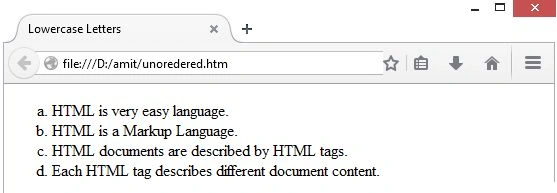
Ordered List with Lowercase Letters
The following is an example where we used <ol type=" a">.
- <!DOCTYPE html>
- <html>
- <head>
- <title>Lowercase Letters</title>
- </head>
- <body>
- <ol type="a">
- <li>HTML is very easy language.</li>
- <li>HTML is a Markup Language.</li>
- <li> HTML documents are described by HTML tags.</li>
- <li> Each HTML tag describes different document content.</li>
- </ol>
- </body>
- </html>
This will produce the following result.
The start Attribute
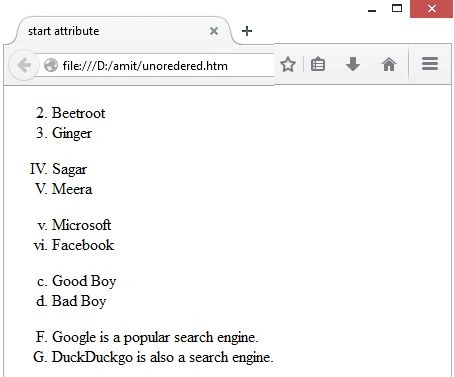
You can use start attribute for <ol> tag to specify the starting point of numbering you need. The following are the possible options:
| Type | Description |
| <ol type="1" start="2"> | Number starts with 2. |
| <ol type="I" start="4"> | Number starts with IV. |
| <ol type="i" start="5"> | Number starts with v. |
| <ol type="a" start="3"> | Letters starts with c. |
| <ol type="A" start="6"> | Letters starts with F. |
The following is an example where we can use all styles.
- <!DOCTYPE html>
- <html>
- <head>
- <title>start attribute</title>
- </head>
- <body>
- <ol type="1" start="2">
- <li>Beetroot</li>
- <li>Ginger</li>
- </ol>
- <ol type="I" start="4">
- <li>Sagar</li>
- <li>Meera</li>
- </ol>
- <ol type="i" start="5">
- <li>Microsoft</li>
- <li>Facebook</li>
- </ol>
- <ol type="a" start="3">
- <li>Good Boy</li>
- <li>Bad Boy</li>
- </ol>
- <ol type="A" start="6">
- <li>Google is a popular search engine.</li>
- <li>DuckDuckgo is also a search engine.</li>
- </body>
- </html>
This will produce the following result.
HTML Definition Lists
HTML supports a list style which is called definition lists where entries are listed like in a dictionary. The definition list is the ideal way to present a glossary, list of terms, or other names/value list.
Definition List makes use of the following three tags:
- <dl> - Defines the start of the list
- <dt> - A term
- <dd> - Term definition
- </dl> - Defines the end of the list
- <!DOCTYPE html>
- <html>
- <head>
- <title>HTML Definition Lists</title>
- </head>
- <body>
- <dl>
- <dt><b>ASP.NET</b></dt>
- <dd>ASP.NET is easy to Learn</dd>
- <dt><b>FTP</b></dt>
- <dd>This stands for File Transfer Protocol</dd>
- </dl>
- </body>
- </html>
This will produce the following result.

Summary
In this article, we learned about HTML Lists.
SubashPosted Aug 5, 2016, 4:15 AM
Nice
Prasanna MuraliPosted May 20, 2016, 11:24 AM
Nice one....
Amit Kumar SinghPosted Mar 16, 2016, 7:26 AM
Nice Share
Amit MishraPosted Mar 16, 2016, 7:12 AM
Thanks
Asfend YarPosted Feb 29, 2016, 2:00 PM
good
Amit MishraPosted Dec 6, 2015, 11:12 PM
thanks
Santhakumar MunuswamyPosted Dec 4, 2015, 7:20 AM
Good one