

Introduction
Welcome! In this article, we are going to learn how to migrate Oracle Database to Microsoft SQL Database. Let’s go through this from scratch.
Pre-requisites
- Download SSMA for Oracle Setup exe
- Download Oracle extension for SSMA
- Microsoft SQL Server
- Oracle Database
Let start the installation of SSMA and Oracle Extension,
Step 1 - Installation of SSMA
Run the downloaded exe file - Click Next
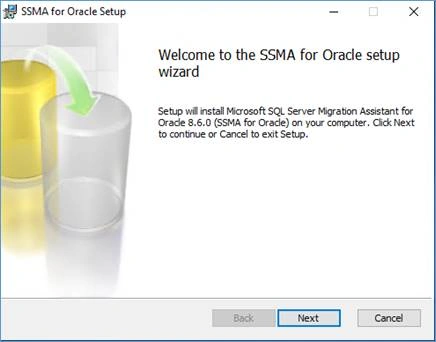
Read and accept the license agreement and click Next
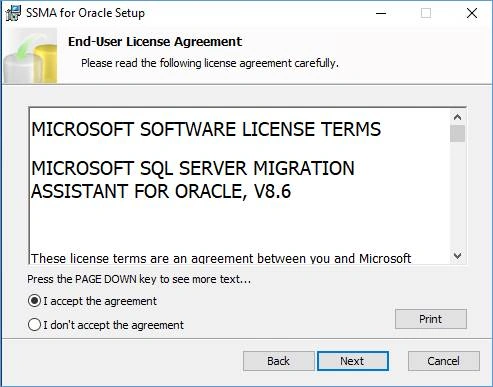
Click Complete.
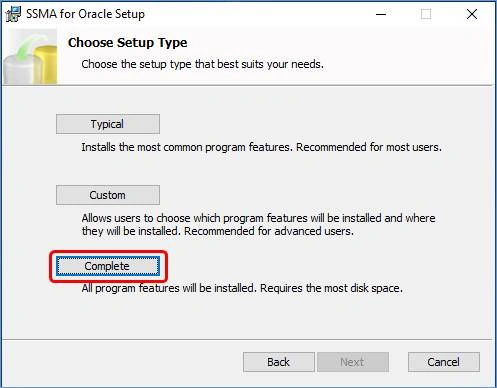
Click Install to start Installation.
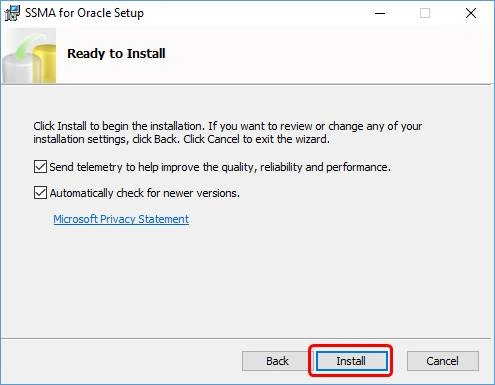
You can see the status of the installation.
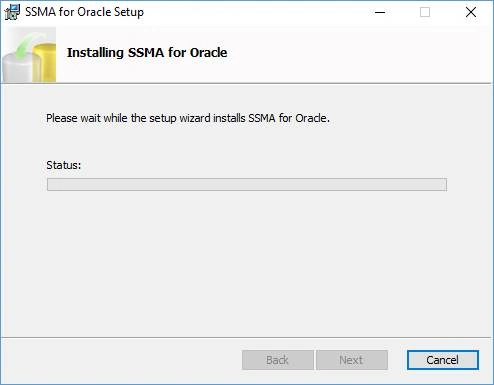
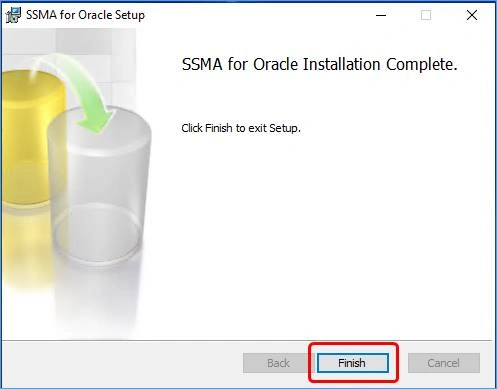
After installation is complete click Finish to exit the setup
Step 2 - Installation of Oracle Extension for SSMA
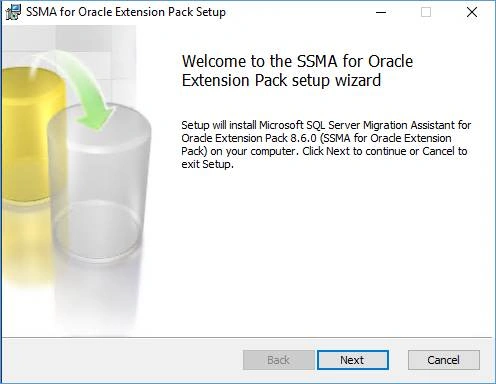
Run the Download of Oracle Extension for SSMA
Click - Next
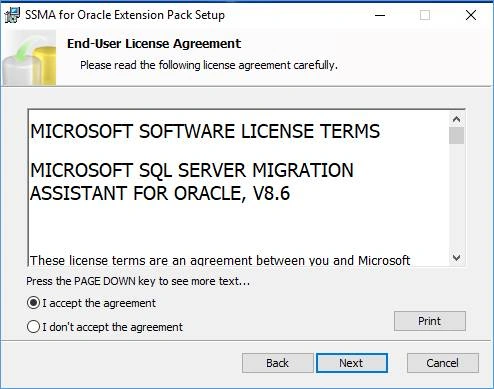
Read and accept the license agreement and click Next
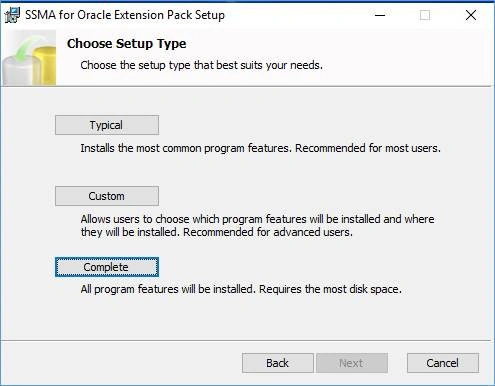
Click Complete and choose next.
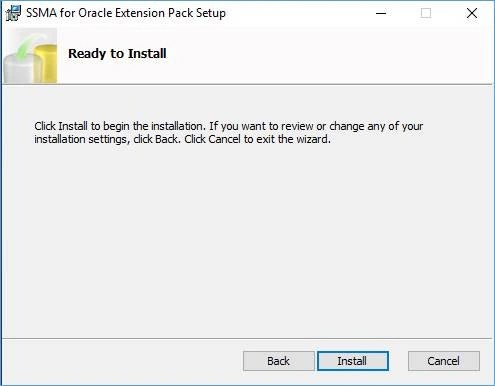
Click Install to start Installation.
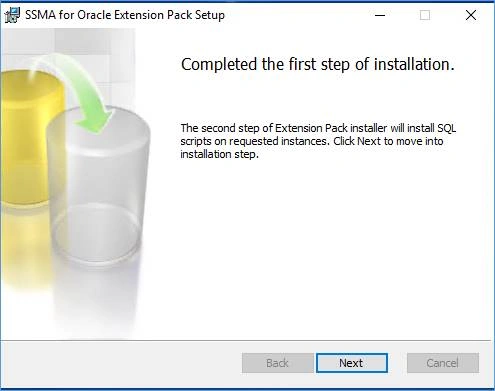
After completion of the first step click Next to go to the second step of installation.
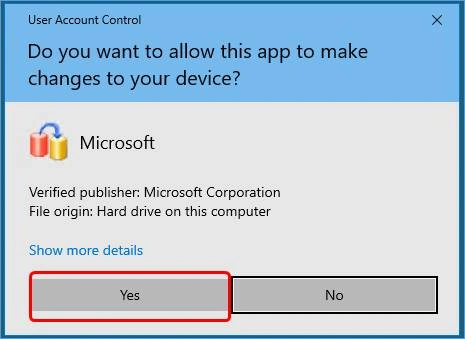
If you are an Admin user, it will not ask you to enter the password, otherwise click yes
Click Local instance, because my target MSSQL server is running in the local machine
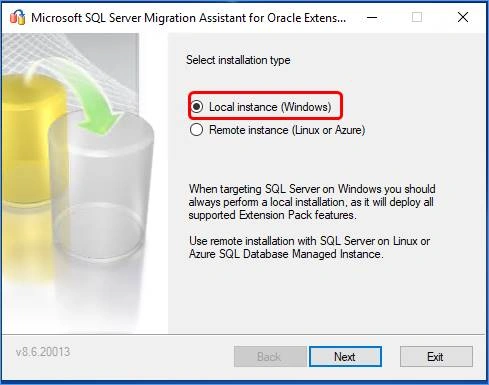
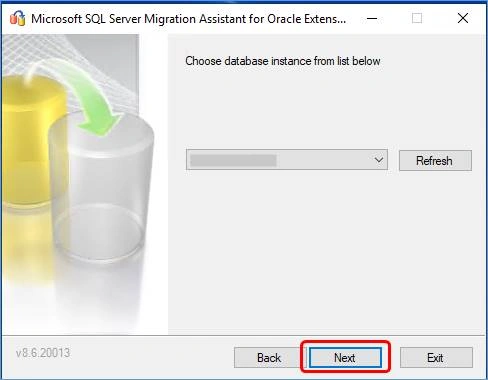
Select target database instance and click Next
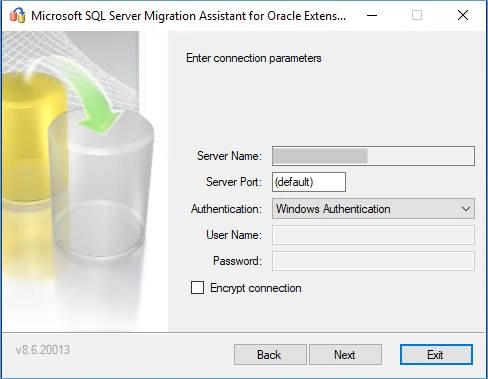
Give the credentials of MSSQL server and click Next
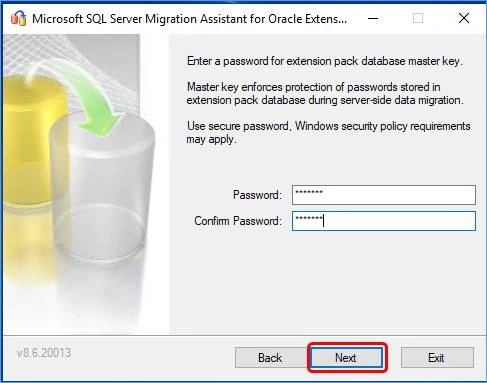
Enter Password and click Next
Select install utilities and click Next
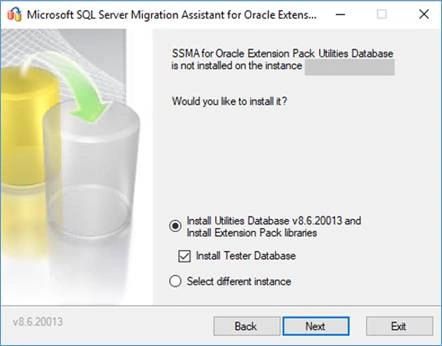
You can see the below warning.
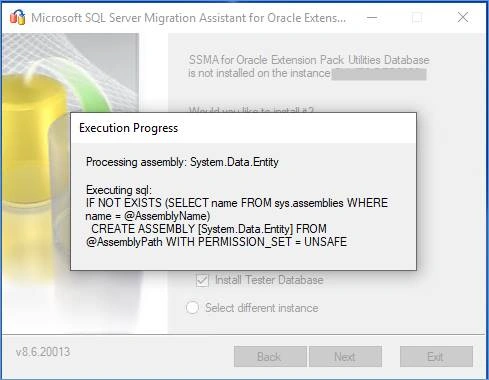
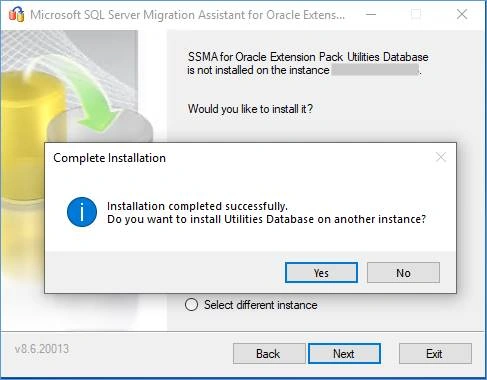
Click No and finish the installation.
Oracle to MS SQL Migration Steps
Step 1
Creating target database using MSQL server Management Studio
Right click on Databases - Click New Database.
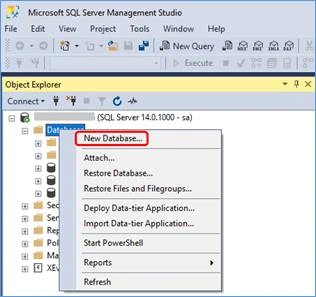
Give database name and select the owner.
Note
Owner must have full permission to migrate.
Owner must have full permission to migrate.
Give Database name and click OK
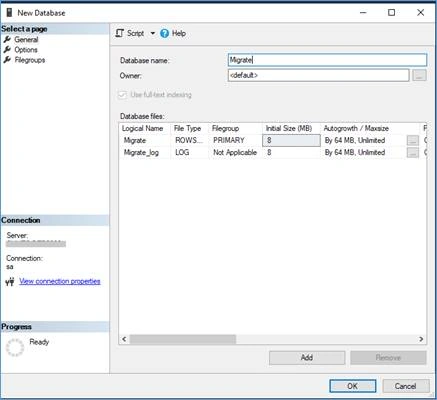
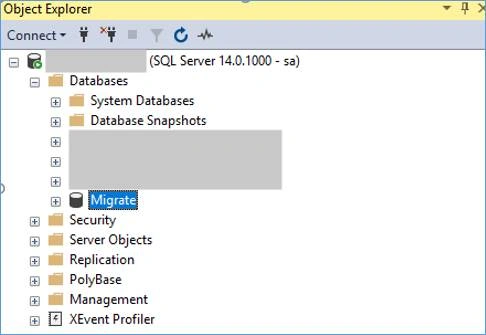
You can see the database (Migrate) has been created successfully.
Step 2
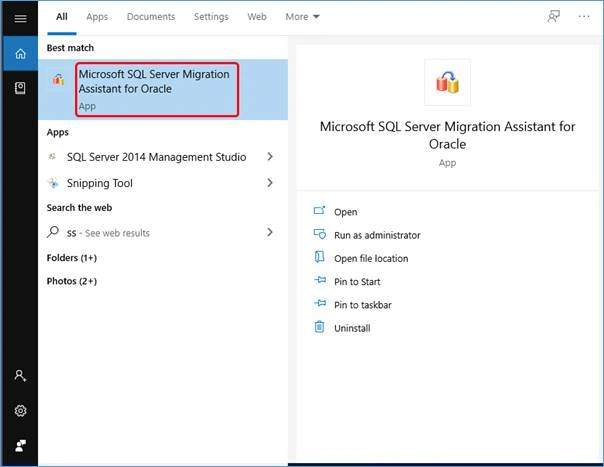
Open SSMA and create a Project
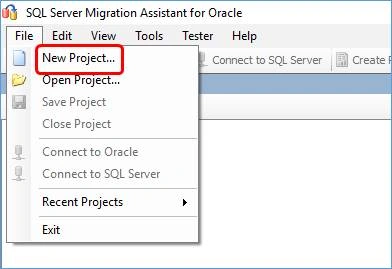
Click File - Select New Project to create a new project for migration.
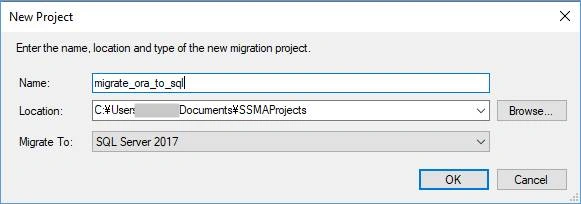
Type Name for Migration - select target SQL Server - click OK
Step 3
Connect Oracle source database
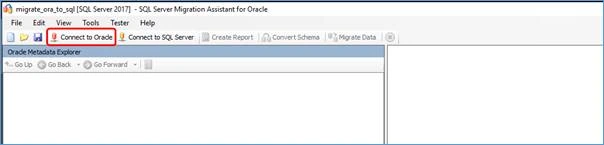
After project creation - Click Connect to Oracle
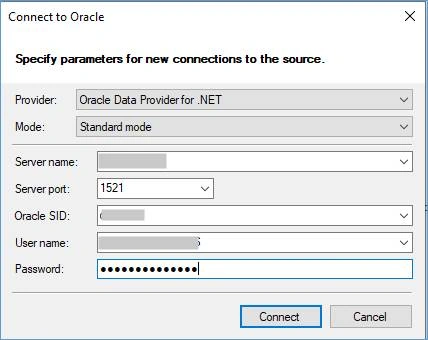
Give the details and click connect
Select the required database or schema of the source oracle server and click OK
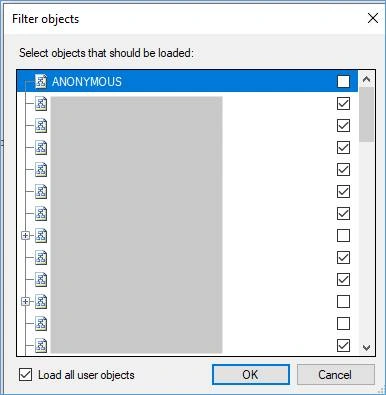
You can see all schema.
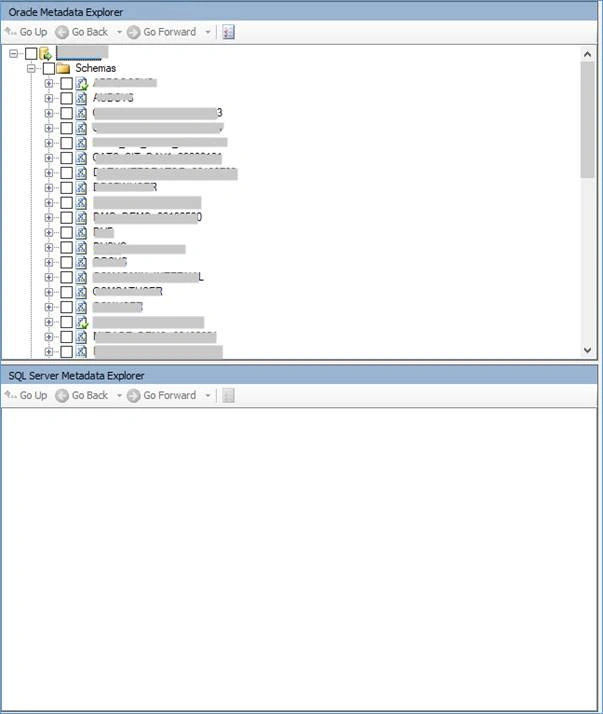
Step 4
Connect Target SQL Database
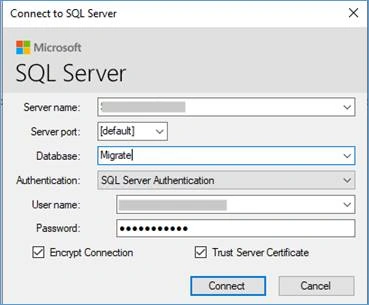
Next, we need to connect target database

Give the required target SQL Server details
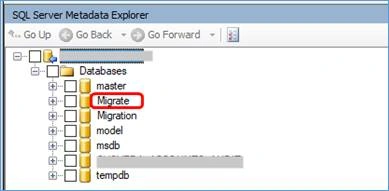
You can see the SQL server databases.
Step 5
Create a report for analyzing the migration process.
In the next step, click create report.
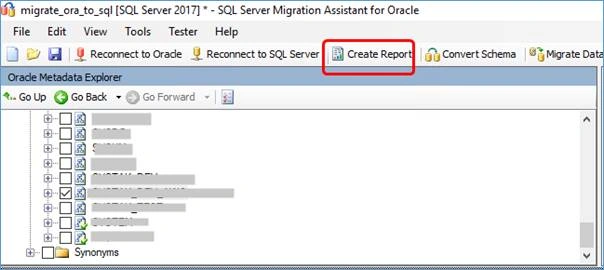
After clicking create report you can see the output section, it was processing.

After the process completes, you can see the report.
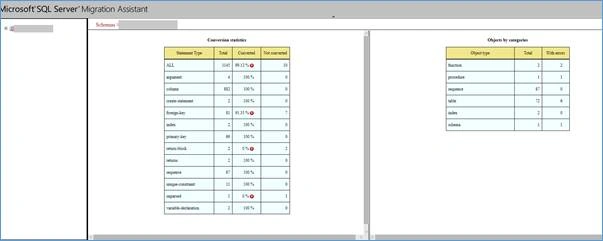
You can see the output:

Step 6
Convert Oracle schema to MS SQL Database which we created. (Select schema in oracle and select SQL server database.
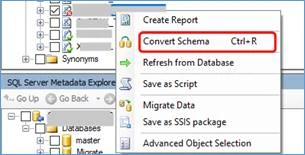
Next step right click - schema which you want convert - Click Convert Schema.
Step 7
Synchronize converted data with Oracle database
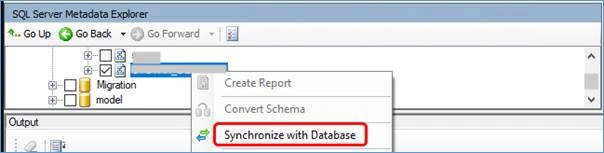
After Conversion - Right Click the targeted database and - click synchronize with database.
Now you can see in the below image, you can check all datatypes, tables of the source and click OK to synchronize.
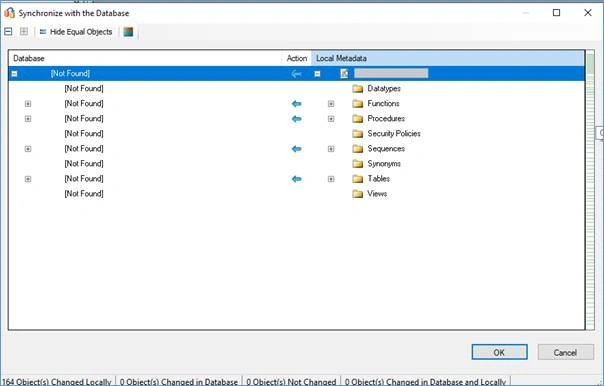
You can see the output of synchronization operation has been completed.

Step 9
Migrate data from oracle to SQL server
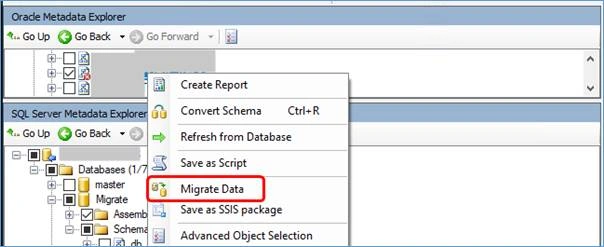
Right click the source schema and click Migrate data.
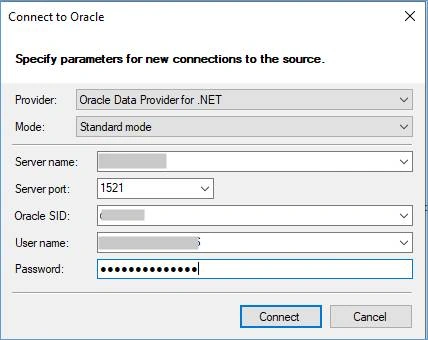
It will ask the user name/password to start the migration.
After completion you can save the report for further comparison and changing some datatypes formats.
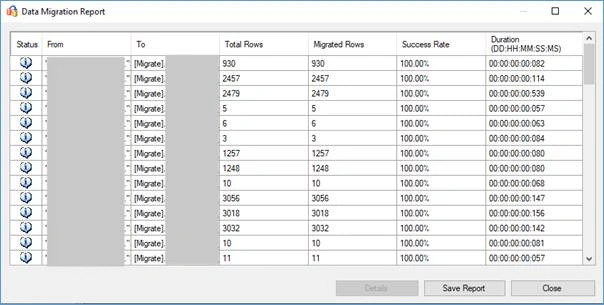
You can see that all tables are migrated successfully!!

I hope this article has been helpful in your tech advancement.
If this article was useful for you, please like and share.
Thank you for reading this article. Have a nice day.
Join the conversation! Your thoughts help the community grow.