

Canvas Basics in Unity UI
The Canvas is the main building block for Unity’s UI system. It creates the shapes (called meshes) for all the UI elements placed on it and sends them to the GPU to display them on screen.
However, creating and updating these meshes can be slow and costly, especially if done too often.
If something changes in Canvas, Unity has to recheck everything on it to figure out the best way to draw it again. This takes up CPU time.
Many developers put all their UI in one big Canvas with lots of elements. Then, even a small change (like updating a score) can cause a big slowdown.
Better Performance Tip: Split Your Canvases
Each Canvas acts separately from others, so splitting your UI across multiple Canvases can make things faster.
You can even nest Canvases inside each other. This helps organize large UIs without affecting performance too much. Each nested Canvas handles its drawing and updates.
Tip: Group elements based on how often they change.
- Keep static elements (that don’t change) on one Canvas.
- Put dynamic elements (that change often) on smaller, separate Canvases.
- Make sure UI elements on each Canvas share the same Z position, material, and textures for better batching.
Limit Graphic Raycasters
The Graphic Raycaster handles clicks and touches on your UI. But if misused, it can slow things down.
- It checks which UI elements were clicked or touched.
- It does this check for every element marked as "interactive" on a Canvas.
Tips to optimize
- Only use Graphic Raycasters on Canvases that need input.
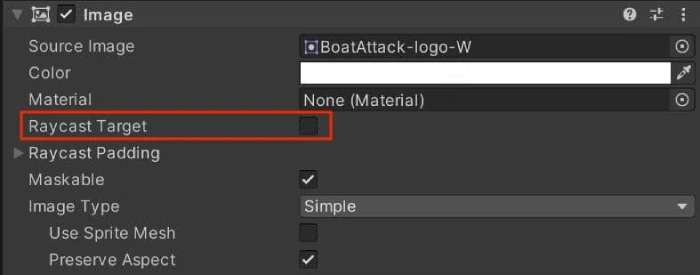
- Turn off Raycast Target for UI elements that don't need to be clicked (like decorative images or labels).
- On buttons, turn off Raycast Target for child text/images.
Caution: If using World Space or Camera mode on your Canvas, Graphic Raycaster might also check against physics objects, which is slower. Use this only if necessary.
Avoid Heavy UI Elements
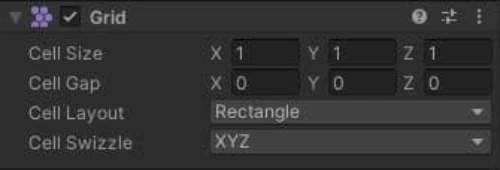
Big lists, grid views, and many stacked UI elements (like in a card game) cause overdraw, which slows performance.
Tips to optimize
- Don’t stack too many transparent UI elements on top of each other.
- Try combining UI layers at runtime to reduce draw calls.
- For large item lists (like inventory), reuse a small number of UI items instead of creating one for each.
Avoid Too Many Layout Groups
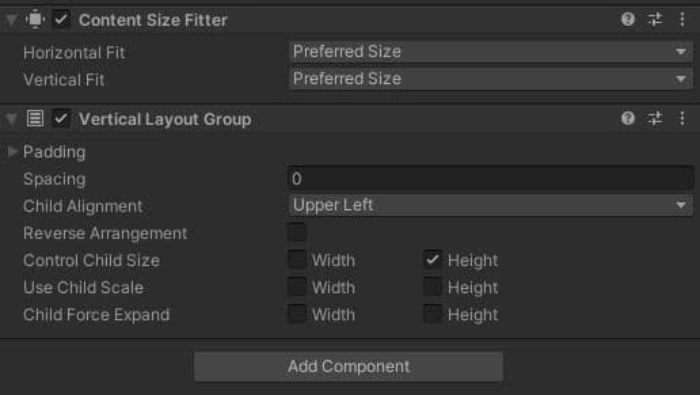
Unity’s layout groups (like Vertical/Horizontal Layout) recalculate when anything changes.
Each update checks up the hierarchy, causing slowdowns if you nest layouts deeply.
Tips to optimize
- Use anchors and custom layout code instead of built-in layout groups.
- For UIs that change often, calculate layout manually and only when needed.
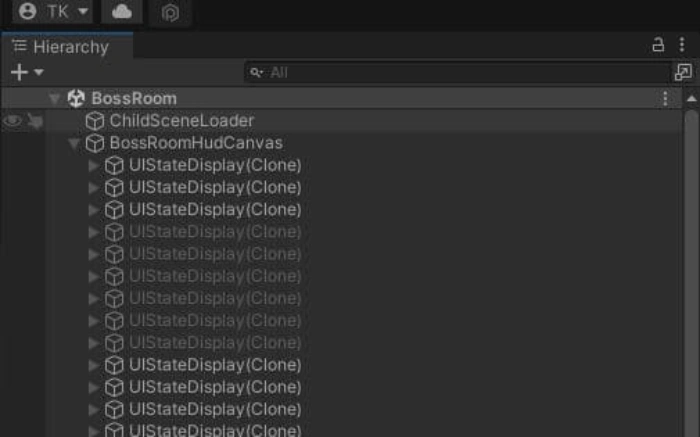
Pool UI Objects the Right Way
Pooling UI objects is great, but if done wrong, it can still cause performance issues.
Problem: Reparenting before disabling an object makes Unity update the whole UI unnecessarily.
Fix
- First, disable, then reparent the object into the pool.
- When reusing it, first reparent, update the content, then enable it.
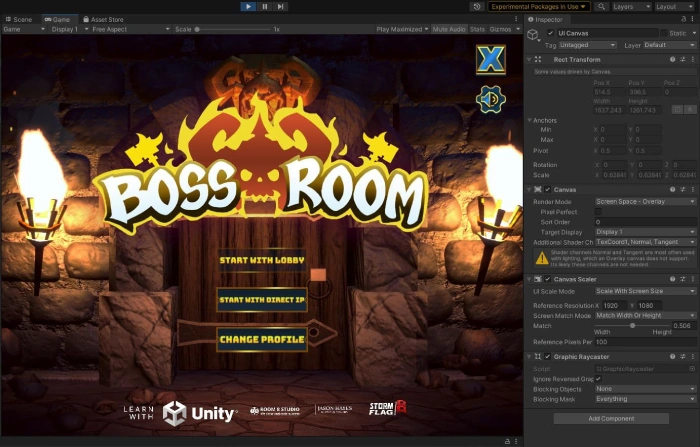
How to Properly Hide a Canvas?
You may want to hide a UI without removing it.
Best way: Disable the Canvas component (not the whole GameObject).
- It stops drawing but keeps the data in memory, so showing it again is fast.
- It also avoids triggering OnEnable/OnDisable on all child objects.
If any child objects have heavy update code, disable them too.
Using Animators on UI? Be Careful
Animators cause updates every frame, even when nothing changes.
Tips
- Use Animator only on UI elements that constantly change.
- For one-time or occasional changes, use scripts or tweening tools instead. (Plenty are available in the Asset Store.)
Handling Fullscreen UI
When showing menus like a pause or start screen that cover everything else, Unity still renders the background scene – wasting performance.
Fixes
- Disable the main camera or hidden Canvases behind the menu.
- Lower Application.targetFrameRate during menus to save battery and CPU.
Conclusion
Optimizing your Unity game is a continuous process that involves balancing visual fidelity and performance. By following the practices above, especially those involving UI canvas separation, batching, and profiling tools, you’ll be able to build games that run smoothly on everything from low-end Android phones to high-end VR headsets.
All Image References: Unity Learn
Join the conversation! Your thoughts help the community grow.