

Introduction
I've come across a requirement, on a number of occasions, to produce a Windows application that interacts with a remote web server. The Windows application may be dealing with a web-service, or simply automating form input or screen scraping - what is common, is that there is one side of the equation that is web based and therefore, can potentially handle multiple requests, allowing us to complete the process faster. This article is a project that consists of two parts: a threaded Windows client, and a simple MVC application that it interacts with. As not all remote services allow multiple connections, the project gives the option for running the process in sequential or parallel (threaded) mode. The source code of both projects is attached.
Background
The main concept being introduced in this article is Windows Multi-threading. The approach I have taken is one of many open to developers.
The technologies being demonstrated here are.
- using an HTTPClient in async mode in a thread.
- XML messages.
- interacting with a Windows application main operating thread to update objects on the user interface in a thread-safe manner.
The threading concept is as follows.
- Create a thread and set its various attributes
- When the thread completes its work, have it call back into a work-completed method in the main form thread and update the user as required.
Setting things up
The simple server - An MVC app
In order to test our work, and not trigger a denial of service warning (large number of multiple threads can do that!), we will create a test harness. In this case, a simple MVC application will suffice. We will create a controller method GetXML that takes in an ID sent by the Windows application, and returns an XML response.
The GetXML method is called like this: http://localhost:4174/home/GetXML?ItemID=23.
And returns output XML like this.
- <response type="response-out" timestamp="20130804132059">
- <itemid>23</itemid>
- <result>0</result>
- </response>
NB: for the purposes of this test, a "result" of 0 = failure, 1 = success.
Create a new MVC app, and add a new controller GetXML. We are also going to put a small "sleep" command to slow things down a bit and emulate delay over the very busy Interwebs.
- public ContentResult GetXML()
- {
- // assign post parameters to variables
- string ReceivedID = Request.Params["ItemID"];
- // generate a random sleep time in milli-seconds
- Random rnd = new Random();
- // multiplier ensures we have good breaks between sleeps
- // note that with Random, the upper bound is exclusive so this really means 1..5
- int SleepTime = rnd.Next(1, 2) * 1000;
- // generate XML string to send back
- System.Threading.Thread.Sleep(SleepTime);
- return Content(TestModel.GetXMLResponse(ReceivedID), "text/xml");
- }
- public static string GetXMLResponse(string ItemID)
- {
- // generate a random result code, 0= fail, 1 = success
- // note that with Random, the upper bound is exclusive so this really means 1..2
- Random rnd = new Random();
- string ResultCode = rnd.Next(0, 2).ToString();
- string TimeStamp = GetTimeStamp();
- // create an XML document to send as response
- XmlDocument doc = new XmlDocument();
- // add root node and some attributes
- XmlNode rootNode = doc.CreateElement("response");
- XmlAttribute attr = doc.CreateAttribute("type");
- attr.Value = "response-out";
- rootNode.Attributes.Append(attr);
- attr = doc.CreateAttribute("timestamp");
- attr.Value = TimeStamp;
- rootNode.Attributes.Append(attr);
- doc.AppendChild(rootNode);
- // add child to root node sending back the item ID
- XmlNode dataNode = doc.CreateElement("itemid");
- dataNode.InnerText = ItemID;
- rootNode.AppendChild(dataNode);
- // add our random result
- dataNode = doc.CreateElement("result");
- dataNode.InnerText = ResultCode;
- rootNode.AppendChild(dataNode);
- // send back xml
- return doc.OuterXml;
- }
The threaded client - A Windows form app
The client is visually quite simple. It contains two edit boxes for input variables, a "listview" to show the user what is happening, and a "checkbox" to tell the program if it should run in sequential or threaded mode.
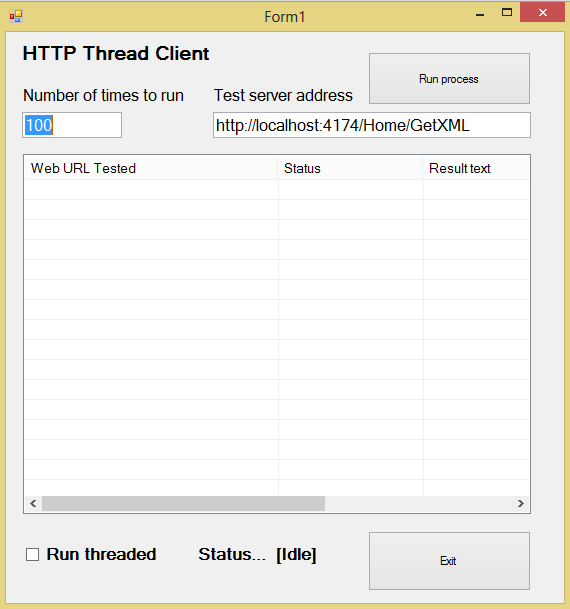
We will go through the overall logic first by examining the sequential process, and then look at the threading part. At the top of the form class, we keep track of some variables.
- private int RunningThreadCount;
- private int RunTimes;
- private int TimeStart;
- TimeStart = System.Environment.TickCount;
- InitProcess();
- if (chkRunThreaded.Checked)
- RunProcessThreaded();
- else RunProcess();
- // set up some default values
- public void InitProcess()
- {
- btnExit.Enabled = false;
- btnRunProcess.Enabled = false;
- chkRunThreaded.Enabled = false;
- RunTimes = int.Parse(edtTimesToRun.Text);
- FillListView();
- RunningThreadCount = 0;
- }
- // fill the ListView with the count items
- public void FillListView()
- {
- lvMain.Items.Clear();
- for (int i = 0; i < RunTimes; i++)
- {
- ListViewItem itm = new ListViewItem();
- itm.Text = (i+1).ToString();
- itm.SubItems.Add("Pending");
- itm.SubItems.Add("-");
- itm.SubItems.Add("-");
- lvMain.Items.Add(itm);
- }
- }
The RunProcess method has a keyword of async - this is important as we are using the await keyword within the RunProcess method. The important part of this code is SendWebRequest - this takes the input, queries the web server, and returns a value that we use to update the UI for the user.
- public async void RunProcess()
- {
- for (int i = 0; i < RunTimes; i++) {
- updateStatusLabel("Processing: " + (i + 1).ToString() +
- "/" + RunTimes.ToString());
- lvMain.Items[i].Selected = true;
- lvMain.Items[i].EnsureVisible();
- lvMain.Items[i].SubItems[1].Text = "Processing...";
- SimpleObj result = await Shared.SendWebRequest(
- new SimpleObj()
- { ItemID = i.ToString(),
- WebURL = edtTestServer.Text}
- );
- lvMain.Items[i].SubItems[1].Text = result.ResultCode;
- if (result.ResultCode == "ERR")
- lvMain.Items[i].SubItems[2].Text = result.Message;
- }
- CleanUp();
- }
- public class SimpleObj
- {
- public string WebURL; // web address to send post to
- public string ResultCode; // 0 = failure, 1 = success
- // Used to store the html received back from our HTTPClient request
- public string XMLData;
- public string Message; // What we will show back to the user as response
- public string ItemID;
- }
- // Used to store the ListView item ID/index so
- // we can update it when the thread completes
In the SendWebRequest method, we set up an HTTPClient, calling its PostAsync method. Here, we are telling the HTTPClient to perform a "POST" action against the Server. If you have done web programming before, you will recall setting up a form,
- <form action="somedomain.com/someaction?somevalue=134" method="post">
- <input type="text" id="ItemID">
- <input type="submit" value="send">
- </form>
- HttpResponseMessage response = await httpClient.PostAsync(rec.WebURL, content);
- public static async Task<SimpleObj> SendWebRequest(SimpleObj rec)
- {
- SimpleObj rslt = new SimpleObj();
- rslt = rec;
- var httpClient = new HttpClient();
- // we send the server the ItemID
- StringContent content = new StringContent(rec.ItemID);
- try
- {
- HttpResponseMessage response =
- await httpClient.PostAsync(rec.WebURL, content);
- if (response.IsSuccessStatusCode)
- {
- HttpContent stream = response.Content;
- Task<string> data = stream.ReadAsStringAsync();
- rslt.XMLData = data.Result.ToString();
- XmlDocument doc = new XmlDocument();
- doc.LoadXml(rslt.XMLData);
- XmlNode resultNode = doc.SelectSingleNode("response");
- string resultStatus = resultNode.InnerText;
- if (resultStatus == "1")
- rslt.ResultCode = "OK";
- else if (resultStatus == "0")
- rslt.ResultCode = "ERR";
- rslt.Message = doc.InnerXml;
- }
- }
- catch (Exception ex)
- {
- rslt.ResultCode = "ERR";
- rslt.Message = "Connection error: " + ex.Message;
- }
- return rslt;
- }
So, that is the basic sequential work flow. Take a list of work items, iterate through them in sequence, call the web server, and parse back the XML response.
As the processes are run sequentially, the overall time taken to complete can be high.
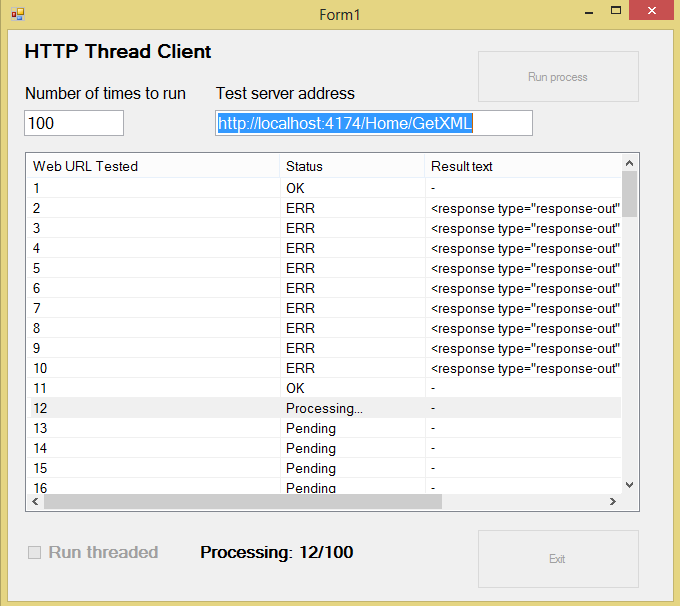

Now, let's run through the RunProcessThread code and see the difference.
- public void RunProcessThreaded()
- {
- updateStatusLabel("Status: threaded mode - watch thread count and list status");
- lblThreadCount.Visible = true;
- for (int i = 0; i < RunTimes; i++)
- {
- updateStatusLabel("Processing: " + (i + 1).ToString() + "/" + RunTimes.ToString());
- lvMain.Items[i].Selected = true;
- lvMain.Items[i].SubItems[1].Text = "Processing...";
- SimpleObj rec = new SimpleObj() { ItemID = i.ToString(), WebURL = edtTestServer.Text };
- CreateWorkThread(rec);
- RunningThreadCount++;
- UpdateThreadCount();
- }
- }
- public void CreateWorkThread(SimpleObj rec){
- ThreadWorker item = new ThreadWorker(rec);
- //subscribe to be notified when result is ready
- item.Completed += WorkThread_Completed;
- item.DoWork();
- }
- //handler method to run when work has completed
- private void WorkThread_Completed(object sender, WorkItemCompletedEventArgs e)
- {
- lvMain.Items[int.Parse(e.Result.ItemID)].SubItems[1].Text = e.Result.ResultCode;
- if (e.Result.ResultCode == "ERR")
- lvMain.Items[int.Parse(e.Result.ItemID)].SubItems[2].Text = e.Result.Message;
- RunningThreadCount--;
- UpdateThreadCount();
- if (RunningThreadCount == 0)
- {
- CleanUp();
- }
- }
The class has some private members and a public event.
- class ThreadWorker
- {
- private AsyncOperation op; // async operation representing the work item
- private SimpleObj ARec; // variable to store the request and response details
- public event EventHandler<WorkItemCompletedEventArgs> Completed;
- //event handler to be run when work has completed with a result
- // constructor for the thread. Takes param ID index of the Listview to keep track of.
- public ThreadWorker(SimpleObj Rec)
- {
- ARec = Rec;
- }
- }
- public void DoWork()
- {
- //get new async op object calling forms sync context
- this.op = AsyncOperationManager.CreateOperation(null);
- //queue work so a thread from the thread pool can pick it up and execute it
- ThreadPool.QueueUserWorkItem((o) => this.PerformWork(ARec));
- }
- private void PostCompleted() //SimpleObj result
- {
- // call OnCompleted, passing in the SimpleObj result to it,
- // the lambda passed into this method is invoked in the context of the form UI
- op.PostOperationCompleted((o) =>
- this.OnCompleted(new WorkItemCompletedEventArgs(ARec)), ARec);
- }
- protected virtual void OnCompleted(WorkItemCompletedEventArgs Args)
- {
- //raise the Completed event in the context of the form
- EventHandler<WorkItemCompletedEventArgs> temp = Completed;
- if (temp != null)
- {
- temp.Invoke(this, Args);
- }
- }
- //handler method to run when work has completed
- private void WorkThread_Completed(object sender, WorkItemCompletedEventArgs e)
- {
- lvMain.Items[int.Parse(e.Result.ItemID)].SubItems[1].Text = e.Result.ResultCode;
- if (e.Result.ResultCode == "ERR")
- lvMain.Items[int.Parse(e.Result.ItemID)].SubItems[2].Text = e.Result.Message;
- RunningThreadCount--;
- UpdateThreadCount();
- if (RunningThreadCount == 0)
- {
- CleanUp();
- }
- }
And that is it. As you can see, running threads adds a bit more code, but dramatically improves performance.


As I stated at the start of this article, this is but one way of handling a threaded application. Thread pools have their advantages and disadvantages, you need to weigh up your goals and granular needs against the ease of use. If you are interested in this area, you should also look at Background worker and if you want to harness the power that is in multi-core CPUs while threading the Task Parallel Library is a great way to go.
(PS - If you found this article useful or downloaded the code, please let me know by giving a rating below!)
Prakash ChasiyaPosted May 28, 2018, 8:09 AM
Really helpful to me!! Thanks for sharing.
Jaco ZwartsPosted Jan 16, 2017, 1:57 AM
Thank you for sharing, good read!