
This article describes the use of the Month/Day Pattern in LightSwitch Visual Studio 2012.
Month/Day ("M" or "m") Format Specifier
The "M" or "m" Standard Format Specifier represents a custom date and time format string that is specified by the current DateTimeFormatInfo.MonthDayPattern property.
Note: The custom format string is "MMMM dd".
Use the following procedure to create a sample showing how to use the Month/Day Format Specifier on a Screen.
Step 1
Open the LightSwitch Application in Visual Studio 2012 and go to the Solution Explorer.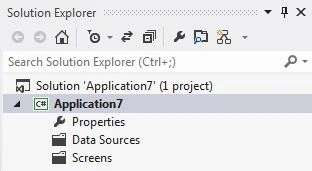
Right-click on "Data Sources" and choose "Add Table".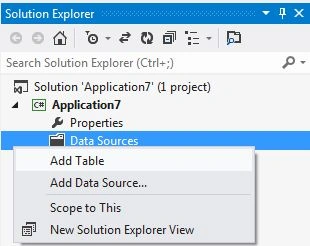
The table appears in the Table Designer window. Insert the records in the following table.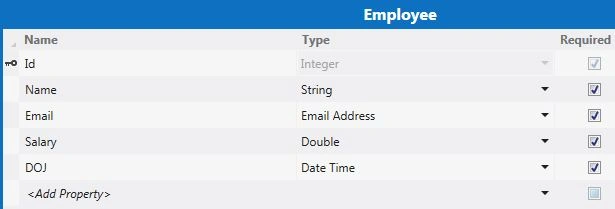
Step 2
Now once again go to the Solution Explorer, right-click on Screens and choose "Add Screen".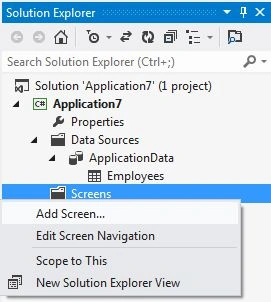
The Add New Screen dialog box appears. Select the "Editable Grid Screen" from the Screen Template, inside screen information, choose "Employee" under screen data and provide some name to the Screen and click the "OK" button.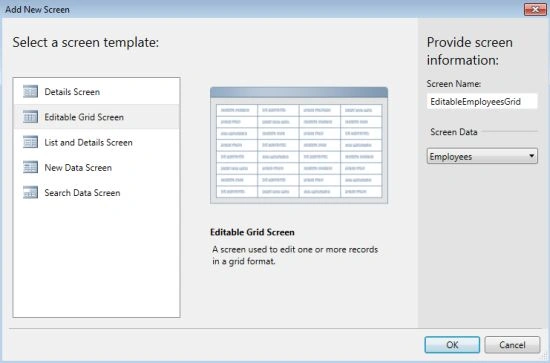
The Screen Designer appears as shown below.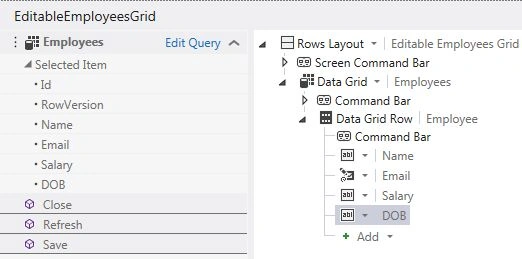
Press F5 to run the application. Provide the information. We will get the following output. 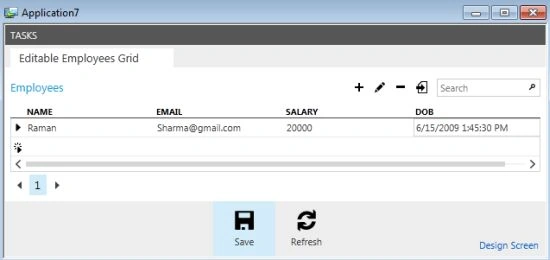
Step 3
Now stop debugging the application. From the Table Designer select the "DOB" record as shown in the figure below.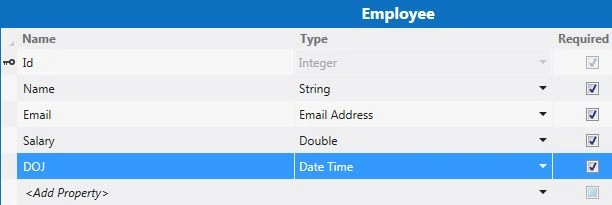
Then go to the Format Pattern of the Property window in the Table Designer and either you can enter "M" in the format pattern for Month/Day Format Specifier.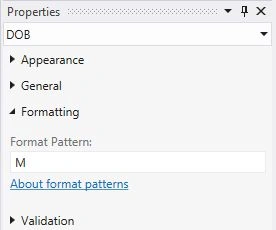
Or you can enter "m" in the format pattern property window as shown below.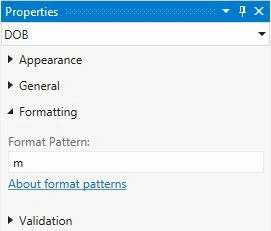
Once again press F5 to run the application. This time we will get the following output.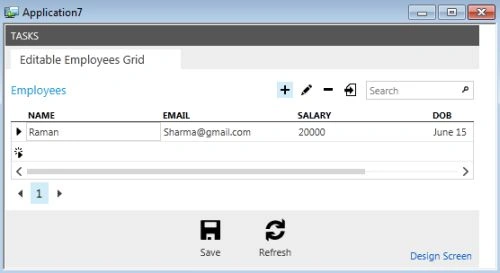

Join the conversation! Your thoughts help the community grow.