Introduction
In this article, we are going to see the second most impartment part of the ADO.NET entity framework 4.0. The
first part is the traditional way of developing applications like, create Database schema and then the creation of entity class follows. In this approach, any changes to the schema after developing the conceptual entity classes need to modify, even though it is quite simple to update the entity class from the schema, in case of big modifications, due to business change, it is a time-consuming process to synchronize the UX code and the entity class code.
In the Model first approach, we will be creating the EDM, conceptual model, first with respect to the business, and keep evolute the EDM till it fits for the business and then generate the database schema based on the EDM. At least it makes it easier to limit the huge changes. We will see what limitations we have in this approach, everything comes with a limitation.
We will be learning the following
- Create an Empty Model.
- EDM Designer.
- Creating Entities.
- Creating Associations and Relationships between Entities.
- Generating Schema SQL and Creating Database Schema.
- Performing CRUD Operations on Bands Entity
Create Empty Model
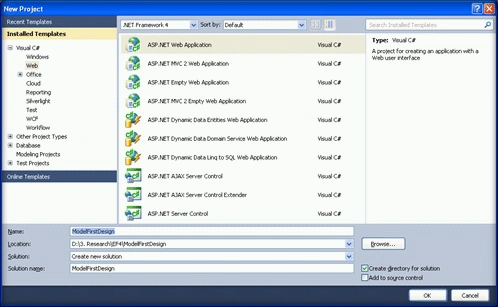
1. Create a solution called ModelFirstDesign.sln. I am using ASP.NET Web application template for this sample, VSTS 2010 Ultimate trail version.
2. Add a new class library project to the solution and name it ProjectTeam.
As of now, our primary focus is on creating entity class and the database for the
same.
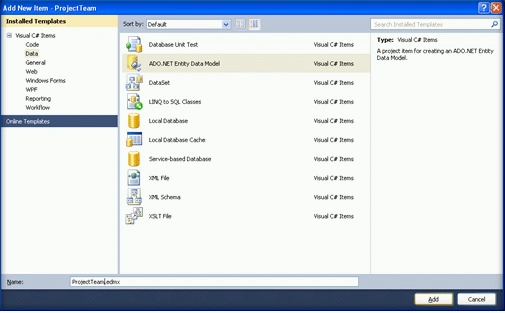
3. Add an ADO.NET Entity model item and name it as ProjectTeam.edm
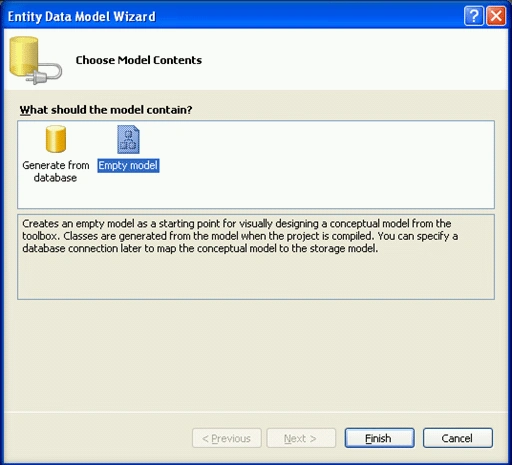
4. In the wizard select the Empty model and click on finish.
EDM Designer
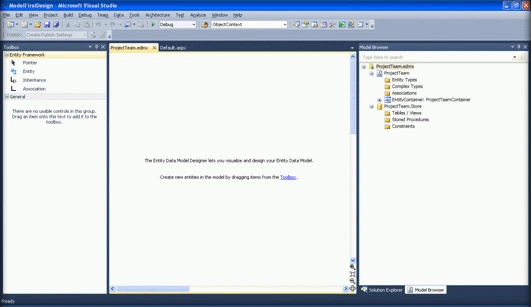
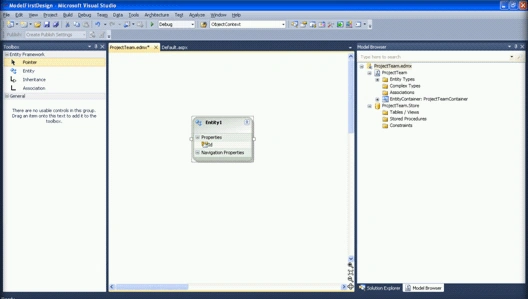
5. We will examine the empty mode and its toolbox that helps us in creating the EDM entities, entity associations, and Inheritance.
- Entity: Allows you to design and create an Entity.
-
Association: Lets you create an association (or relationship) between two
entities.
- Inheritance: Lets you create an Inheritance relationship between two
entities.
Creating Entities
6. Now we will create the entities in the model.
- The following are the entities we will be creating in the EDM.
- ServiceLine: This contains the service line details that a resource can belong to.
- ProjectTeam: This entity will contain individual team types. Like Dev, Test, DB, and Support teams
- ResourceDetails: This entity will contain the individual member details and which ServiceLine he/she belongs to and ProjectTeam
- Brand: This entity tracks the resource brand.
- Creating individual entities. Drag an entity instance from the toolbox. By default, each entity should have an identity column to identity uniquely in the object cache. Try to learn about the ObjectStateManager, ObjectStateEntity, and EntityState which is currently out of scope here.
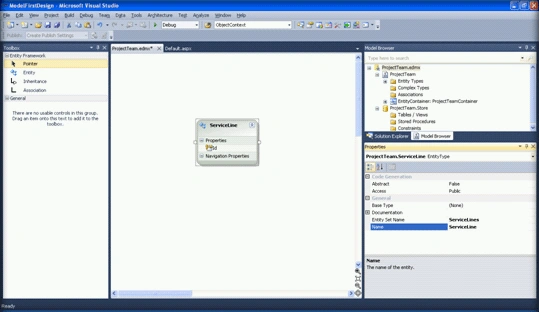
- By selecting the Entity1 properties change the name of the Entity to ServiceLine
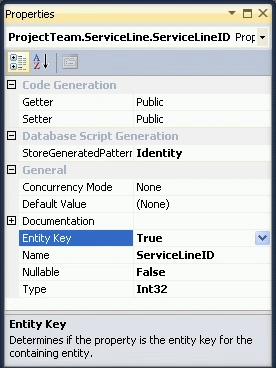
- By selecting the Id property change the name to ServiceLineID. Since this id we need as primary key make sure that the following properties set
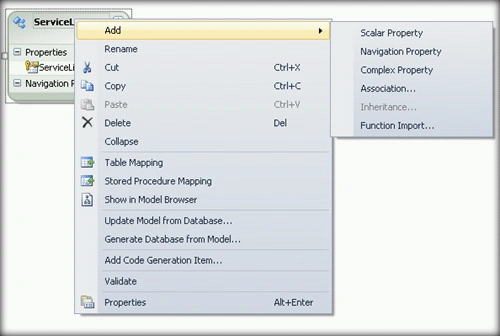
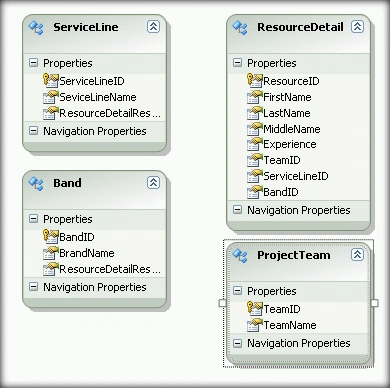
- By right-clicking on the Entity add the following scalar properties. Also, repeat the same steps for all the Entities in the table given below. Make sure you are not creating the for now.
ServiceLine Entity
| Column Name |
Data Type |
Description |
| ServiceLineID |
Int32 |
Unique identifier |
| SeviceLineName |
String |
The Service line name |
| Column Name |
Data Type |
Description |
| BrandID |
Int32 |
Unique identifier |
| BrandName |
String |
The brand name of the member |
| Column Name |
Data Type |
Description |
| TeamID |
Int32 |
Unique identifier |
| TeamName |
String |
Name project team |
| Column Name |
Data Type |
Description |
| ResourceID |
Int32 |
Unique identifier |
| FirstName |
String |
Resource First Name |
| LastName |
String |
Resource Last Name |
| MiddleName |
String |
Resource Middle Name |
| Experience |
Int32 |
The resource experience |
So for your model should look like bellow
Creating Associations and Relationships between Entities
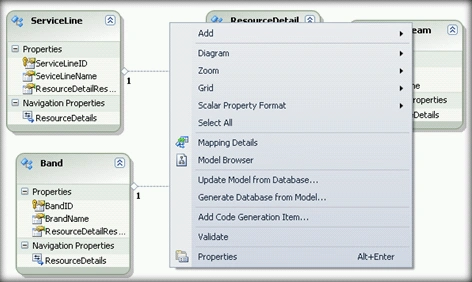
- To create a relationship with between the table. Click on the Association in the toolbox. Drag the ServiceLineID from ServiceLine to ResourceDetail entity and repeat the same for all of them.
Generating Schema SQL and Creating Database Schema
Before actually we create a Database Script from the model. We will need to create an empty database where we need to create our schema. Create a database called ProjectResource in the SQL Server 2008 (which I am using is EXPRESS edition)
- Right-click on the designer and choose 'Generate Database from Model'.
- Create a connection to the project that we created, and click next.
- In the next step, the wizard created the DDL for the schema. Click on the finish button which will create a ProjectTeam.edmx.sql file to the project.
- Open the ProjectTeam.edmx.sql file, examine the file will have the following sections
- Create all tables
- Creating all primary key constraints
- Creating all FOREIGN KEY constraints
-
-
- for SQL Server 2005, 2008, and Azure
-
-
-
-
-
- SET QUOTED_IDENTIFIER OFF;
- GO
- USE[ProjectResource];
- GO
- IF SCHEMA_ID(N 'dbo') IS NULL EXECUTE(N 'CREATE SCHEMA [dbo]');
- GO
-
-
-
-
-
-
-
-
-
-
-
-
-
-
- CREATE TABLE[dbo]. [ServiceLines](
- [ServiceLineId] int IDENTITY(1, 1) NOT NULL,
- [ServiceLineName] nvarchar(max) NOT NULL
- );
- GO
-
-
- CREATE TABLE[dbo]. [ResourceDetails](
- [ResourceId] int IDENTITY(1, 1) NOT NULL,
- [FirestName] nvarchar(max) NOT NULL,
- [LasteName] nvarchar(max) NOT NULL,
- [Experience] int NOT NULL,
- [MiddleName] nvarchar(max) NOT NULL,
- [ServiceLine_ServiceLineId] int NOT NULL,
- [ProjectTeam_TeamId] int NOT NULL,
- [Band_BandId] int NOT NULL
- );
- GO
-
-
- CREATE TABLE[dbo]. [ProjectTeams](
- [TeamId] int IDENTITY(1, 1) NOT NULL,
- [TeamName] nvarchar(max) NOT NULL
- );
- GO
-
-
- CREATE TABLE[dbo]. [Bands](
- [BandId] int IDENTITY(1, 1) NOT NULL,
- [BandName] nvarchar(max) NOT NULL
- );
- GO
-
-
-
-
-
-
- ALTER TABLE[dbo]. [ServiceLines]
- ADD CONSTRAINT[PK_ServiceLines]
- PRIMARY KEY CLUSTERED([ServiceLineId] ASC);
- GO
-
-
- ALTER TABLE[dbo]. [ResourceDetails]
- ADD CONSTRAINT[PK_ResourceDetails]
- PRIMARY KEY CLUSTERED([ResourceId] ASC);
- GO
-
-
- ALTER TABLE[dbo]. [ProjectTeams]
- ADD CONSTRAINT[PK_ProjectTeams]
- PRIMARY KEY CLUSTERED([TeamId] ASC);
- GO
-
-
- ALTER TABLE[dbo]. [Bands]
- ADD CONSTRAINT[PK_Bands]
- PRIMARY KEY CLUSTERED([BandId] ASC);
- GO
-
-
-
-
-
-
- ALTER TABLE[dbo]. [ResourceDetails]
- ADD CONSTRAINT[FK_ServiceLineResourceDetail]
- FOREIGN KEY([ServiceLine_ServiceLineId])
- REFERENCES[dbo]. [ServiceLines]
- ([ServiceLineId])
- ON DELETE NO ACTION ON UPDATE NO ACTION;
-
-
- for FOREIGN KEY 'FK_ServiceLineResourceDetail'
- CREATE INDEX[IX_FK_ServiceLineResourceDetail]
- ON[dbo]. [ResourceDetails]
- ([ServiceLine_ServiceLineId]);
- GO
-
-
- ALTER TABLE[dbo]. [ResourceDetails]
- ADD CONSTRAINT[FK_ProjectTeamResourceDetail]
- FOREIGN KEY([ProjectTeam_TeamId])
- REFERENCES[dbo]. [ProjectTeams]
- ([TeamId])
- ON DELETE NO ACTION ON UPDATE NO ACTION;
-
-
- for FOREIGN KEY 'FK_ProjectTeamResourceDetail'
- CREATE INDEX[IX_FK_ProjectTeamResourceDetail]
- ON[dbo]. [ResourceDetails]
- ([ProjectTeam_TeamId]);
- GO
-
-
- ALTER TABLE[dbo]. [ResourceDetails]
- ADD CONSTRAINT[FK_BandResourceDetail]
- FOREIGN KEY([Band_BandId])
- REFERENCES[dbo]. [Bands]
- ([BandId])
- ON DELETE NO ACTION ON UPDATE NO ACTION;
-
-
- for FOREIGN KEY 'FK_BandResourceDetail'
- CREATE INDEX[IX_FK_BandResourceDetail]
- ON[dbo]. [ResourceDetails]
- ([Band_BandId]);
- GO
- Open the file and right-click on the file and click on the Connection -> Connect, which will open the SQL Server "Connect to Database Engine "window and select the server instance and click on connect.
- Here we need to perform two steps. First, verify the syntax and execute SQL
- Right-click on the opened file and select Validate SQL Syntax. Make sure that syntax validation successful.
- Now click on the Execute SQL.
- Go back to your SQL Server database and verify the all tables are created.
- One more thing that we have to confirm is that relationships. Create a new database diagram and add all the tables to verify the same.
- By default, EDM provides only Create Operation. Select Band entity, right-click, and select 'Table Mapping' notice that what is the default.
Performing CRUD Operations on Bands Entity
- Create CreateBands, SelectBands, UpdateBands, and DeleteBands Procedures in the Project Resources DataBase.
- CreateBands
- CREATE PROCEDURE CreateBands
- @BandName nvarchar(max)
- AS
- BEGIN
-
- BEGIN TRY
- BEGIN TRANSACTION;
-
- INSERT INTO ProjectResource.dbo.Bands
- ( (
- [BandName]
- ) )
- VALUES
- " style="line-height: normal; margin: 0in 0in 0.0001pt 1in;"> (
- @BandName
- ) ) ) ) )
- COMMIT TRANSACTION;
- END TRY
- BEGIN CATCH
- IF @@TRANCOUNT > 0
- BEGIN
- ROLLBACK TRANSACTION;
- END
- END CATCH;
- END
- GO
- SelectBands
- CREATE PROCEDURE [dbo].[SelectBand]
- AS
- BEGIN
- SELECT Bands.BandId, Bands.BandName
- FROM Bands
- END
-
- Go
- UpdateBands
- CREATE PROCEDURE [dbo].[UpdateBands]
- @BandId int,
- @BandName nvarchar(max)
- AS
- BEGIN
- SET NOCOUNT ON;
-
- BEGIN TRY
- BEGIN TRANSACTION;
-
- UPDATE ProjectResource.dbo.Bands SET
- [BandName] = @BandName
- WHERE [BandId] = @BandId
- COMMIT TRANSACTION;
- END TRY
- BEGIN CATCH
- IF @@TRANCOUNT > 0
- BEGIN
- ROLLBACK TRANSACTION;
- END
- END CATCH;
- END
-
- GO
- DeleteBands
- CREATE PROCEDURE DeleteBands
- @BandID int
- AS
- BEGIN
- BEGIN TRY
- BEGIN TRANSACTION;
- DELETE FROM ProjectResource.dbo.Bands
- WHERE [BandId] = @BandId
- COMMIT TRANSACTION;
- END TRY
- BEGIN CATCH
- IF @@TRANCOUNT > 0
- BEGIN
- ROLLBACK TRANSACTION;
- END
- END CATCH;
- END
- GO
- Go back to EDM and right-click on the EDM and select Update Model from Database.
- Select the newly added stored procedures and click on finish. Go to Model bowers and expand the stored procedure node. You can see the procedures added there. Do you know? Adding SP to the EDM will not change anything to our Entities until we map them to the EDM functions!!
- Select the Band Entity in the EDM; select the Stored Procedure Mapping by right-clicking on the Bands entity. Expand the <Select Insert Function> you can notice that the SP's are available for mapping.
- Now map the respective procedures to the Sp's. Make sure that DeleteBands BandId mapped to BandId under the Property column.
- Notice that we don't have a provision for mapping SelectBands procedure. For the same, we need to create Import function. So that the SelectBands function will be available through a method for querying. To do the same, right-click on the SelectBands procedure and click on Add Import Function.
- In the Add, Import Function window set the values as follows and click on Ok. Notice that SelectBands function added under Import Function.
- Compile the Solution.
- Now we will query the EDM for Bands. I have inserted some sample data from the backend.
- Add the following code to query the EDM. You can download the source code.
Since we have created our EDM with name ProjectTeam, EDM created a class ProjectTeamContainer that derives for ObjectContext. So our context becomes ProjectTeamContainer. The Import function that we have add to our solution, SelectBands, is called from the context.
- private void LoadBands() {
- var context = new ProjectTeamContainer();
- var bands = context.SelectBands();
- gvBandDetails.DataSource = bands;
- gvBandDetails.DataBind();
- }
- Add the following code to insert new Band.
- var context = new ProjectTeamContainer();
- context.AddToBands(
- new Band() {
- BandName = "Some Band"
- }
- );
- context.SaveChanges();
- Add the following code to delete the Band.
- var context = new ProjectTeamContainer();
- var band = (from mybands in context.SelectBands() where mybands.BandId == selectedBandId select mybands).First();
- context.Bands.DeleteObject(band);
- context.SaveChanges();
- Add the following code to update the bands.
- var context = new ProjectTeamContainer();
- var band = (from mybands in context.SelectBands() where mybands.BandId == selectedBandId select mybands).First();
- band.BandName = txtBandName.Text;
- context.SaveChanges();
Now you can try with the other entities.
Thanks,
Chinna Srihari


 ServiceLine Entity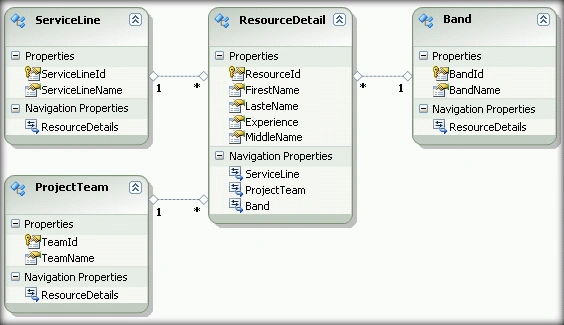




Krishna GaradPosted Feb 2, 2011, 7:16 AM
Nice man thank's for sharing. Actually i'm planning my new project with EntityModel. Thank's again.
Mahesh ChandPosted Jul 19, 2010, 8:20 AM
Well written. Thanks you for sharing.